
Apply two credit memos to one return line
If a vendor credits one returned line in two parts, the best fix is to ask the vendor to cancel both credits and issue a single credit. If that isn’t possible, enter both credits in Nexsyis using one of the methods below.
Method 1: a credit difference line on each credit memo
Section titled “Method 1: a credit difference line on each credit memo”This example uses a credit for 20.00 and a credit for 16.38.
-
Enter the first credit against the PO line as usual. See Post a credit memo.
-
Add another line for the amount of the second credit, with a Qty of -1.
-
Check that the Financial Category and Folder match the original line on the invoice.
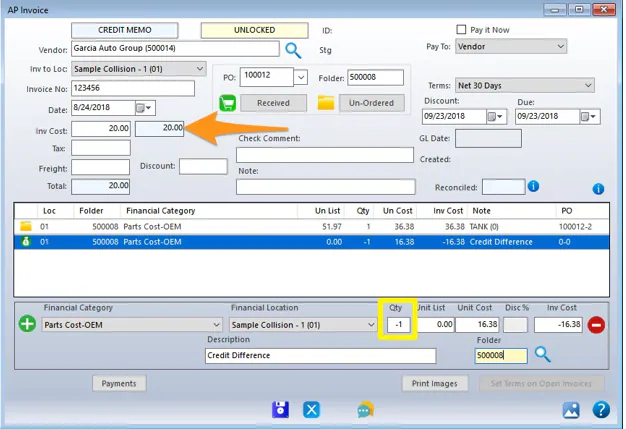
-
On the A/P Invoices screen, select New Credit.
-
Enter the second credit memo. Again, check that the Financial Category and Folder match the original lines.
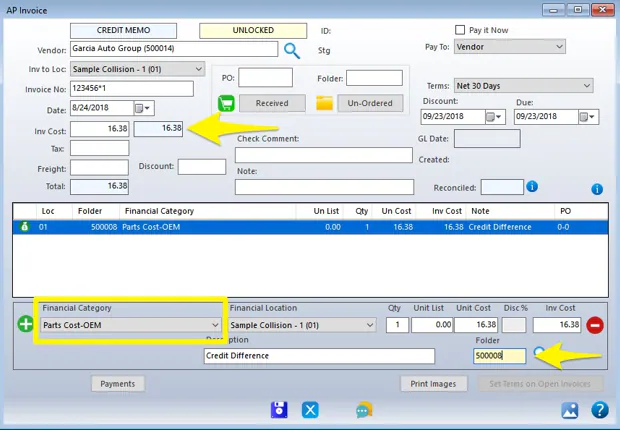
This creates two Cost, No Sale exceptions, which you can allow. As long as the financial categories on all the lines match, the part is fully credited on all financial reports.

Method 2: pass the difference through the vendor’s default category
Section titled “Method 2: pass the difference through the vendor’s default category”This example uses a credit for 50.00 and a credit for 48.49, for a total of 98.49.
-
Select the 48.49 credit and fill in the top of the credit memo.
-
Enter a distribution line for the total of both credits (98.49), using the Financial Category from the original invoice line.
-
Enter a second distribution line with a Qty of -1, the vendor’s default financial category, and an amount of 50.00. Remove the folder number from this line to avoid an exception.
The -1 reduces the credit to a net 48.49, while the first line, for the full amount, links to the original invoice.
-
Enter the second credit memo (50.00) using the vendor’s default financial category, and remove the folder number to avoid an exception.
The three lines on the two credit memos now net to the full credit. The 50.00 passes through the vendor’s default financial category.