Monitor purchase price differences
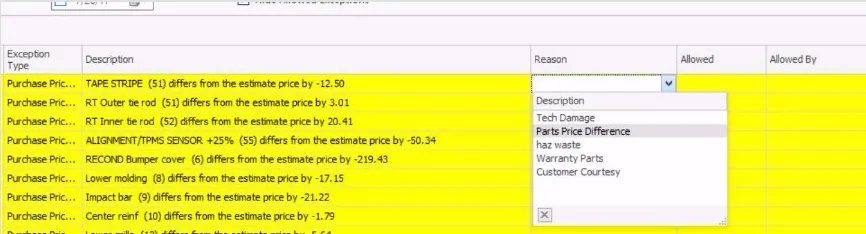
A purchase price difference (PPD) happens when a part’s price on the AP invoice is higher or lower than on the estimate. PPDs show as bright yellow lines on the Exceptions screen. Fix or allow them on each folder before the vehicle is delivered.
Find folders with price differences
Section titled “Find folders with price differences”The PPD column in Vehicle Center shows how many PPD exceptions each folder has.
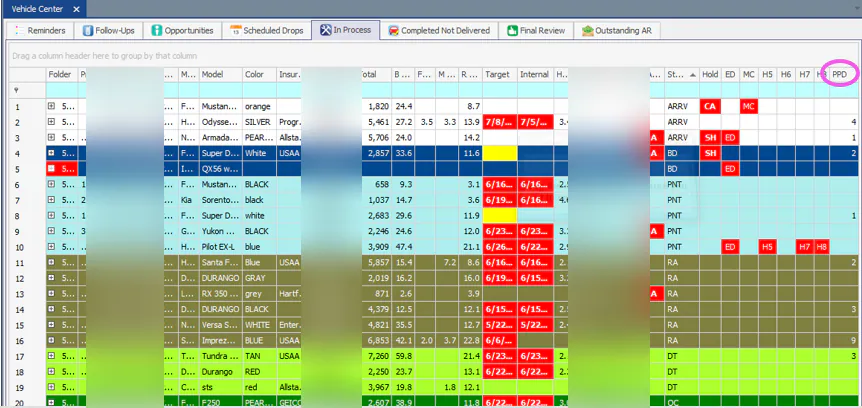
If you don’t see the column, right-click the grid header, select Column Chooser, and add PPD.
Fix a price difference
Section titled “Fix a price difference”CCC One estimates
Section titled “CCC One estimates”You can send the price changes back to CCC One.
-
Make sure the estimate isn’t locked in CCC One.
-
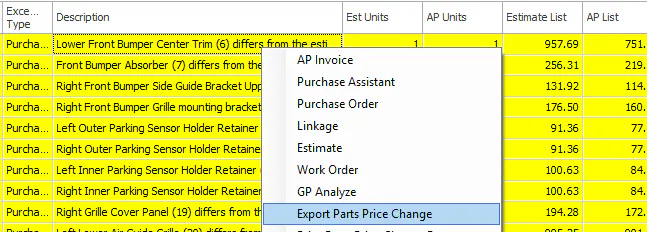
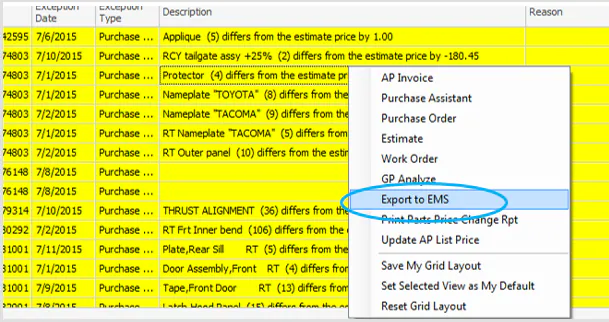
On the Exceptions screen, right-click the yellow purchase price difference line and select Export to EMS.
-
In CCC One, re-extract the estimate. Select Save to see the changes.
-
Re-import the estimate into the folder in Nexsyis.
-
Update the work order.
The exception clears.
Other estimating systems
Section titled “Other estimating systems”You can only export price changes to CCC One. For other systems:
- Correct the list price in the estimating system.
- Re-import the estimate into the folder in Nexsyis.
- Update the work order.
Allow a price difference
Section titled “Allow a price difference”If you don’t want to bill for the difference, mark it as allowed.
- Choose a Reason.
- Double-click under the Allowed column.
The exception is hidden and recorded as allowed under your user ID.