
Edit a vehicle's repair plan
Change a vehicle’s repair plan so it matches the work the vehicle really needs. A new folder starts with the stages from the default template; you can add, remove and reorder stages, or choose a different template.
Add a stage
Section titled “Add a stage”-
On the repair plan, select the stage that the new stage should come before.
-
Select the new button (green +) at the bottom of the screen.
-
In Select Stage, choose the stage.
-
Select the save button.
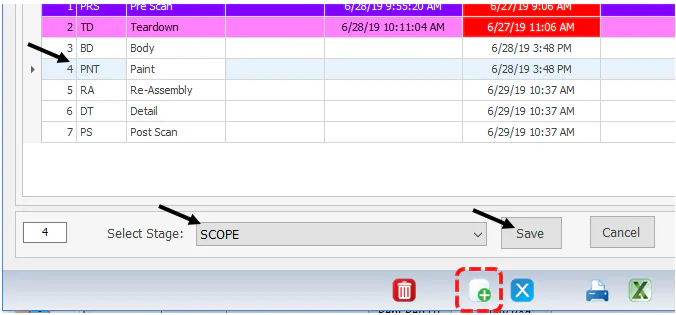
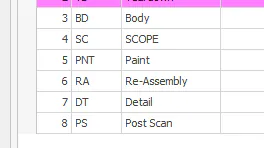
The new stage takes that sequence number, and the stages after it move down one.
Remove a stage
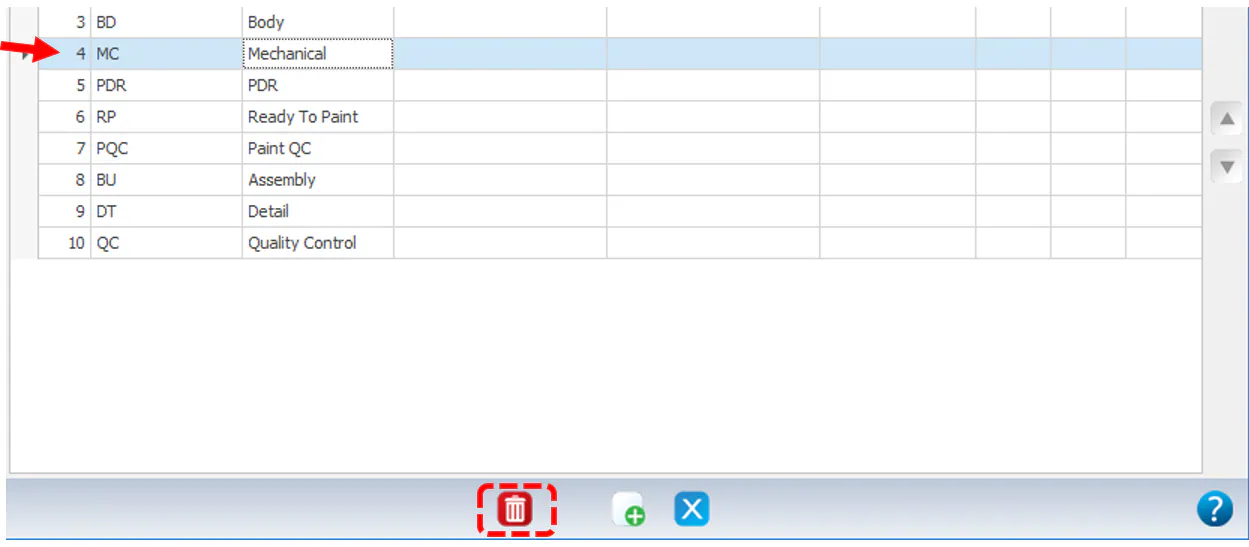
Section titled “Remove a stage”- Select the stage you want to remove.
- Select the delete button at the bottom of the screen.
Reorder stages
Section titled “Reorder stages”- Select the stage you want to move.
- Select the up or down arrow on the right side of the screen.

Change the template
Section titled “Change the template”Select a different template from the Templates drop-down. See Set up repair plan templates.
To start and complete stages, see Repair plan overview.
Before you begin
Section titled “Before you begin”You need the Allow editing in Vehicle Center for specific Folder Locations transaction permission for the folder’s location.
In NexsyisNow you can move a vehicle to its next stage from the quick menu on the Production List, or edit the full repair plan from the folder.
Move a vehicle to the next stage
Section titled “Move a vehicle to the next stage”-
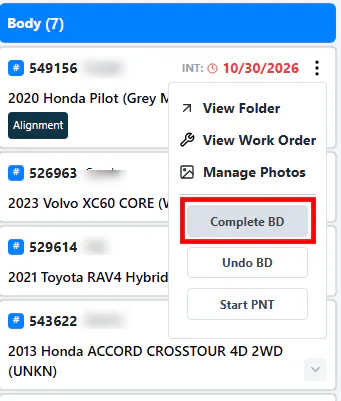
On the Production List, find the vehicle and select the three dots at its top right to open the quick menu.
-
Select Complete for the current stage, for example Complete BD.
-
Open the quick menu again and select Start for the next stage, for example Start PNT.
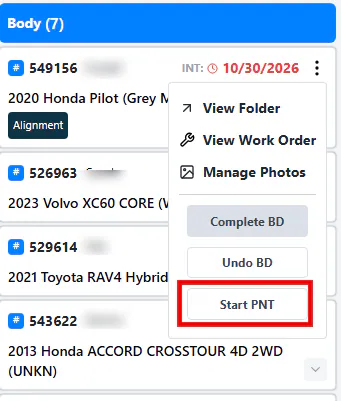
When you start a new stage, the Production List refreshes to show the change.
Edit the repair plan
Section titled “Edit the repair plan”-
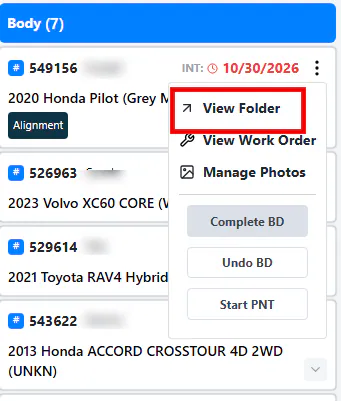
On the Production List, select the bold folder number, or open the quick menu and select View Folder.
-
Scroll to the bottom of the folder screen.
-
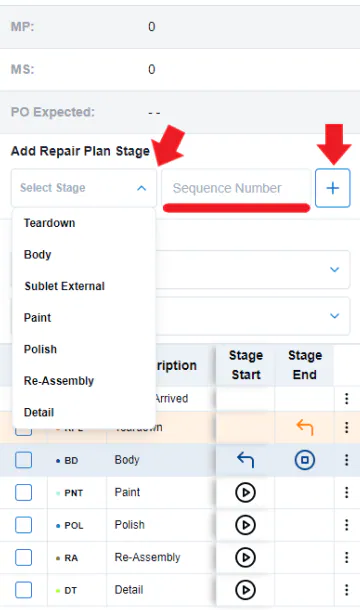
To add a stage, choose it under Add Repair Plan Stage, type a Sequence Number, then select +.
-
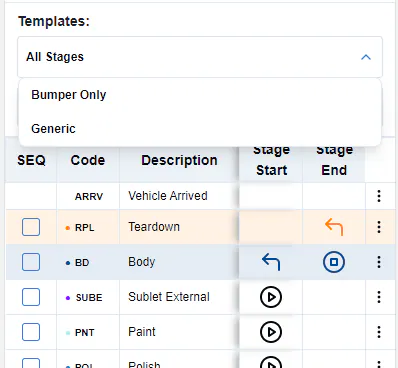
To change the template, choose one from the Templates drop-down.
-
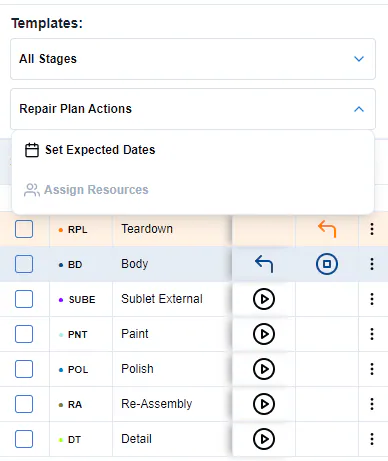
To enter expected dates or assign resources, use the Repair Plan Actions drop-down: Set Expected Dates or Assign Resources.
-
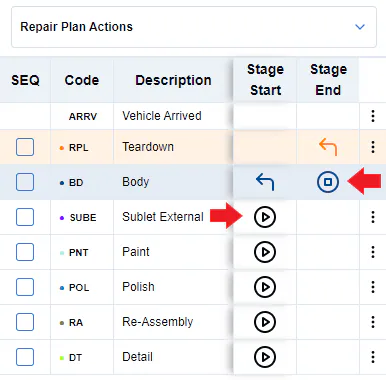
To start a stage, select the start icon (triangle) in its Stage Start column. To stop a stage, select the stop icon (square) in its Stage End column.
-
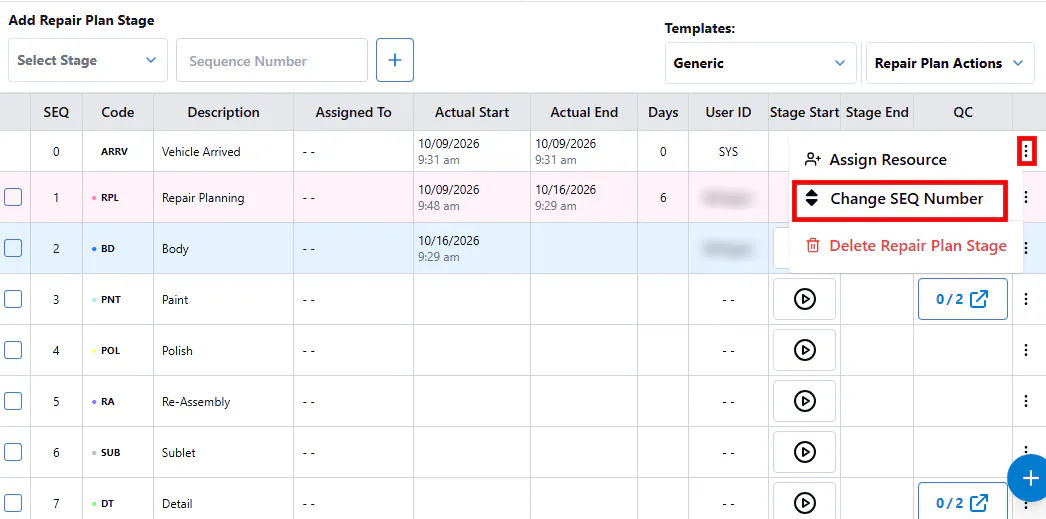
To reorder the stages, select the three dots on the stage, then select Change SEQ Number from the menu.
To complete QC items in NexsyisNow, see Complete a quality control check.