
Set up folder print packages
A print package is a set of folder documents that print together. You can also choose a package to print automatically as final paperwork when a folder is marked as delivered.
Open Folder Print Packages
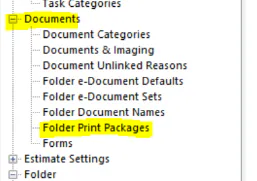
Section titled “Open Folder Print Packages”Go to Setup › Documents › Folder Print Packages.
Create a print package
Section titled “Create a print package”-
Select New on the bottom button bar.
-
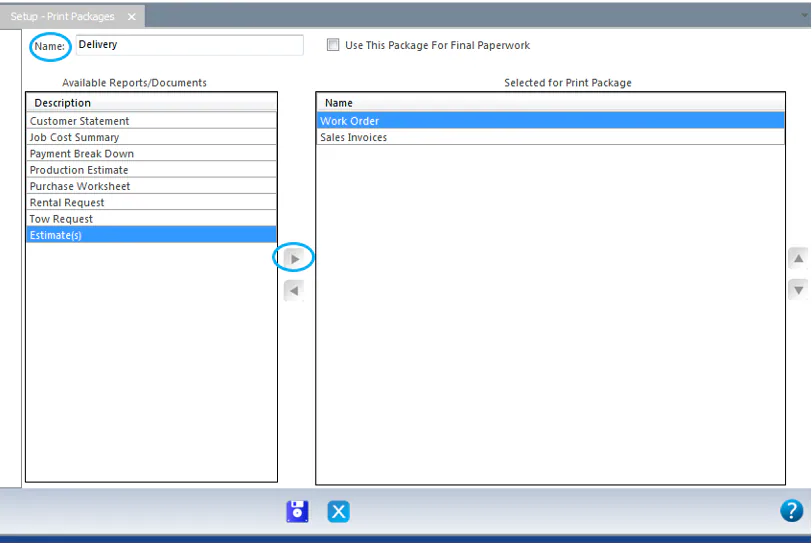
In Name, type a name for the package.
-
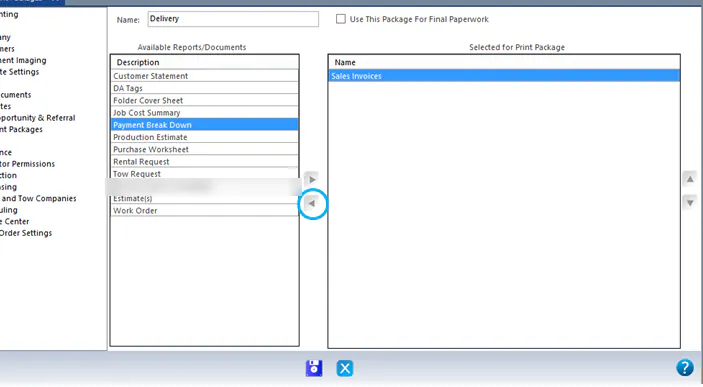
In the Available Reports/Documents list, select a document, then select the right arrow to move it to the Selected for Print Package list. Repeat for each document.
-
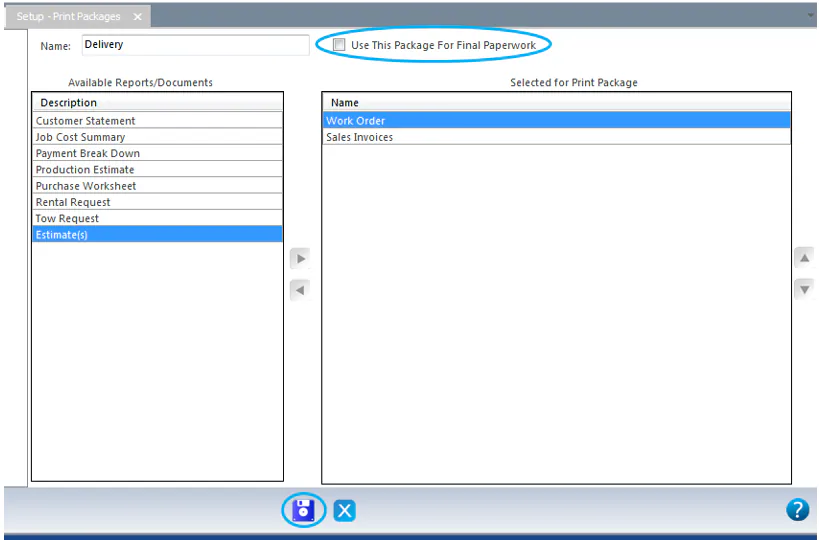
To print this package as final paperwork when a folder is marked as delivered, select Use This Package For Final Paperwork.
-
Select Save.
Edit a print package
Section titled “Edit a print package”-
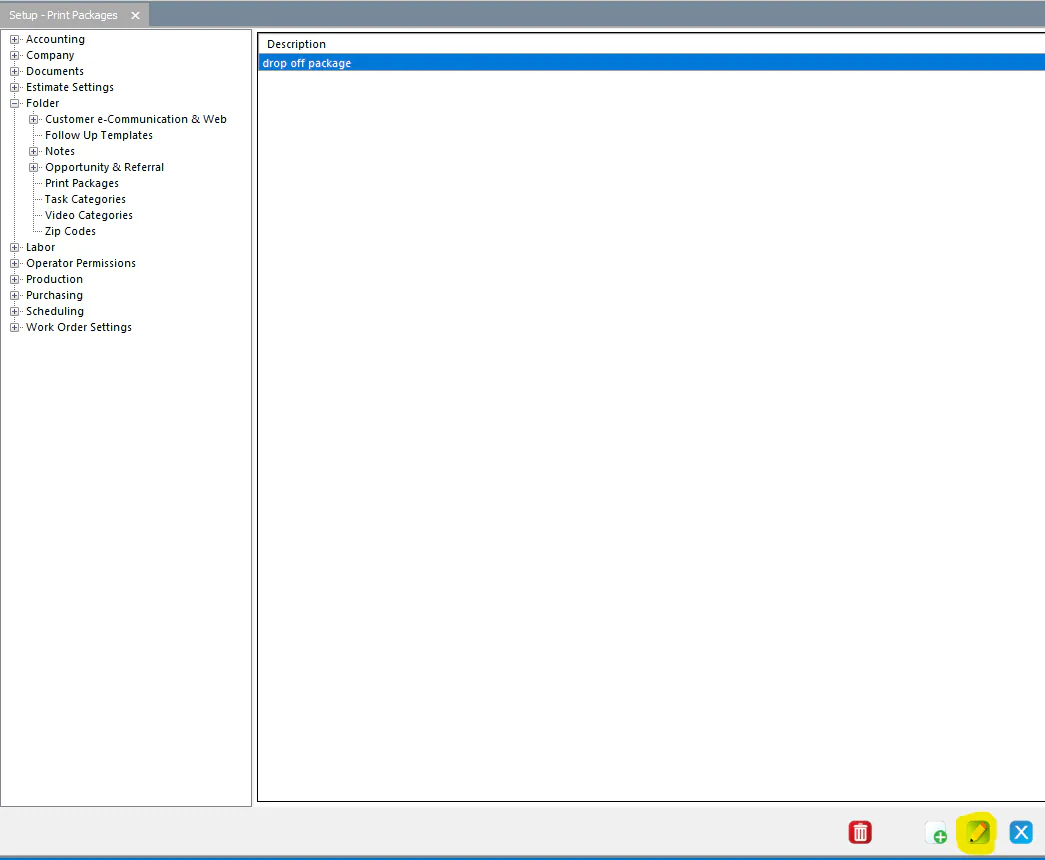
Select the print package in the list, then select Edit at the bottom of the screen.
-
Change the package:
-
Add a document: Select it in the Available Reports/Documents list, then select the top arrow (>) to move it to the Selected for Print Package list.
-
Remove a document: Select it in the Selected for Print Package list, then select the bottom arrow (<) to move it back to the Available Reports/Documents list.
-
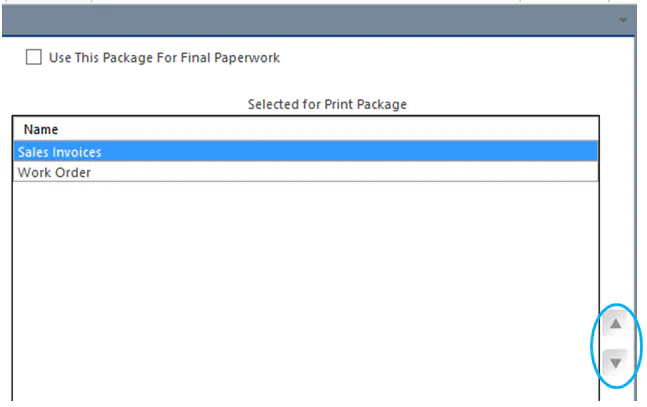
Change the print order: Select a document in the Selected for Print Package list, then use the up and down arrows on the right.
-
-
Select Save.