Import bank and credit card transactions
To reconcile a bank or credit card account, first import the transactions from your bank’s or card company’s website. Each imported line is given a trans group, which tells Nexsyis how to reconcile it.
How it works
Section titled “How it works”Nexsyis keeps the bank statement detail and the check register separately and matches them one transaction at a time. You can import and reconcile at any time, not only at month-end. Credit cards are imported and reconciled the same way as bank accounts.
Before you begin
Section titled “Before you begin”- If your file isn’t a .bai file, an import template must be set up for it. See Map a bank file.
- Set up trans group mapping so most transactions are classified automatically. See Map banking transaction groups.
Import a statement file
Section titled “Import a statement file”-
On your bank’s website, export the transactions to a .bai file (preferred), .csv file or .qif file.
-
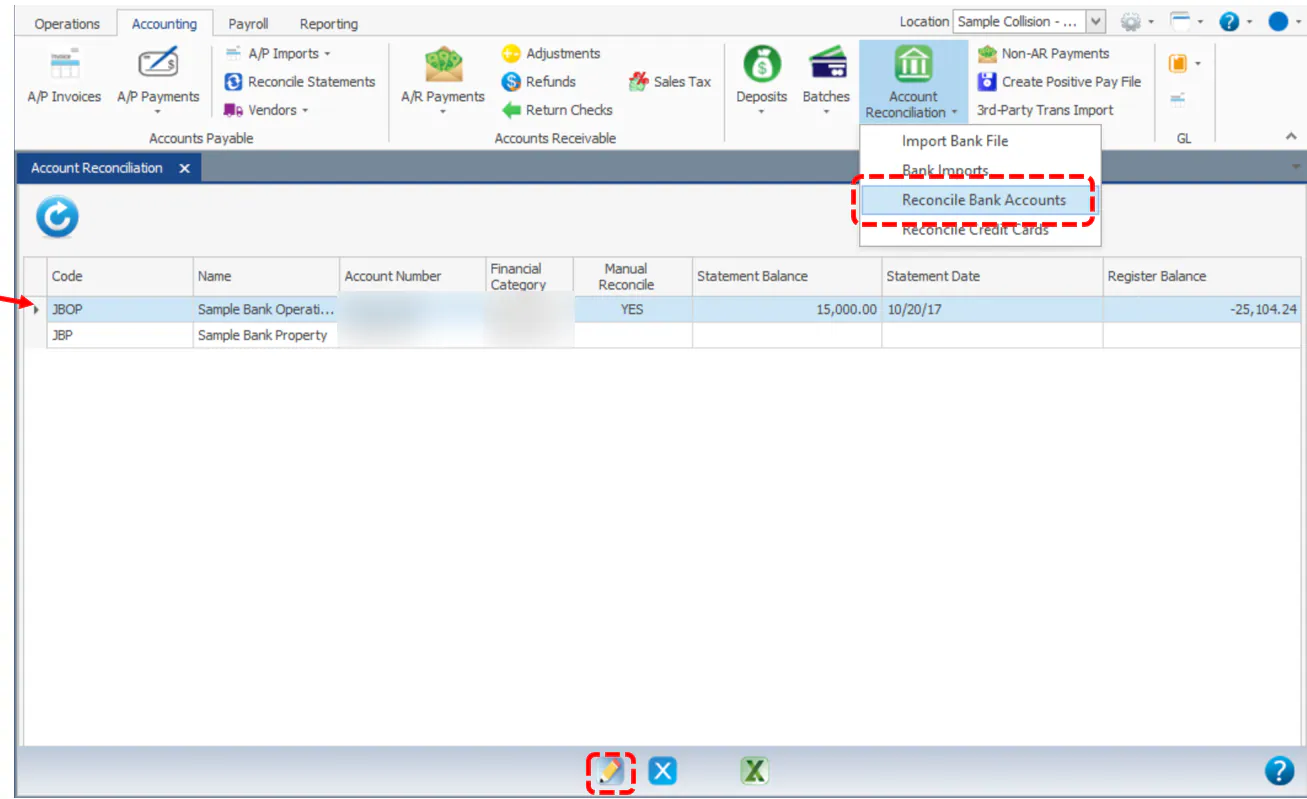
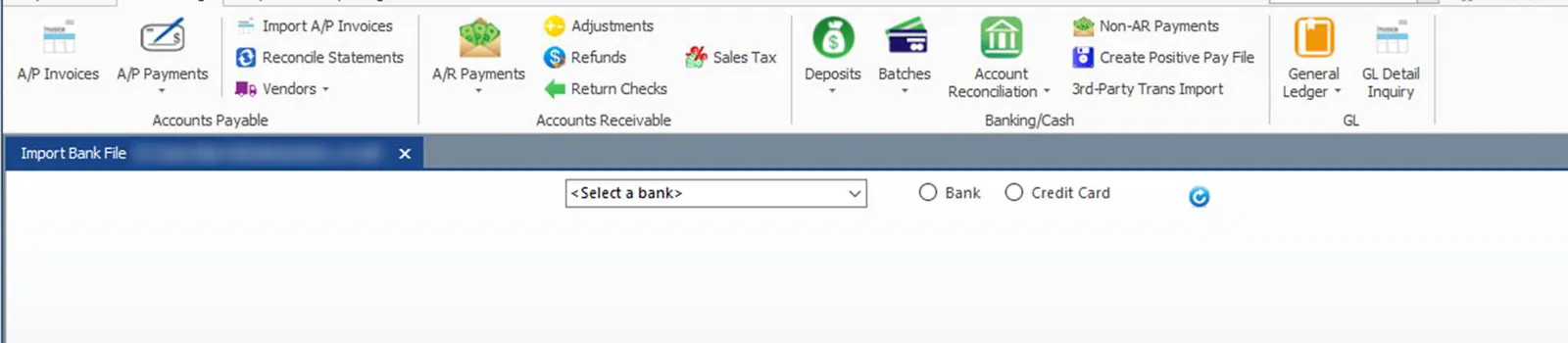
In Nexsyis, on the Accounting tab, select Account Reconciliation, then Import Bank File.
-
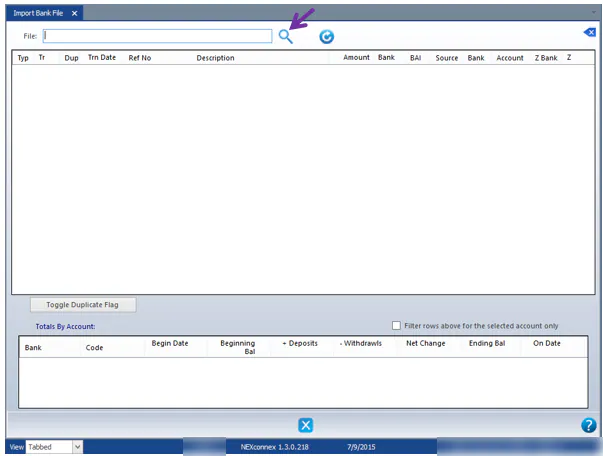
Select the search button next to File and find the file you exported.
-
Depending on the file type:
-
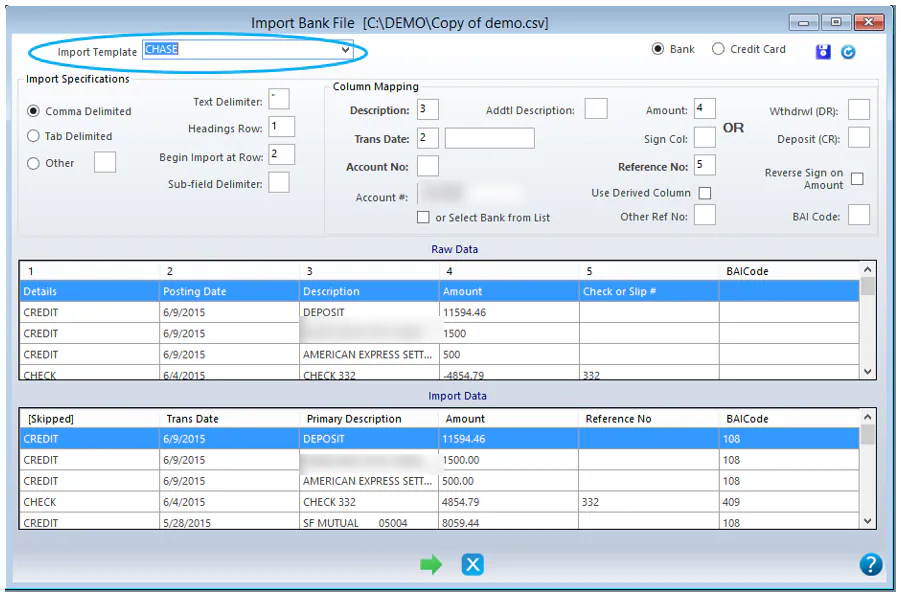
CSV file: select the bank in Import Template to load its mapping.
-
QIF file: select the bank or credit card, and use the Bank and Credit Card options to change the type.
-
-
Select the green next arrow at the bottom of the screen.
-
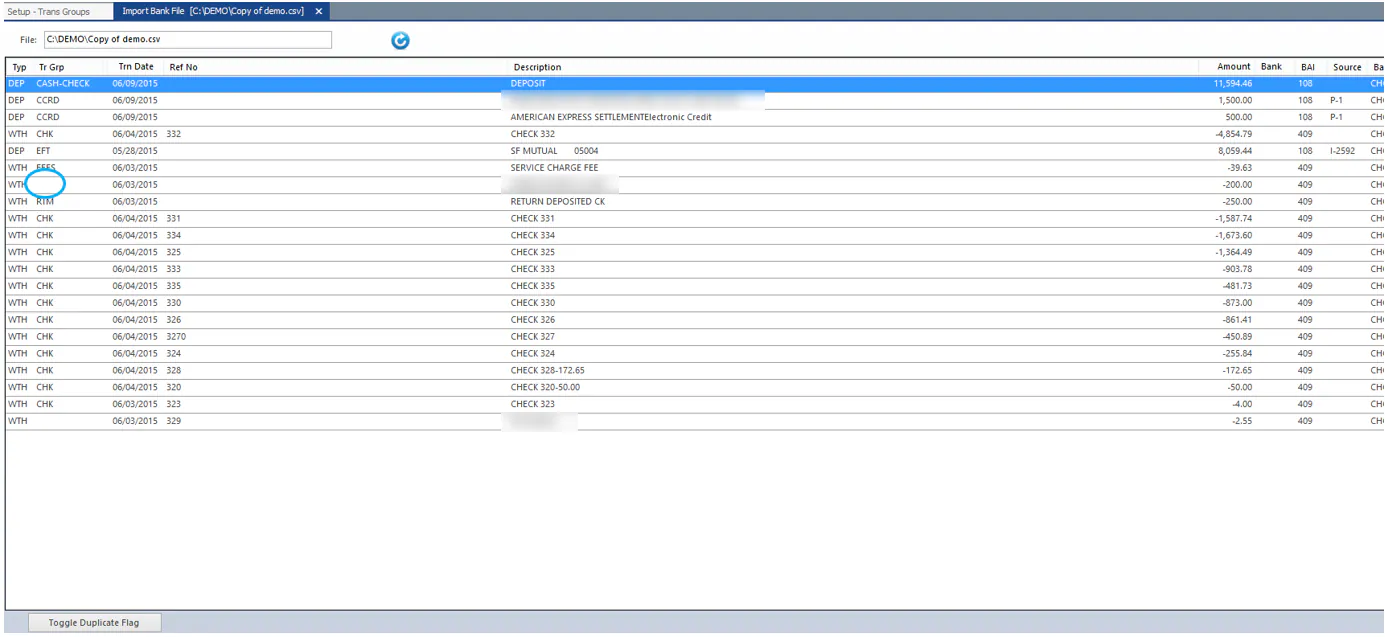
Check that no line has a blank Tr Grp (trans group).
-
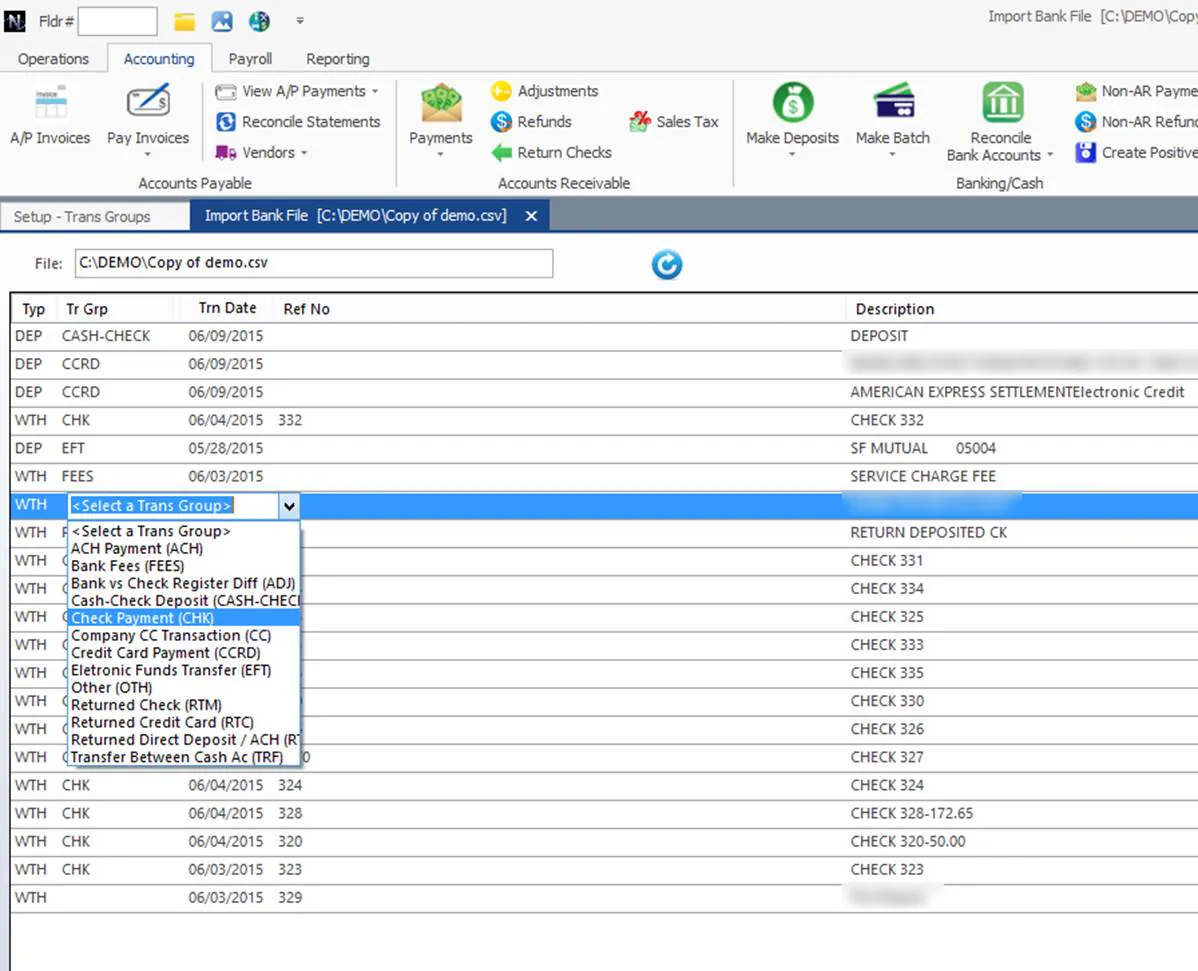
For each blank line, double-click the Tr Grp column and select the right trans group from the list.
-
Select Save. When asked whether to delete the source file from your computer, select Yes if you don’t need the exported file (the most common choice).
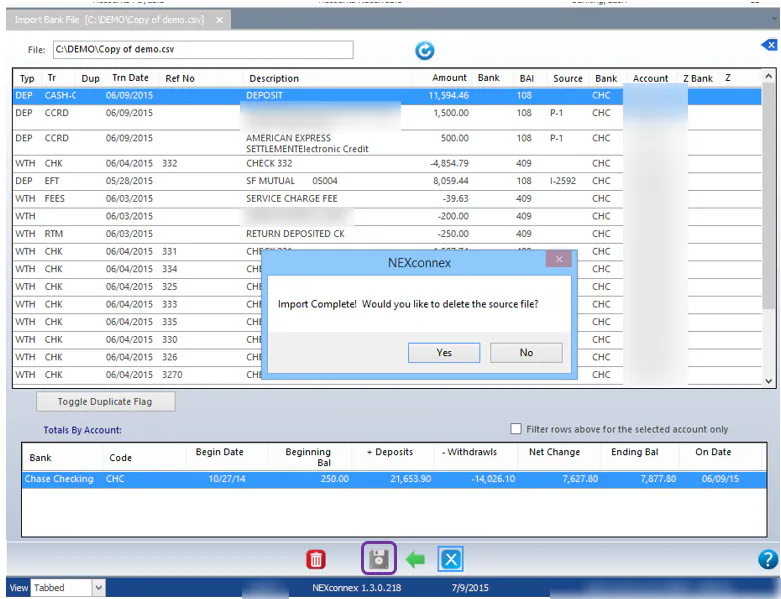
Check the Totals By Account at the bottom: the previous ending balance plus the imported transactions should equal your statement’s ending balance. You can now reconcile the account.
Trans groups
Section titled “Trans groups”| Trans group | Use |
|---|---|
| CASH-CHECK | Cash and check deposits. |
| RTM | Returned checks. You can search for the matching payment from the reconciliation screen. |
| FEES | Bank and credit card fees. |
| TRF | Transfers between bank accounts. Nexsyis tries to match the in and out transactions automatically: opposite amounts within a day of each other. If they can’t be matched automatically, you match them on the reconciliation screen. |
| EFT | Electronic payments deposited to your account that match payments in Nexsyis, such as one insurance payment for several repairs. You create a deposit of the payments that make up the transaction. |
| CCRD | Credit card deposits and withdrawals. You create a deposit of the payments that make up the transaction. |
The full list is set up under Setup › Accounting › Banking / Cash › Trans Groups. See Map banking transaction groups.
View or delete bank imports
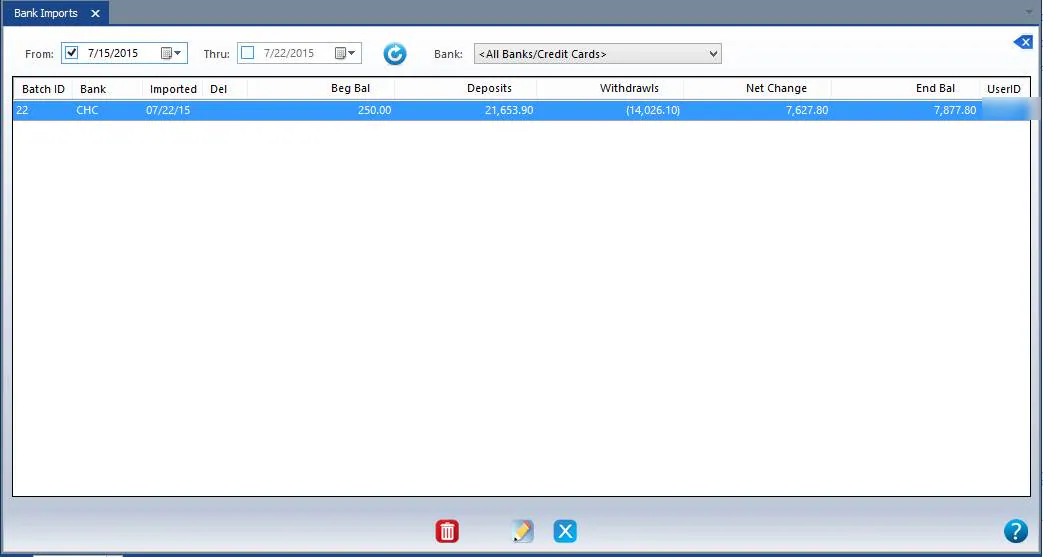
Section titled “View or delete bank imports”On the Accounting tab, select Account Reconciliation, then Bank Imports. Set the From and Thru dates and the Bank, and refresh the list.
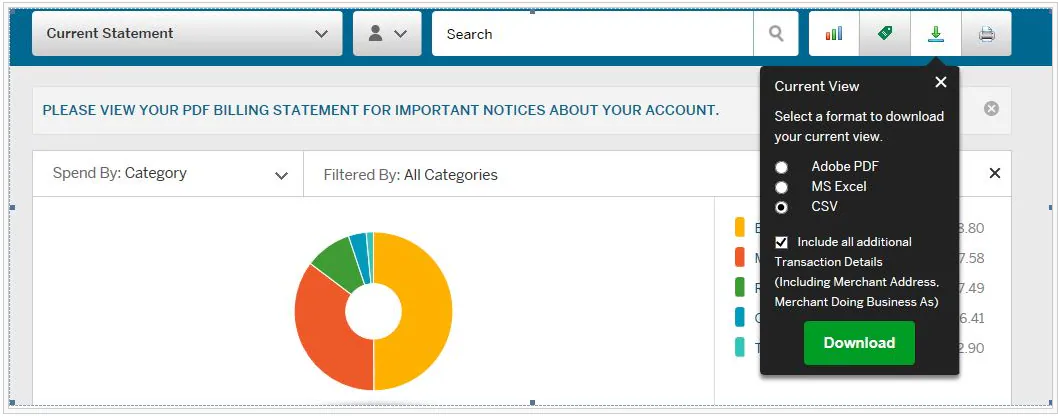
Download an American Express statement
Section titled “Download an American Express statement”-
Log in to the American Express website.
-
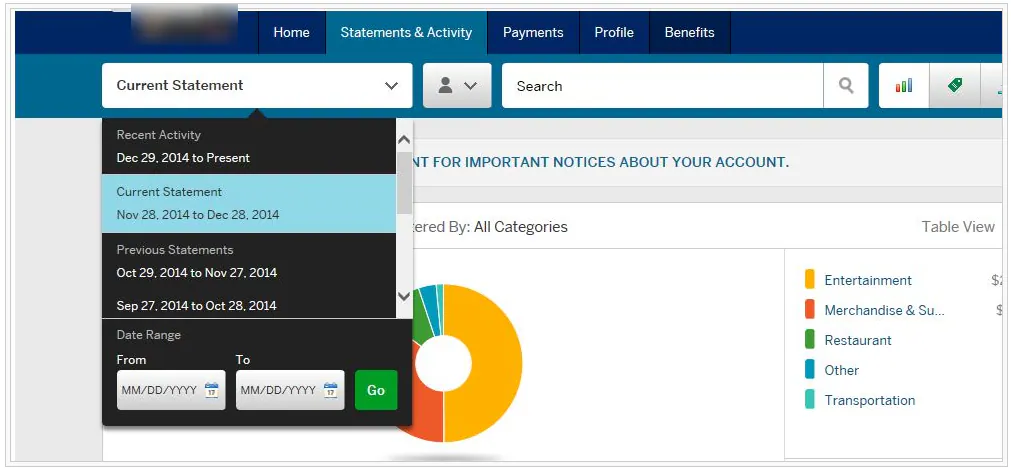
On the Statements & Activity tab, select Current Statement.
-
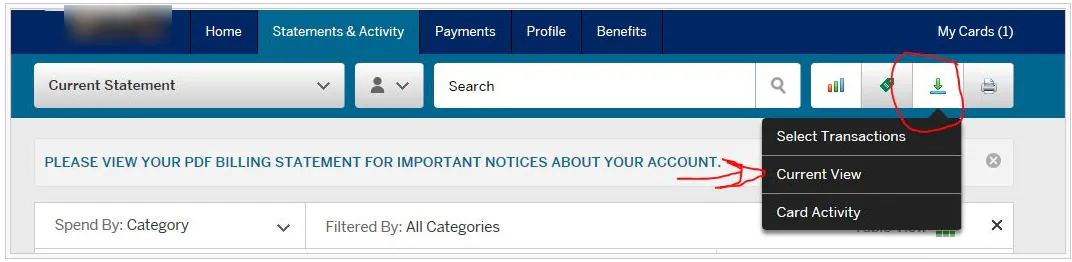
Select the download icon, then Current View.
-
Select CSV and Include all additional Transaction Details, then select Download and save the file.