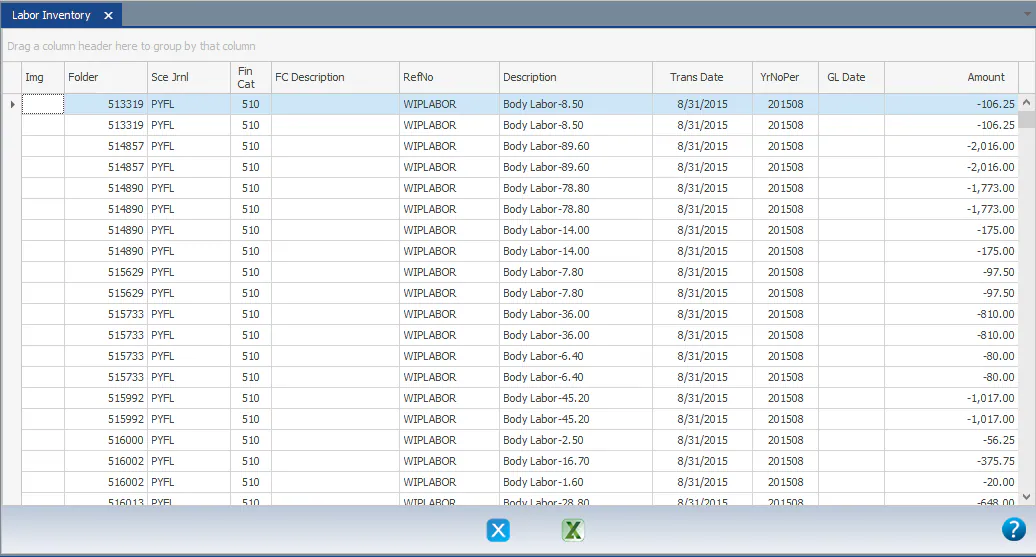
Accrue payroll and labor inventory
At month end, Nexsyis can create two sets of entries for an open GL period: the payroll accrual, and labor inventory for labor on work in progress. Both screens work the same way.
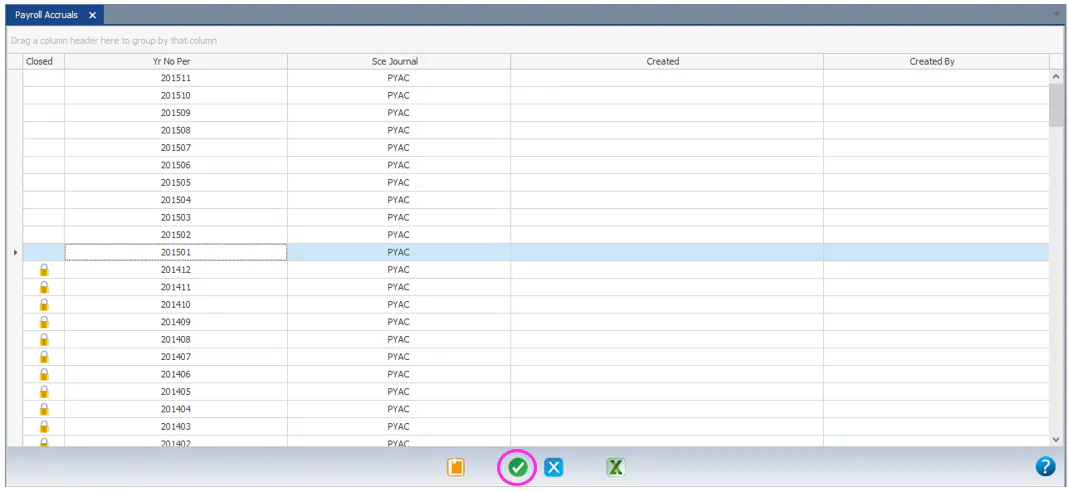
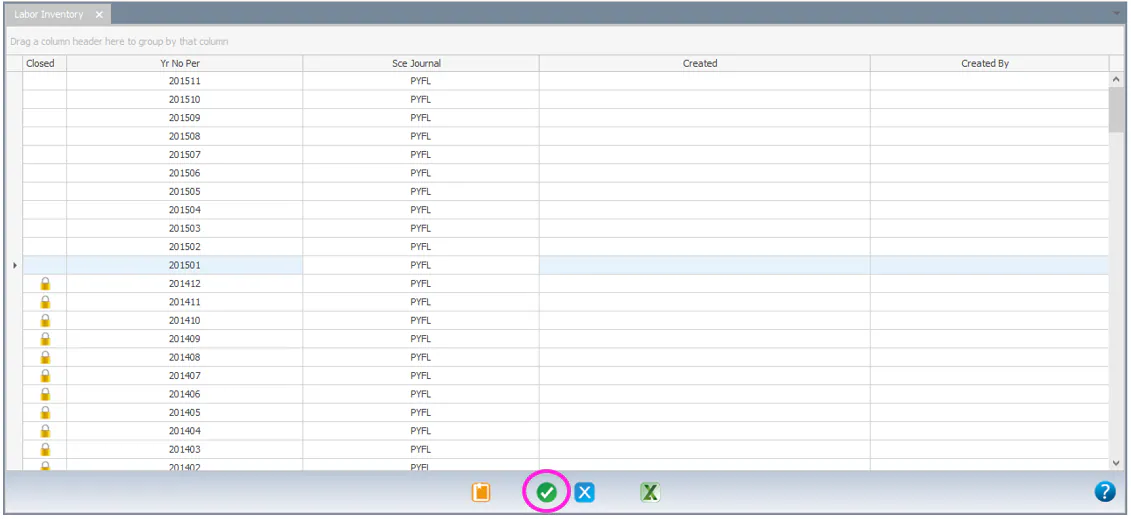
You can create entries for any GL period that isn’t closed. Closed periods show a lock icon in the Closed column.
Create payroll accrual entries
Section titled “Create payroll accrual entries”-
Go to Accounting › General Ledger › Payroll Accrual.
-
Select the GL period, then select the green check Select button on the button bar.
-
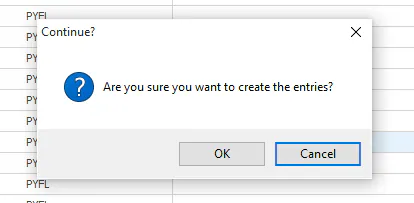
When asked “Are you sure you want to create the entries?”, select OK.
-
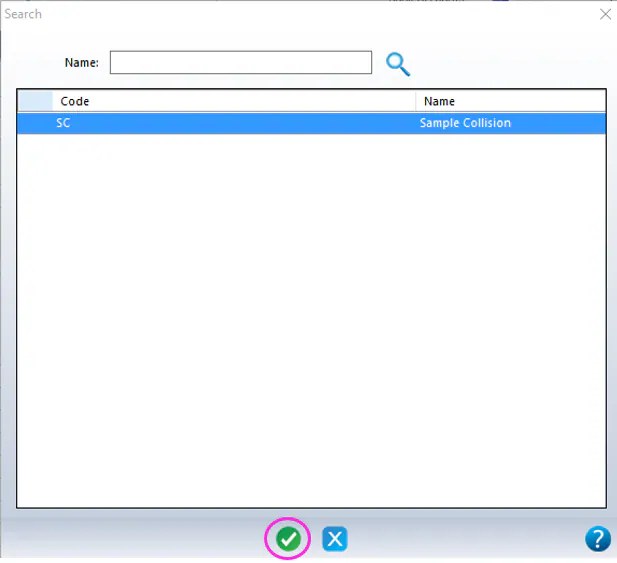
Select the Legal Entity, then select the green check button.
-
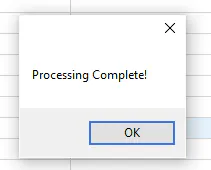
When processing is complete, you see “Processing Complete!”. Select OK.
The date and user who created the entries show in the Created and Created By columns.

Create labor inventory entries
Section titled “Create labor inventory entries”-
Go to Accounting › General Ledger › Labor Inventory.
-
Select the GL period, then select the green check Select button on the button bar.
-
When asked “Are you sure you want to create the entries?”, select OK.
-
When processing is complete, you see “Processing Complete!”. Select OK.
The date and user who created the entries show in the Created and Created By columns.
View the GL transactions
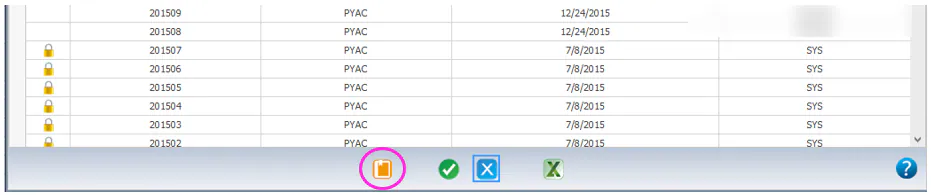
Section titled “View the GL transactions”After you create the entries, select the period, then select the orange GL button on the button bar.
The GL transactions for the period are listed. Payroll accrual entries use the source journal PYAC.
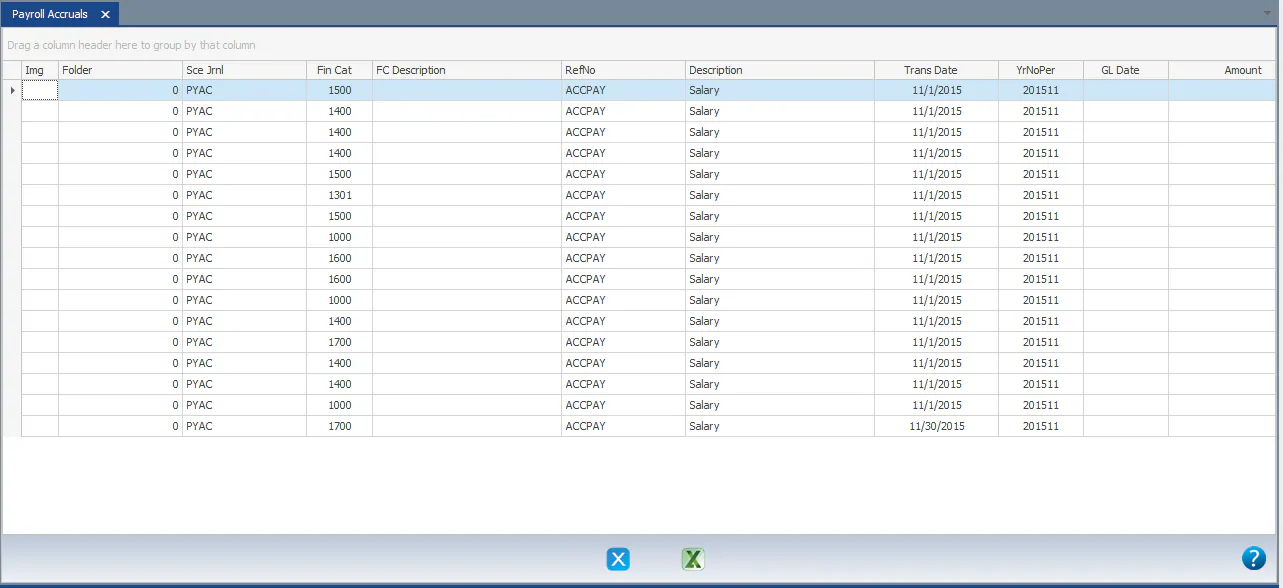
Labor inventory entries use the source journal PYFL and the reference WIPLABOR, with a line for each folder.