Use the Payment Breakdown Sheet (PBS)
The Payment Breakdown Sheet (PBS) records how the payments for a repair will be collected. You split each amount by who pays and when, balance the total against the folder’s estimates, and then approve it to confirm what to collect from the customer at delivery.
How the PBS works
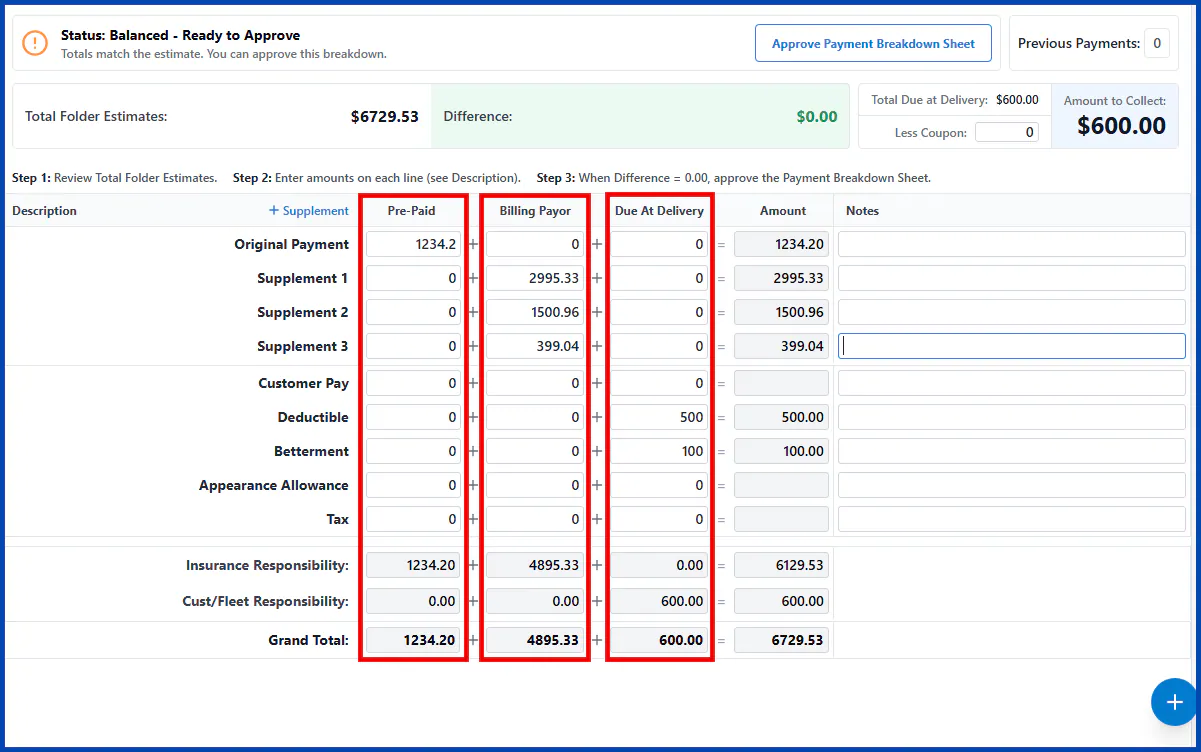
Section titled “How the PBS works”Each amount, such as the original payment, supplements, customer pay, deductible and betterment, has three columns:
- Pre-Paid: the amount already collected.
- Billing Payor: the amount that will be billed later, for example to the insurer or another payer.
- Due At Delivery: the amount to collect when the customer picks up the vehicle.
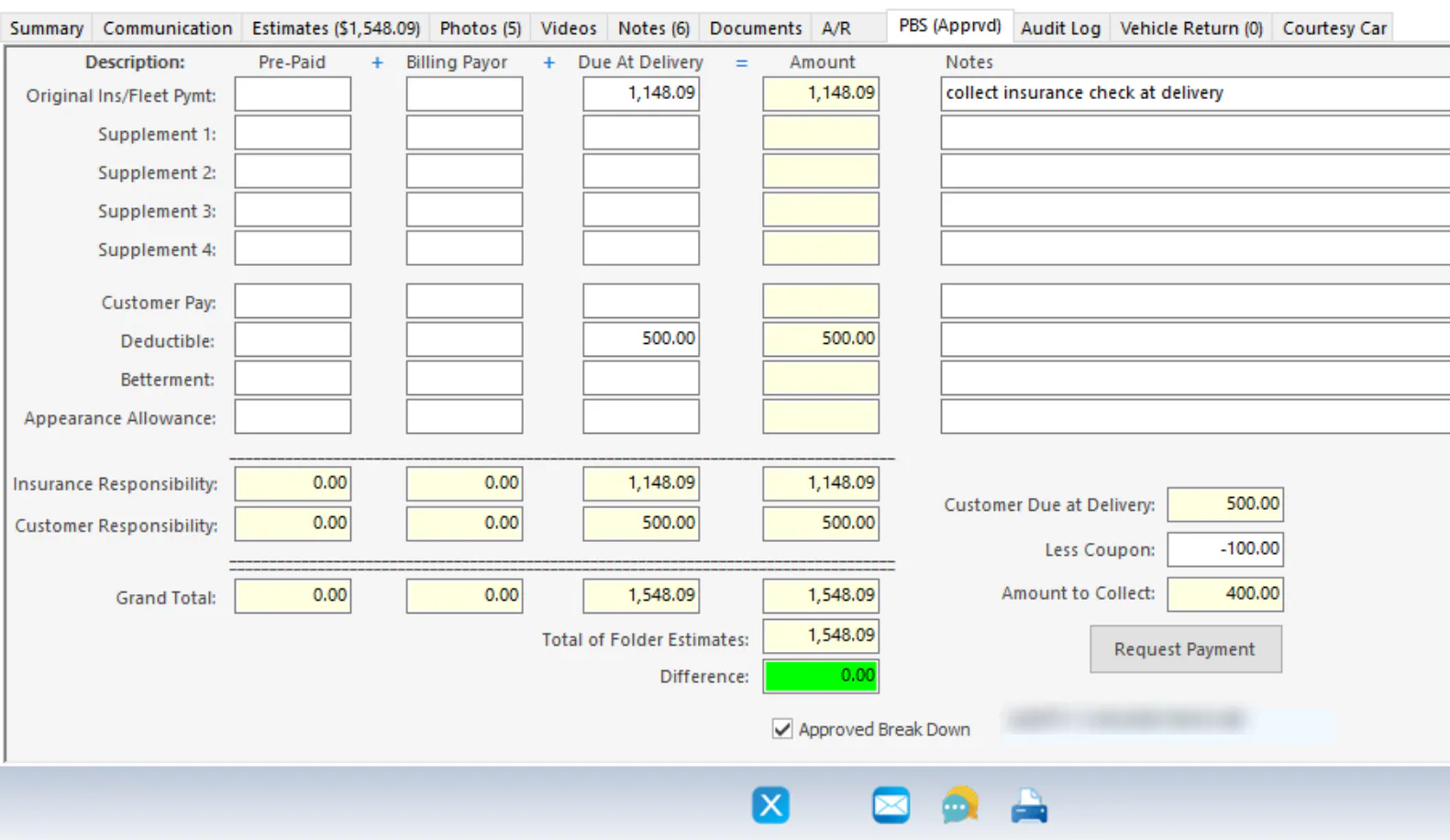
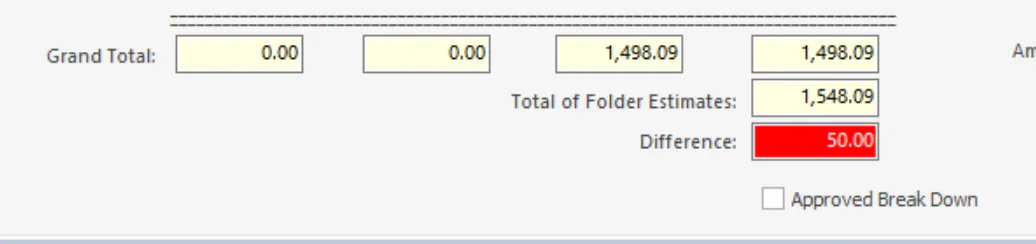
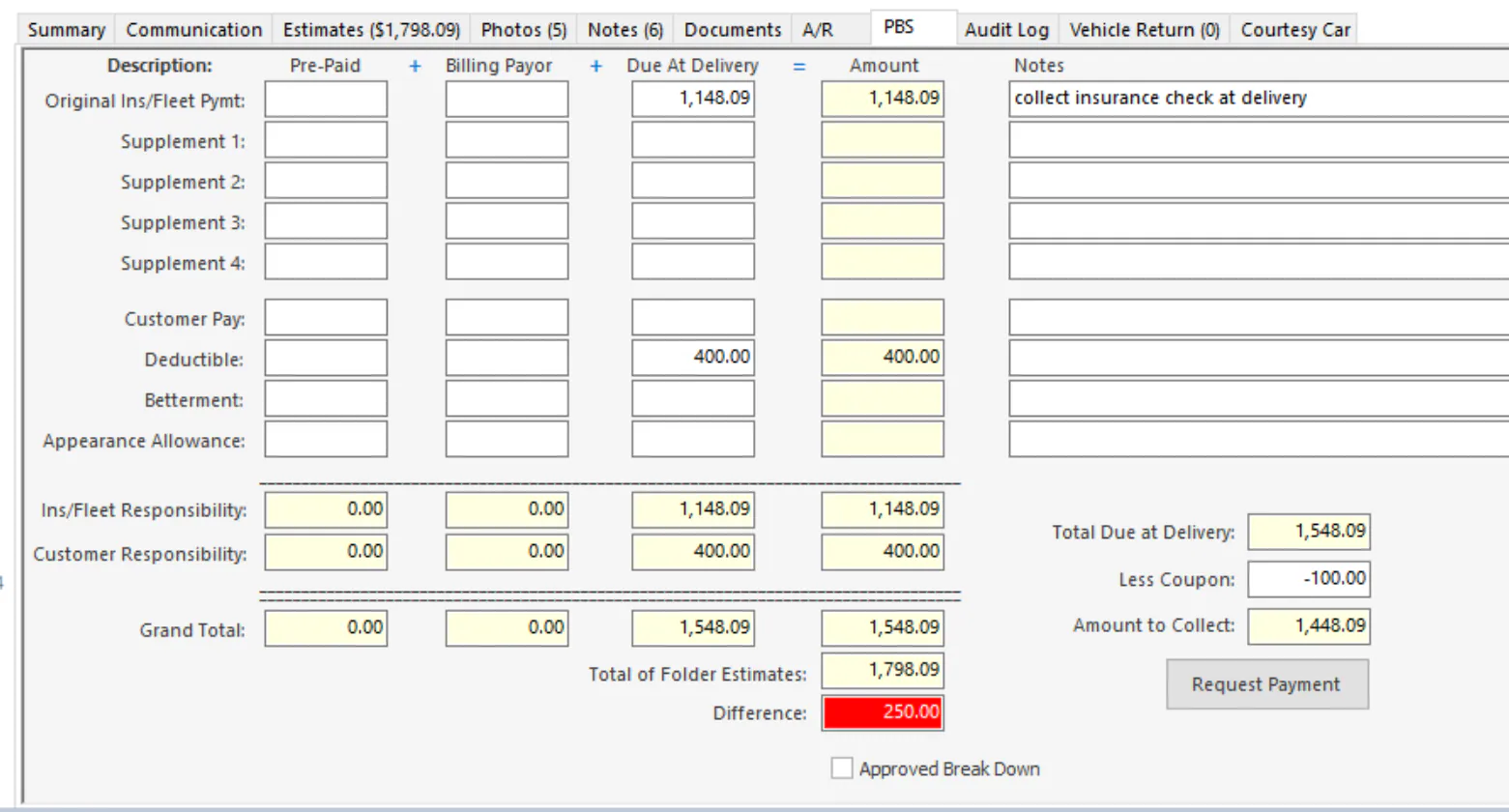
The goal is to make the totals you enter match the total of the folder’s estimates. The Difference shows how far apart they are. When it’s 0.00 and green, the PBS is balanced and you can approve it. When it’s red, the PBS can’t be approved until you correct it.
Fill in the PBS
Section titled “Fill in the PBS”-
Open the folder and select the PBS tab.
-
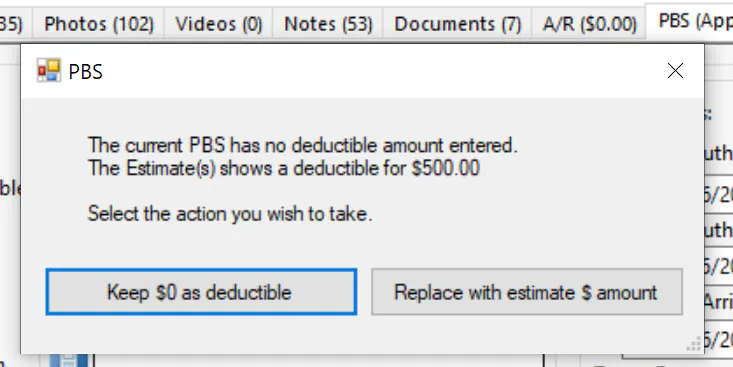
If the folder has a deductible or betterment that’s different from what’s on the PBS, Nexsyis asks what to do. Select Replace with estimate $ amount to use the estimate amount, or Keep $0 as deductible to leave it at 0.00, depending on how you’ll collect the payment.
-
Enter each amount in the Pre-Paid, Billing Payor or Due At Delivery column. Use Notes for anything the person collecting payment needs to know.
There’s no Save button. Each change saves when you click out of the field.
Approve the PBS
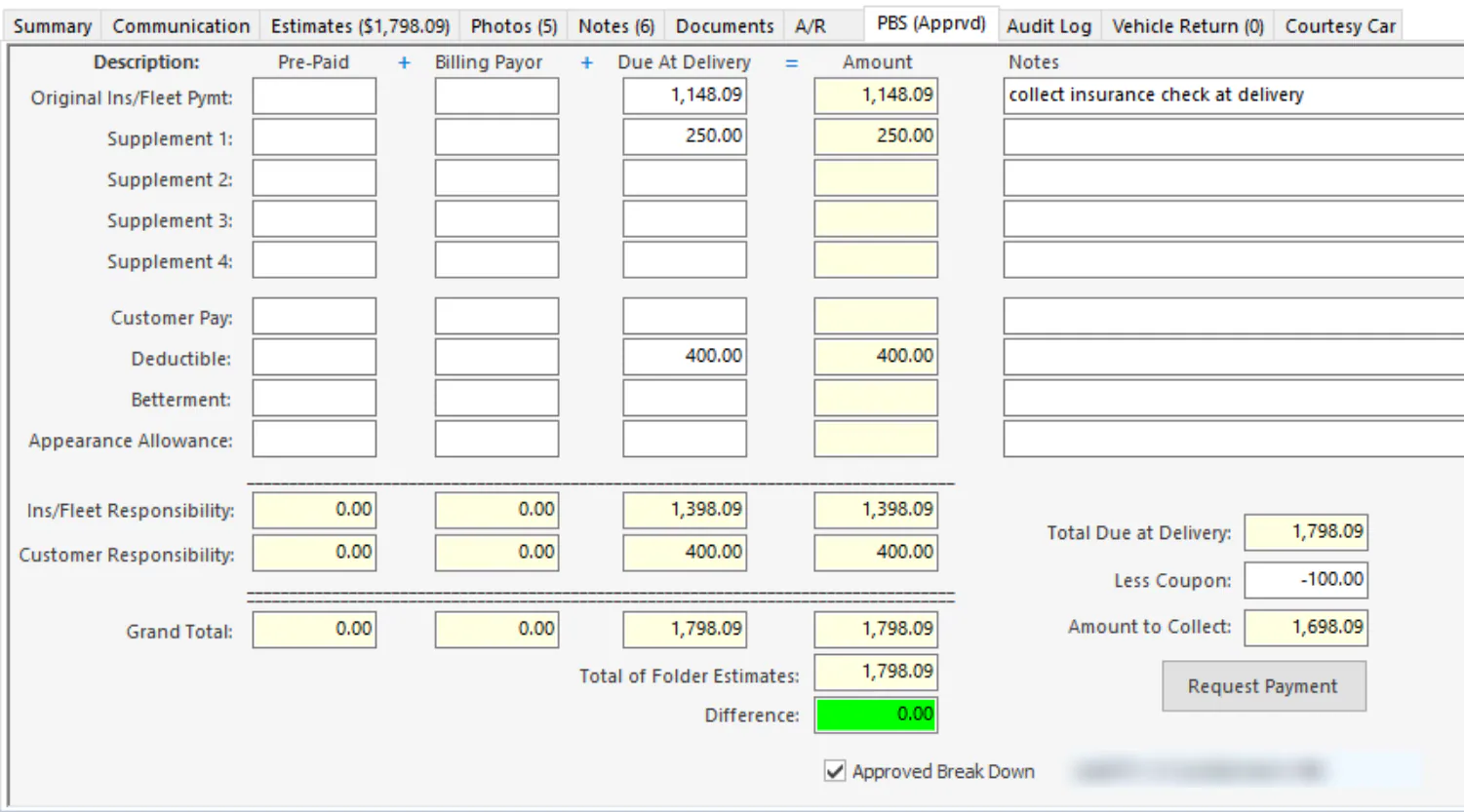
Section titled “Approve the PBS”When the Difference shows 0.00 in green, select Approved Break Down. The tab then shows PBS (Apprvd).
If the Difference is red, the amounts you entered don’t add up to the estimate total. Correct them until the Difference is 0.00 and green.
If you change anything on an approved PBS, the approval is cleared. Balance the PBS again and re-approve it.
Example with a CCC estimate
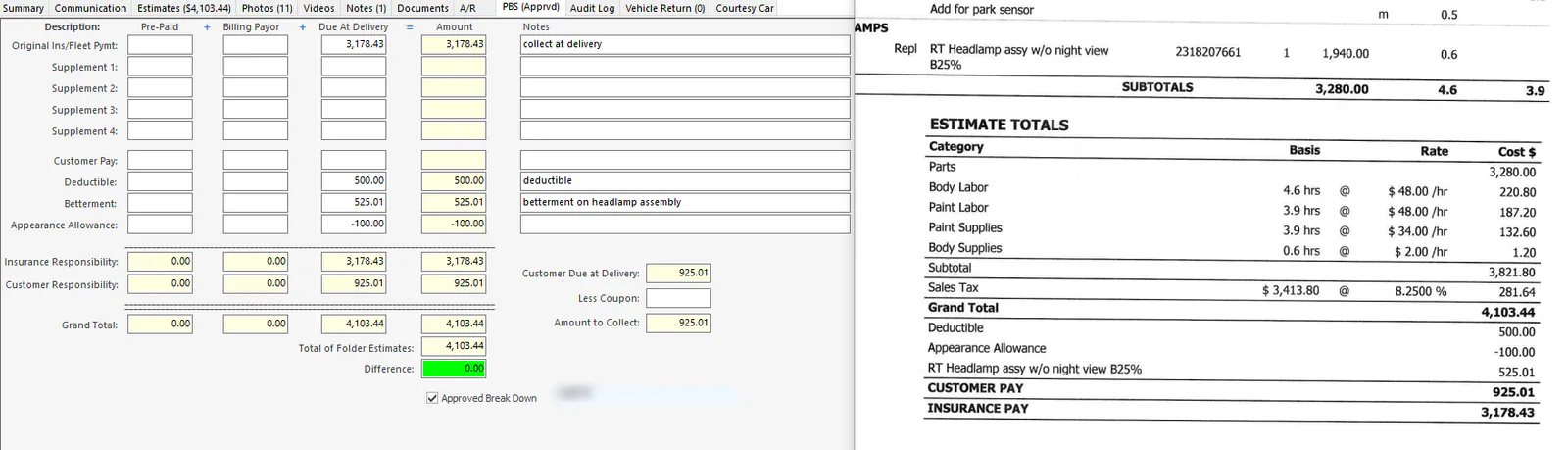
Section titled “Example with a CCC estimate”This PBS splits the deductible, betterment and appearance allowance from a CCC estimate between the insurer and the customer.
Re-approve the PBS when the estimate changes
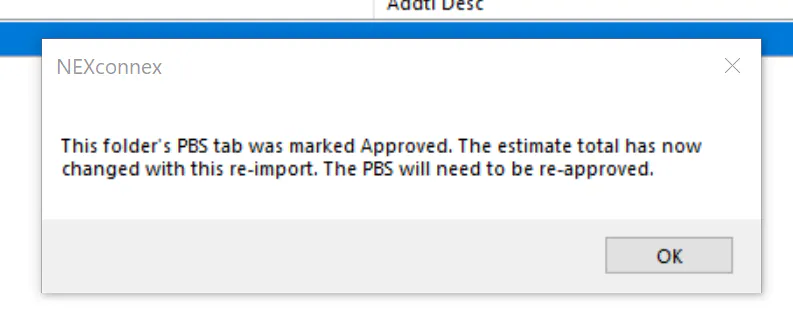
Section titled “Re-approve the PBS when the estimate changes”If the estimate total changes after the PBS is approved, for example when you import a supplement, Nexsyis tells you the PBS needs to be re-approved.
-
Review the new estimate total on the PBS.
-
Adjust the amounts, for example on the Supplement 1 line, until the Difference is 0.00 and green.
-
Select Approved Break Down again.
Take a card payment
Section titled “Take a card payment”If your company uses Nexsyis integrated card processing, select Request Payment on the PBS to send the customer a payment request. See Send a payment request.
What the PBS tab shows
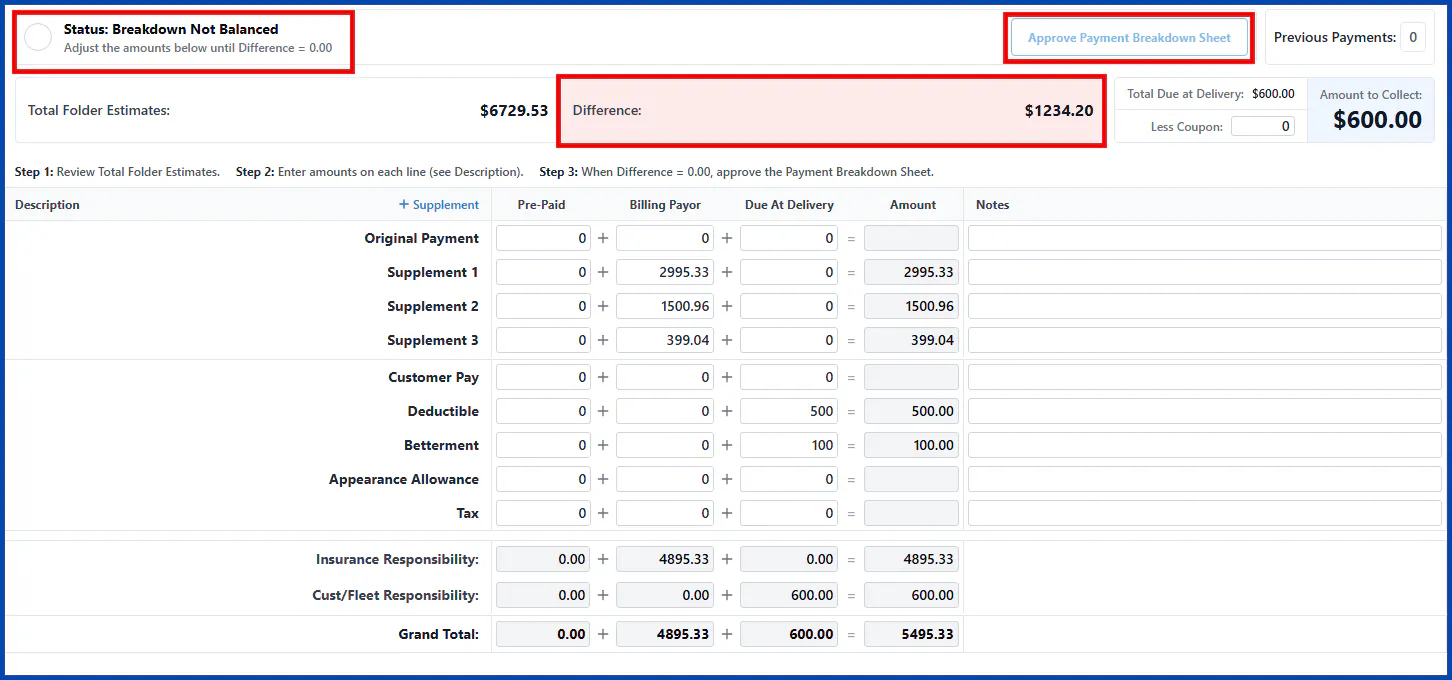
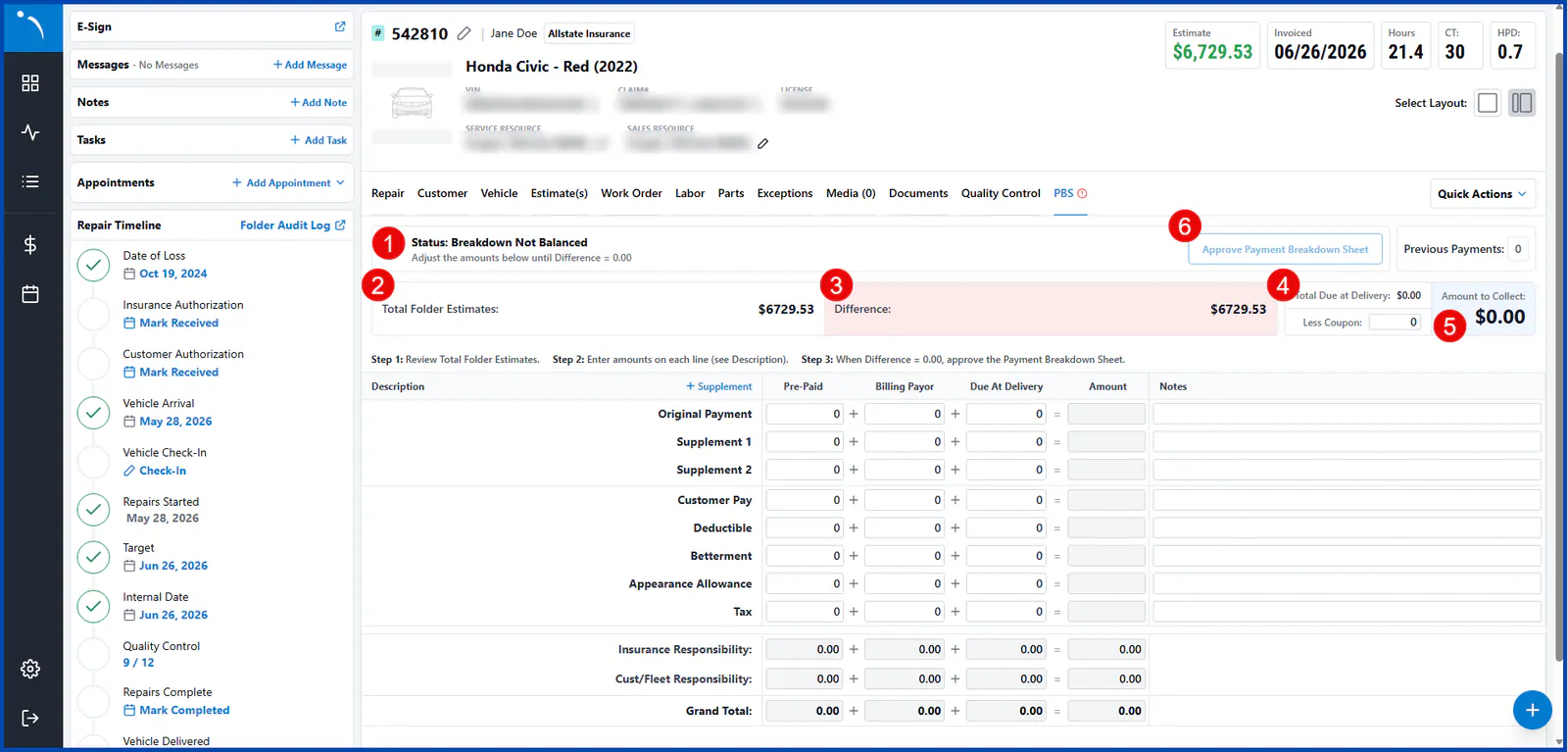
Section titled “What the PBS tab shows”Open the folder and select the PBS tab. The top of the tab shows:
- Status: whether the breakdown is balanced and ready to approve.
- Total Folder Estimates: the total of all active estimates on the folder.
- Difference: the difference between the folder’s estimate total and the amounts you’ve allocated as Pre-Paid, Billing Payor and Due At Delivery.
- Total Due at Delivery: the amount due at delivery before any discounts or coupons.
- Amount to Collect: what the customer owes at pickup, after coupons and discounts.
- Approve Payment Breakdown Sheet: approves the PBS.
Fill in the PBS
Section titled “Fill in the PBS”Enter each amount in the Pre-Paid, Billing Payor or Due At Delivery column.
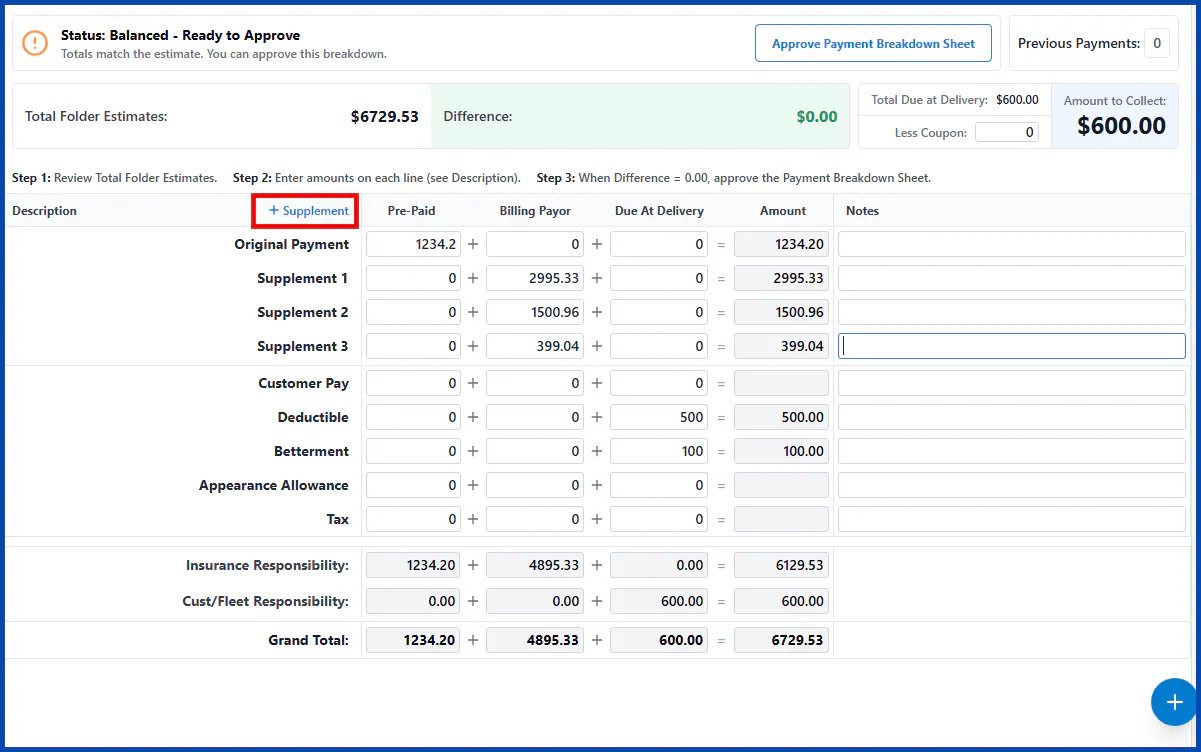
To add more supplement lines, select + Supplement at the top of the Description column.
Approve the PBS
Section titled “Approve the PBS”When the PBS is balanced:
- The Difference shows $0.00 in green.
- The status shows Balanced - Ready to Approve.
- Approve Payment Breakdown Sheet is available. Select it to approve the PBS.
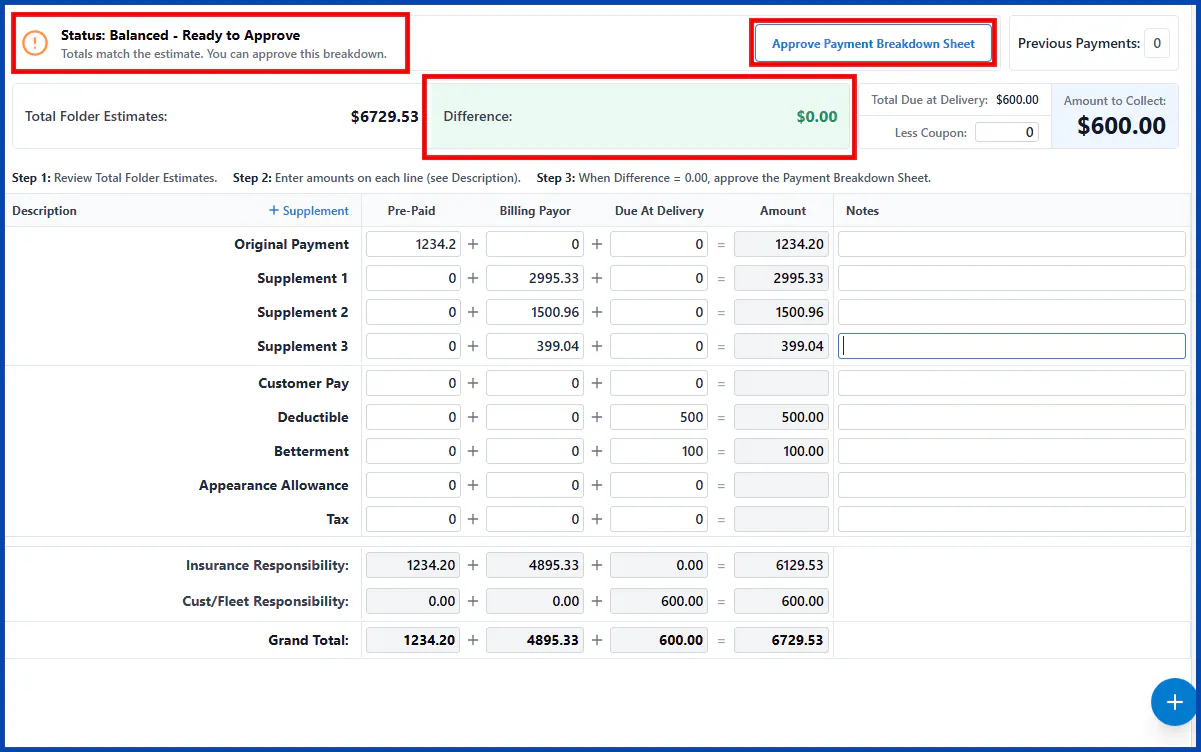
When it isn’t balanced:
- The Difference shows the amount in red.
- The status shows Breakdown Not Balanced.
- Approve Payment Breakdown Sheet is unavailable until you correct the amounts.