
Unlink a document
Unlink a document when it’s linked to the wrong record. The file isn’t deleted. It moves to Unlinked in Document Imaging, where you can link it again.
-
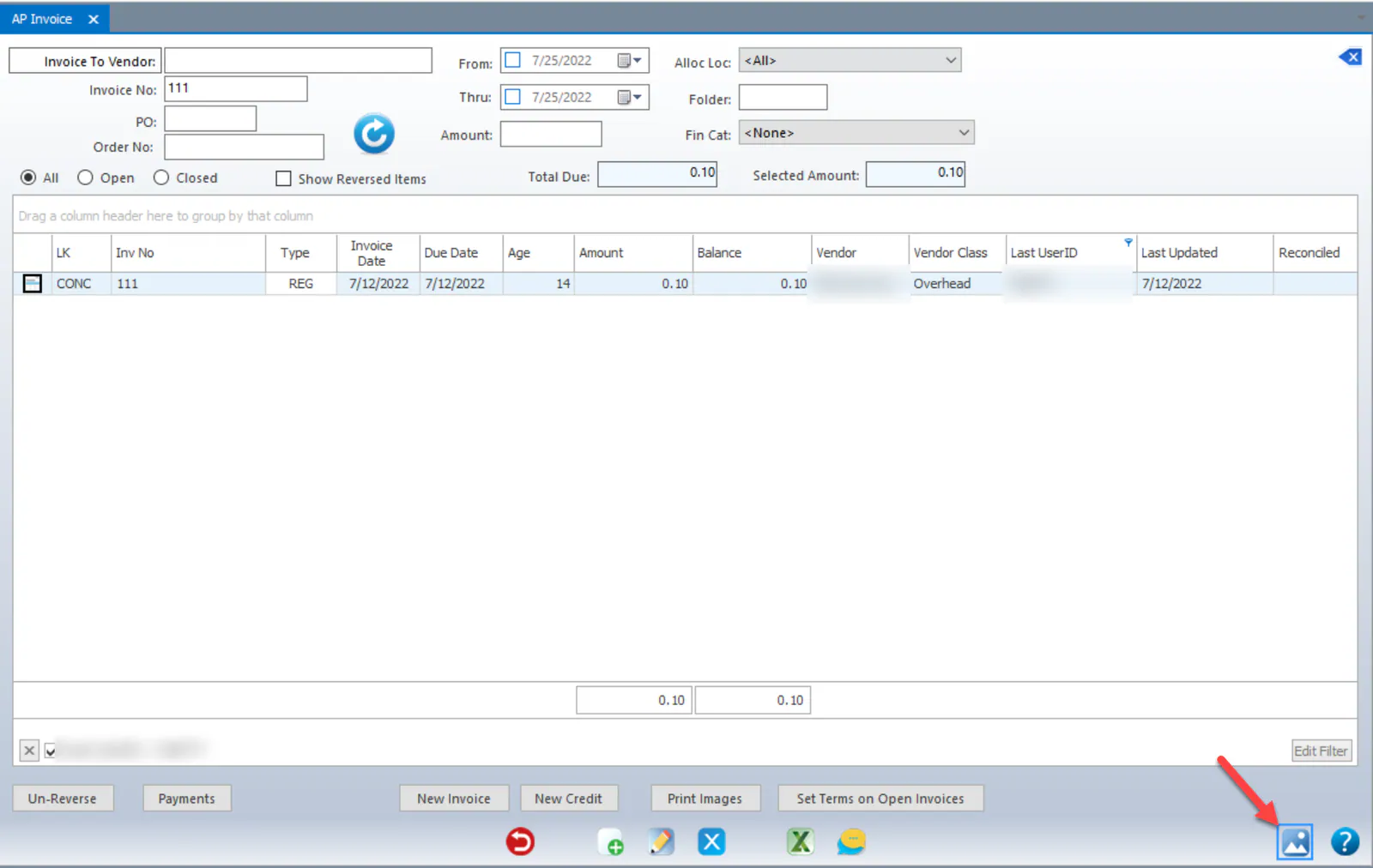
Find the record the document is linked to, such as an AP invoice. Select it, then select the View Image button.
-
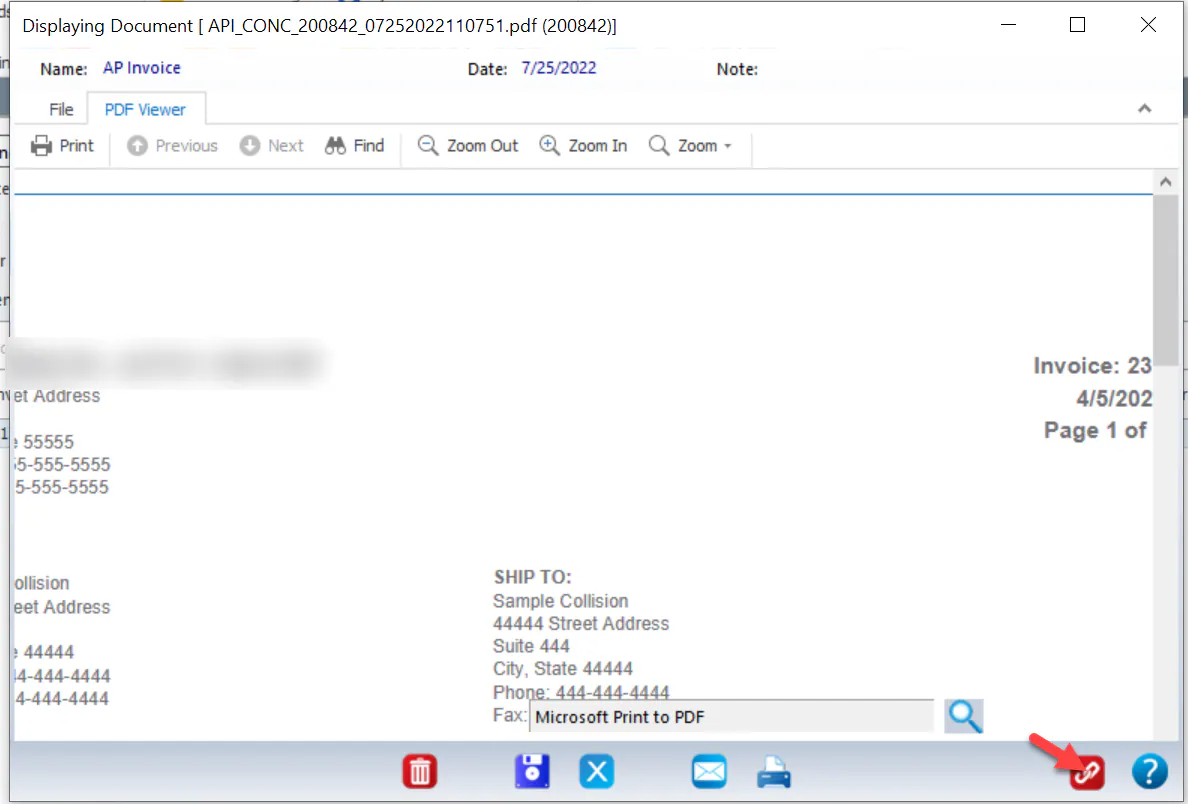
In the document window, select the red Unlink button.
-
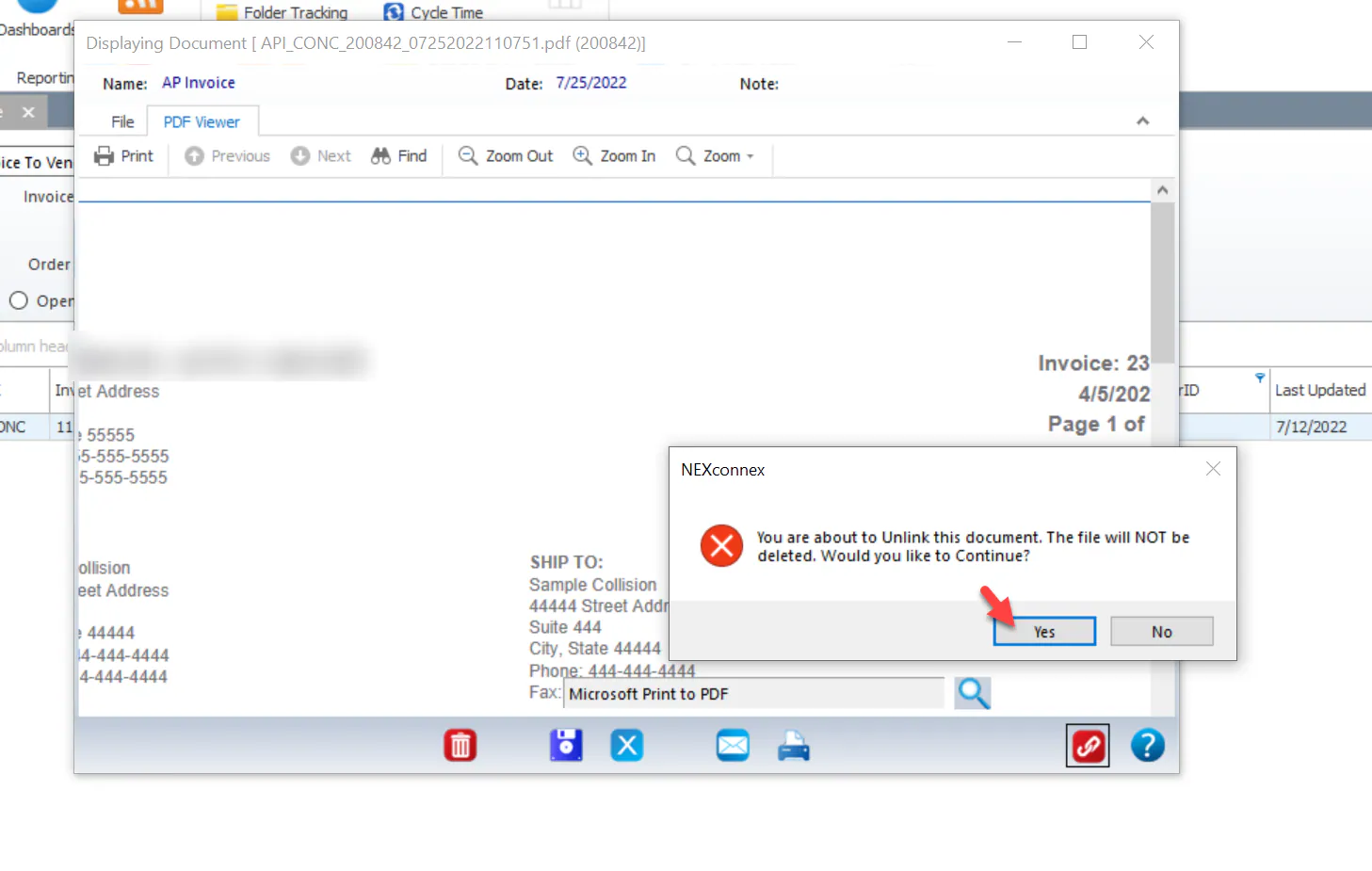
When asked whether to continue, select Yes.
-
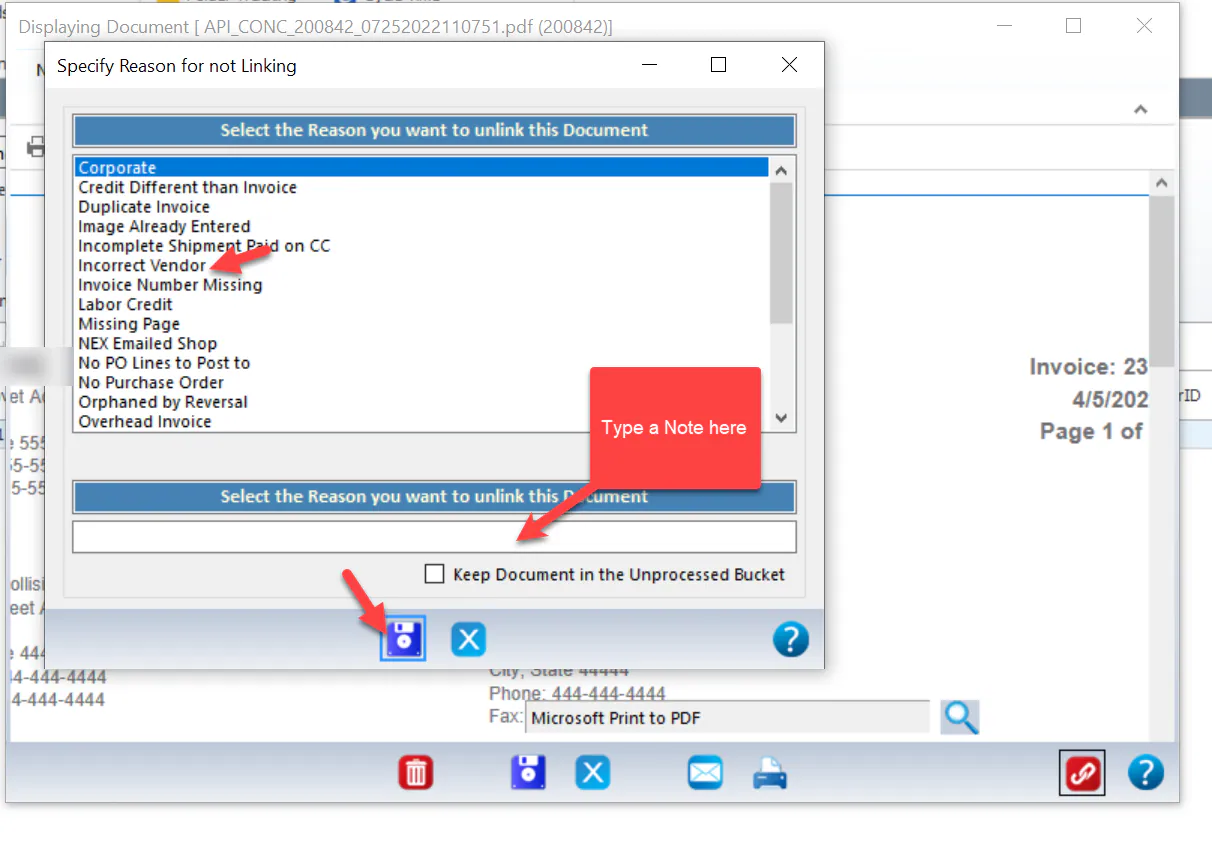
Select the reason you’re unlinking the document.
-
If it helps, type a note in the text box.
-
Select Save.
What happens next
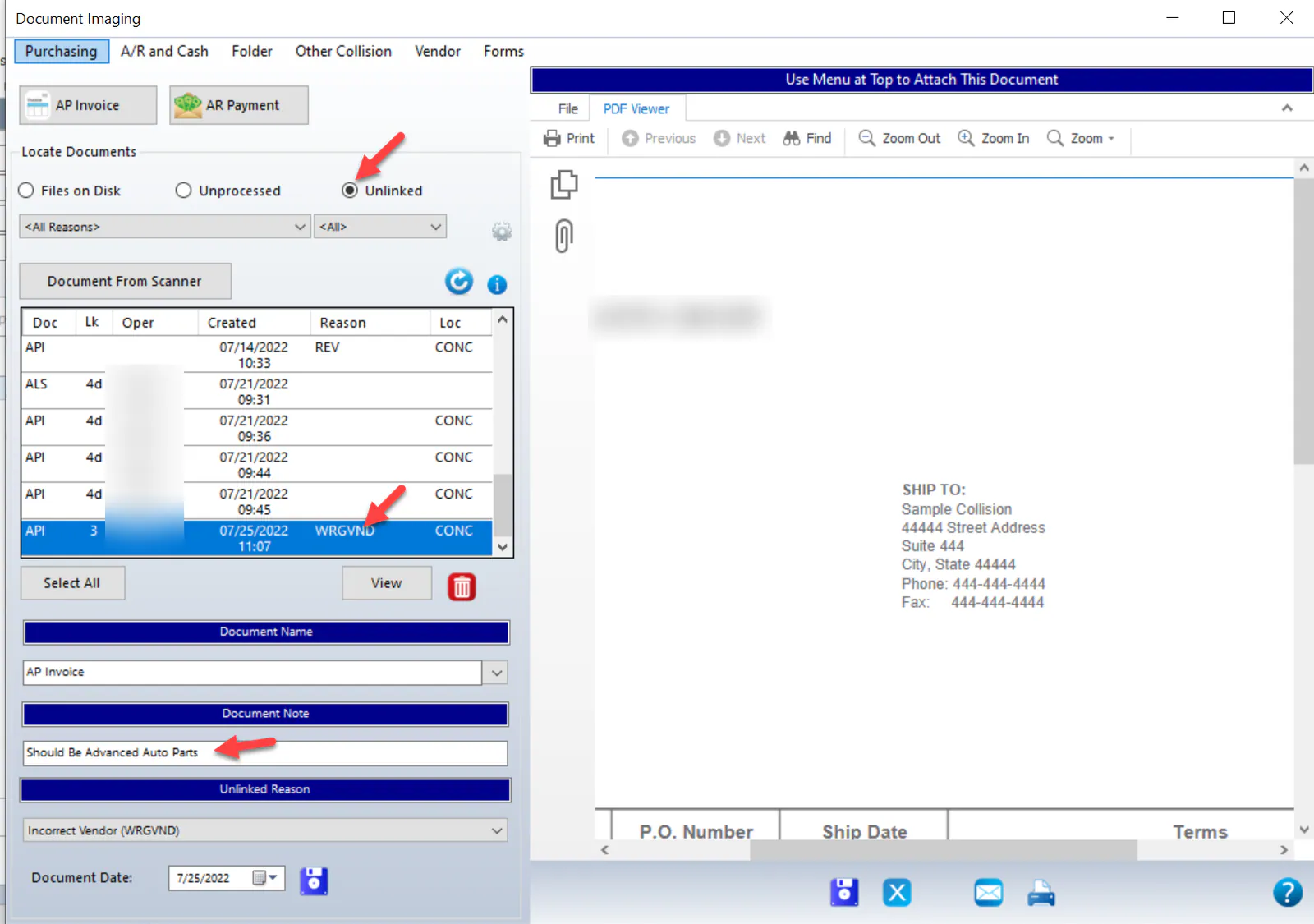
Section titled “What happens next”The document moves to Unlinked in Document Imaging. The Reason column shows the reason code you chose, and your note shows under Document Note.
To link it to the right record, see Link documents.