
Set up quality control
Quality control (QC) items are set up by repair stage. Each item is a question that has to be marked Completed or Not Applicable before the stage can end.
Add QC items to a repair stage
Section titled “Add QC items to a repair stage”-
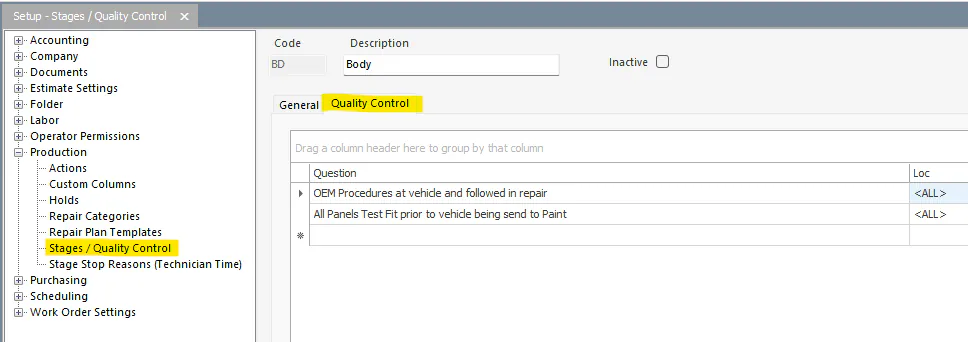
Open Setup › Production › Stages / Quality Control.
-
Select the repair stage, then select the Quality Control tab.
-
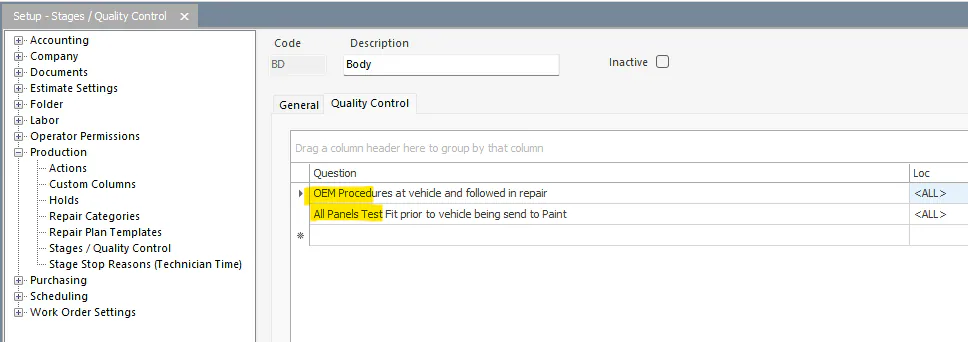
Type your first QC item in the Question column on the first line.
-
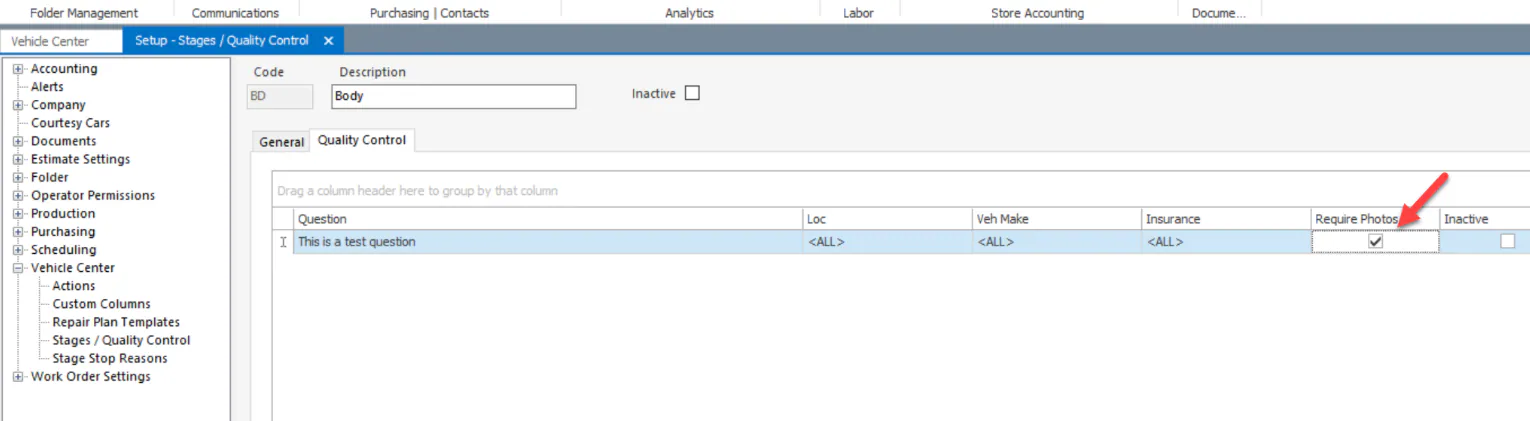
If needed, choose options for the item:
- Loc, Veh Make and Insurance: to make the item apply only to a particular location, vehicle make or insurance company. The item then appears only on folders with that location, make and insurance company.
- Require Photos: the item can’t be marked Completed until a photo is attached.
-
Click outside the line. A new line is added for the next QC item.
-
When you’re finished, select Save.
Reorder or remove QC items
Section titled “Reorder or remove QC items”- To change the order, use the arrows on the right of the grid.
- To stop using an item, mark it Inactive.