Search, filter and save grid views
Most lists in Nexsyis, such as the Vehicle Center tabs, Folder Tracking and Cycle Time, are grids. You can search, filter and group any grid, choose its columns, and save the layout so it’s the same next time.
Most grid options are on the right-click menu. Right-click a column header for column, search and filter options, or the body of the grid to save your layout.
Search a grid
Section titled “Search a grid”Search the whole grid
Section titled “Search the whole grid”Use the Find Panel to search every column at once.
- Open the Find Panel in one of these ways:
-
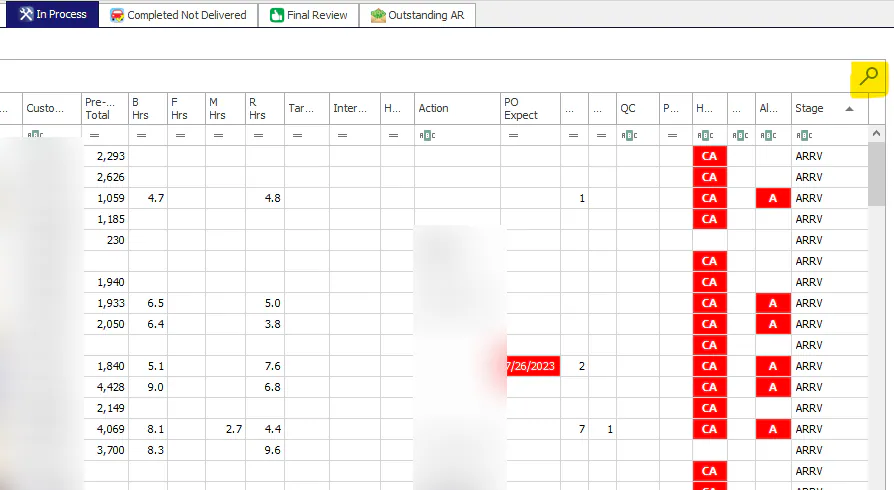
Select the search (magnifying glass) icon at the far right of the grid.
-
Right-click a column header and select Show Find Panel.
-
Press Ctrl+F.
-
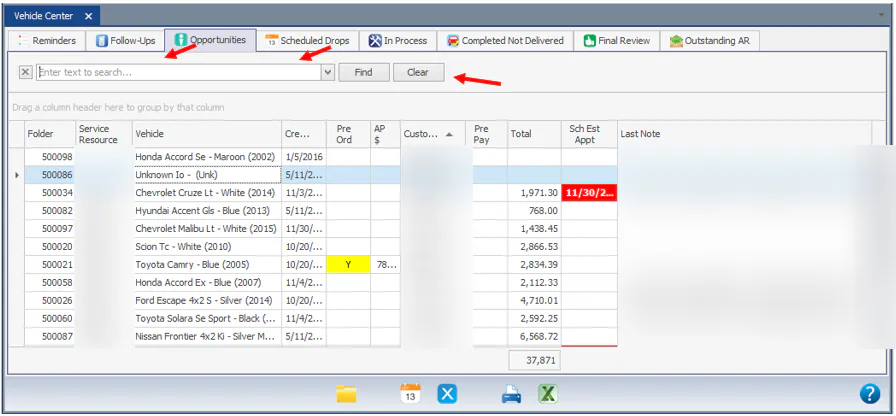
- Type a keyword in Enter text to search…. The grid shows only the matching records.
- To start again, select Clear.
Search within one column
Section titled “Search within one column”-
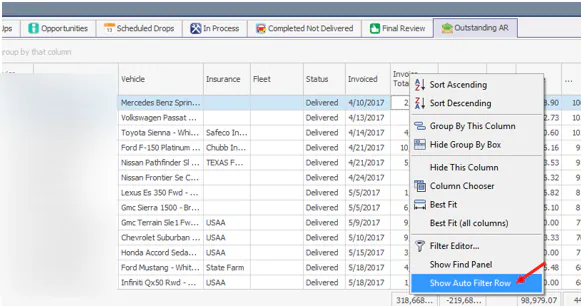
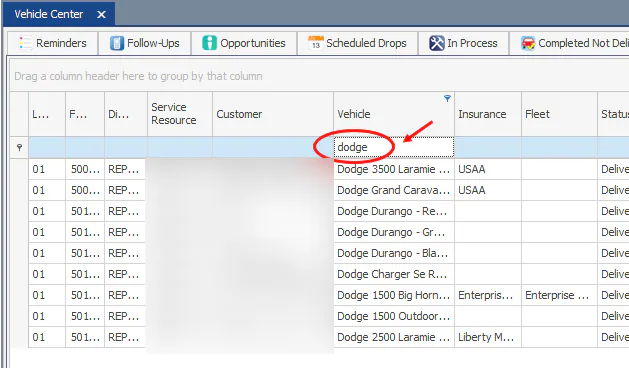
Right-click a column header and select Show Auto Filter Row.
-
A blank row appears at the top of the grid. Type in the cell under the column you want to search.
Filter a grid
Section titled “Filter a grid”Filter by values in a column
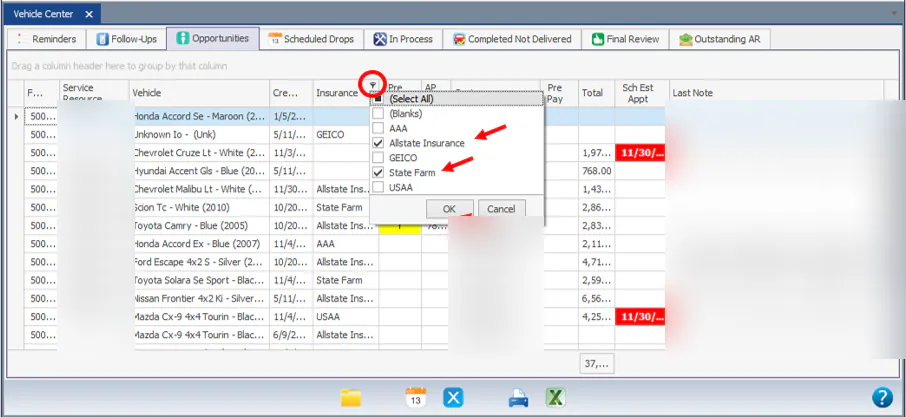
Section titled “Filter by values in a column”- Point to a column header and select the filter icon that appears at its top right.
- Select the values you want to see, then select OK.
Create a custom filter
Section titled “Create a custom filter”If the filter list doesn’t have the option you need, create a custom filter.
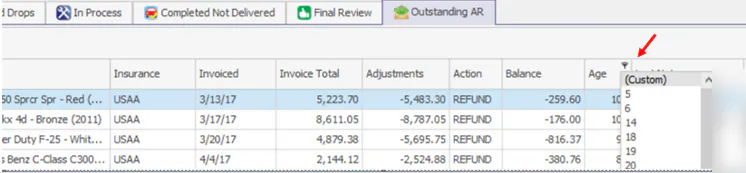
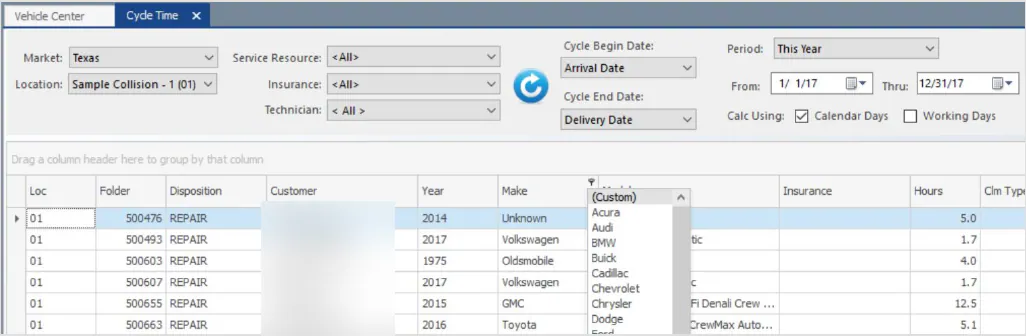
- Select the column’s filter icon, then select (Custom) at the top of the list.
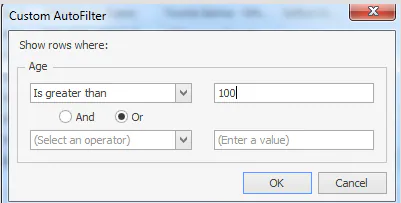
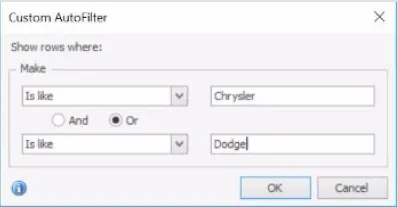
- In the Custom AutoFilter window, choose an operator and enter a value. Add a second condition with And or Or if you need it.
- Select OK.
For example, to see folders with outstanding A/R older than 100 days, open the Vehicle Center Outstanding AR tab and set the Age column to Is greater than 100.
To see only Chrysler and Dodge vehicles on the Cycle Time screen, set the Make column to Is like Chrysler Or Is like Dodge.
Use the Filter Editor
Section titled “Use the Filter Editor”The Filter Editor lets you build filters on several columns, and use conditions the filter list doesn’t offer, such as finding blank values.
-
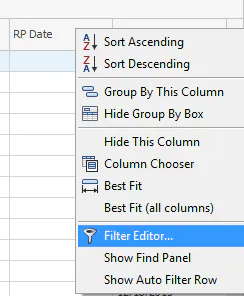
Right-click a column header and select Filter Editor.
-
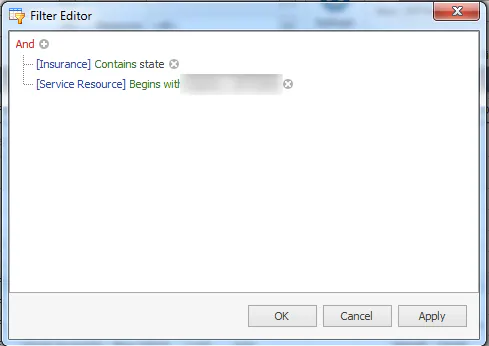
The Filter Editor opens with the column you right-clicked. Colored text can be changed:
- Select the blue column name to choose a different column.
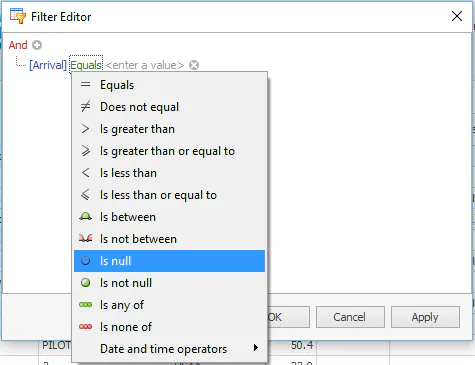
- Select the green operator to choose the kind of filter, for example Equals or Is null.
- Enter the value to filter by.
-
Select Apply to check the result, then select OK.
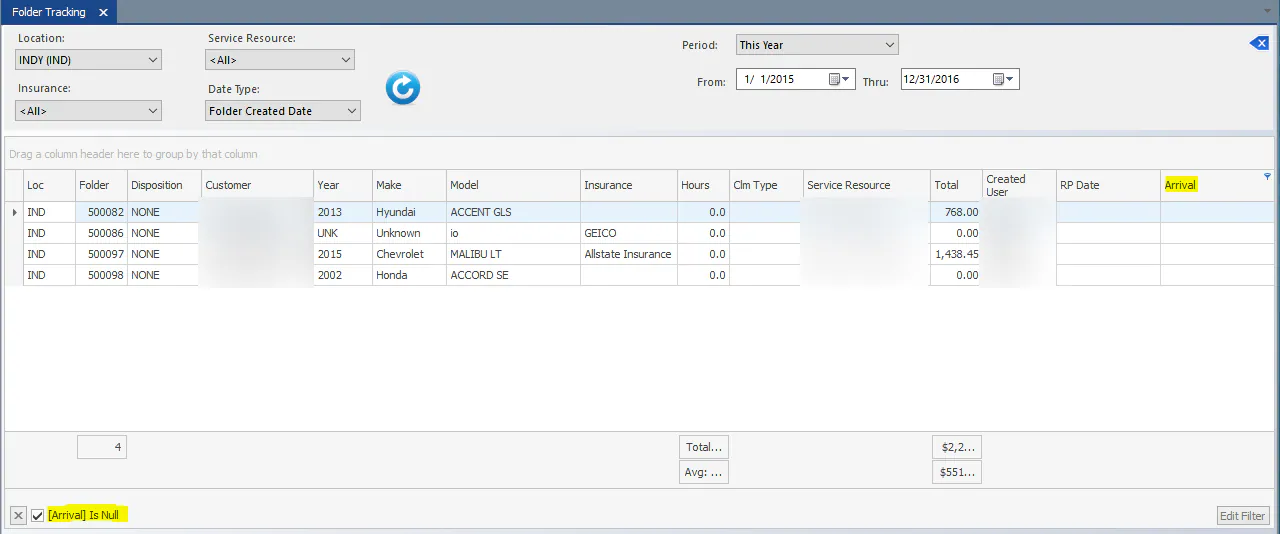
For example, to find folders with no arrival date on the Folder Tracking screen, open the Filter Editor from the Arrival column and change Equals to Is null.
Clear filters
Section titled “Clear filters”-
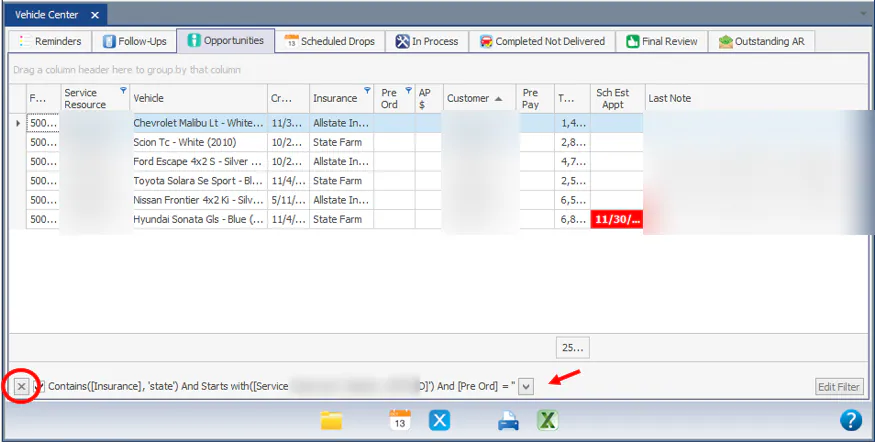
To clear all filters, select the X at the left of the filter bar at the bottom of the grid.
-
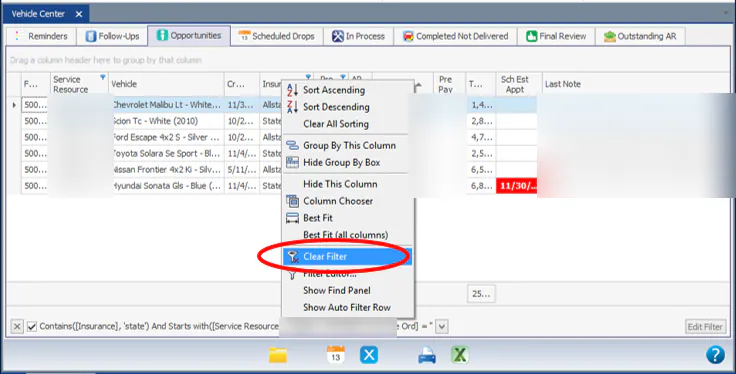
To clear the filter on one column, right-click its header and select Clear Filter.
Group a grid by a column
Section titled “Group a grid by a column”-
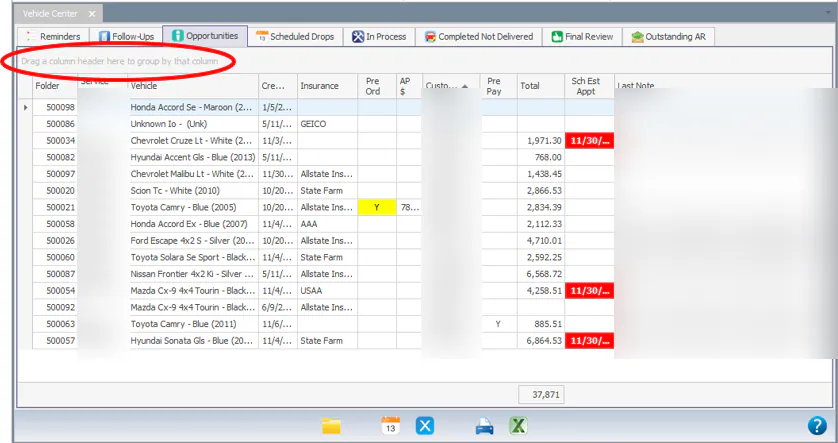
Drag a column header up and drop it in the Drag a column header here to group by that column box above the grid.
-
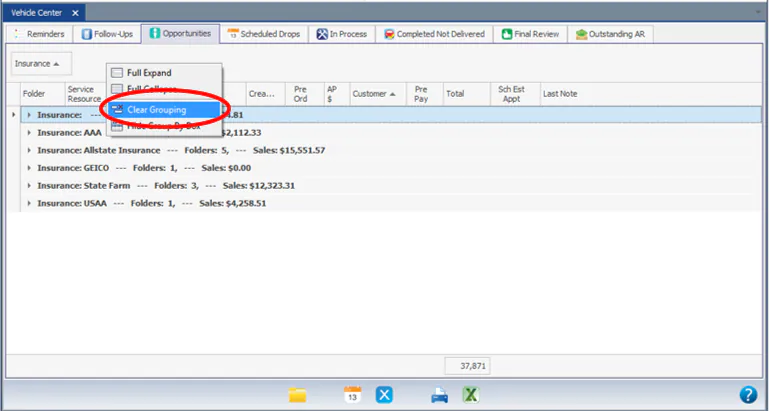
To ungroup, drag the column header back down to its place in the grid, or right-click and select Clear Grouping.
Choose and arrange columns
Section titled “Choose and arrange columns”Add a column
Section titled “Add a column”-
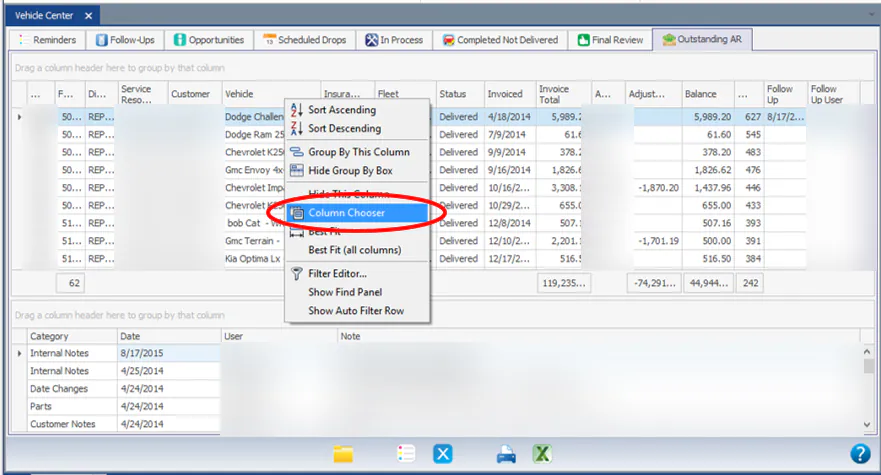
Right-click a column header and select Column Chooser.
-
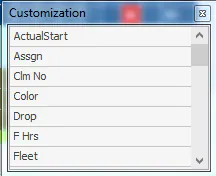
In the Customization window, double-click the column you want to add.
Remove a column
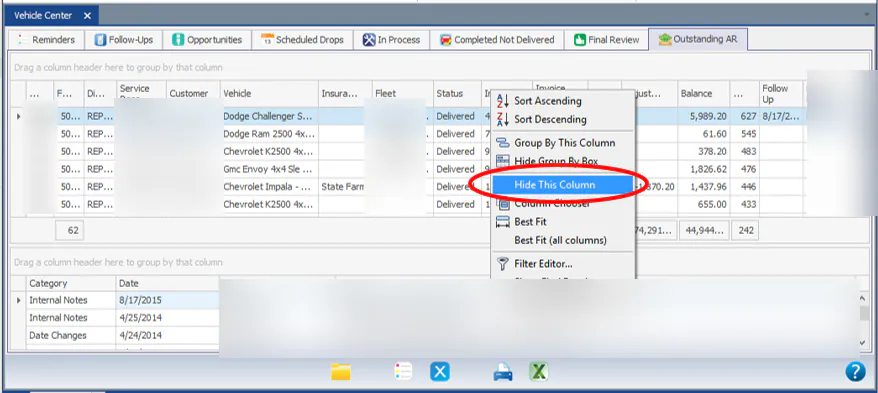
Section titled “Remove a column”Right-click the column header and select Hide This Column. You can also drag the header up off the grid until a black X appears.
Move and size columns
Section titled “Move and size columns”- To move a column, drag its header to a new position.
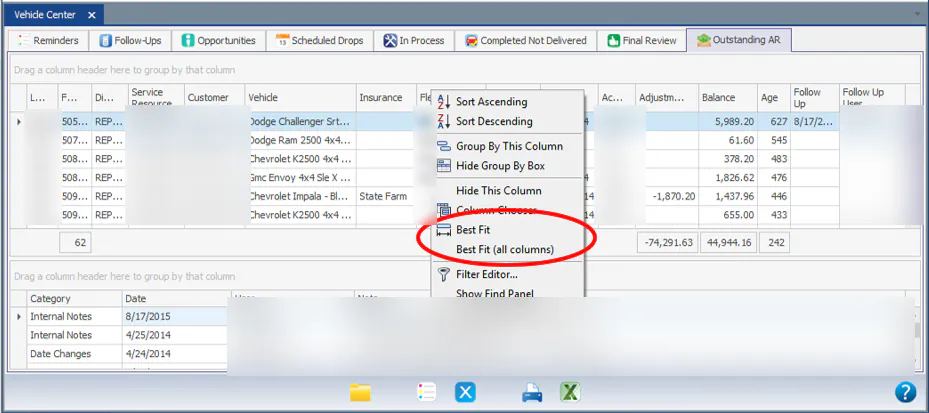
- To size a column, drag the edge of its header. Or right-click the header and select Best Fit for that column, or Best Fit (all columns).
Save your grid layout
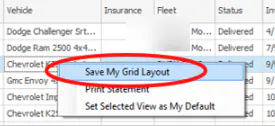
Section titled “Save your grid layout”After you change columns, filters, sorting or grouping, right-click the body of the grid and select Save My Grid Layout. The grid opens the same way next time.
Save a view
Section titled “Save a view”On screens that have a View drop-down, you can save a layout as a named view and switch between views.
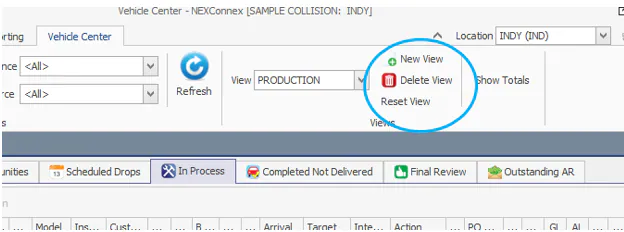
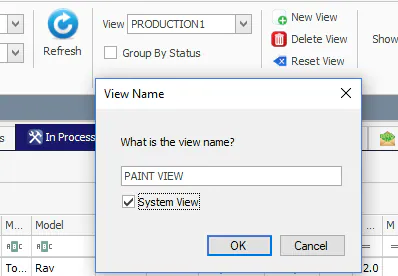
- Add a view: set up the grid’s columns, filters, sorting and grouping. Select New View, type a name, then select OK.
- Change a view: make your changes, select New View, leave the name as it is, then select OK.
- Delete a view: select the view, then select Delete View.
- Reset a view: select Reset View to undo the changes you saved with Save My Grid Layout and go back to the system default.
Open a sub-report
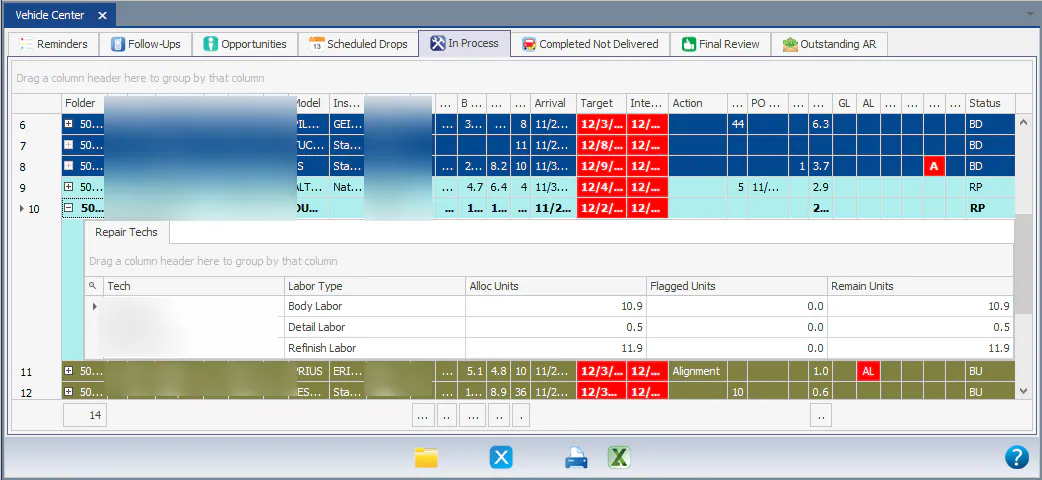
Section titled “Open a sub-report”On the Vehicle Center In Process tab, a bold folder number has a sub-report. Select the + next to the folder number to open it.