
How a repair moves through Nexsyis
Every repair in Nexsyis lives in a folder. This page shows the order things usually happen in, from the first estimate to the final bill, and links to the article for each step.
1. Book the customer and start the folder
Section titled “1. Book the customer and start the folder”- If the customer is coming in for an estimate or a drop-off, create an appointment.
- Create the folder. You can create a folder yourself, or create it directly from an estimate file.
2. Import the estimate
Section titled “2. Import the estimate”You can import the estimate at the first point of contact with the customer. The estimate is an exact copy of the estimate from your estimating system, and you can’t edit it in Nexsyis.
A folder can hold more than one estimate for the same vehicle. For example, you can import a customer-pay hail damage estimate and an accident estimate that’s billed to an insurance company.
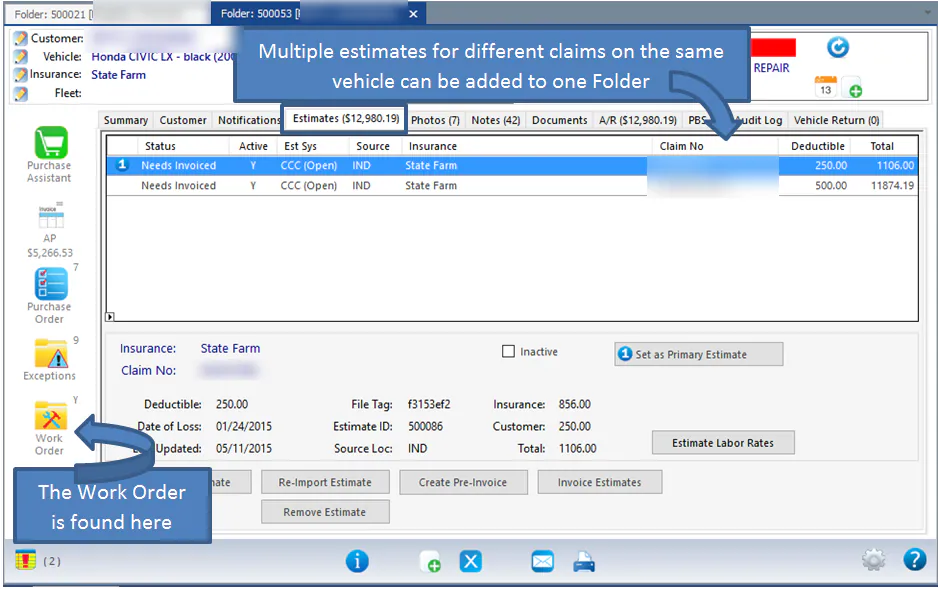
To learn how estimates and work orders differ, see Estimates and work orders explained.
3. Create the work order
Section titled “3. Create the work order”Create the work order once you know you’re going to repair the vehicle. The work order is a copy of the estimate. If the folder has more than one estimate, they’re combined into one work order, with a dark blue line between them.
Creating the work order:
- Adds every purchase line to the Purchase Assistant, so the parts can be ordered.
- Adds every labor line to the Labor Allocation screen, so you can assign the labor to technicians.
Unlike the estimate, you can change the work order to match how your shop will actually do the work:
- Convert work order lines. For example, a line that comes over as body labor can be converted to sublet glass if a glass company will do the work. You can then order the sublet from the Purchase Assistant.
- Add manual work order lines for parts or labor that are shop pay and aren’t billed to the customer or insurance company.
4. Order and receive parts
Section titled “4. Order and receive parts”- Order parts from the Purchase Assistant.
- Receive the parts when they arrive.
5. Assign labor
Section titled “5. Assign labor”Allocate labor to your technicians from the labor lines on the work order.
6. Update the estimate when it changes
Section titled “6. Update the estimate when it changes”If the estimate needs updating, update it in your estimating system, then import the revised estimate into the folder. Don’t try to change the estimate in Nexsyis.
7. Keep the customer informed
Section titled “7. Keep the customer informed”While the vehicle is in the shop, use the folder to text customers, send photos and videos and get e-authorization. See Customer communication overview.
8. Deliver the vehicle and invoice the repair
Section titled “8. Deliver the vehicle and invoice the repair”- Prepare the folder for delivery.
- Invoice the folder. The final bill sent to the customer or insurance company is created from the estimate, not the work order.
- Mark the vehicle as delivered.