
Assign technicians to repair stages
Assign technicians to repair plan stages so everyone can see who is working each stage. You can assign technicians on a single folder’s repair plan, or set default technicians that are assigned automatically when a folder is created.
Assign technicians on a folder
Section titled “Assign technicians on a folder”-
Open the folder’s Repair Plan screen.
-
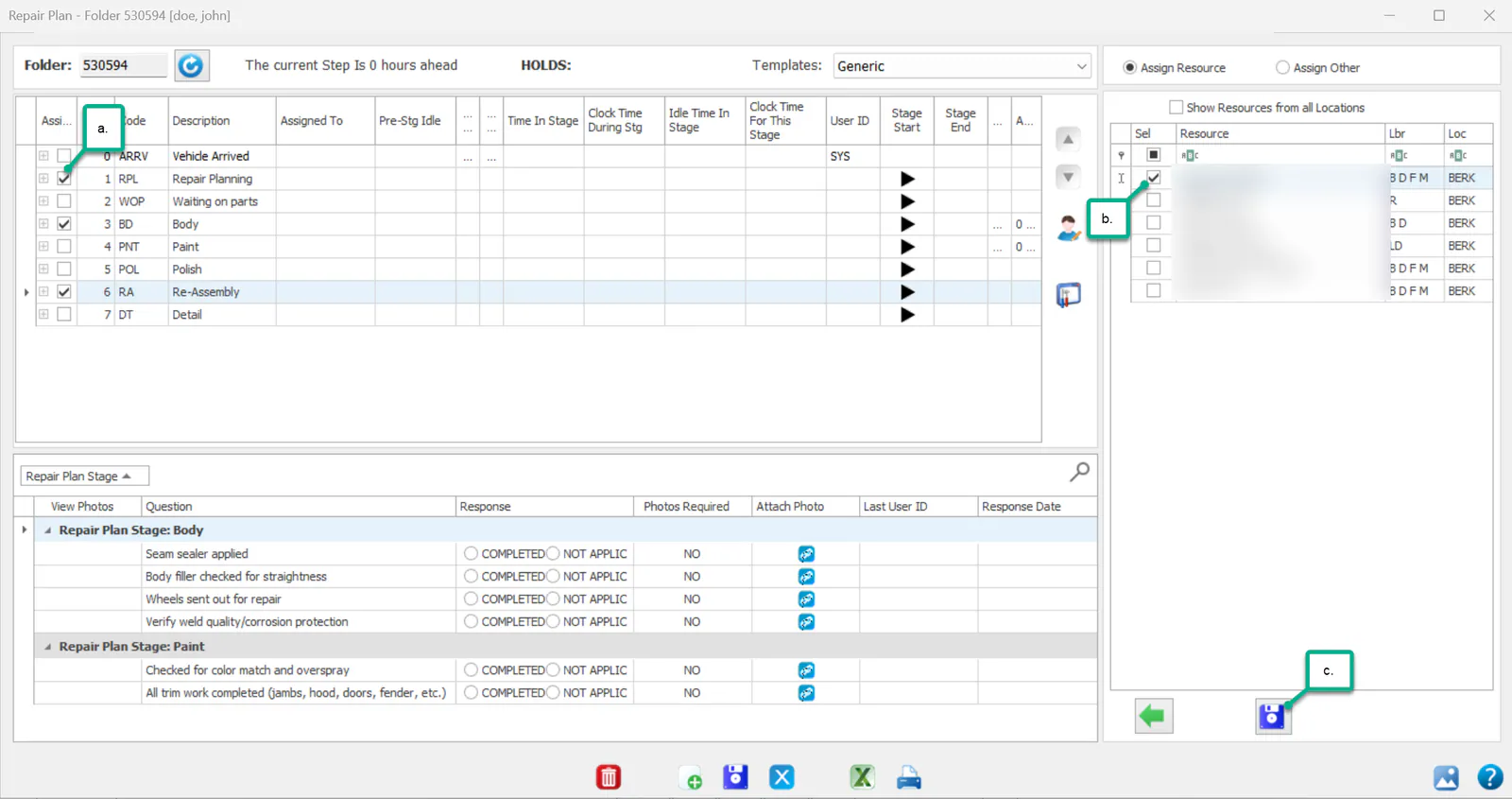
Select the assign icon
 on the right side of the screen.
-
Under the Assign column, select the checkbox for each stage you want to assign.
-
On the right, select the checkbox for each technician.
-
Select Save.
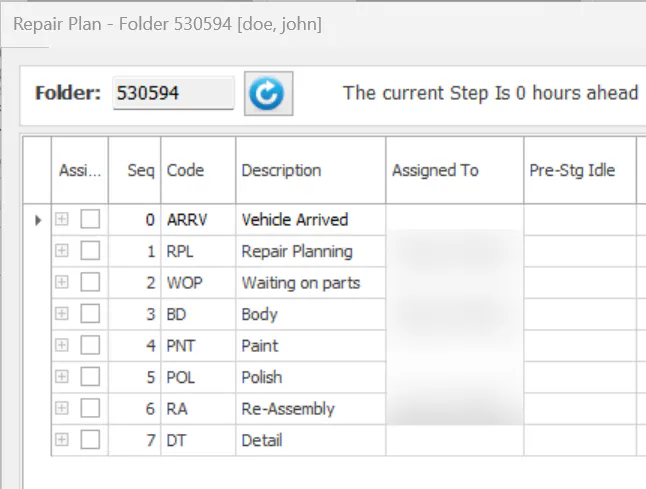
The Assigned To column shows the technicians assigned to each stage.
Assign a default technician to a stage
Section titled “Assign a default technician to a stage”If the same technicians always work the same stages, set them as the stage’s default resource. They’re assigned to that stage automatically when a folder is created.
-
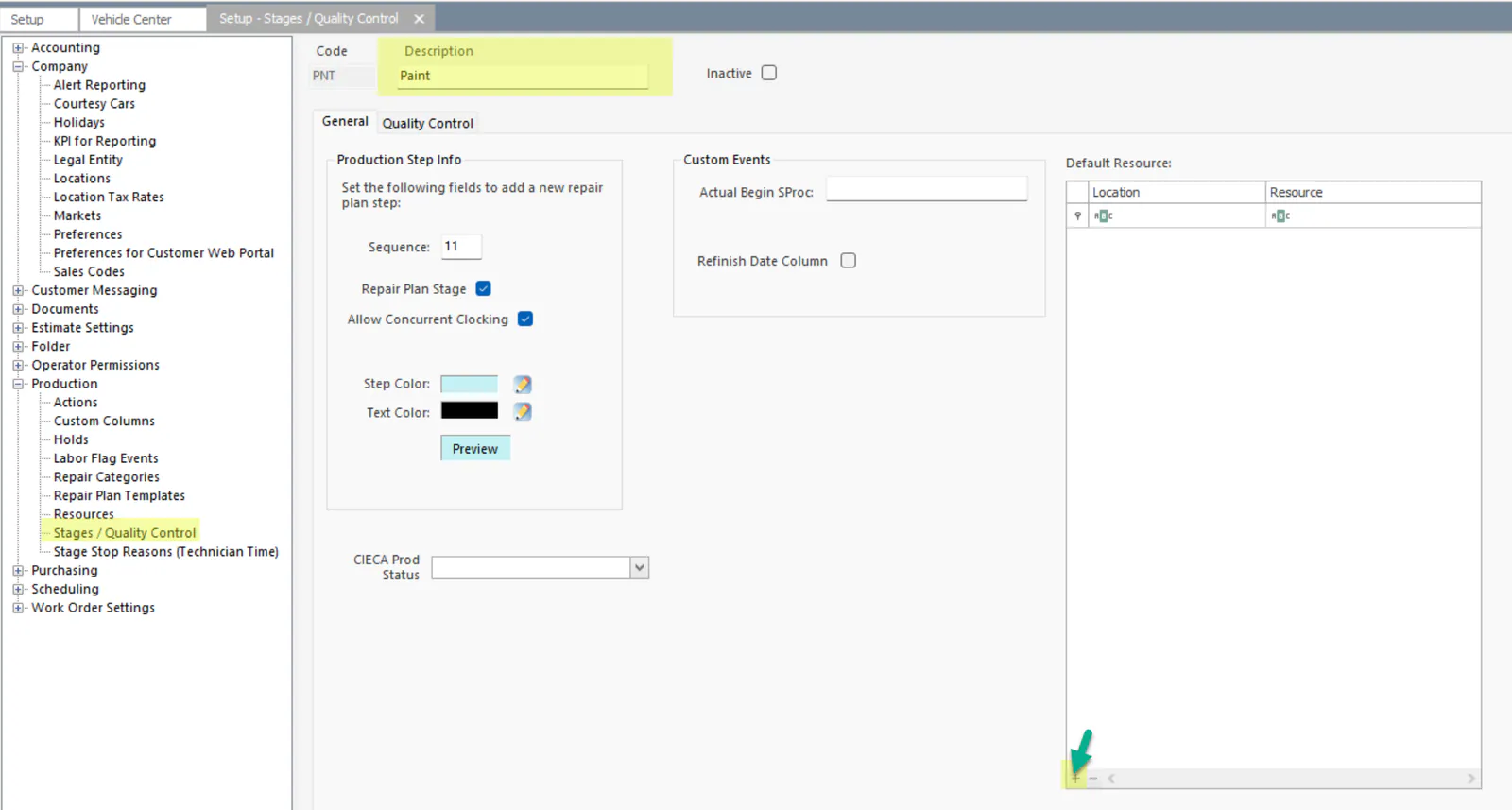
Open System › Setup › Production › Stages / Quality Control.
-
Select the stage.
-
On the right, under Default Resource, select the plus button.
-
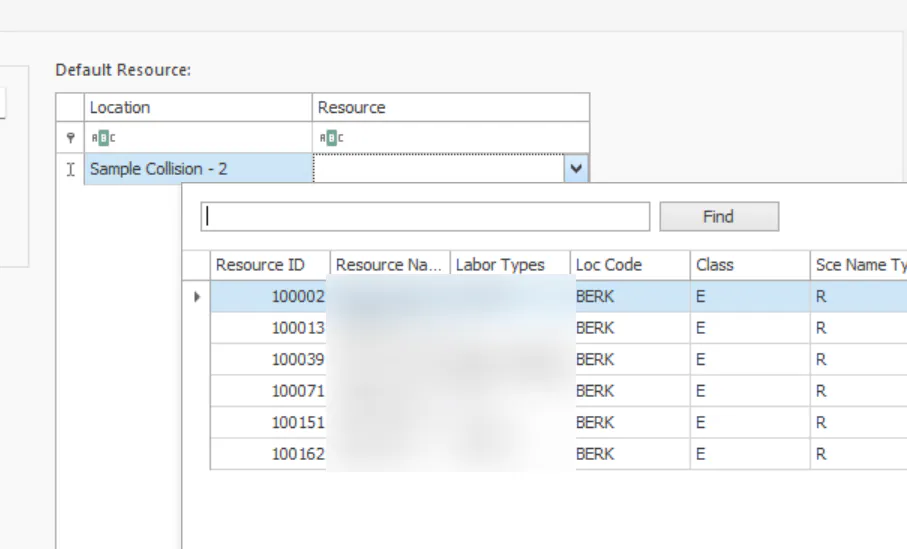
In the new line, select the Location, then the Resource.
-
Repeat steps 3 and 4 for each other location.
-
Select Save.
-
Repeat steps 2 to 6 for each other stage.