
Allow camera access
The first time you take a photo in NexsyisNow on a device, your browser asks to let NexsyisNow use the camera and microphone. Allow it so you can take photos and videos. If you blocked access by mistake, clear the browser’s site data so it asks again.
Apple devices (Safari)
Section titled “Apple devices (Safari)”Use Safari on Apple devices, and make sure you aren’t in Private browsing mode.
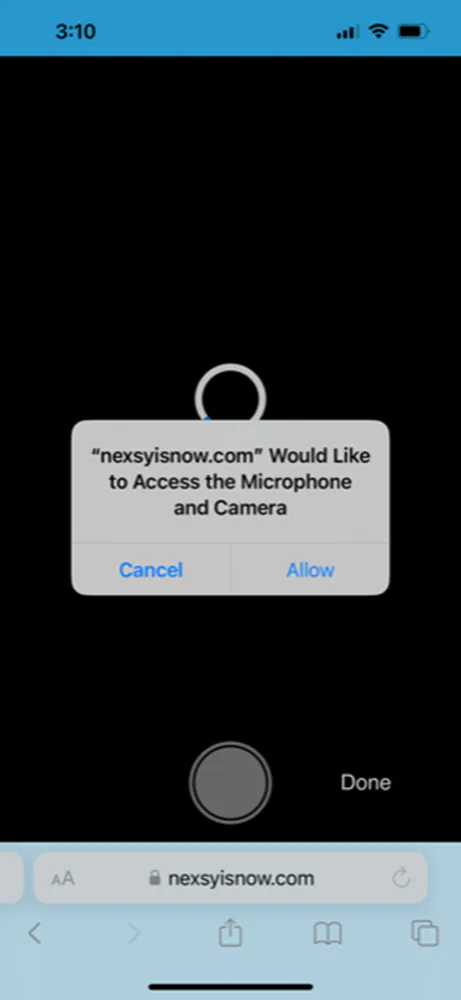
When NexsyisNow asks to access the microphone and camera, select Allow.
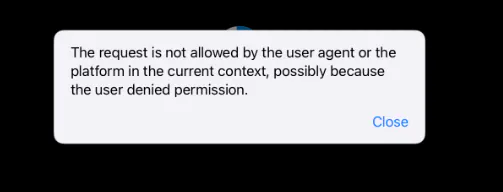
If you selected Cancel, a message says the request isn’t allowed when you try to take a photo.
To be asked again:
-
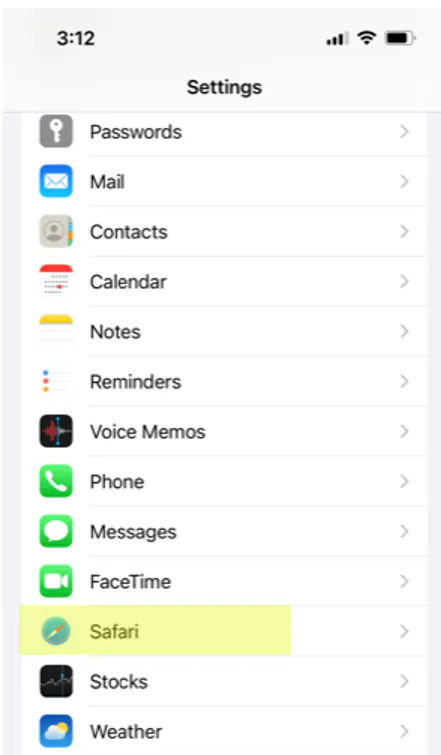
Open Settings on your device and select Safari.
-
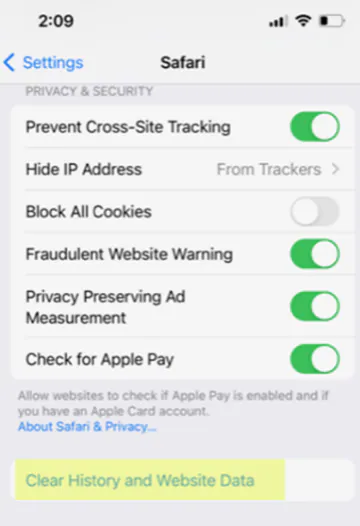
Select Clear History and Website Data.
-
Go back to NexsyisNow and open the photo capture. When asked, select Allow.
Android devices (Chrome)
Section titled “Android devices (Chrome)”When NexsyisNow asks to use your camera and microphone, select Allow.
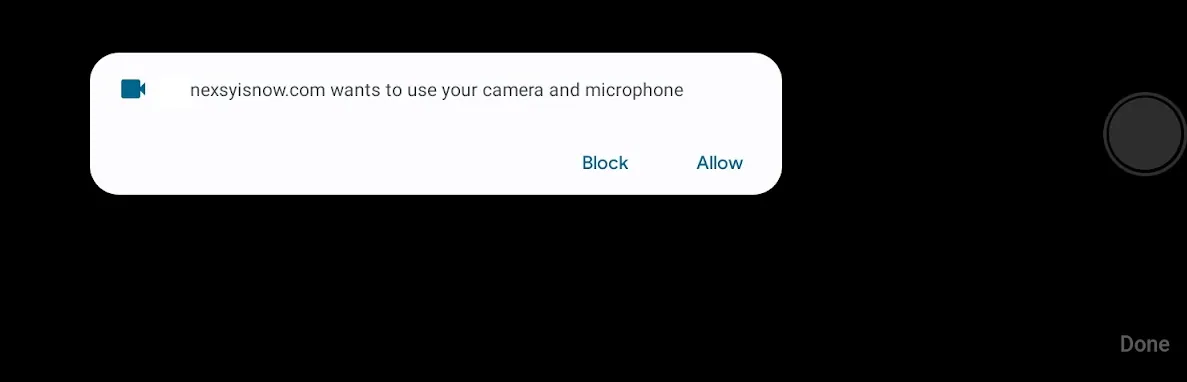
If you selected Block, a Permission denied message shows when you try to take a photo.
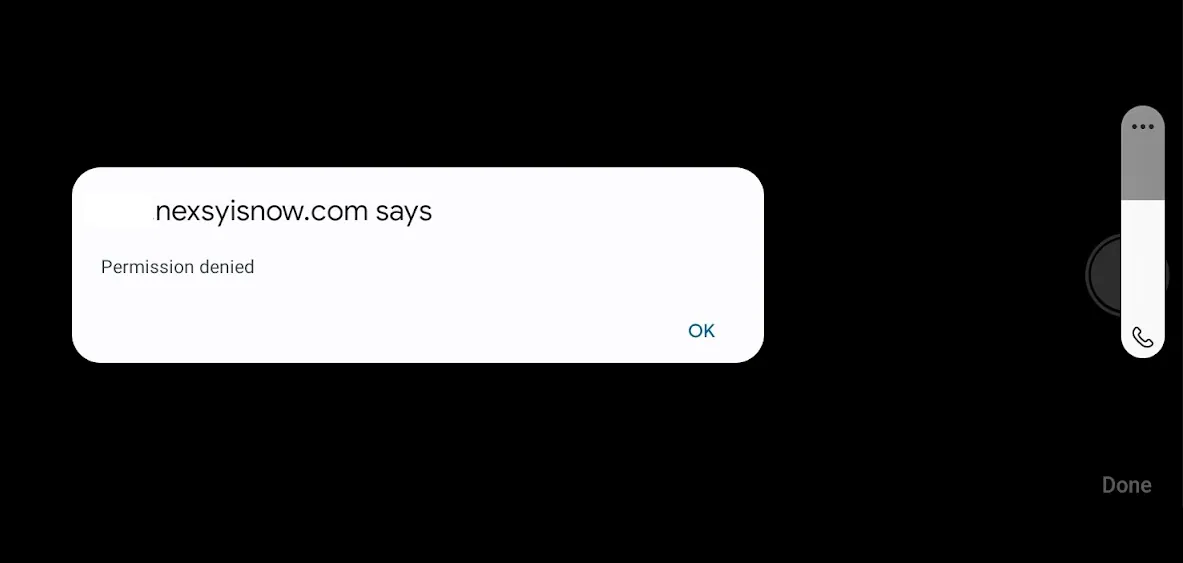
To be asked again:
-
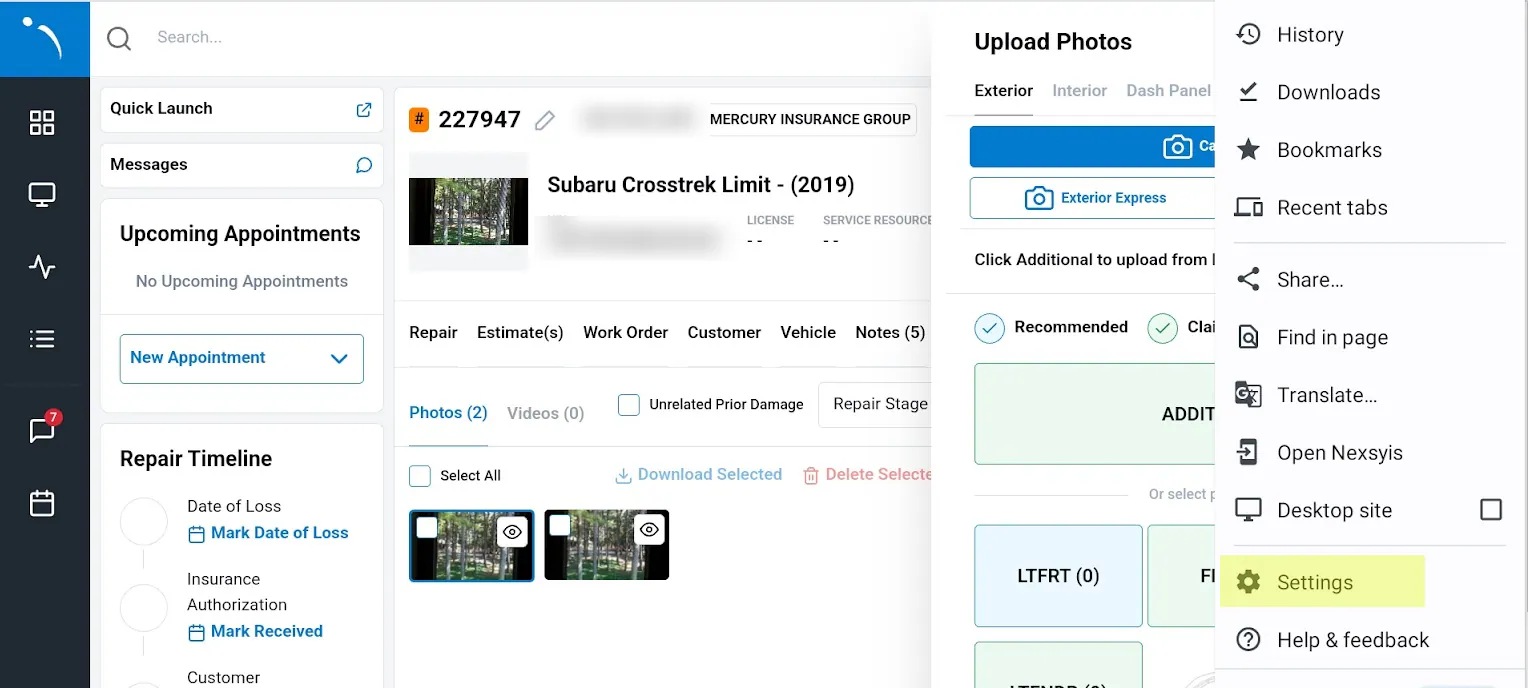
In Chrome, select the three-dot menu at the top right, then select Settings.
-
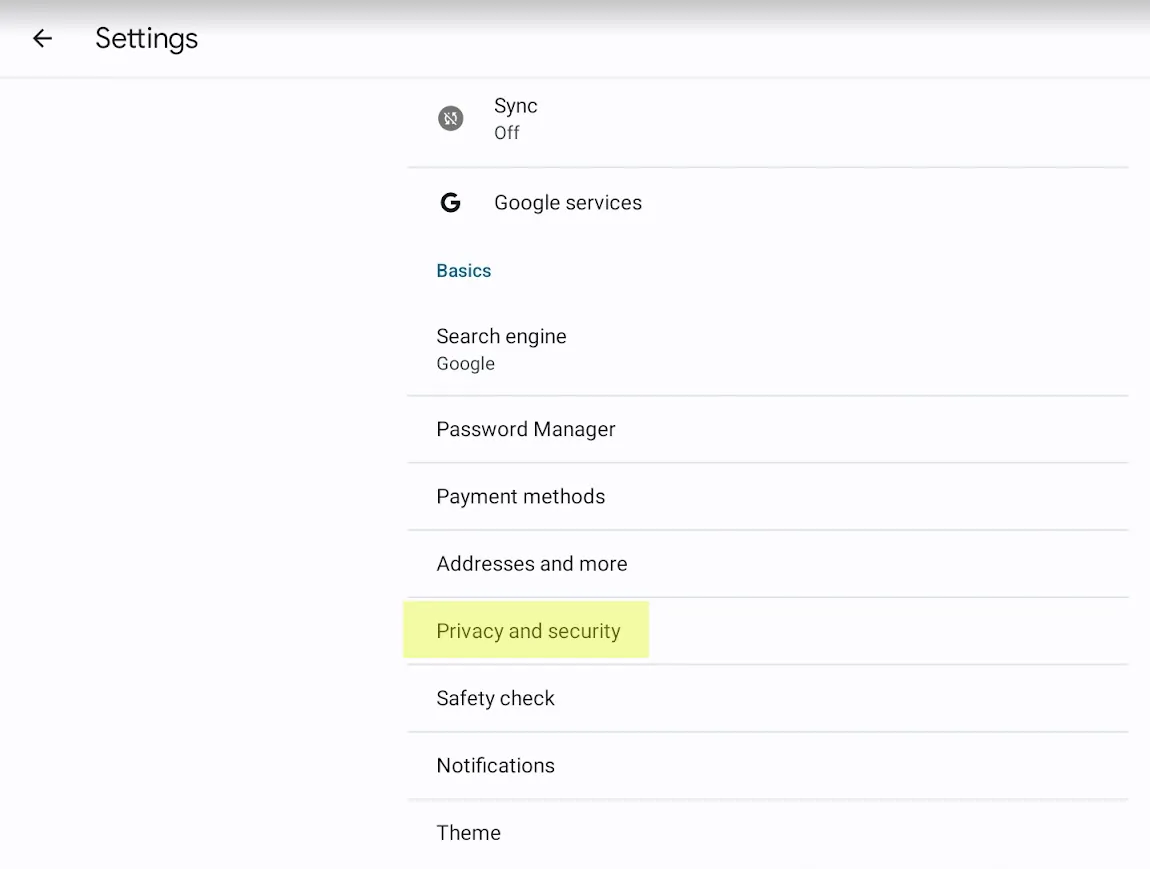
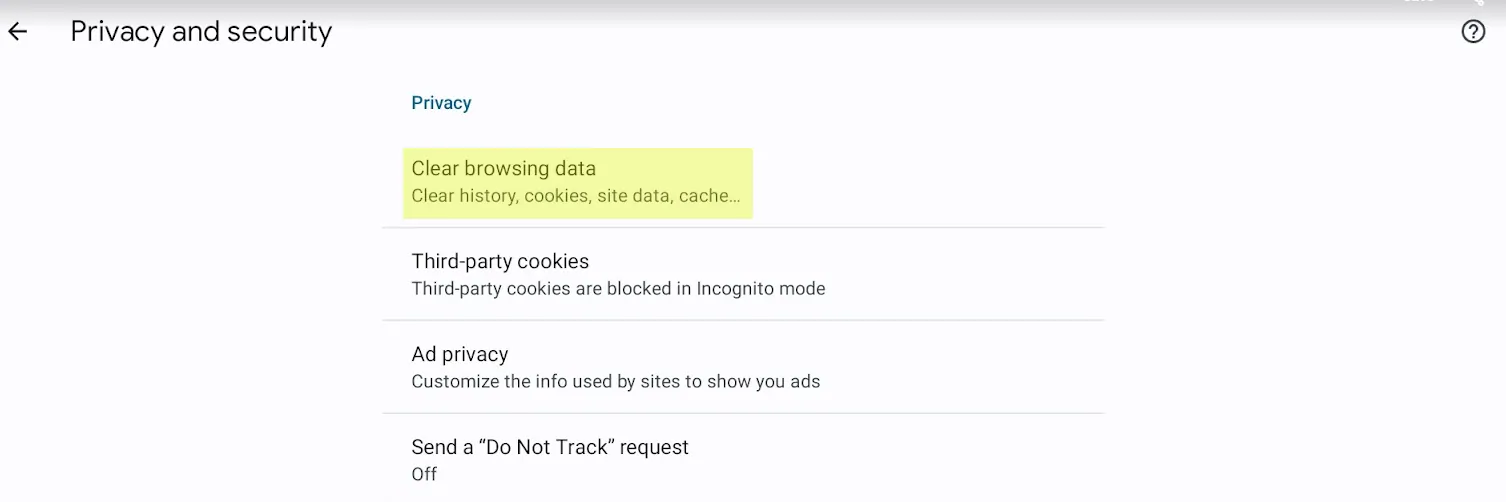
Select Privacy and security.
-
Select Clear browsing data.
-
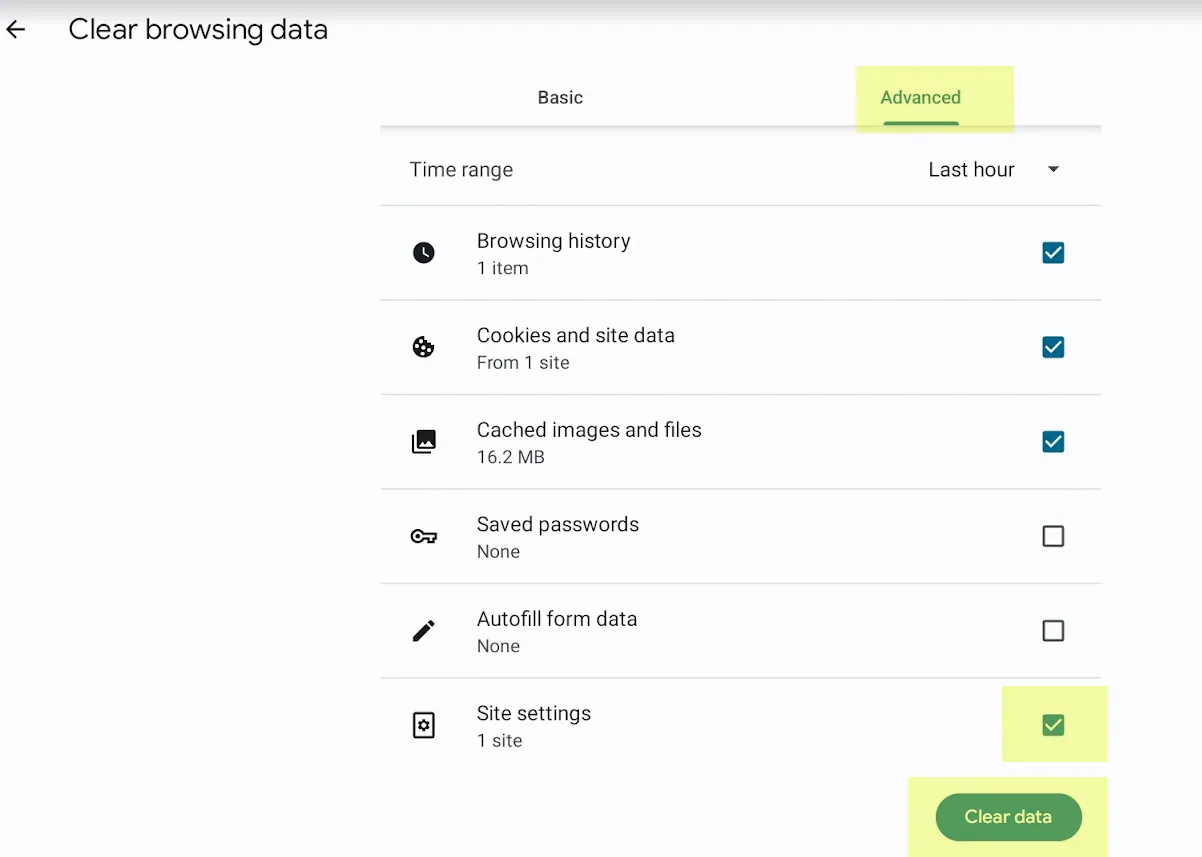
Select the Advanced tab. Make sure Site settings, the last checkbox, is selected, then select Clear data.
-
Go back to NexsyisNow and open the photo capture. When asked, select Allow.
Samsung devices (Samsung Internet)
Section titled “Samsung devices (Samsung Internet)”NexsyisNow asks twice, once for the microphone and once for the camera. Select Allow on each prompt.
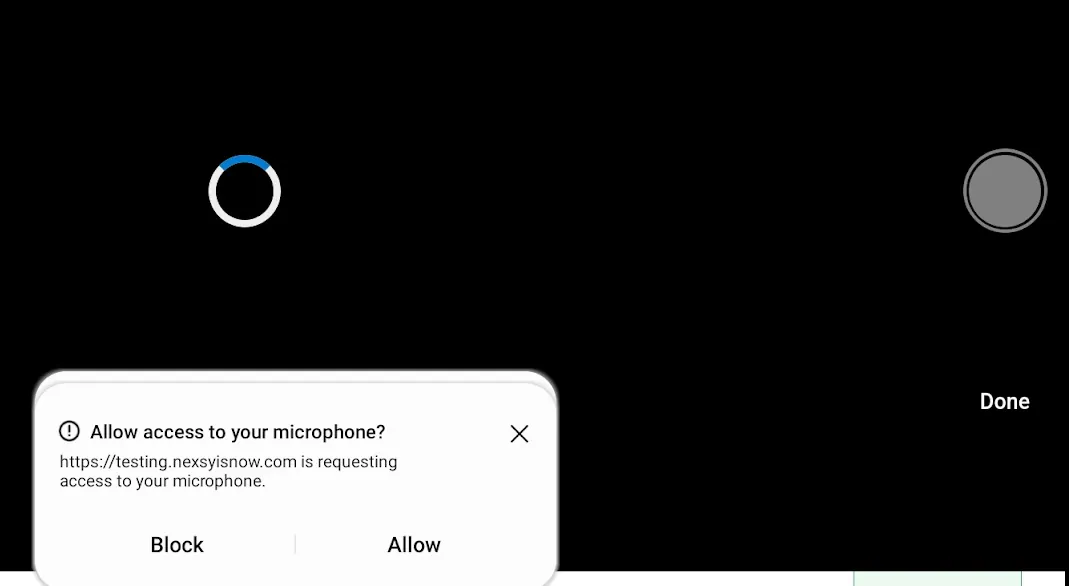
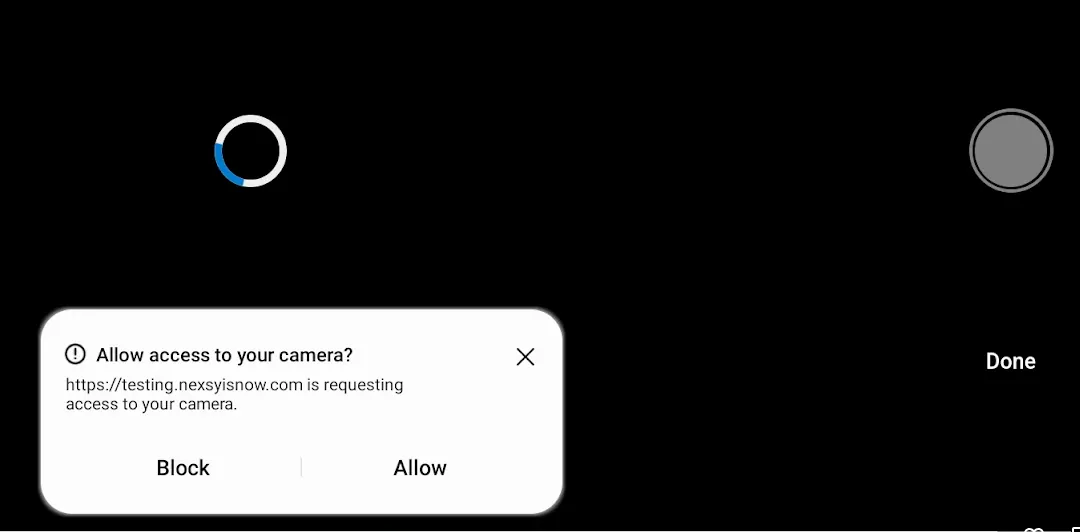
If you selected Block, a Permission denied message shows when you try to take a photo.
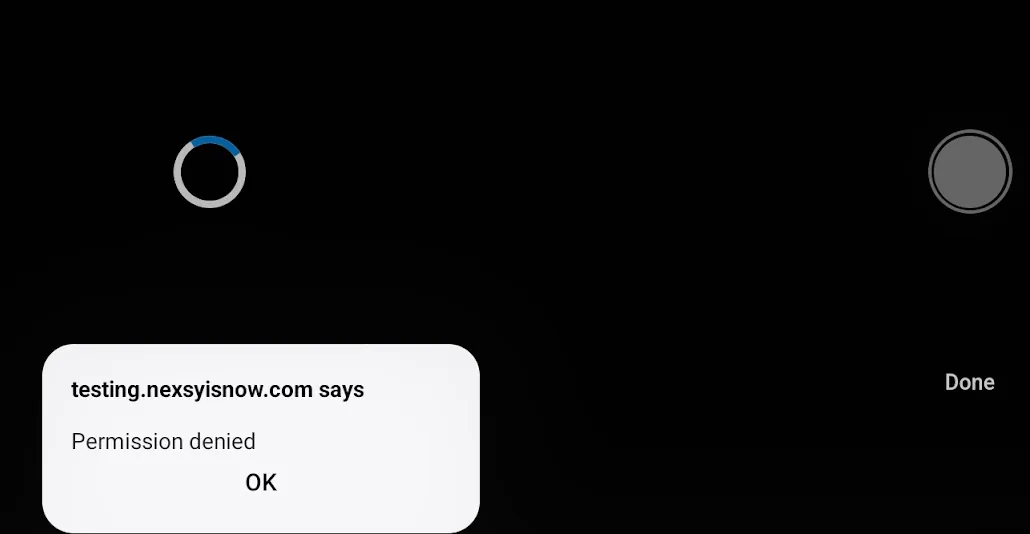
To be asked again:
-
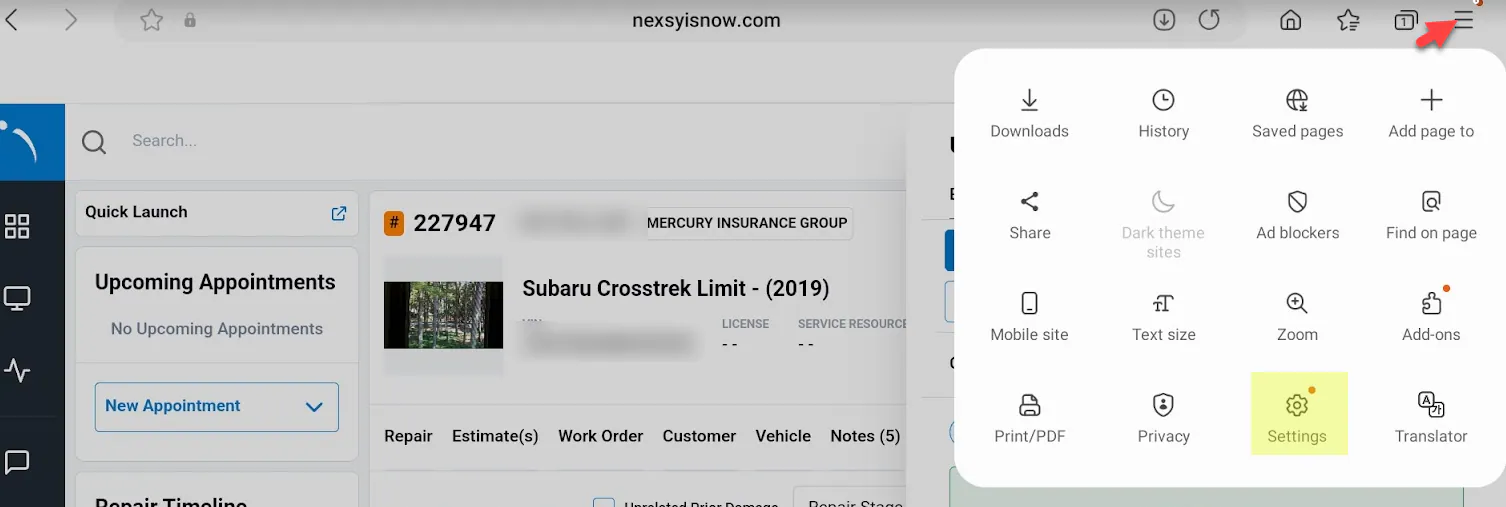
Select the menu button (three lines) at the top right of the browser, then select Settings.
-
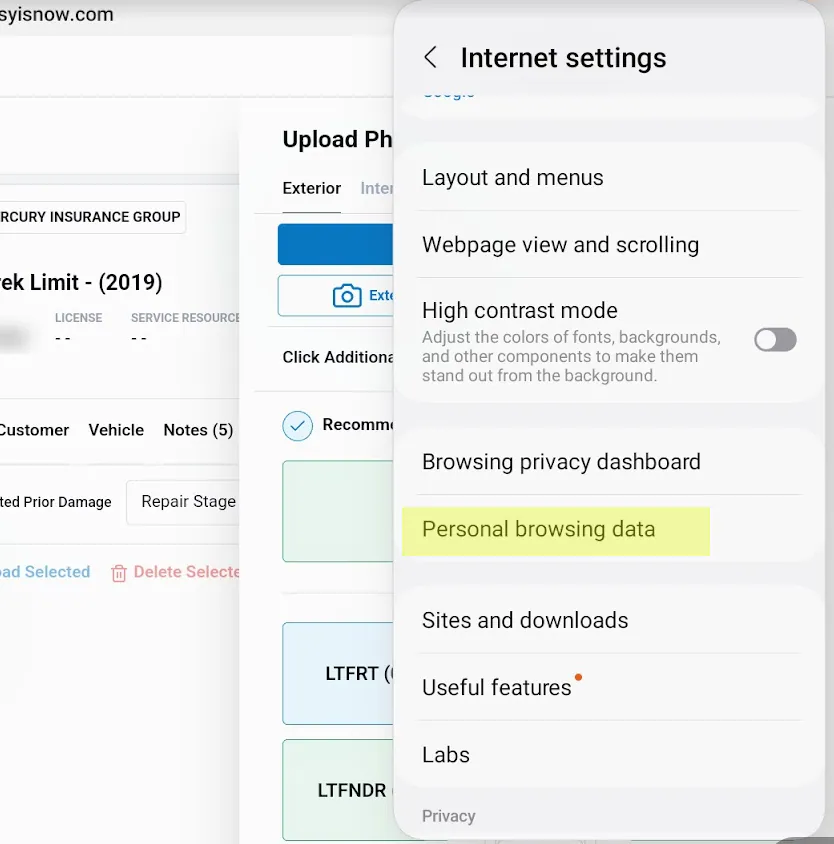
Select Personal browsing data.
-
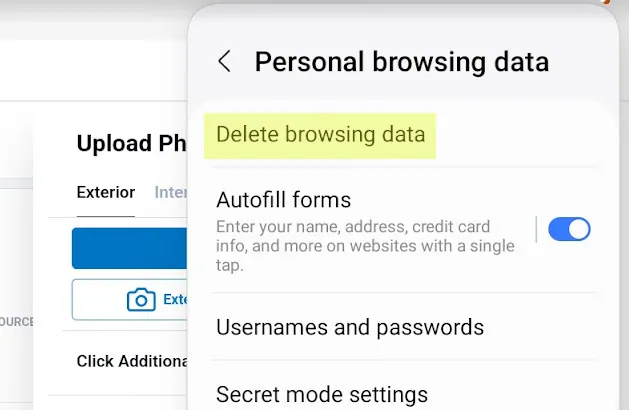
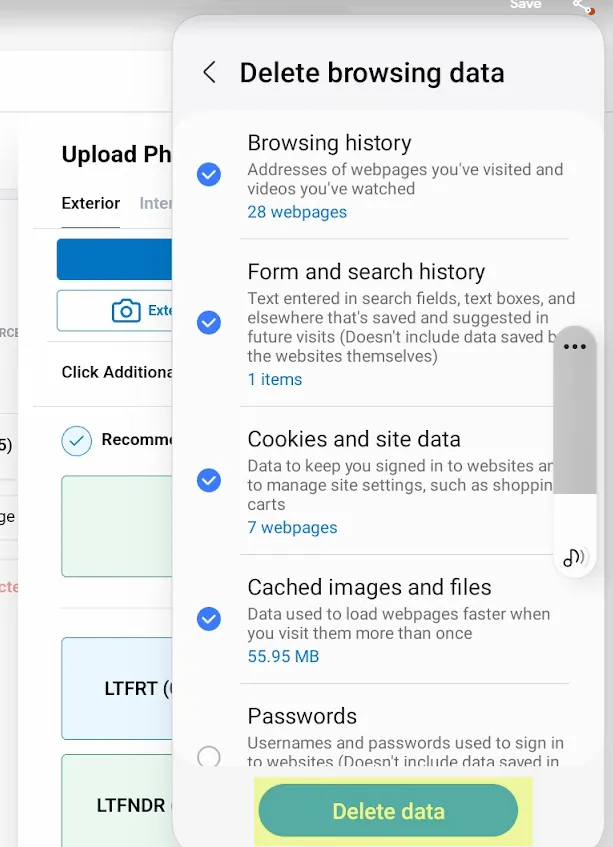
Select Delete browsing data.
-
Select Delete data.
-
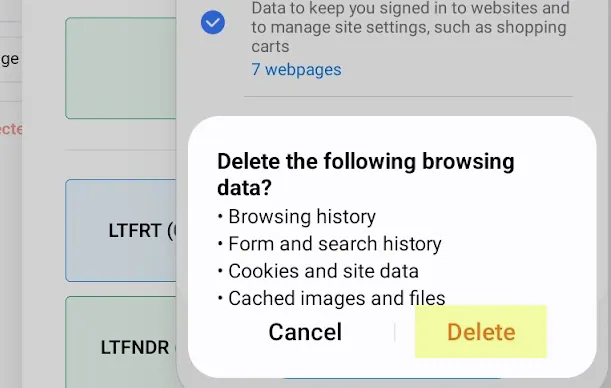
Select Delete to confirm.
-
Go back to NexsyisNow and open the photo capture. When asked, select Allow on both prompts.