
Map estimate insurance companies
Each estimating system sends the insurance company name its own way. Insurance mapping matches each of those names to an insurance company in Nexsyis. Use it to map names that aren’t mapped yet, and to fix names that were mapped to customer pay by mistake.
Before you begin
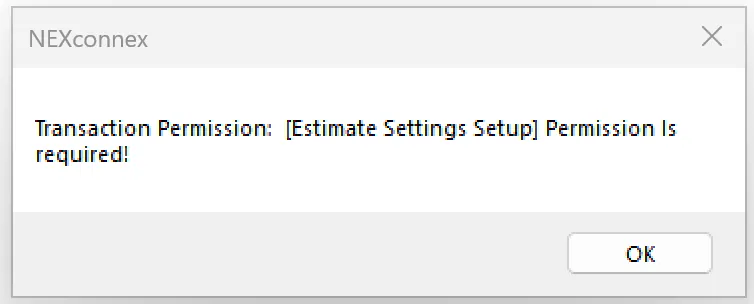
Section titled “Before you begin”You need the Estimate Settings Setup transaction permission. Without it, Nexsyis shows a message that the permission is required.
Open insurance mapping
Section titled “Open insurance mapping”Do one of the following:
- Go to Setup › Estimate Settings › Insurance Mapping.
- On a folder’s Estimates tab, an estimate whose insurance company isn’t mapped shows << not mapped >> in the Nex Insurance column. Right-click << not mapped >> and select Insurance Mapping.
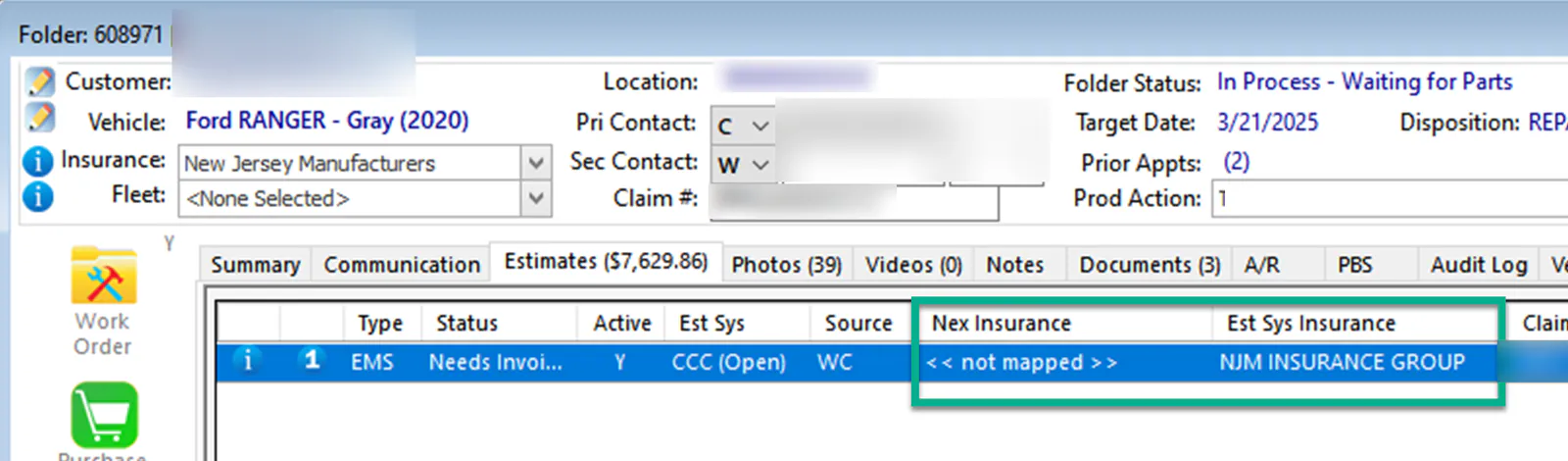
Each row matches a Source Name from the estimating system to a Nexsyis Name:
- Red rows show << not mapped >>. Map these to the correct insurance company.
- Yellow rows are mapped to [ customer pay / no insurance ]. Check whether each one really is customer pay.
Map an insurance company
Section titled “Map an insurance company”-
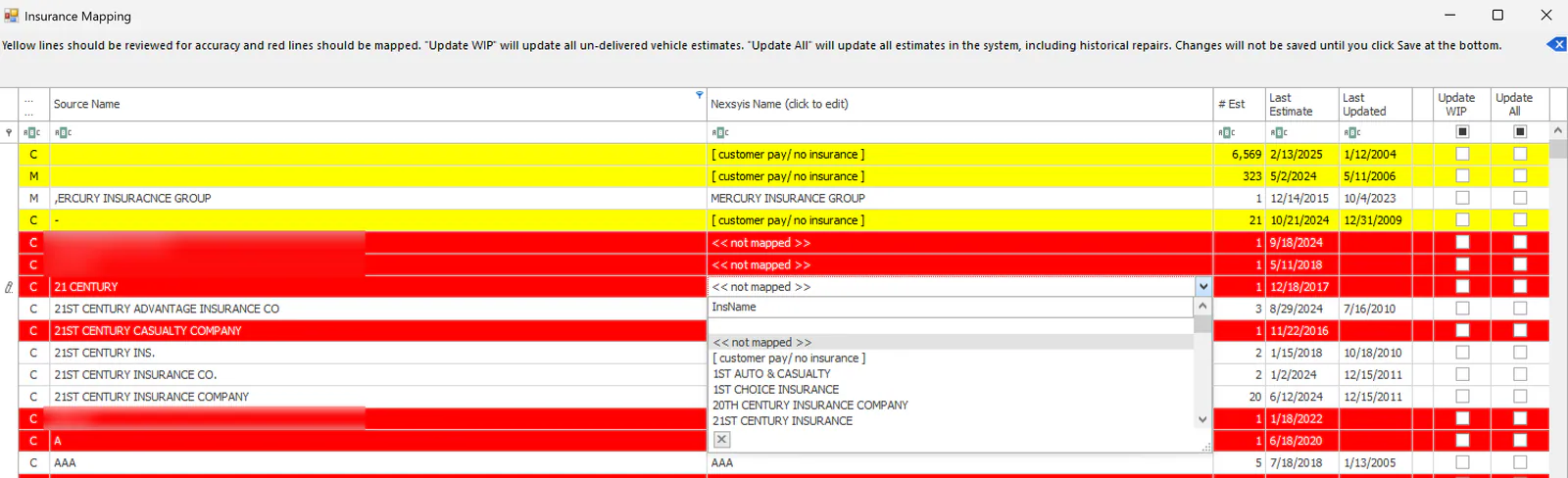
On the row, select the Nexsyis Name and choose the correct insurance company from the list.
-
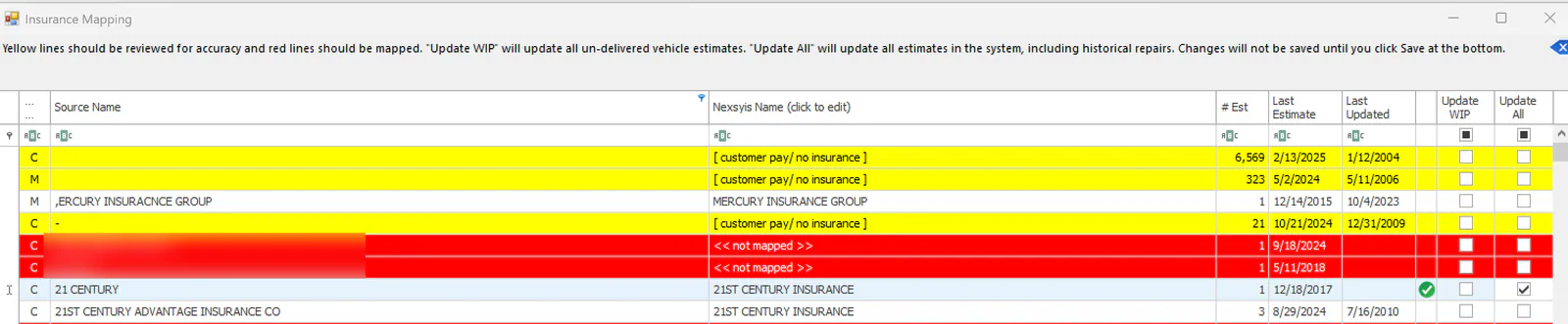
Choose which estimates to update with the new name by selecting the row’s checkbox:
- Update WIP: updates the estimates on all folders that haven’t been delivered.
- Update All: updates every estimate in Nexsyis, including past repairs.
-
Repeat for any other rows. Each row you change shows a green check mark. To undo all your changes, select the blue x at the top right of the grid.
-
Select Save at the bottom of the screen. Your changes aren’t saved until you do.