
Set the target date
The target date is the date you promise the customer the repair will be complete. Set it on the folder’s Summary tab.
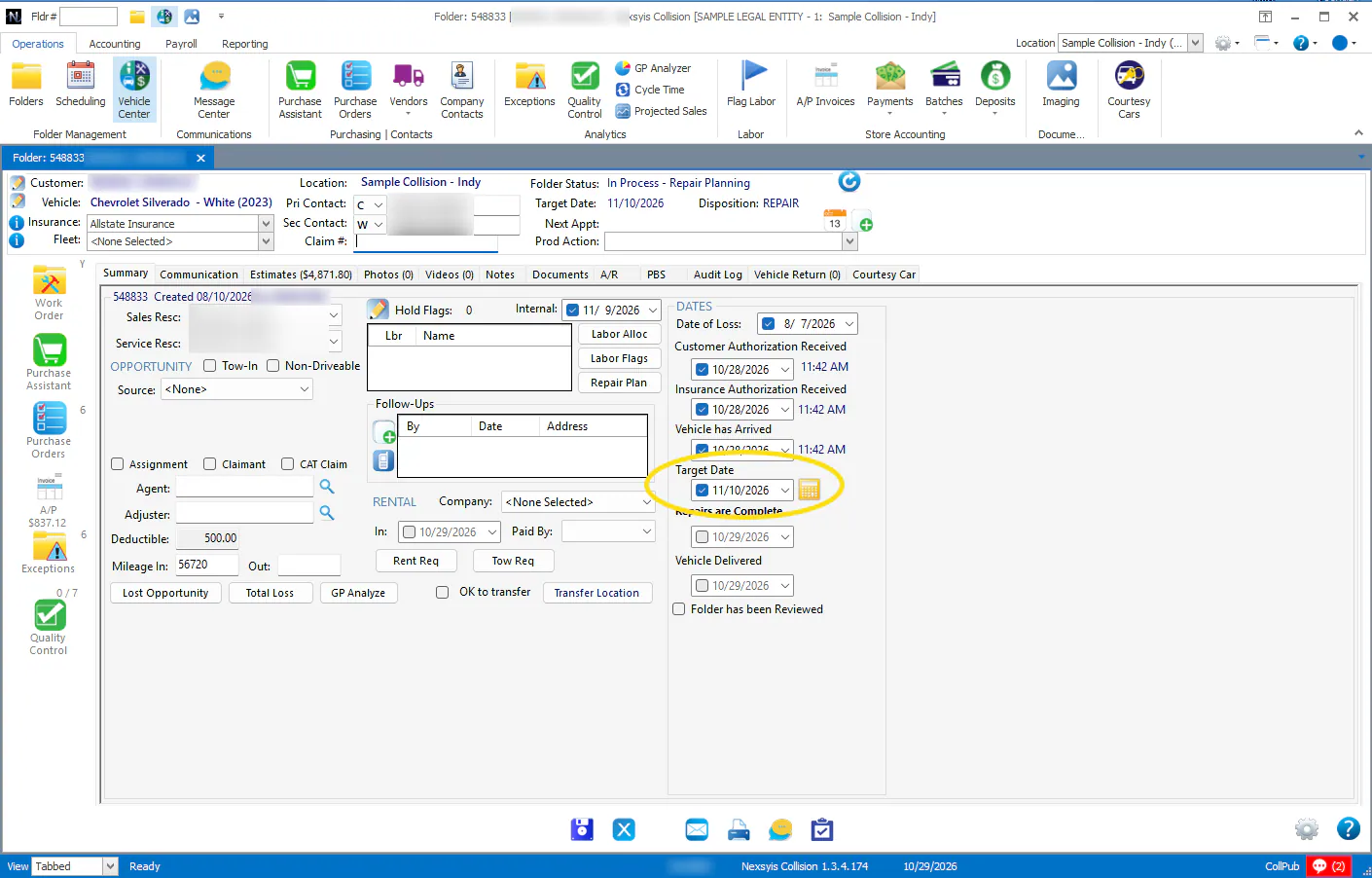
Set the target date
Section titled “Set the target date”Under Dates on the Summary tab, either:
- Choose the date from the Target Date drop-down, or
- Select the calculator next to Target Date to use the target date calculator.
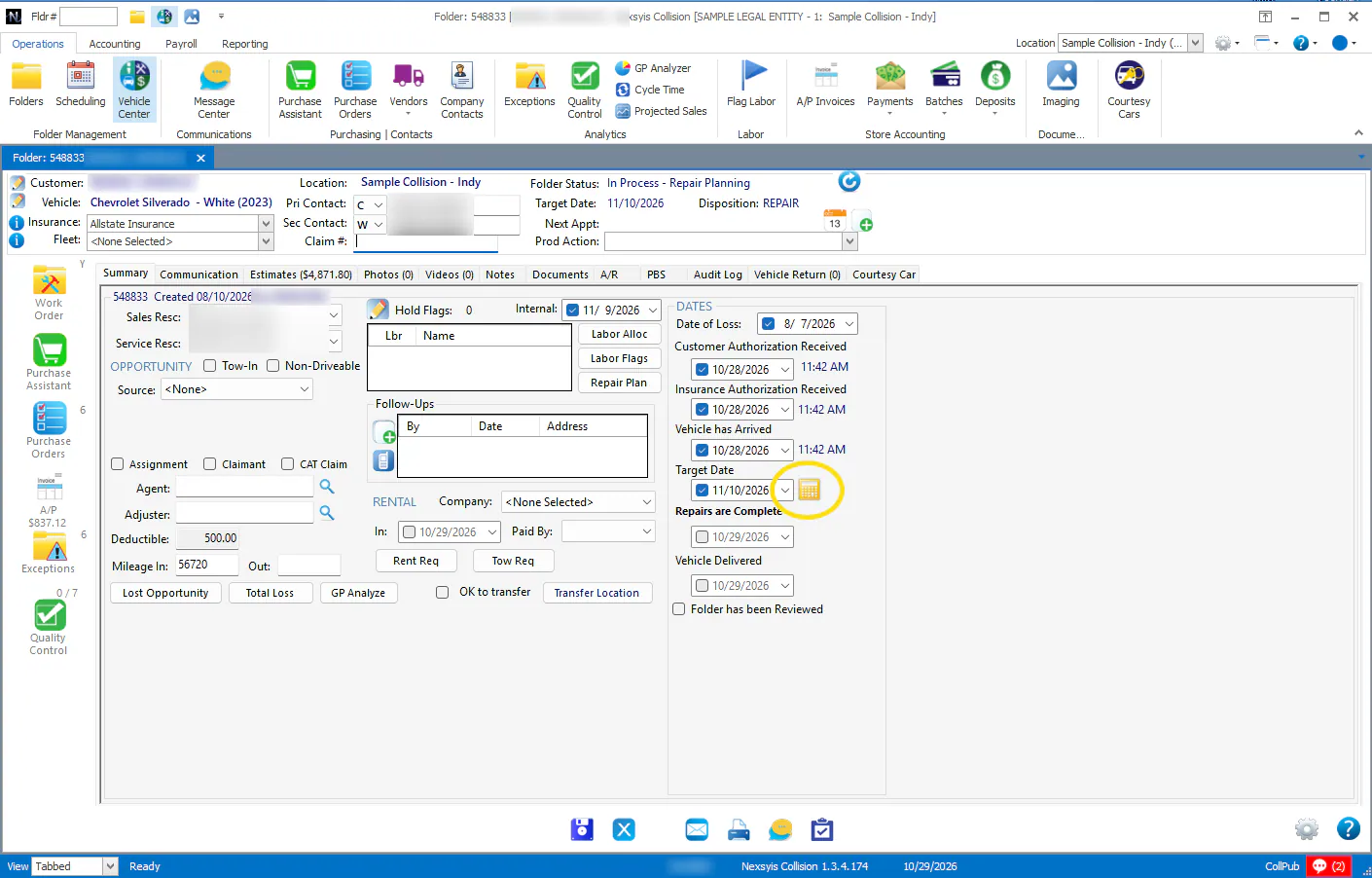
Change the target date
Section titled “Change the target date”If you change the target date, let the customer know as soon as you can. After you change a target date that was already set, it turns yellow, as a reminder to be careful about changing it again.
See target dates in the Vehicle Center
Section titled “See target dates in the Vehicle Center”The Target column on the Vehicle Center In Process tab shows each folder’s target date. A target date shows in red if it has passed.
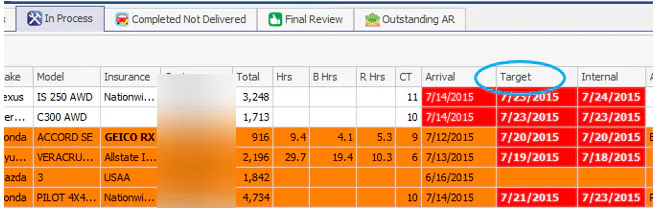
Set target date rules for an insurance company
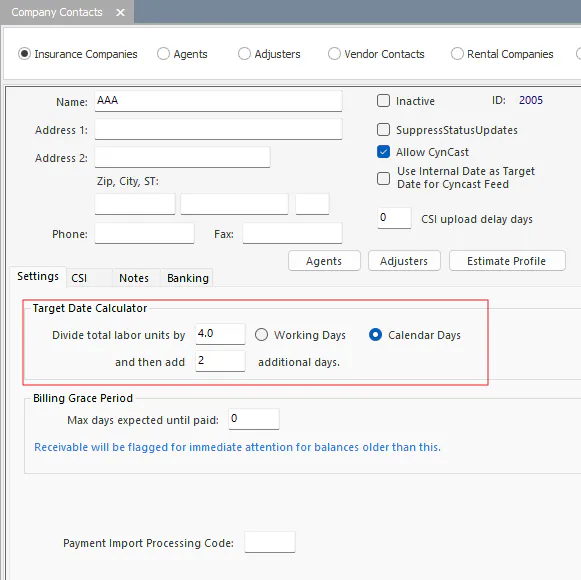
Section titled “Set target date rules for an insurance company”The target date calculator can use settings from the folder’s insurance company.
-
Open Company Contacts and select Insurance Companies.
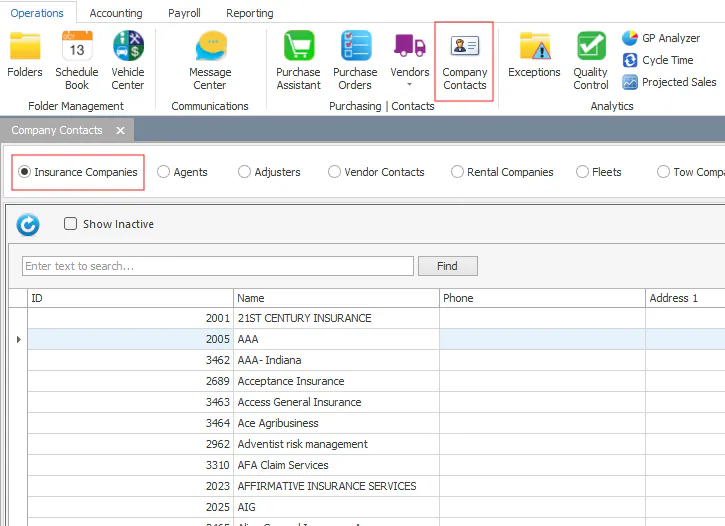
-
Double-click the insurance company to open it.
-
Under Target Date Calculator, enter the number to Divide total labor units by, choose Working Days or Calendar Days, and enter how many additional days to add.
Fleets can have their own target date settings too. See Add a fleet vehicle to a folder.