View technician punches
You can review technicians’ time punches in several places, depending on whether you want one technician’s week, one folder, or a report across the shop.
One technician’s week
Section titled “One technician’s week”Open System › Tools › Technician Time Punch Corrections and search for the technician to see their punches for each week. See Correct technician punches.
One folder, on the repair plan
Section titled “One folder, on the repair plan”On the folder’s repair plan, expand a stage to see the punches recorded under it.
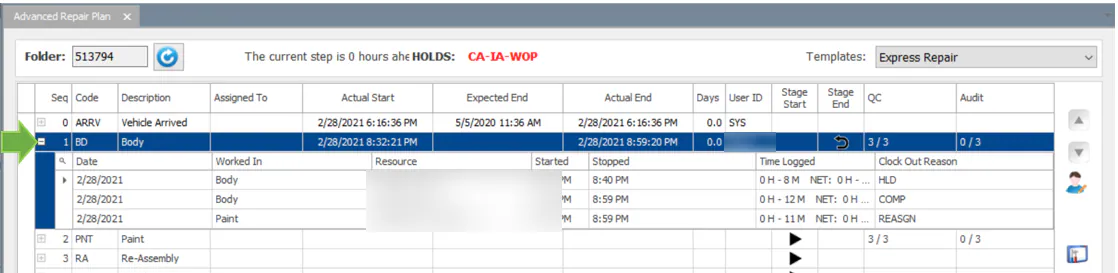
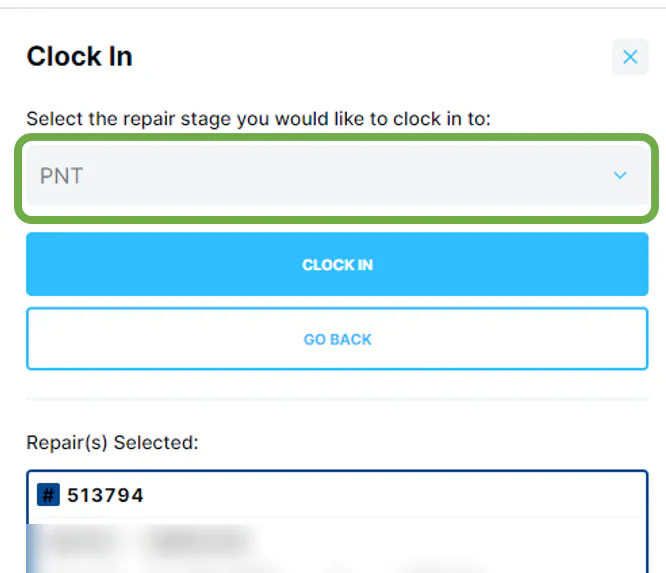
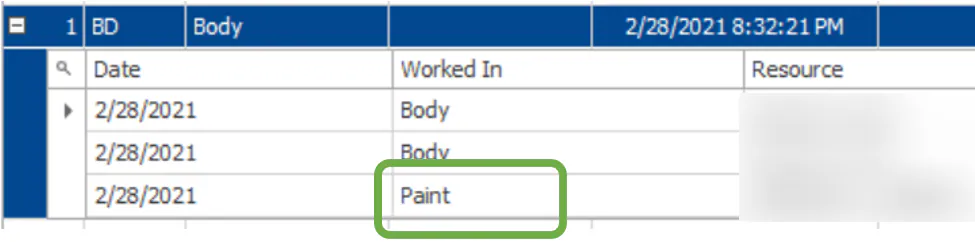
If the technician chose a different stage than the current one when clocking in, the stage they chose shows in the Worked In column.
One folder, in the GP Analyzer
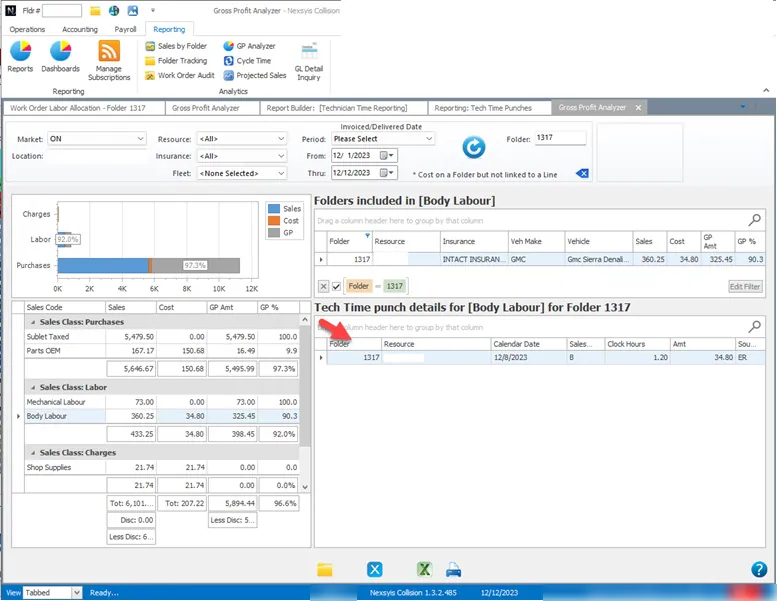
Section titled “One folder, in the GP Analyzer”On the GP Analyzer screen, double-click a labor type to see the tech time punch details for it.
Reports
Section titled “Reports”There are two reports for technician time.
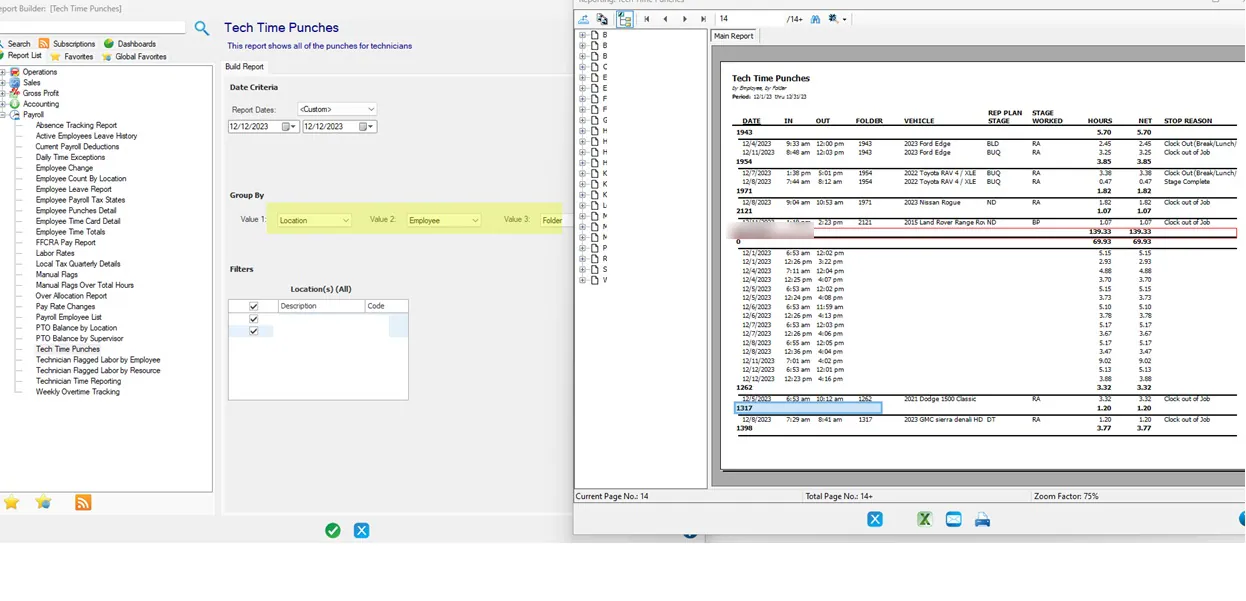
Tech Time Punches
Section titled “Tech Time Punches”This report shows punch details. Group it by Employee and Folder. Punches under folder 0 are time clock punches that weren’t clocked to a folder; you can ignore them.
Technician Time Reporting Manager
Section titled “Technician Time Reporting Manager”-
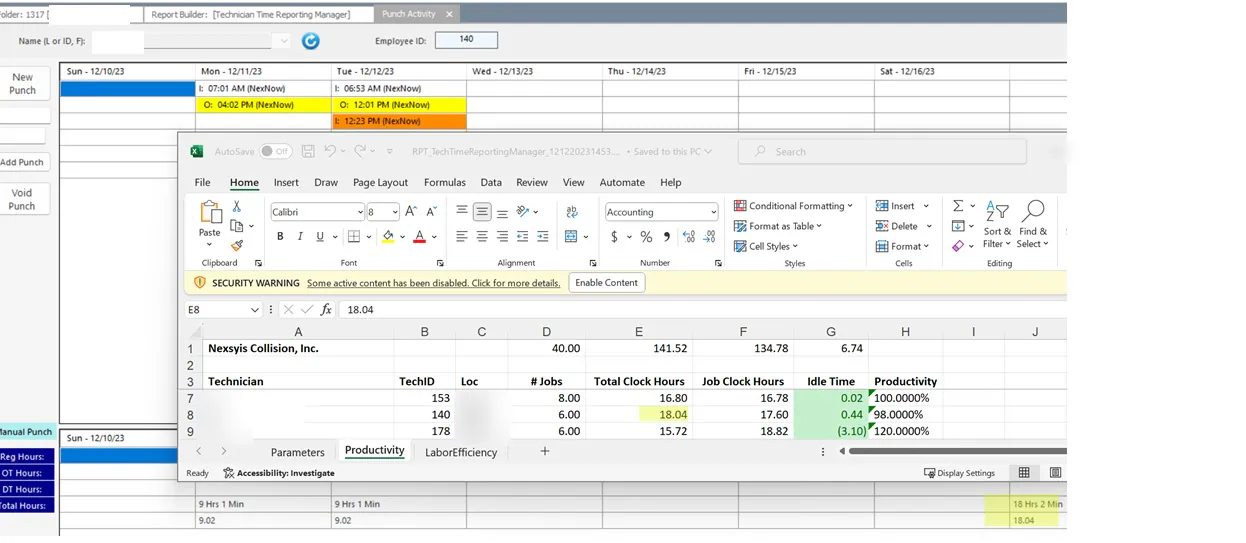
The Productivity tab compares Total Clock Hours (time clock punches) with Job Clock Hours (repair punches). You can check total clock hours on the Employee Time screen and job clock hours on the Repair Plan Time Corrections screen.
-
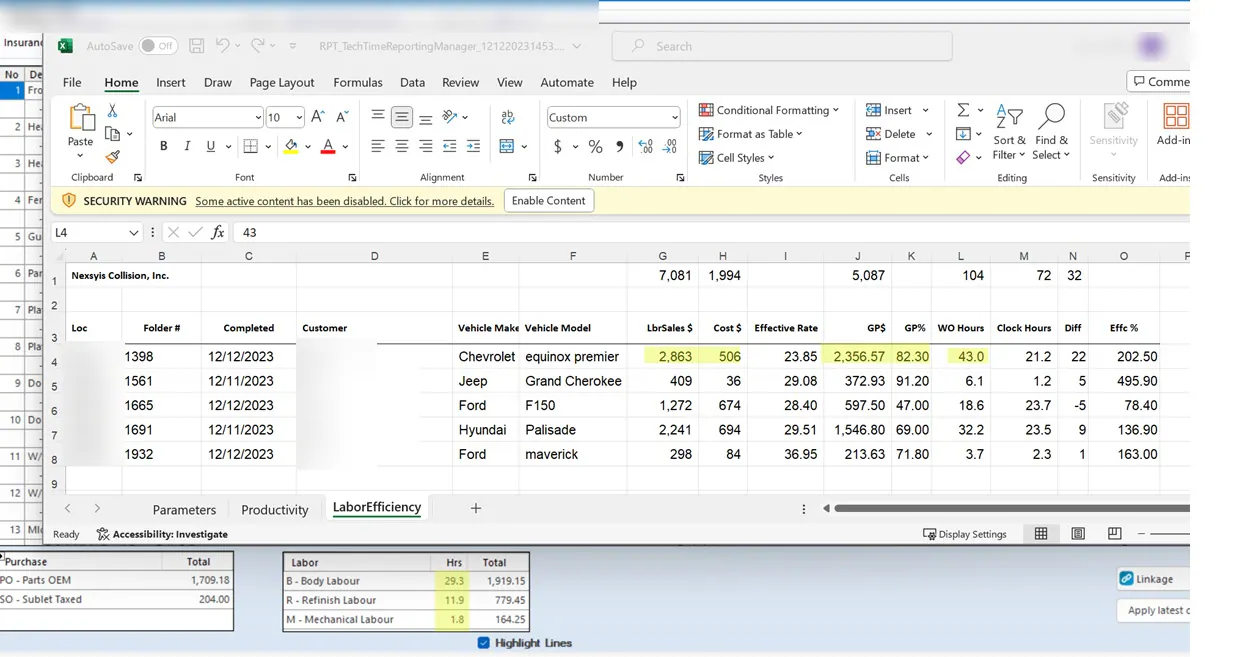
The LaborEfficiency tab compares work order hours with clock hours for completed repairs. You can check these on the GP Analyzer, the repair plan, or the Tech Time Punches report.
NexsyisNow Tech Time dashboard
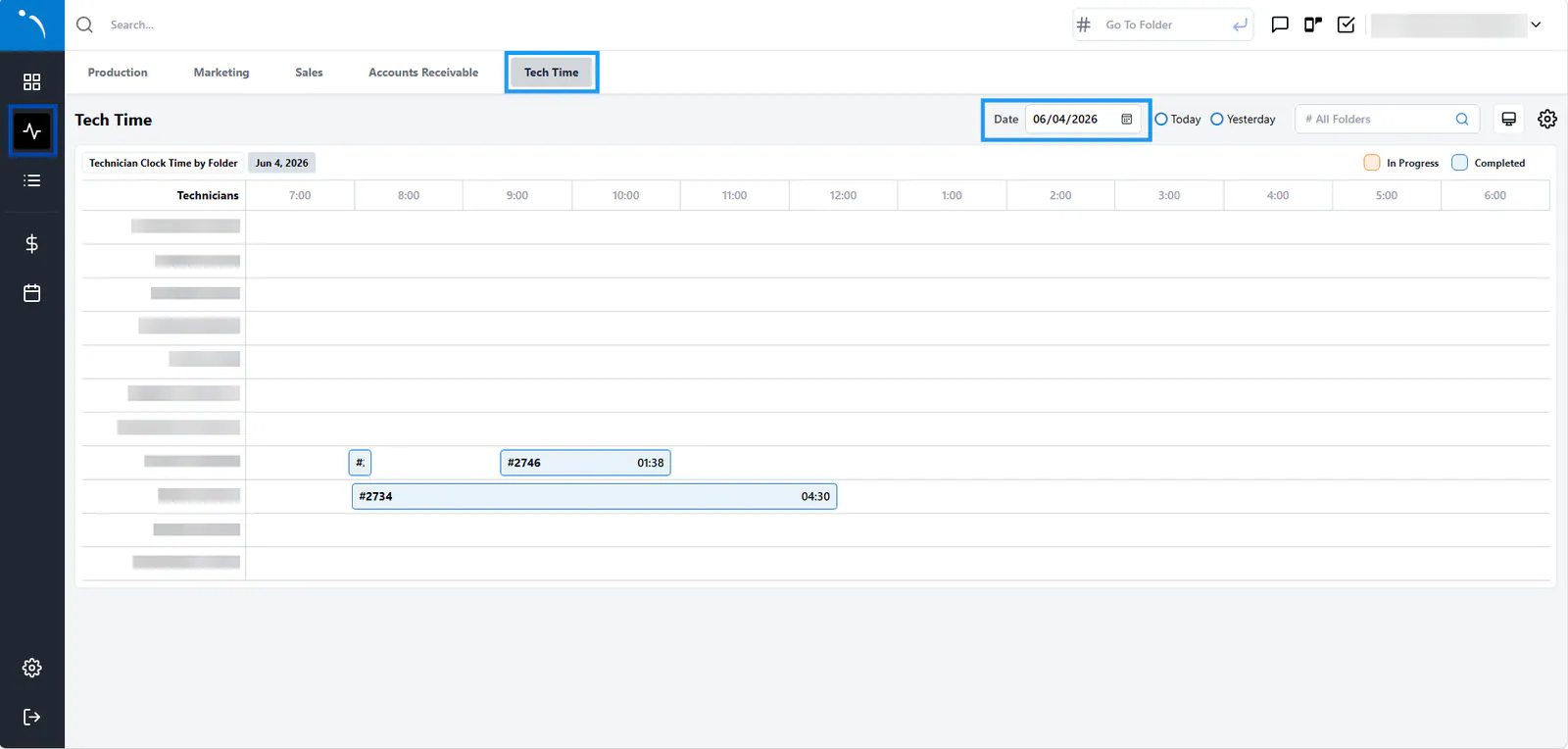
Section titled “NexsyisNow Tech Time dashboard”The Tech Time dashboard in NexsyisNow shows technicians’ clock activity for one day.
- Select the dashboard icon, and then the Tech Time tab.
- Choose a Date, or select Today or Yesterday.
Each job a technician clocked in to shows the folder number and the total time clocked to it. Orange means the job is in progress; blue means it’s completed.