Request a diagnostic scan
You can send an electronic scan request to AirPro or asTech from a folder. When the scan is done, the report is attached to the folder’s documents, and the scan invoice is received and invoiced against the PO created when you ordered the scan.
Order a scan
Section titled “Order a scan”-
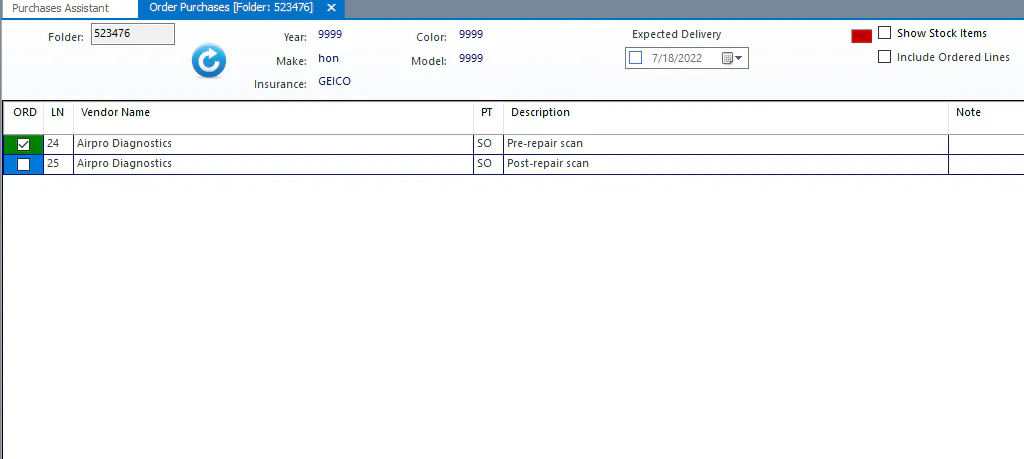
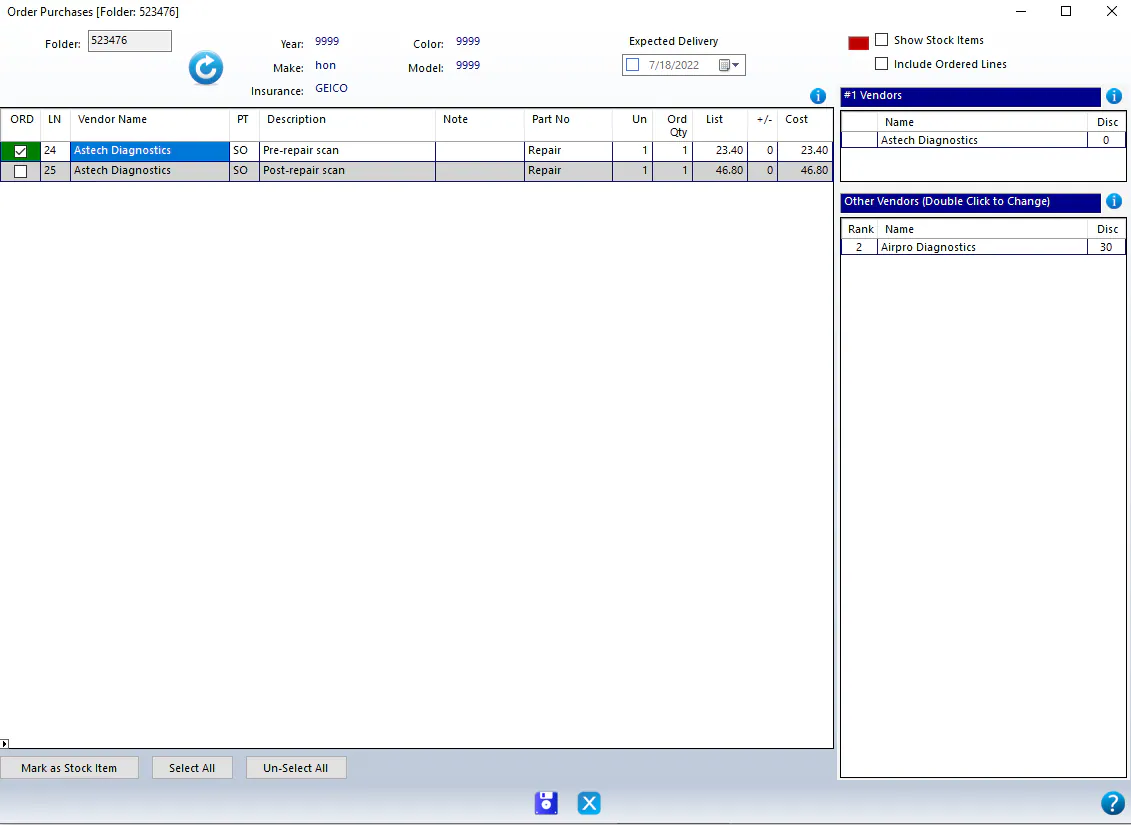
On the folder, open the Purchase Assistant and select Order to open the Order Purchases screen.
-
Select the pre-scan line, and make sure the vendor is AirPro or asTech. Order only one scan at a time.
-
Select Save.
-
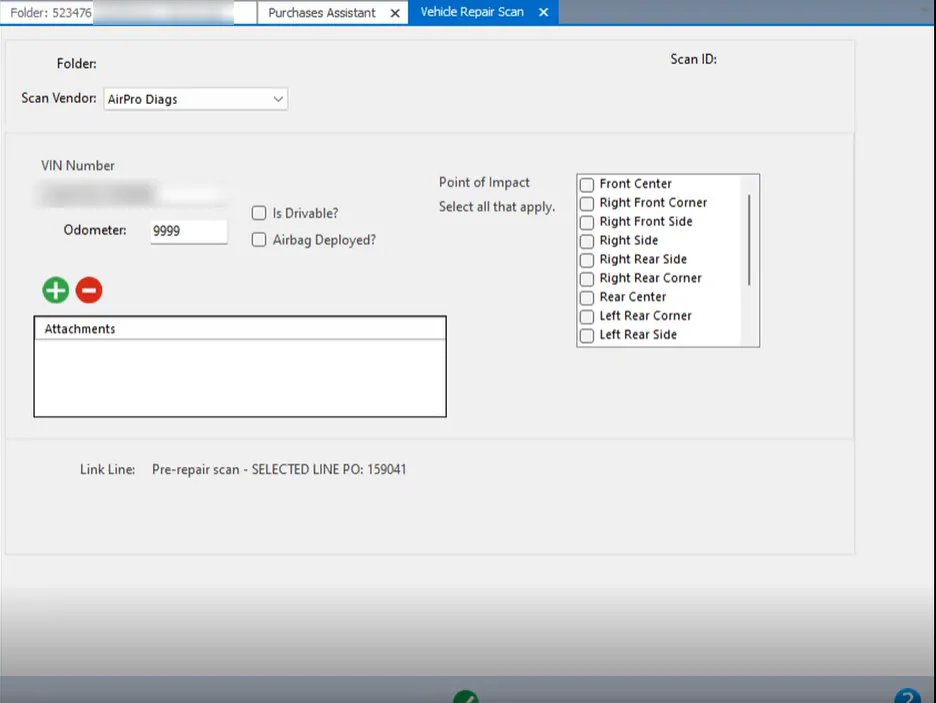
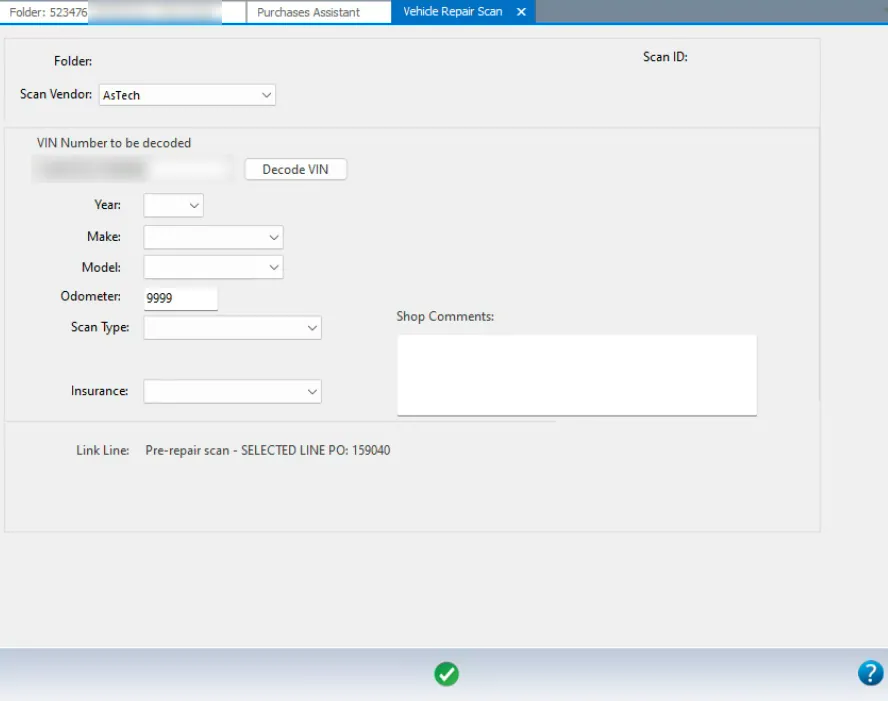
The Vehicle Repair Scan screen opens. Fill in the fields, then select the green check mark to send the scan request.
For more about ordering, see Order parts.
Check a scan’s status
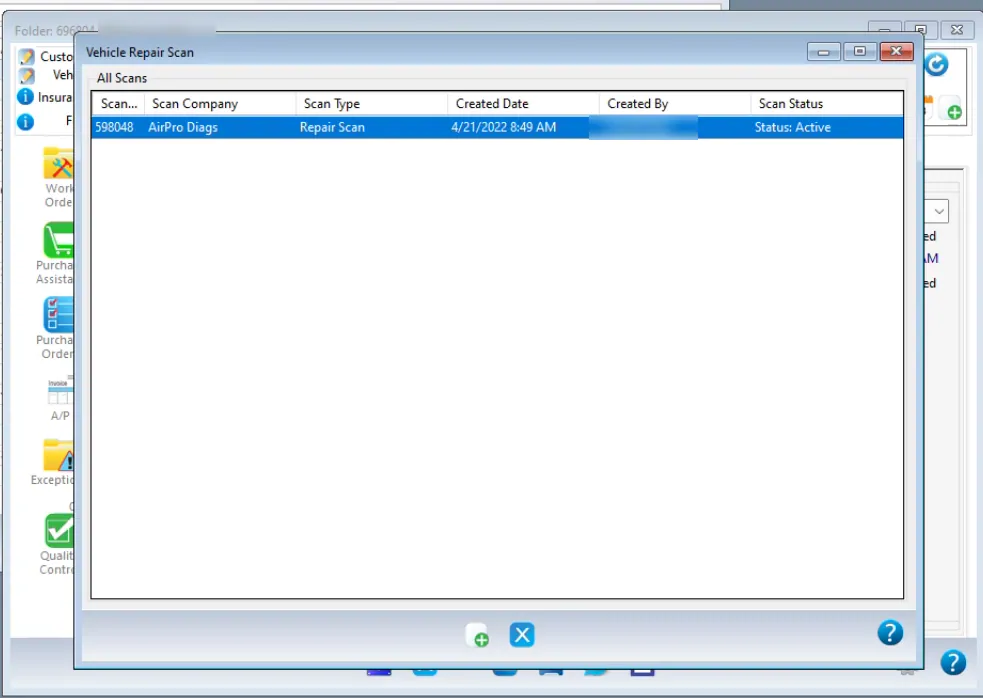
Section titled “Check a scan’s status”- On the folder’s Summary tab, select Scan Req.
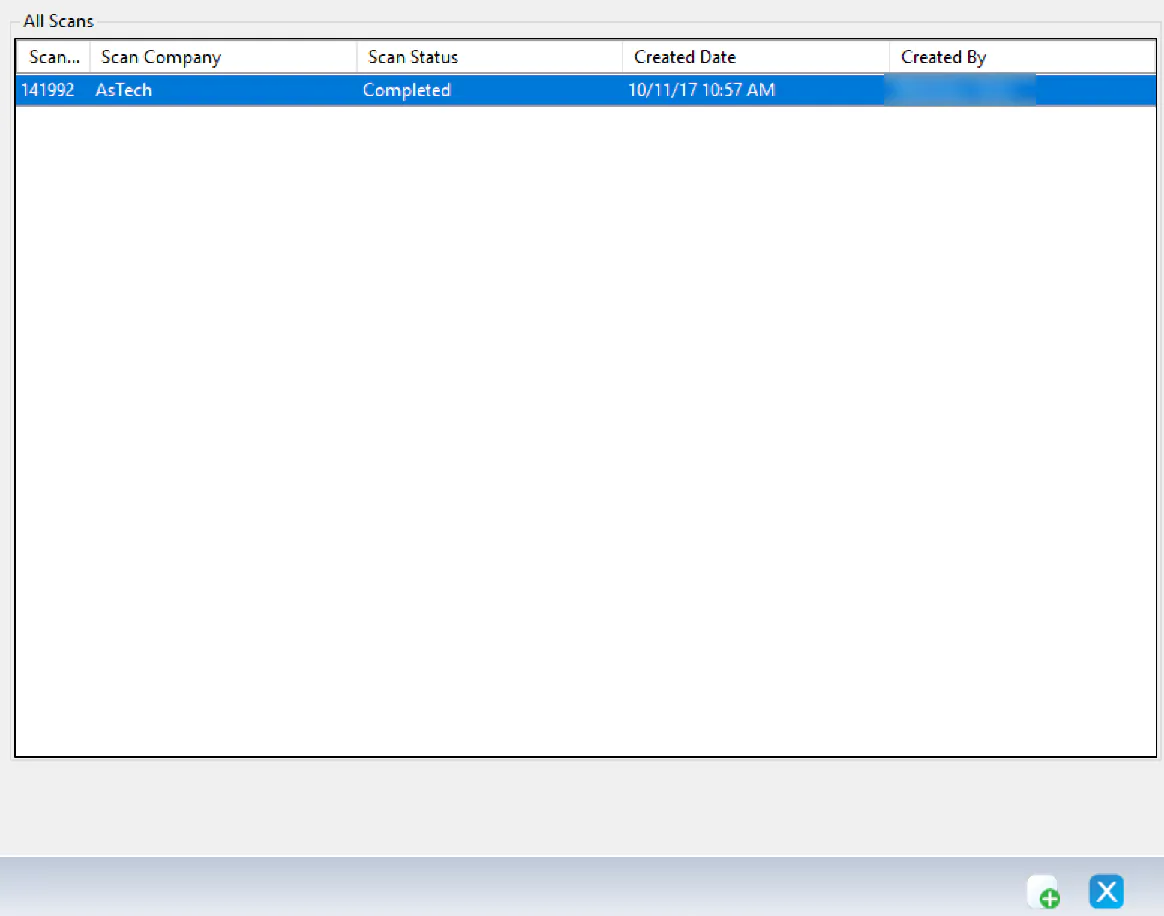
- The folder’s scan requests are listed with their status. For asTech, select the scan request to open it. The status shows at the top of the screen.
Get the scan report
Section titled “Get the scan report”-
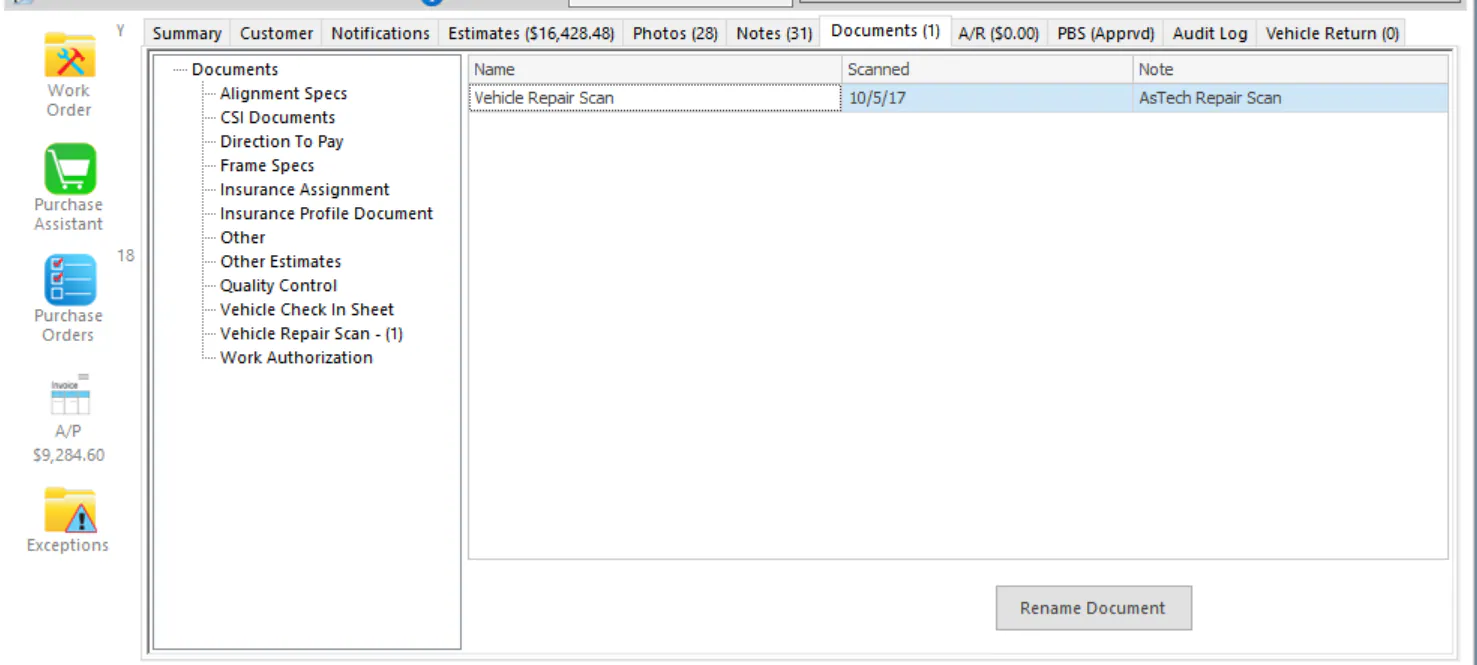
AirPro: when the scan is complete, the scan document is attached to the folder’s Documents tab automatically.
-
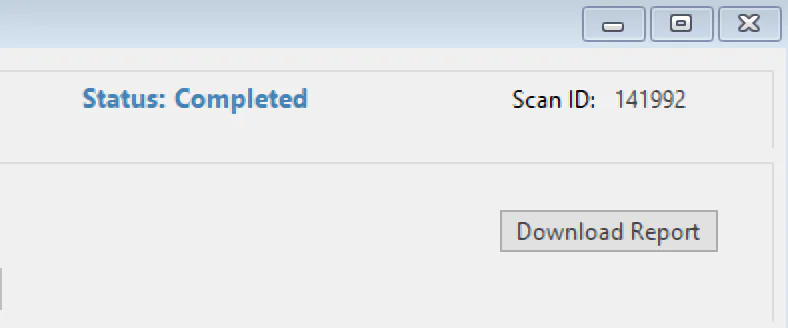
asTech: when the scan request is in Completed status, the Download Report button shows. Select it. The report is attached to the folder’s Documents tab.
To view the report, open the folder’s Documents tab and select Vehicle Repair Scan.
Get the scan invoice
Section titled “Get the scan invoice”AirPro
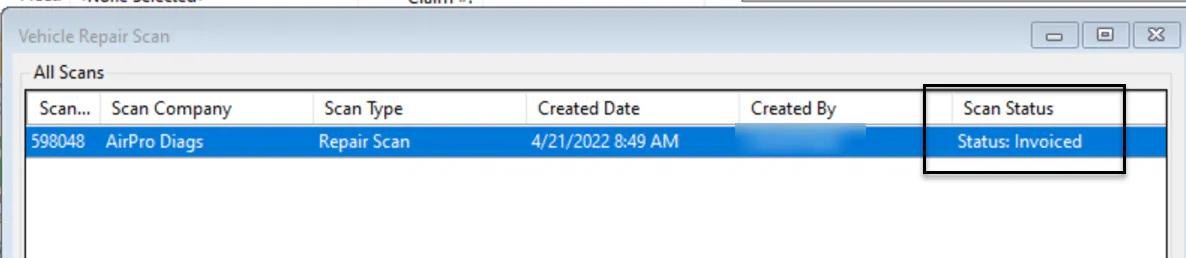
Section titled “AirPro”When AirPro’s invoice is received, the scan request shows Status: Invoiced.
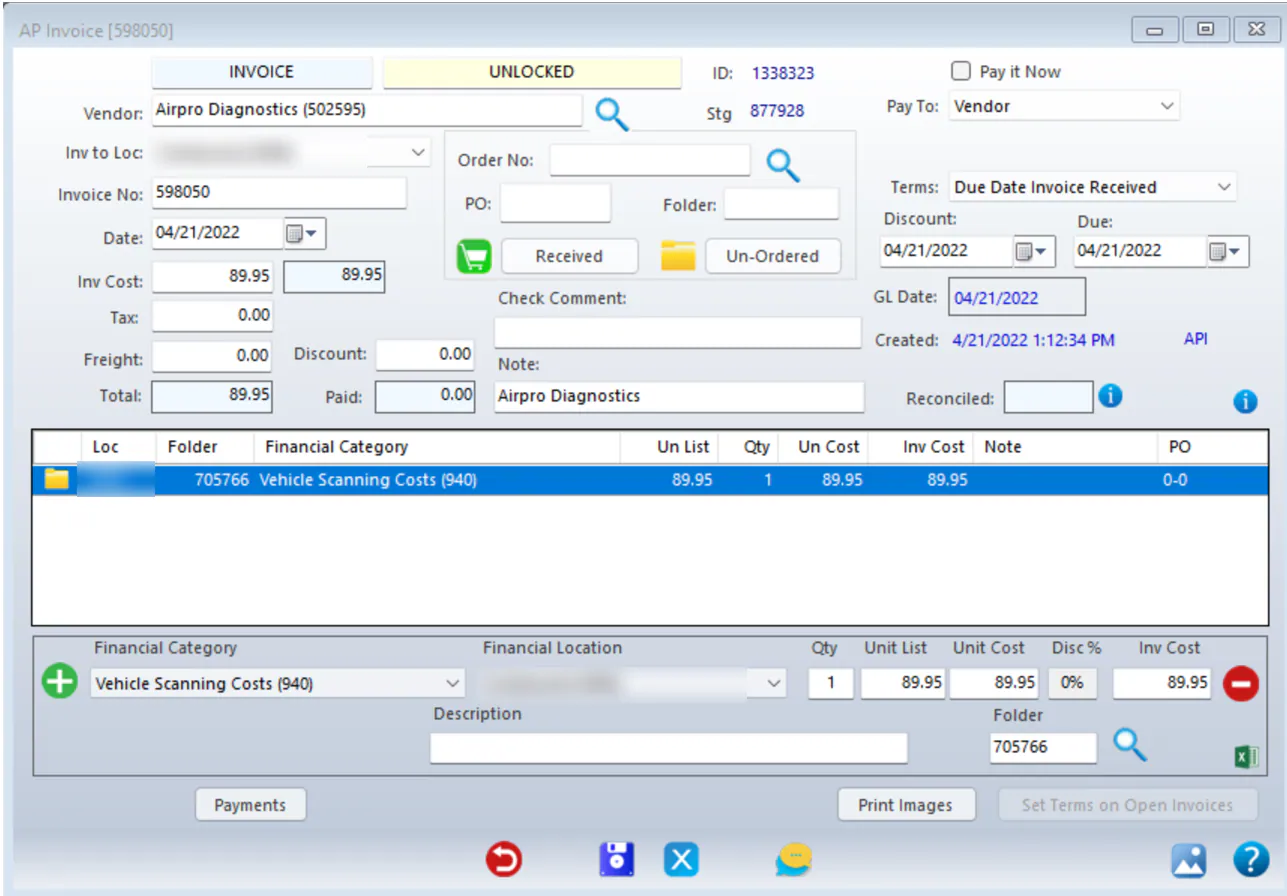
The AP invoice is recorded to the folder automatically, with the invoice image attached.
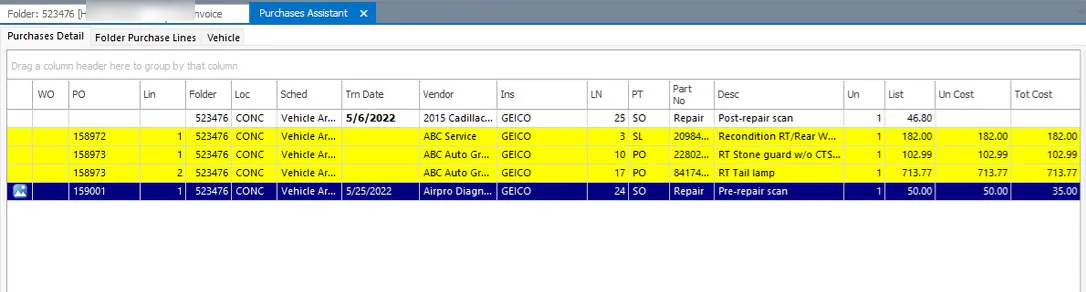
The PO line created when you sent the request is received and invoiced automatically.
asTech
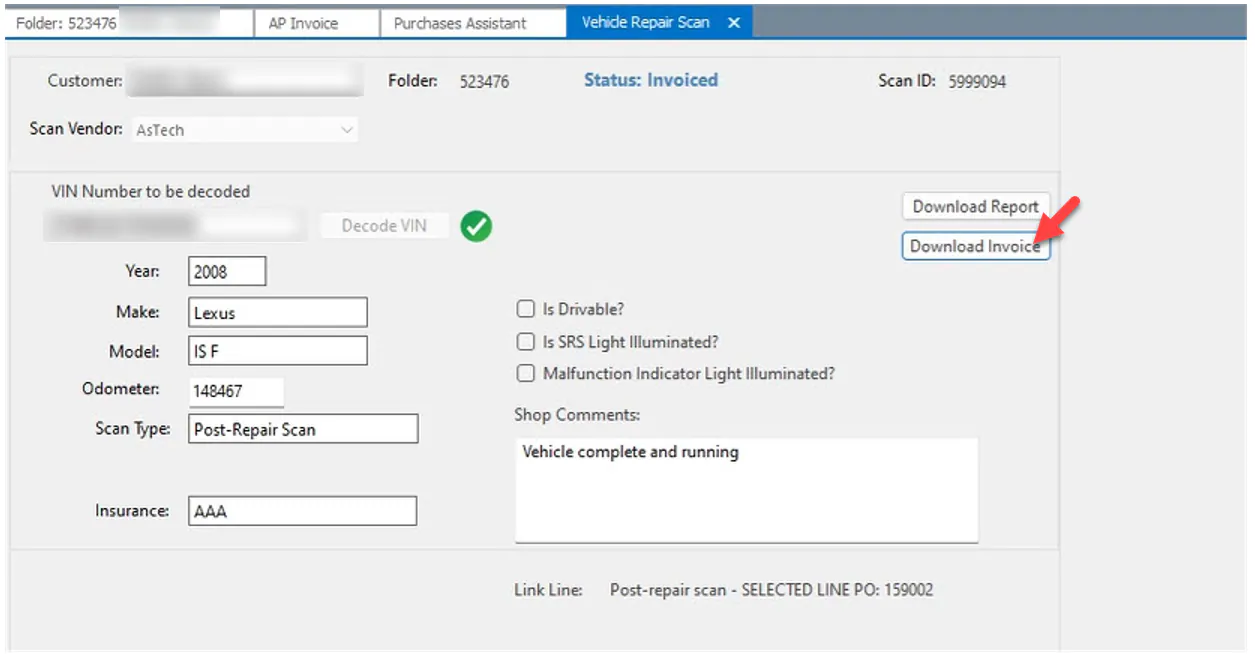
Section titled “asTech”When the scan request shows Invoiced, open it and select Download Invoice. This receives and invoices the PO created when you sent the request.
The AP invoice shows on the A/P Invoices screen with the image attached.

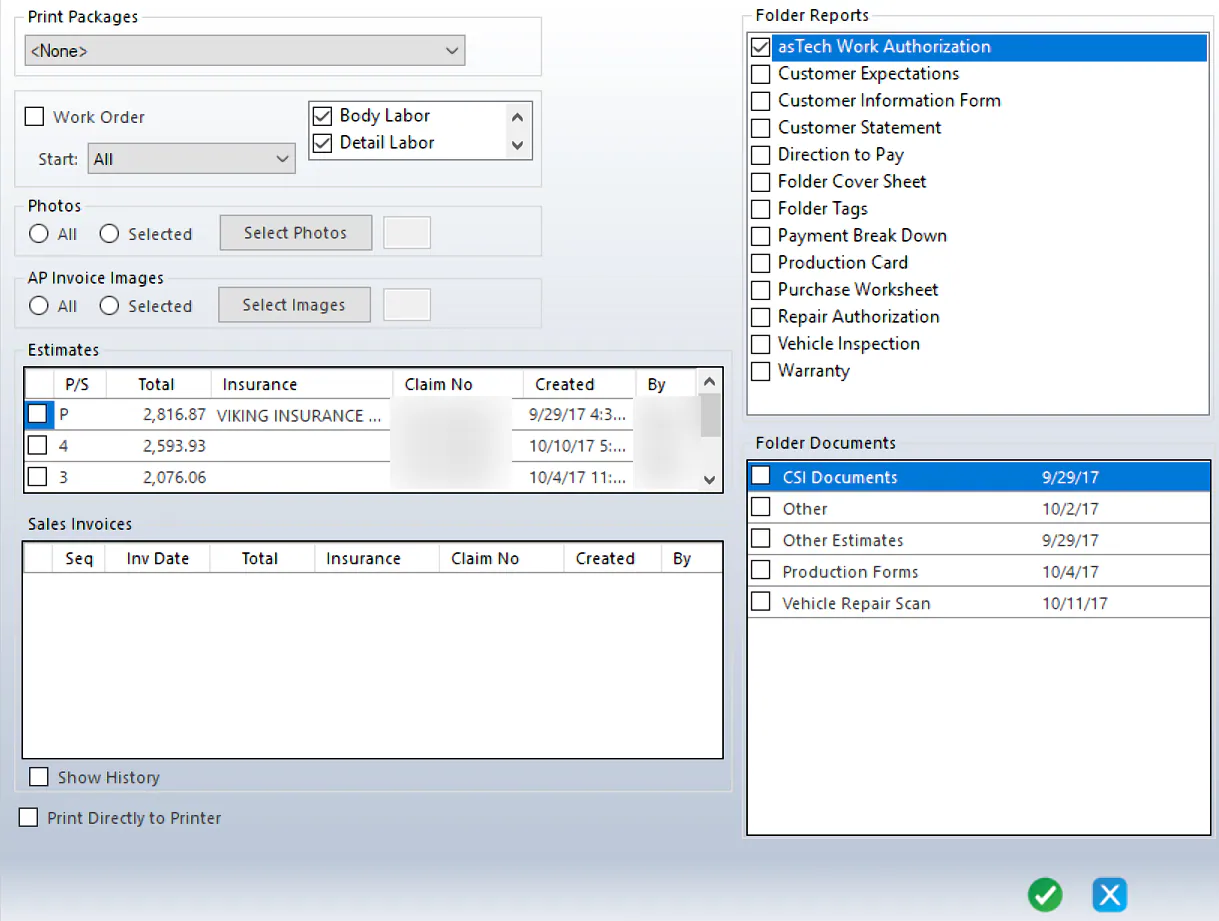
Print the asTech scan authorization
Section titled “Print the asTech scan authorization”On the folder’s print screen, select asTech Work Authorization under Folder Reports. See Print from a folder.