
Mark a folder as a lost opportunity
If you won’t be repairing a vehicle, mark the folder as a lost opportunity. This removes the folder from the Vehicle Center Opportunities tab and archives it. You can reverse it later if the customer decides to repair with you.
Mark the folder as a lost opportunity
Section titled “Mark the folder as a lost opportunity”-
On the folder’s Summary tab, select Lost Opportunity.
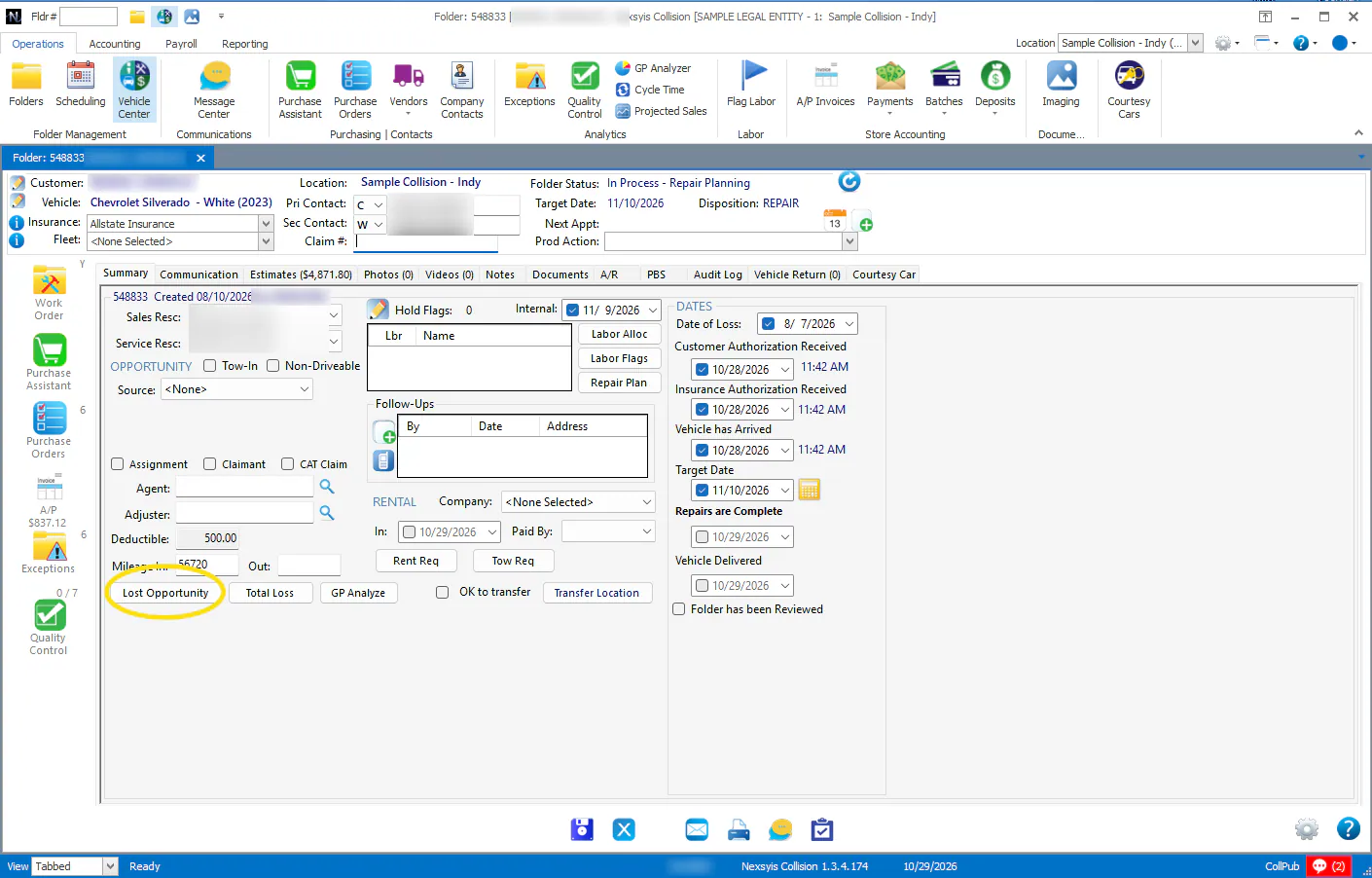
-
Select Yes.
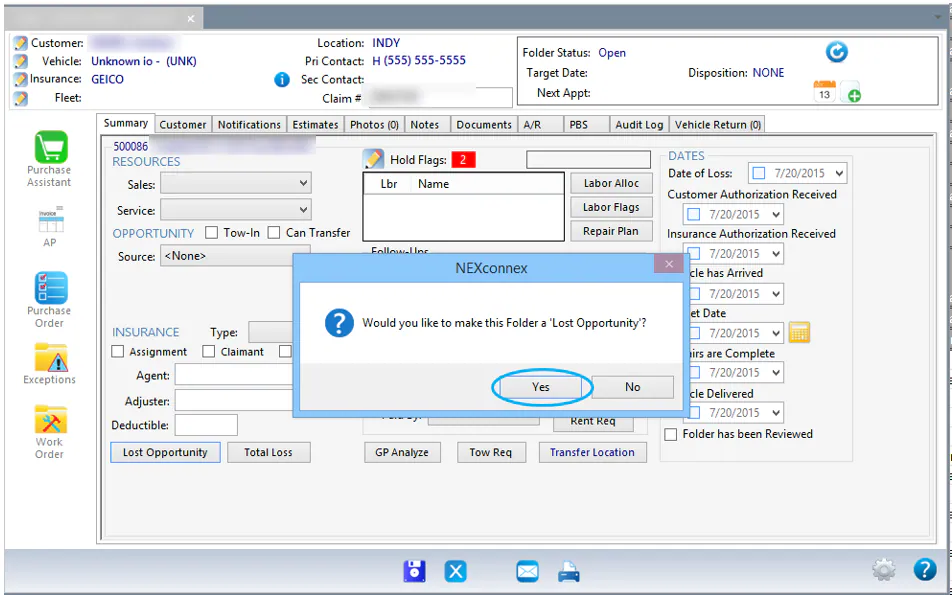
-
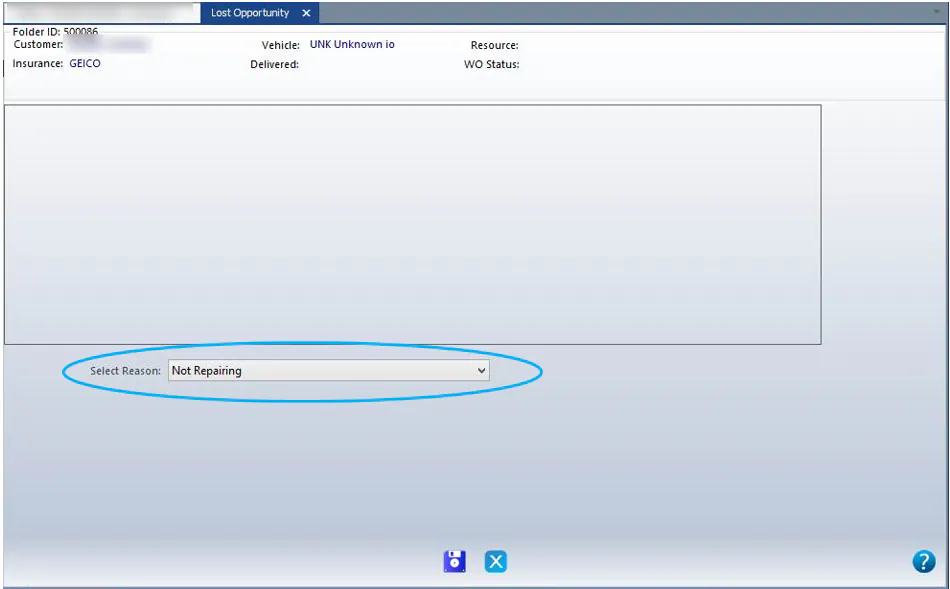
Select a reason, then select Save.
If the folder has no estimate, work order or PO activity, the middle of the screen is blank.
If the folder has activity, the screen shows how many active estimates, work order lines and PO lines it has.
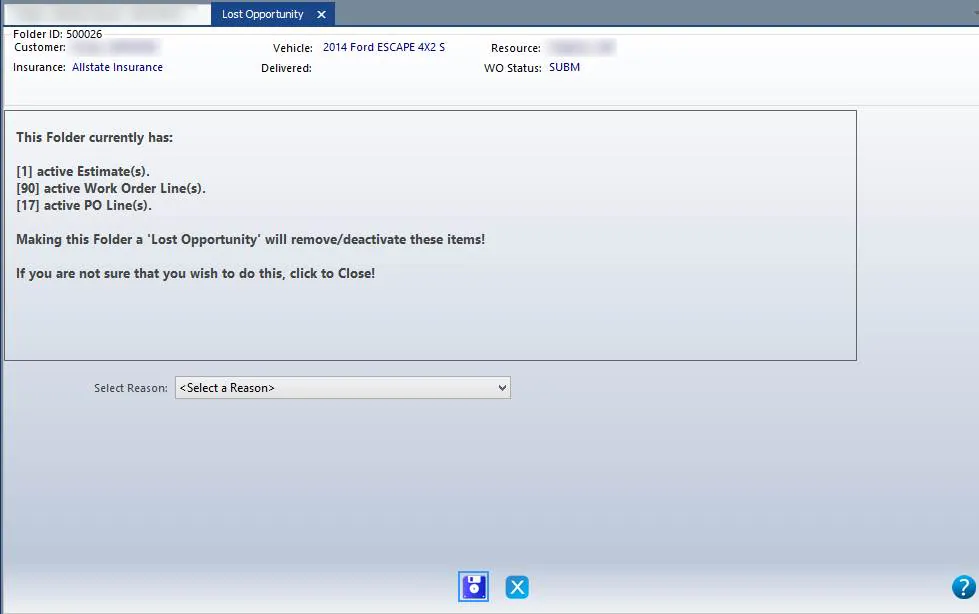
When you select Yes and Save, the estimate is made inactive and the work order is deleted. If you’ve ordered any parts, return them.
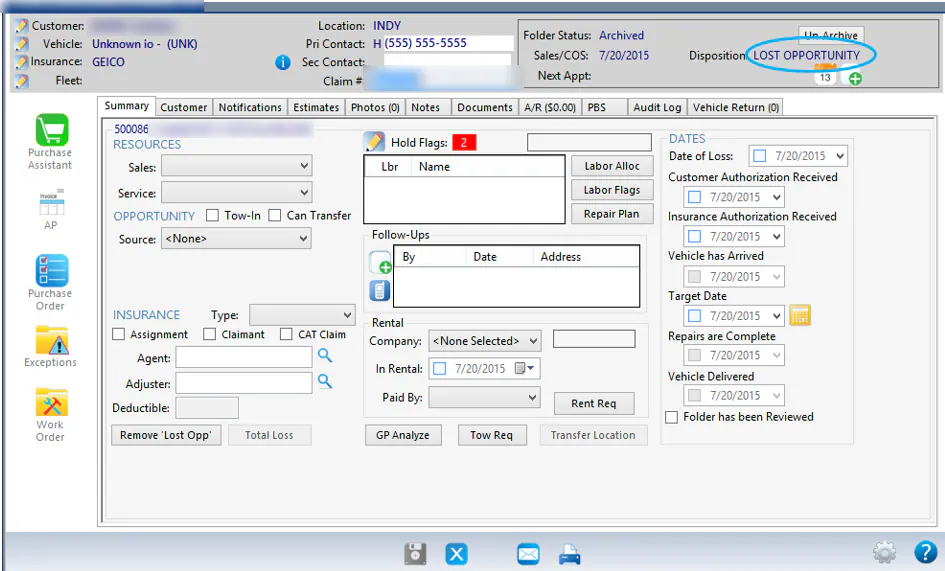
The folder’s Disposition now shows LOST OPPORTUNITY, and the folder is archived.
Reverse a lost opportunity
Section titled “Reverse a lost opportunity”If the customer decides to repair with you after all, reverse the lost opportunity.
- Find the folder. Because it’s archived, select Include Archived Folders on the folder search screen. See Find a folder.
- On the folder’s Summary tab, select Remove ‘Lost Opp’. It’s where the Lost Opportunity button was.