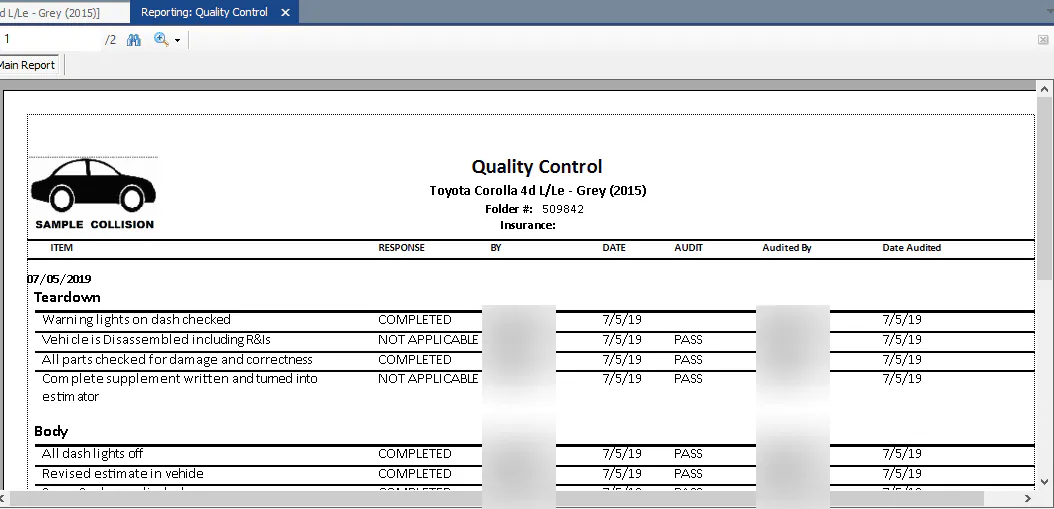
View QC history and reports
Use QC notes, the audit history and the QC audit to review quality control on a folder. The Quality Control screen shows the QC status of many folders at once.
Add QC notes
Section titled “Add QC notes”-
On the folder, select Quality Control to open the QC form.
-
At the top of the form, select Show/Hide Notes. A Notes section opens.
-
Type your note on the blank note line, then click outside the line. The note is saved automatically.
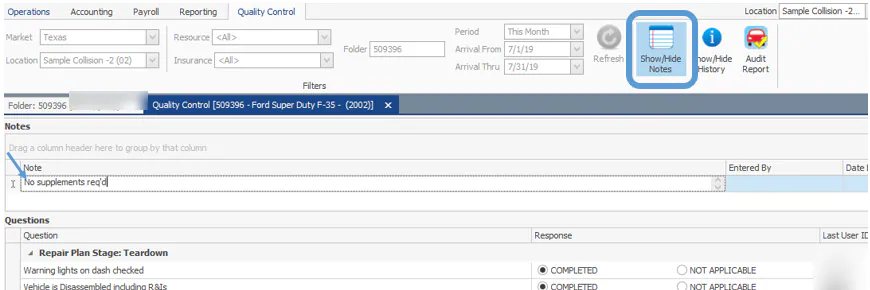
Add more notes the same way as needed.
-
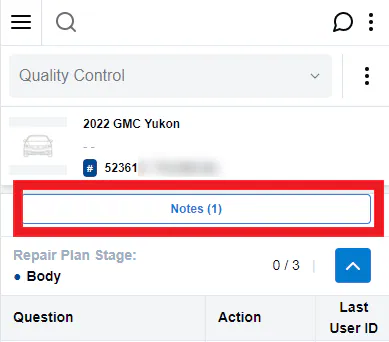
At the top of the Quality Control screen, select Notes.
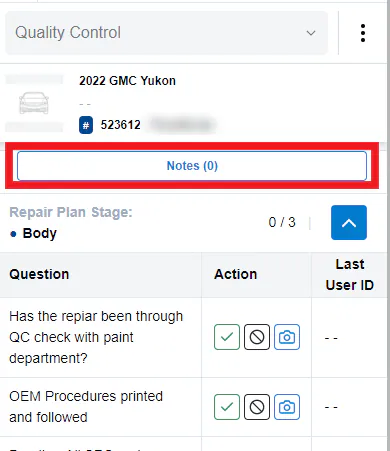
-
Choose a repair stage from the drop-down and type your note.
-
Select Add Note.
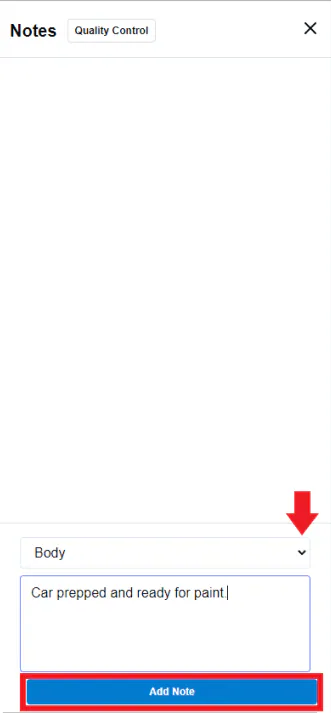
The note is added, and the Notes button shows how many notes there are.
View the history of QC responses
Section titled “View the history of QC responses”Nexsyis keeps an audit history of every change to a QC response.
-
Right-click the QC grid and select View Audit Log.

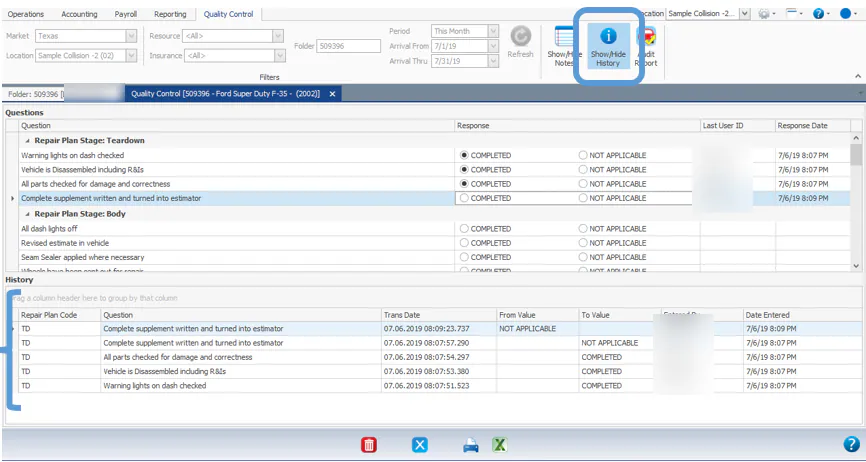
The Audit Log window lists who changed each response, when, and the From Value and To Value.

-
Or, at the top of the QC form, select Show/Hide History. A History section opens at the bottom of the screen with the audit log of every change.
Audit QC items
Section titled “Audit QC items”You can audit any QC item that has a response.
-
At the top of the QC form, select Audit Report. The Audit Response, Date Audited and Audited By columns appear.
-
Choose PASS or FAIL for each QC item. Your changes are saved automatically.
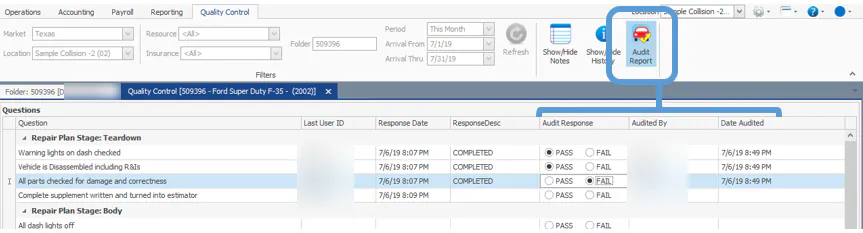
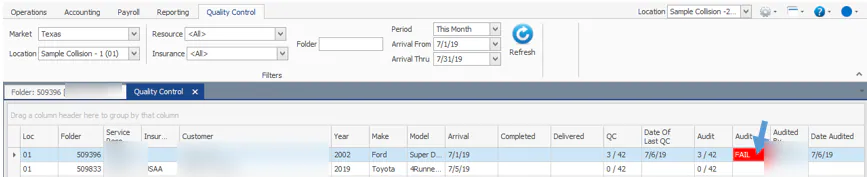
If any audit response is FAIL, the folder shows FAIL on the Quality Control screen.
Run the Quality Control report
Section titled “Run the Quality Control report”-
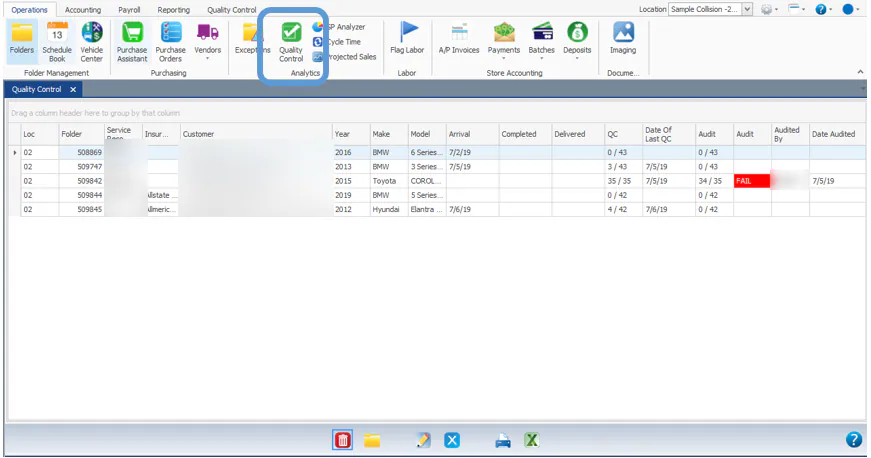
On the Operations tab, in the Analytics group, select Quality Control.
-
The Quality Control screen opens, showing folders that arrived this month. Change the filters at the top of the screen as needed.
The grid shows the QC status of each folder:
- How many QC items are completed (QC), and the Date Of Last QC.
- How many QC items have been audited (Audit).
- The audit result: Pass if every audit response is a pass, Fail if any response is a fail.
- Who audited the folder (Audited By) and the Date Audited.
Print the QC report for a folder
Section titled “Print the QC report for a folder”On the Quality Control screen, select the folder’s line, then select Print at the bottom of the screen. You can also print this report from the folder’s Print screen.