
Set up appointment types
Create an appointment type for each kind of appointment your shop books, for example Estimate, Drop, Heavy Drop or Vehicle Return. You can set up as many as you need.
Create or change an appointment type
Section titled “Create or change an appointment type”-
Open Setup › Scheduling › Appointment Types.
-
Create a new appointment type, or open the one you want to change.
-
Fill in the settings described below.
-
Select Save.
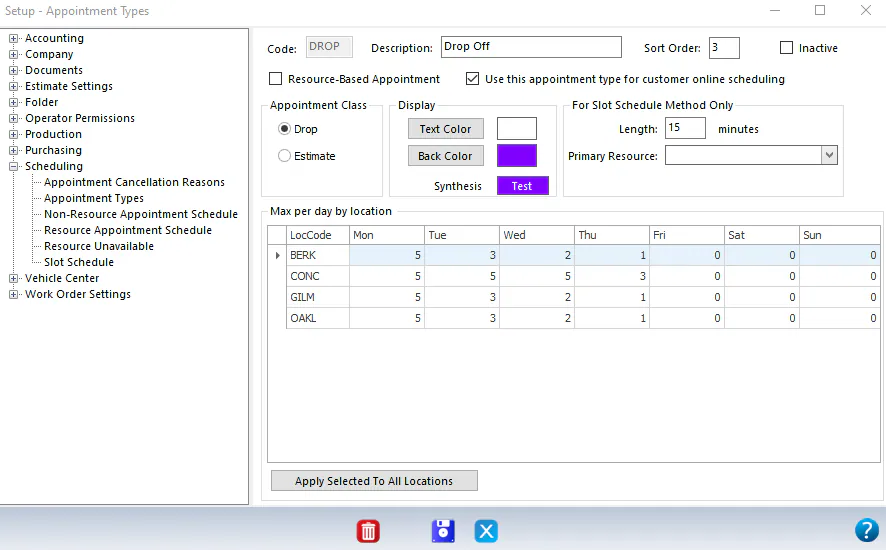
Appointment type settings
Section titled “Appointment type settings”| Setting | What it does |
|---|---|
| Code | A short code, such as EXP. It can’t be changed after it’s saved. |
| Description | The appointment type’s name, such as Express Drop. |
| Sort Order | The order appointment types are listed in when you sort the Scheduling screen by type. |
| Resource-Based Appointment | Select this to book the type against each resource’s own schedule. You then set those schedules up under Resource Appointment Schedule. |
| Use this appointment type for customer online scheduling | Lets customers book this type online. Only one Drop type and one Estimate type can be used for online scheduling. |
| Appointment Class | Drop or Estimate. Daily limits are set per class. |
| Text Color and Back Color | The colors used for this type on the Scheduling screen. |
| Length | The appointment length in minutes. This setting applies to the slot schedule method only. For other schedules, length is set on the non-resource or resource appointment schedule. |
| Max per day by location | The most appointments of this type each location can take per day. When it’s reached, that day’s remaining slots for this type disappear. Each location’s daily limit for the class also applies. |