Enter a manual AP payment
When you pay a vendor outside Nexsyis, for example by paying a bill online, record it as a manual AP payment so the invoices show as paid.
Before you begin
Section titled “Before you begin”Post the AP invoices the payment covers. You can also add a missing invoice while you enter the payment.
Enter the payment
Section titled “Enter the payment”-
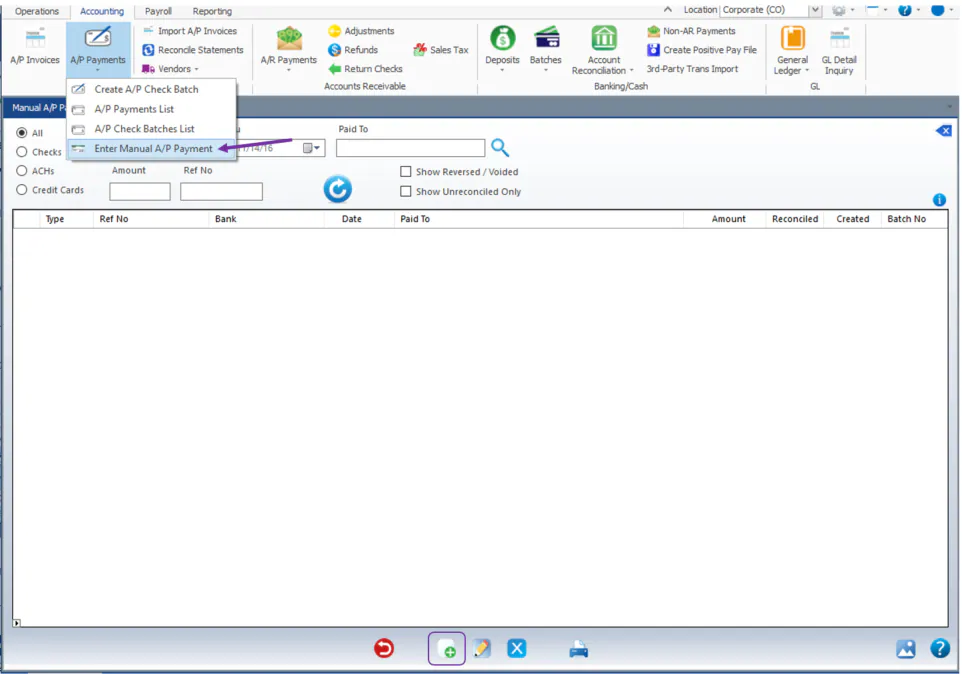
On the Accounting tab, select A/P Payments, then Enter Manual A/P Payment.
-
Select New at the bottom of the screen.
-
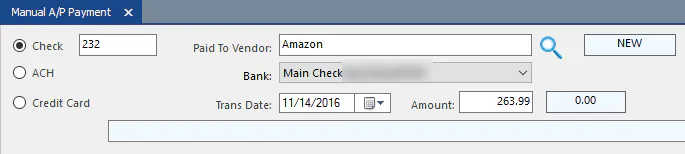
At the top, select how you paid: Check, ACH or Credit Card. For a check, enter the check number.
-
Search for the Paid To Vendor.
-
Select the Bank the payment came from.
-
Select the Trans Date and enter the Amount.
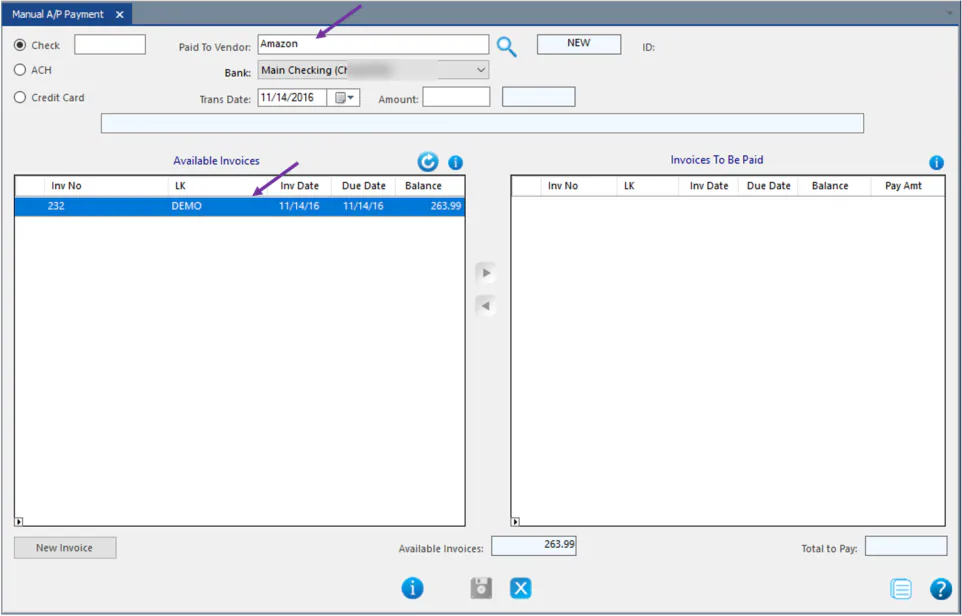
The vendor’s unpaid invoices show under Available Invoices. If an invoice isn’t entered yet, select New Invoice at the bottom to add it now.
-
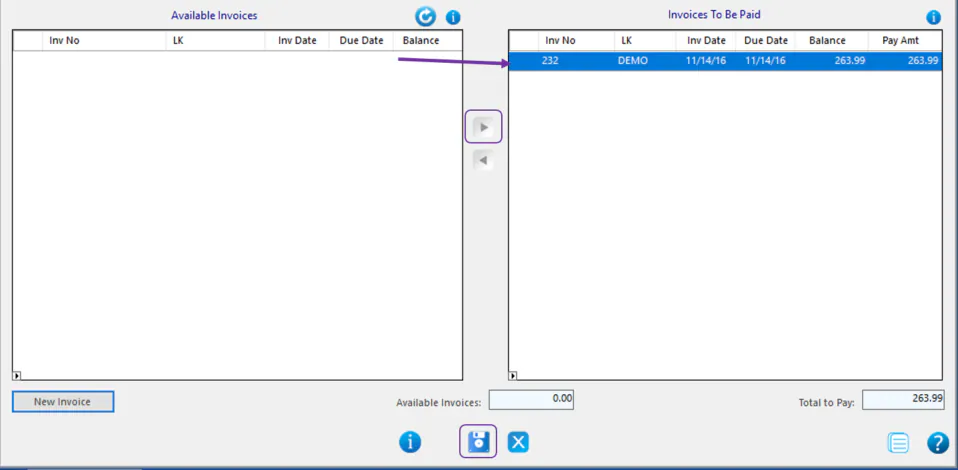
Select the invoices the payment covers and select > to move them to Invoices To Be Paid.
-
Select Save.