
Convert work order labor lines
Convert a work order line when the work will be done differently from how the estimate lists it, for example when body labor will be done as detail or mechanical labor. Converted lines show in blue on the work order.
-
Open the folder and select Work Order.
-
Right-click the line’s Sale Group and select Convert Line.
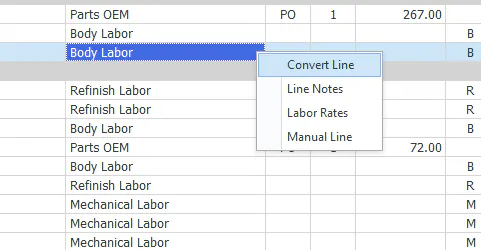
-
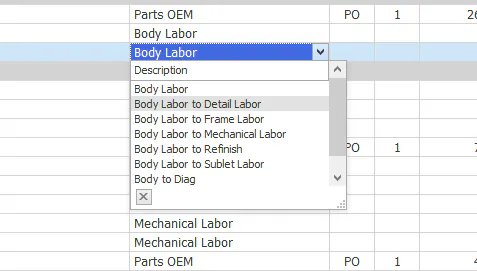
Choose the new sale group from the list, for example Body Labor to Detail Labor.
The line shows the new sale group and turns bright blue.
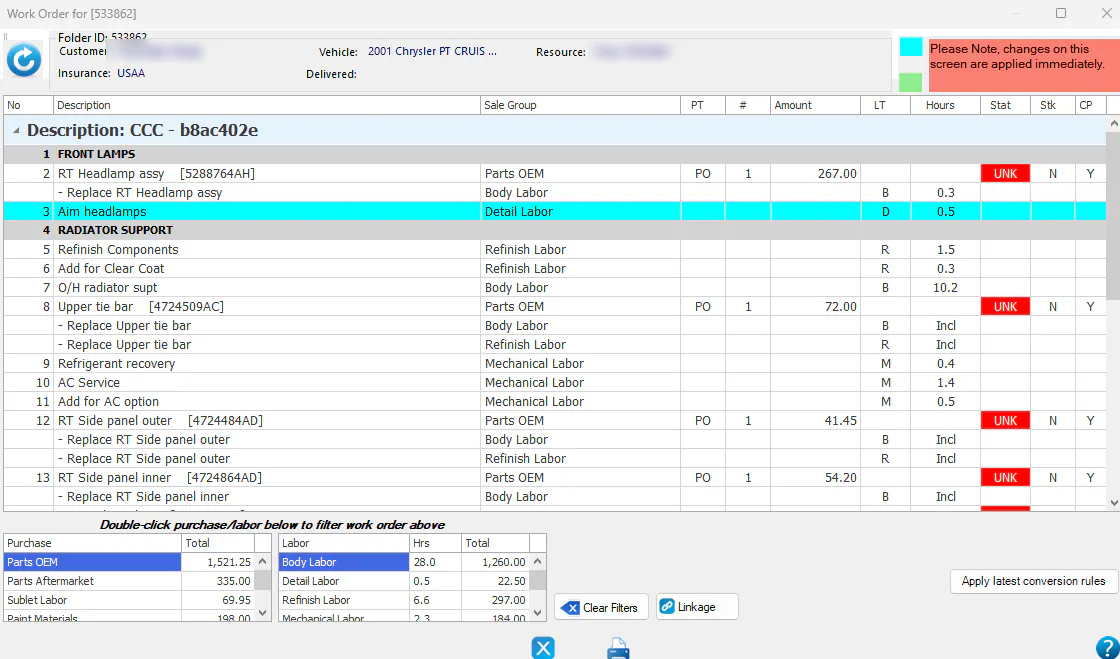
To undo a conversion, right-click the line and select Unconvert Line.
-
On the folder’s Work Order tab, select the pencil icon next to the line’s sales code.
-
Choose the new sales code from the list. To have Nexsyis convert lines like this automatically in future, select Save as new auto-conversion rule first.
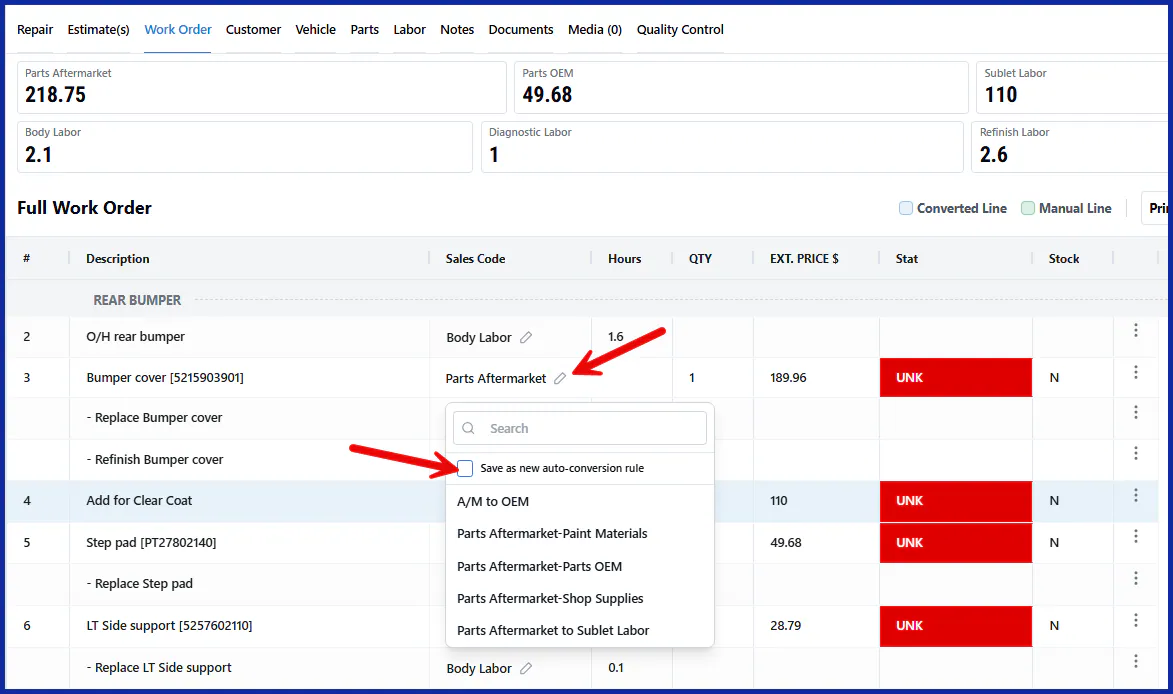
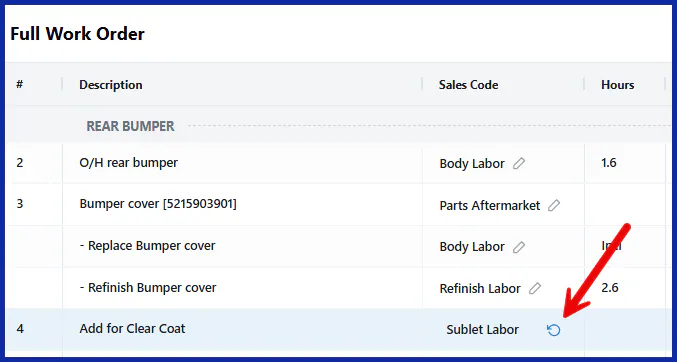
To undo a conversion, select the undo icon on the converted line.
How converting changes labor hours
Section titled “How converting changes labor hours”Nexsyis converts the line’s dollar amount, not its hours. If the new labor type has a higher or lower labor rate, the line’s hours change to match.
For example, mechanics are usually paid more than body technicians. When body work is done, or partly done, by a mechanic, converting body labor to mechanical labor gives slightly fewer hours, because the mechanic is paid a higher rate for the same work.
If you don’t want the hours to change, you can leave the line as body labor instead of converting it:
- Keep the line as body labor on the work order.
- On the labor allocation screen, split the body labor and allocate a flat number of body hours to the mechanic.
The mechanic then flags those body hours on their flag sheet, at the body labor pay rate.