Set up the feedback and review link
Add the review sites customers can choose from, then set up the message that sends customers the link after their vehicle is delivered. To see what customers get, see Request feedback and reviews.
Add your review links
Section titled “Add your review links”Add the links for each location.
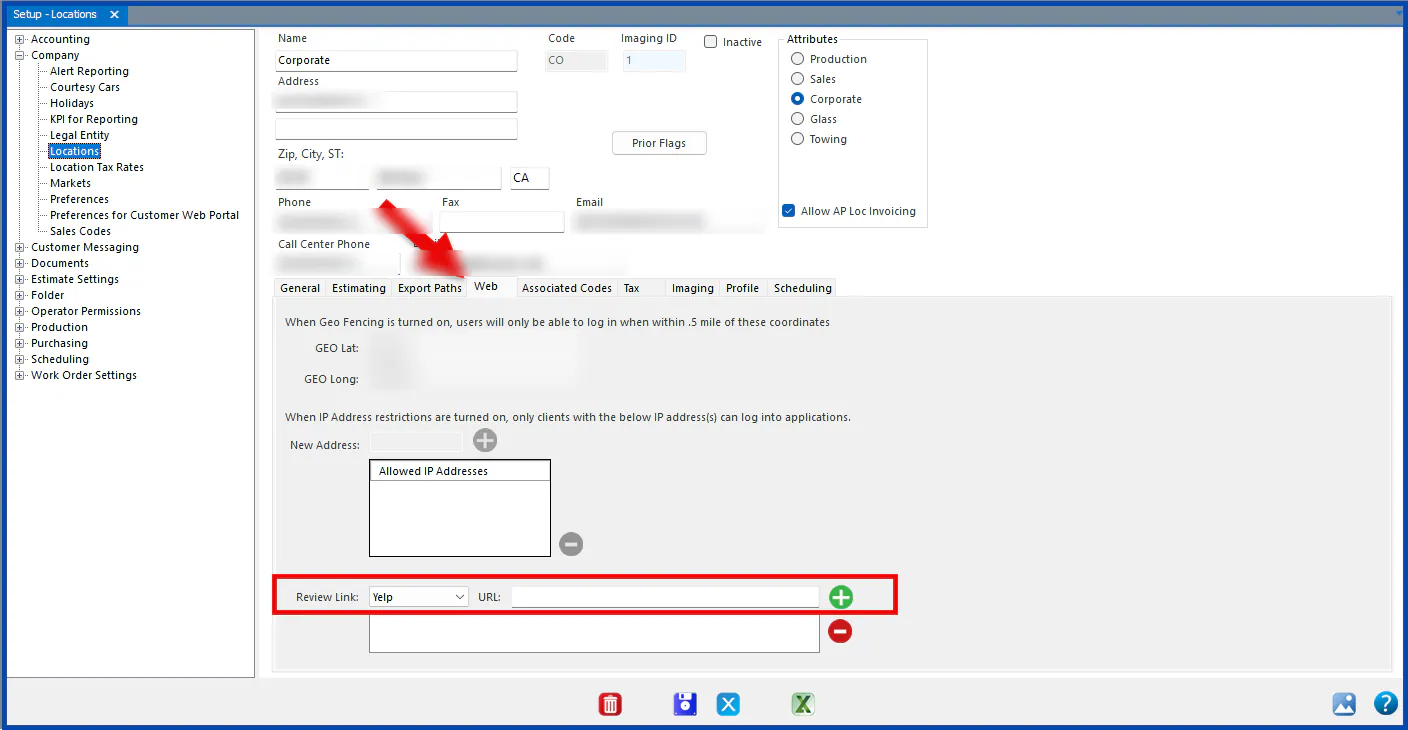
- Go to Setup › Company › Locations and select the location.
- Go to the Web tab.
- Choose the review site from the Review Link list.
- Enter the link next to URL.
- Select the green + to add it.
Set up the delivered message
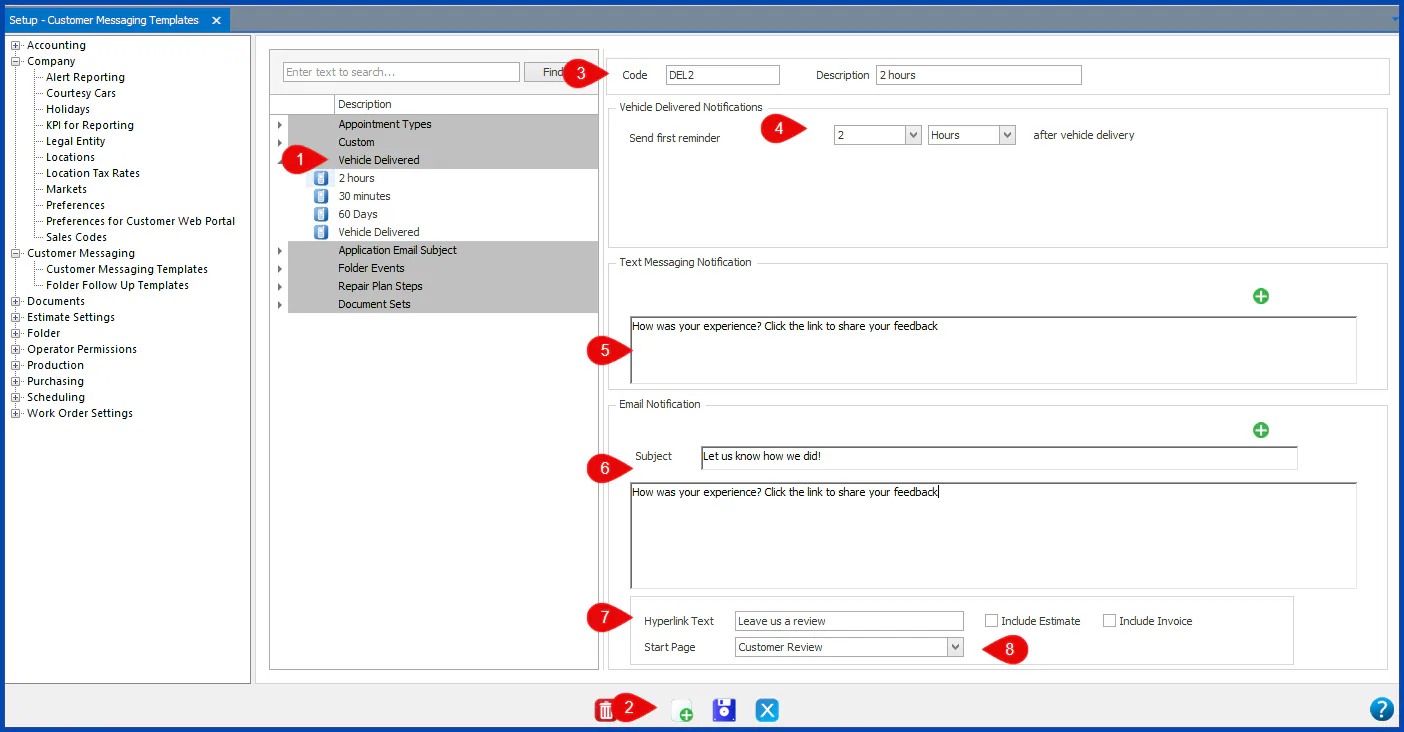
Section titled “Set up the delivered message”- Go to Setup › Customer Communication and open Vehicle Delivered.
- Select Add New at the bottom.
- Enter a code and a description.
- Choose how long after delivery the message sends.
- Enter the text message to send with the link.
- Enter the subject and body for the email.
- Enter the text to show for the link.
- For the start page, choose the Customer Review option.
- Save.