Map banking transaction groups
Trans group mapping assigns a trans group to imported bank transactions automatically, so fewer lines come in blank. Each rule matches a BAI code and, usually, part of the transaction’s description.
How it works
Section titled “How it works”A mapping rule uses three things:
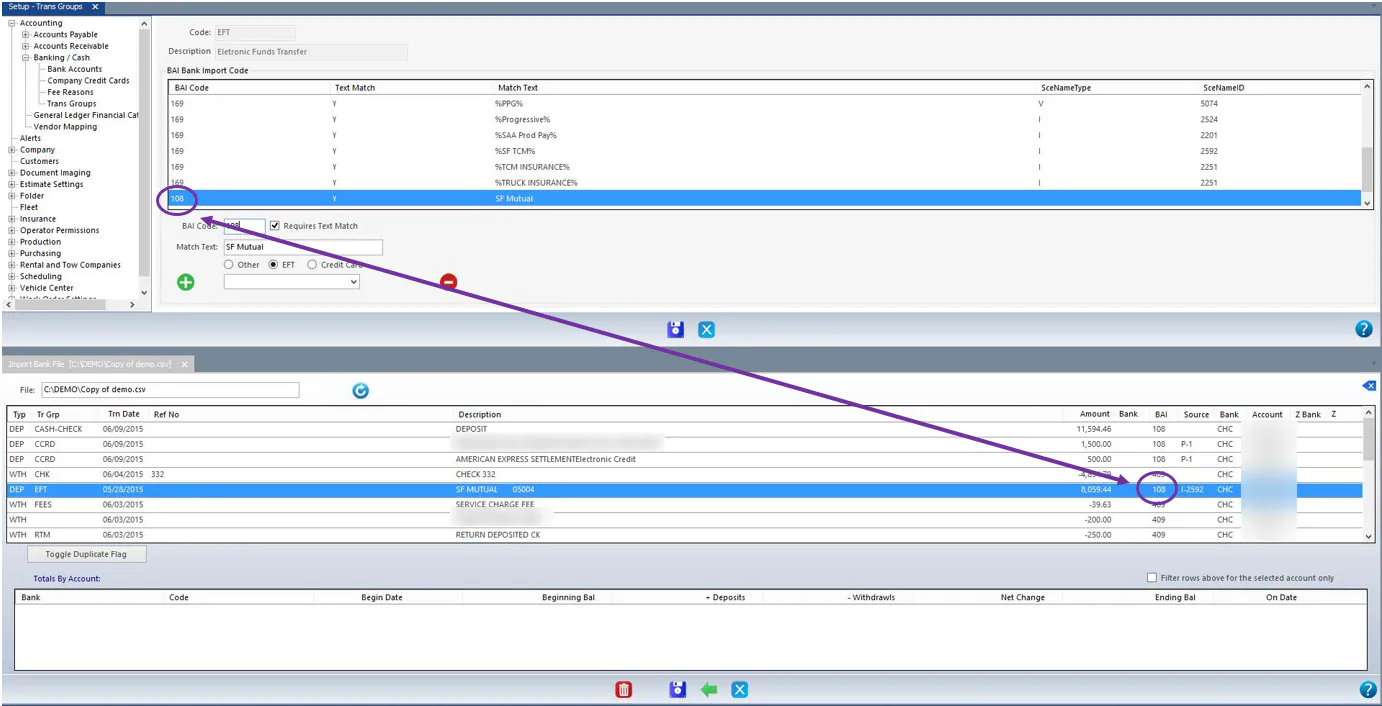
- The BAI Code of the transaction, shown in the BAI column when you import a bank file.
- Text to match in the description. Not every rule needs text, but most do.
- The trans group to assign.
When matching on text, be as specific as you can while still catching every transaction you want. Nexsyis uses the first rule that matches. For example, with rules for “CHECK%” and “CHEC%”, a description of “CHECKING ACCOUNT” matches only one of them, which could assign the wrong trans group.
The % character is a wildcard for one or more characters:
- “CH%AC%” matches “CHECKING ACCOUNT”: CH, any characters, then AC.
- “CH%AC%” doesn’t match “MY CHECKING ACCOUNT”, because there’s no leading %, so the description would have to start with CH.
Use as many % characters as you need. It’s usually best to start and end the match text with %.
Add a mapping rule
Section titled “Add a mapping rule”-
Open Setup › Accounting › Banking / Cash › Trans Groups.
-
Select the trans group, for example EFT, and select the edit button.
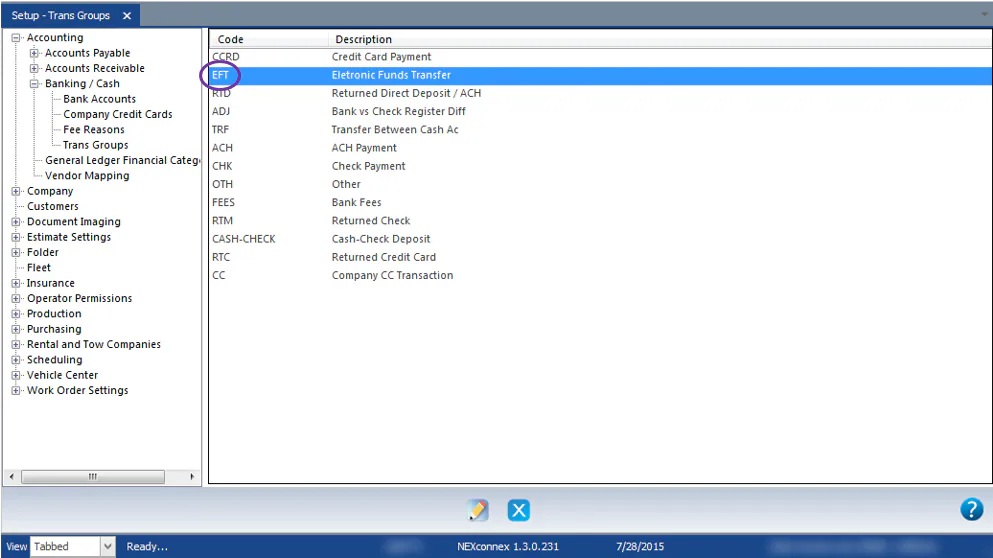
The existing rules are listed under BAI Bank Import Code.
-
Select the add button to add a line.
-
In BAI Code, enter the code from the BAI column of the import file.
-
Select Requires Text Match.
-
In Match Text, enter text that matches part of the transaction’s description. It should be unique to this kind of transaction.
-
Select Other, EFT or Credit Card.
-
For EFT or Credit Card, select the company from the list below.
-
Select Save.
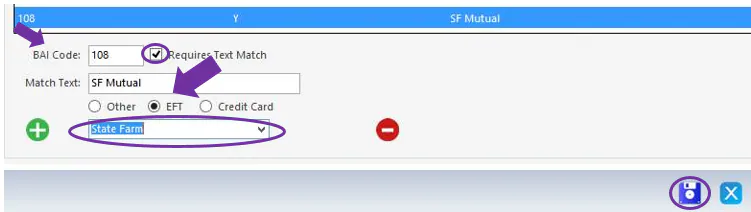
To match every transaction with a BAI code, whatever its description, leave Requires Text Match cleared.
Example
Section titled “Example”In the screenshot above, EFT transactions with BAI code 108 and a description containing “SF Mutual” are assigned to the EFT trans group with the payer State Farm. The bank’s description is “SF MUTUAL 05004”, so this rule only works with a trailing %: “SF Mutual%”. Include leading and trailing % characters unless you really want an exact match on the whole description.
Trans group codes
Section titled “Trans group codes”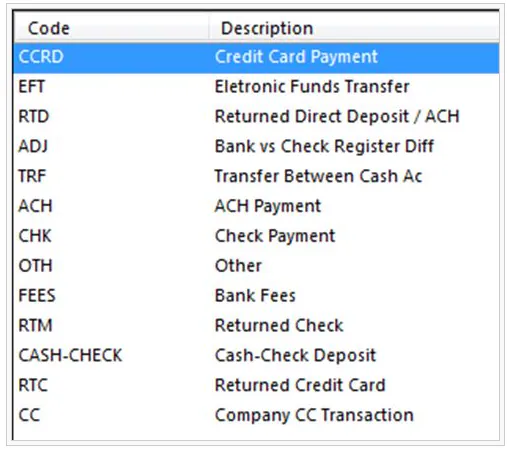
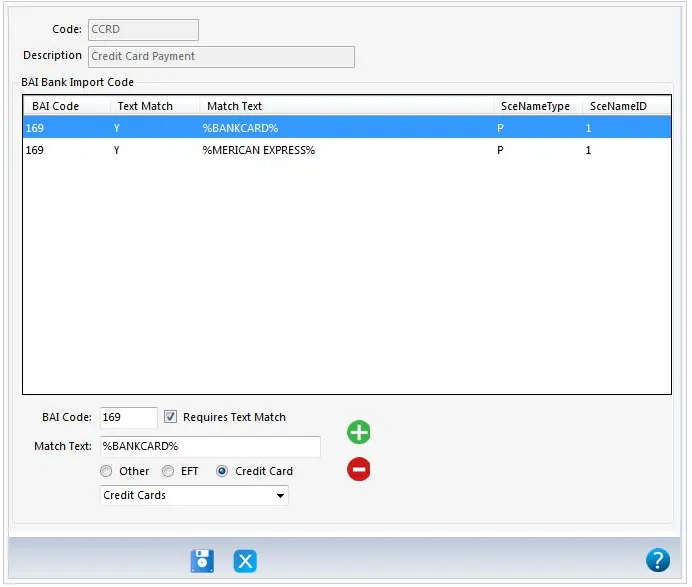
Credit card deposits use the CCRD trans group, with rules for each processor’s description: