
Change completed or delivered dates
Completed and delivered dates should be set only when a vehicle is actually completed or delivered. Change them only to correct a mistake, because they affect your financial records.
Before you begin
Section titled “Before you begin”You need the transaction permission Allow the changing of Folder dates/fields related to Sales and COS. If you don’t have it, ask your administrator.
Give this permission only to people who understand the financial effects described below.
Why these dates matter
Section titled “Why these dates matter”When a vehicle goes home, the folder is marked delivered and invoiced. Nexsyis records the sales, cost of sales, AR and inventory relief.
Before you change a date, find out whether your company invoices when a vehicle is completed or when it’s delivered:
- If you invoice on completion, changing the completed date has financial effects.
- If you invoice on delivery, the delivered date is the critical one. Take extreme care when you correct it.
For how the two settings differ, see Completed date vs delivered date for sales.
Correcting a date within the current financial period is generally fine. We recommend that you never make corrections outside the current financial period.
When the sales month is closed
Section titled “When the sales month is closed”Closing Sales for a month locks that month’s numbers. Sales is the one financial category your team can’t reopen. Your team can reopen Cost, Cash and GL, but only Nexsyis can reopen Sales.
- If you try to set a delivered date inside a closed sales month, Nexsyis shows a message and doesn’t save it.
- If you remove a delivered date from a closed month, Nexsyis reverses the sale. Because the old month is closed, the reversal posts to the next open month, so the old month’s sales don’t go down.
For more, see Manage GL periods and Financial dates explained.
Change a completed or delivered date
Section titled “Change a completed or delivered date”- Confirm that the date really needs to change. Correct these dates only to fix a mistake.
- Check that you have the permission listed under Before you begin.
- If the month is still open for Sales, make the change yourself.
- If Sales is closed for that month, contact Nexsyis support with:
- the folder number or numbers
- the current delivered date and the correct one
- the month the sale should end up in
- Nexsyis either reopens the month briefly or moves the GL date of the reversal or invoice so it lands in the right month.
- After Nexsyis confirms the change, run your sales report and the GL detail to check the month.
Change the date on the folder
Section titled “Change the date on the folder”- Open the folder’s Summary tab.
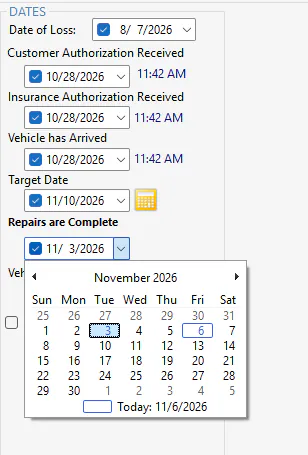
- Under Dates, select the date in the Repairs are Complete or Vehicle Delivered box.
- Type the correct date, or choose it from the drop-down calendar.
- Select Save.
Example
Section titled “Example”A few folders were marked delivered in Month 1 by mistake; the cars actually went home in Month 2. Sales for Month 1 is already closed.
The bookkeeper removes the delivered dates and delivers the folders again in Month 2. Month 1 sales don’t drop, because the reversals posted to Month 2. Nexsyis moves the reversals’ GL date back to Month 1, so Month 1 nets to zero and the new invoices stay in Month 2.
When to contact support
Section titled “When to contact support”- Any delivered-date change in a closed sales month.
- Sales for an old month look wrong after a delivered date was removed or changed.
- An estimate was converted or invoiced again and you’re not sure it should have been.