Use the In Process list
The In Process list shows every vehicle in production: vehicles that have an arrival date but no completed date. Use it to see where each vehicle is, what’s holding it up and what to work on next.
Open the In Process list
Section titled “Open the In Process list”Select the Vehicle Center tab, then the In Process tab.
You can choose the columns, filter and group the grid, and save layouts as views. See Customize In Process columns and views and Filter and sort the In Process list.
Search the list
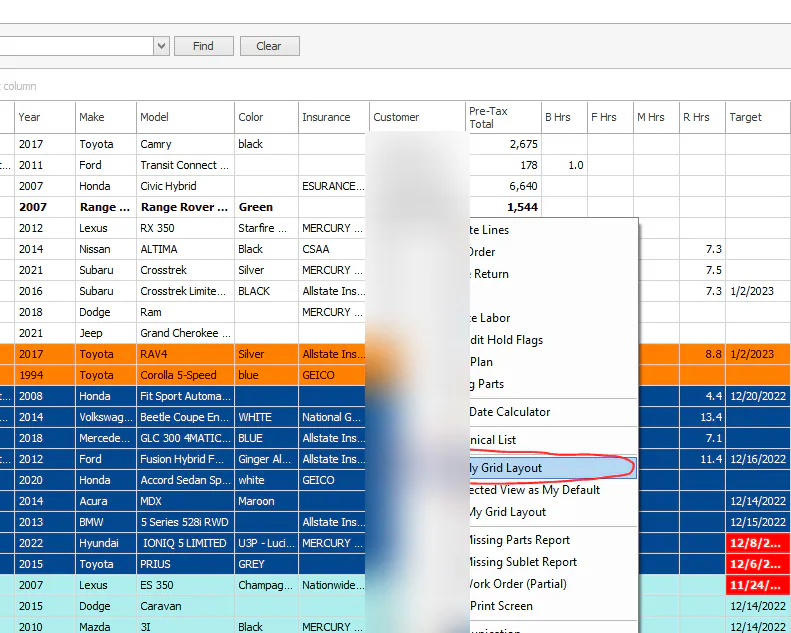
Section titled “Search the list”- Select anywhere in the grid and press Ctrl+F. The search box appears above the grid.
- To keep the search box there, right-click the grid and select Save My Grid Layout.
Read the Target and Internal date colors
Section titled “Read the Target and Internal date colors”- Target is the date the customer was promised the vehicle. It’s set on the folder.
- Internal is the date the production team expects to finish. You set it in the grid.
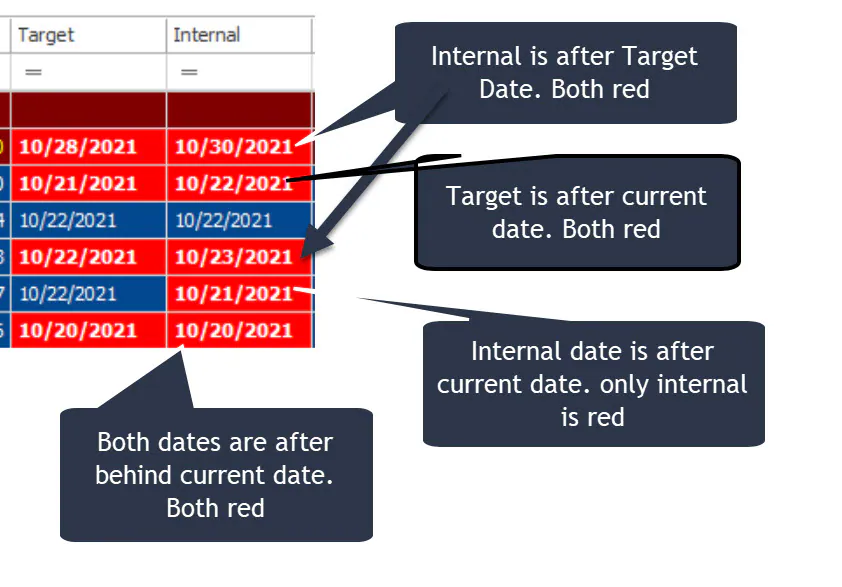
The dates turn red when the vehicle is behind:
- When the internal date is after the target date, both dates are red.
- When the target date is behind the current date, both dates are red.
- When only the internal date is behind the current date, only the internal date is red.
The target date is yellow when it’s current but has been changed from the original target date.
Show totals
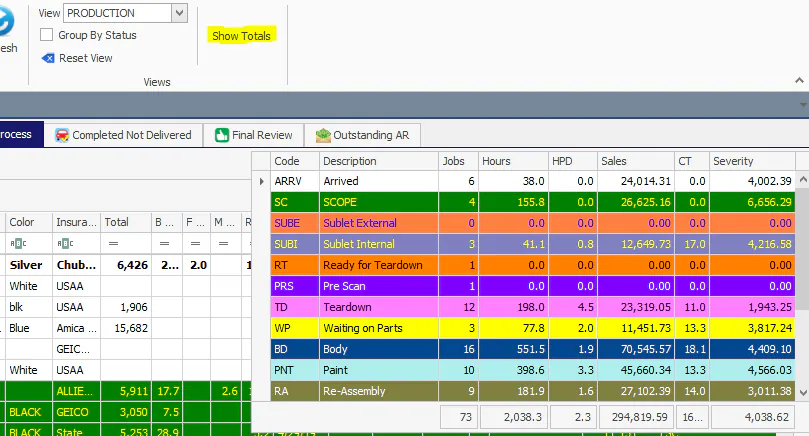
Section titled “Show totals”Select Show Totals to see totals for the vehicles in the grid, by stage. As you filter the grid, the totals update to match the vehicles showing. Select Show Totals again to hide them.
Open the mechanical list
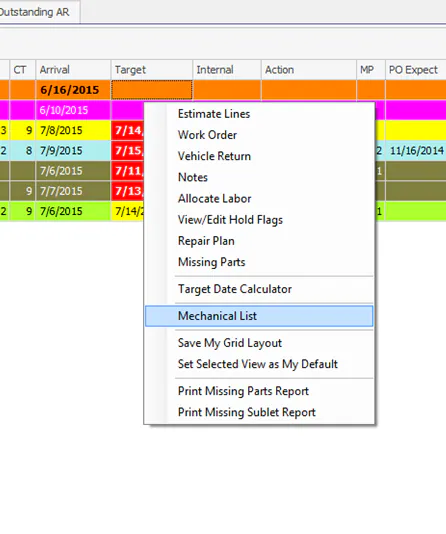
Section titled “Open the mechanical list”The mechanical list shows the vehicles in process that have mechanical labor and an internal date set.
Right-click the In Process grid and select Mechanical List.
The In Process board
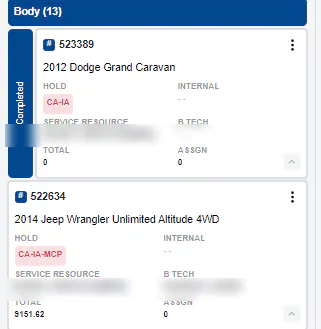
Section titled “The In Process board”The NexsyisNow In Process board shows each vehicle as a card, in a column for its production stage. Use it to open folders quickly, see updates as they happen and move vehicles between stages.
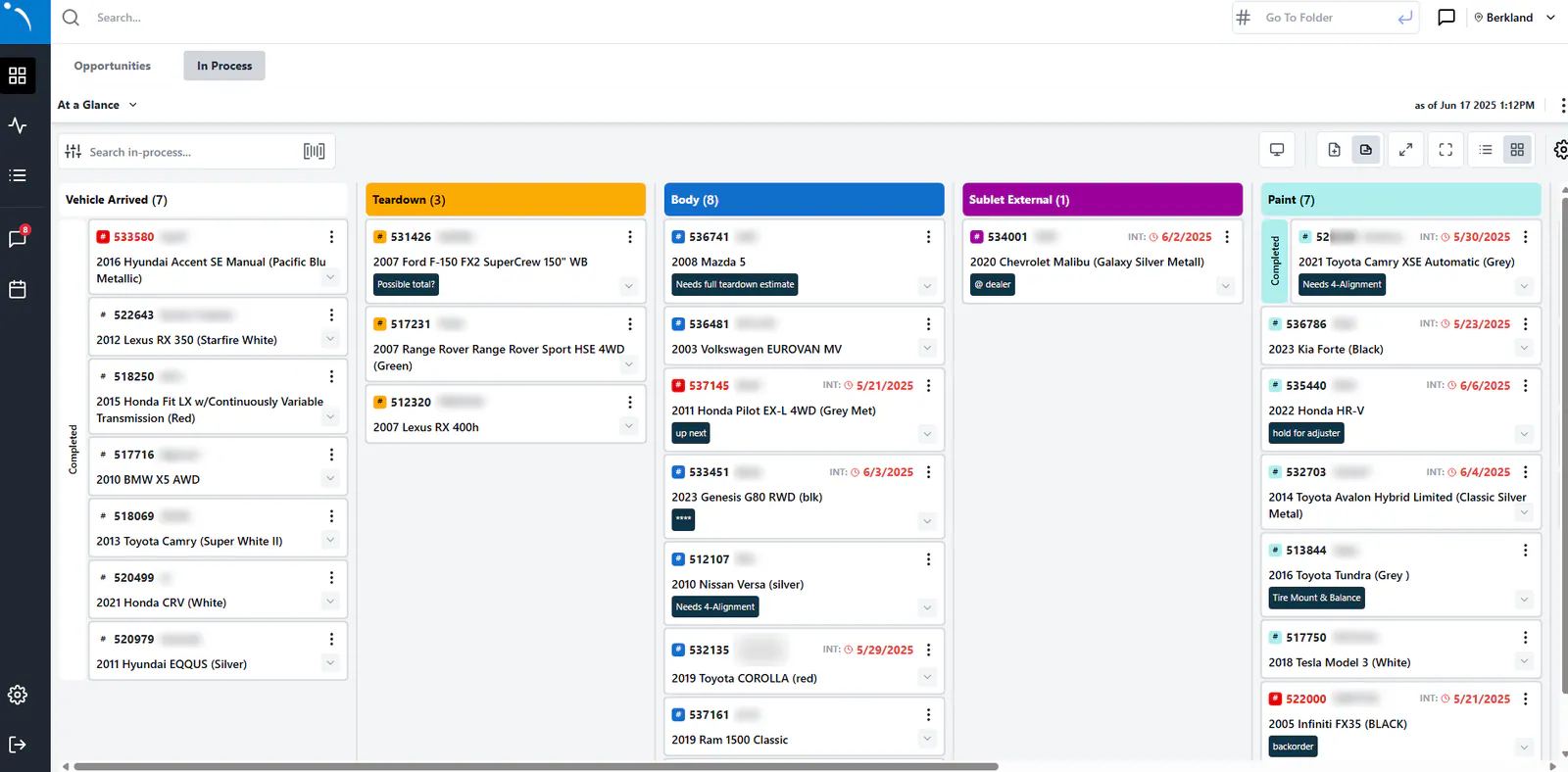
To change what the cards show, see Customize In Process columns and views.
Complete a stage
Section titled “Complete a stage”-
Select and hold the card you want to move.
-
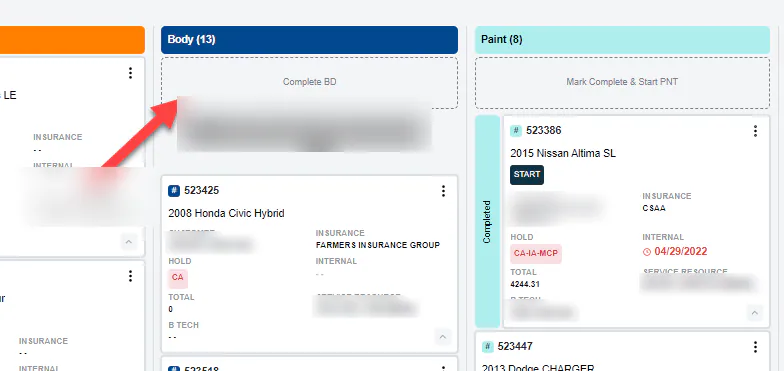
Drag it to the top of its stage, onto the Complete box. For example, drag the card to Complete BD to complete the Body stage.
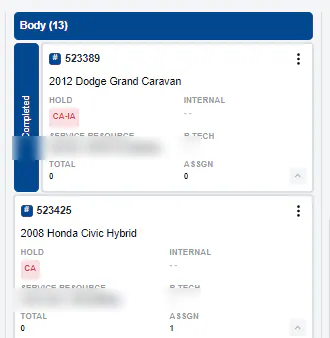
The card is marked Completed in that stage. The next stage isn’t started.
Start the next stage
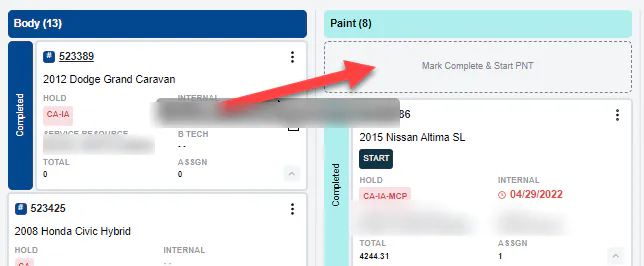
Section titled “Start the next stage”Select and hold the card, then drag it to the next stage, onto the Mark Complete & Start box. For example, drag it to Mark Complete & Start PNT.
Reorder the vehicles in a stage
Section titled “Reorder the vehicles in a stage”-
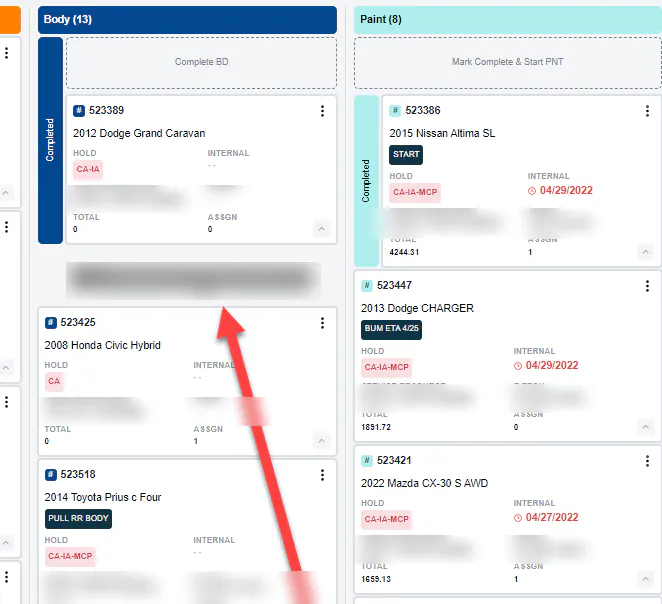
Select and hold the card, then drag it up or down within the stage. For example, drag a card from the bottom of the stage to the top to make it a higher priority.
-
The card shows in its new place.