
Set employee pay rates
Use the Pay Rates screen to set each employee’s job, pay method and rate. For employees who are allocated labor on work orders, you also set their rates by labor type or add them to a team.
Add a new pay rate
Section titled “Add a new pay rate”-
On the Payroll tab, select Pay Rates.
-
Search for the employee, then double-click their name.
-
At the bottom of the Pay Rates screen, select New.
-
Enter the Job, Location, Pay Method, Rate and Effective date, and select the Reason you’re creating the rate.
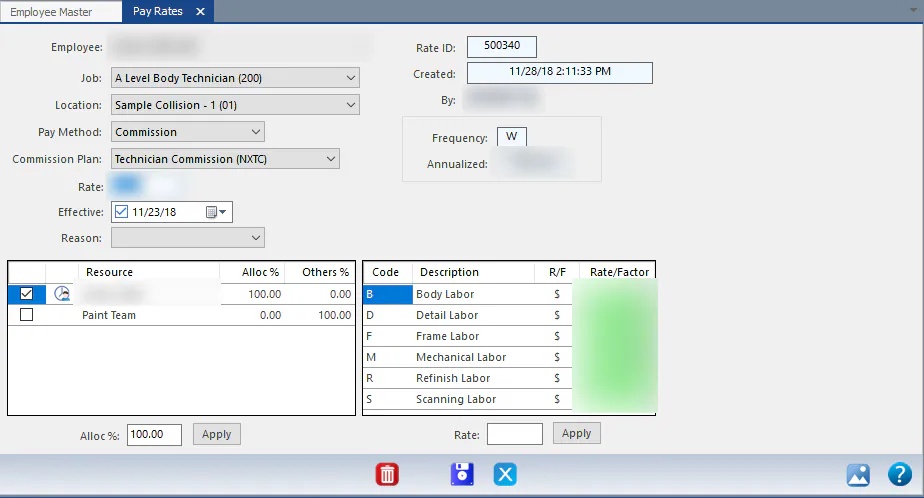
-
Select Save.
You can also open an employee’s pay rates by selecting Rates on their employee record.
Set rates by labor type
Section titled “Set rates by labor type”If the employee is allocated to work orders and paid as an individual, set them up as a resource and enter a rate for each labor type.
-
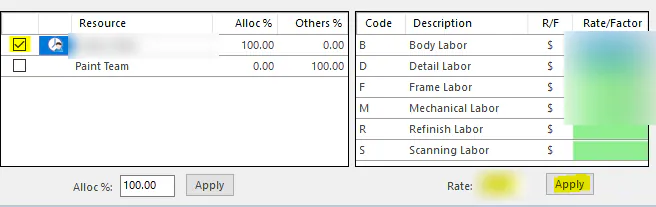
In the Resource grid, select the checkbox next to the employee’s name.
-
With the employee resource selected, select a green box in the Rate/Factor column for a labor type.
-
Enter the rate in Rate below the grid, then select Apply.
-
Repeat for each labor type, then select Save.
Add the employee to a team
Section titled “Add the employee to a team”If the employee is allocated to work orders and paid as part of a team, the rates are set for the team, so you don’t enter rates here.
-
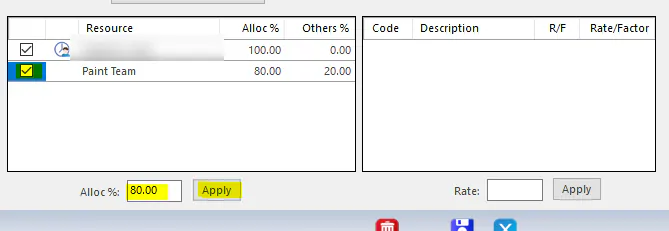
In the Resource grid, select the checkbox next to the team.
-
Enter the employee’s share of the team in Alloc %, then select Apply.
-
Select Save.
To create the team and set its rates, see Set up technician teams.
Pay a technician a different rate for some jobs
Section titled “Pay a technician a different rate for some jobs”To pay a technician a different hourly flag rate for one kind of work, for example Tesla repairs, create a separate resource for each employee or team doing that work.
For example, Chris Example would have two resources:
- Chris Example, with rates entered as usual.
- Chris Example - Tesla, set up as a team of one, with rates on the Team Rates screen.
Then allocate labor to Chris Example - Tesla on Tesla folders.