View a work order
The work order lists every parts and labor line for the repair. You can filter it by sales code to see only the lines that apply to your work, and add notes to individual lines.
Before you begin
Section titled “Before you begin”The folder needs a work order. If it doesn’t have one yet, create a work order.
Line colors
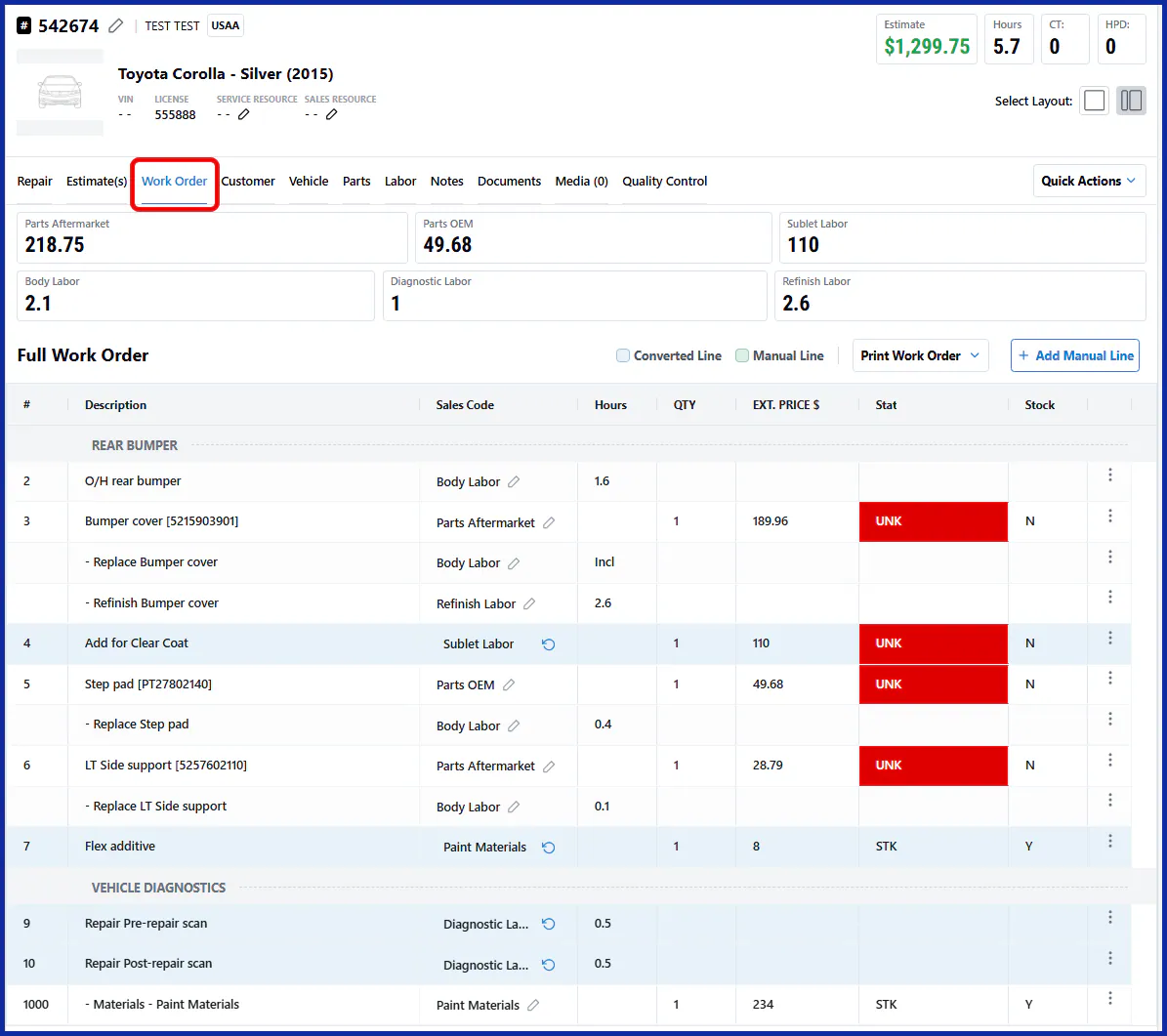
Section titled “Line colors”- Blue lines have been converted from the original estimate.
- Green lines are manual lines that aren’t on the estimate.
-
Open the folder and select Work Order.
-
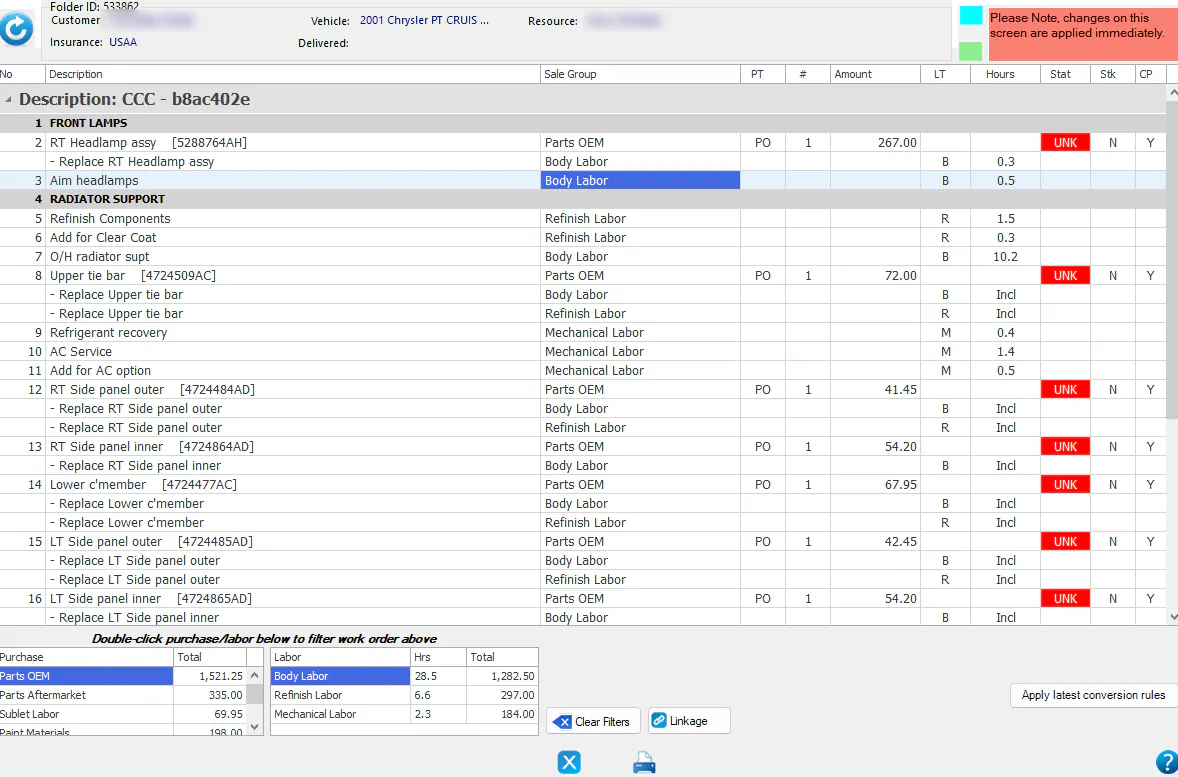
The work order lists each line with its Sale Group, amount, labor type and hours.
-
To filter the lines, double-click a row in the purchase or labor totals at the bottom of the screen. Select Clear Filters to see all lines again.
-
Open the folder and select the Work Order tab.
-
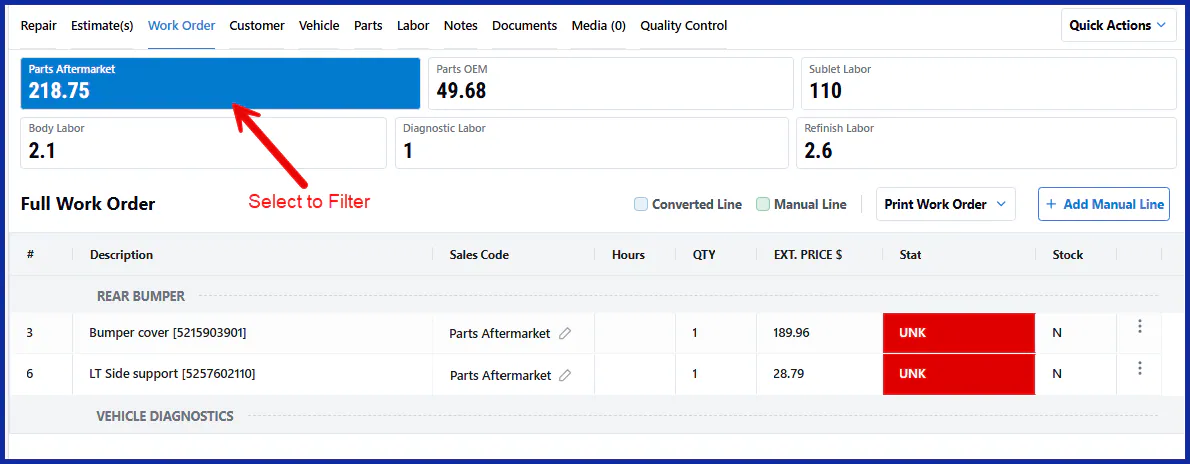
To filter the lines, select one of the sales code boxes at the top, for example Parts Aftermarket.
Add a line note
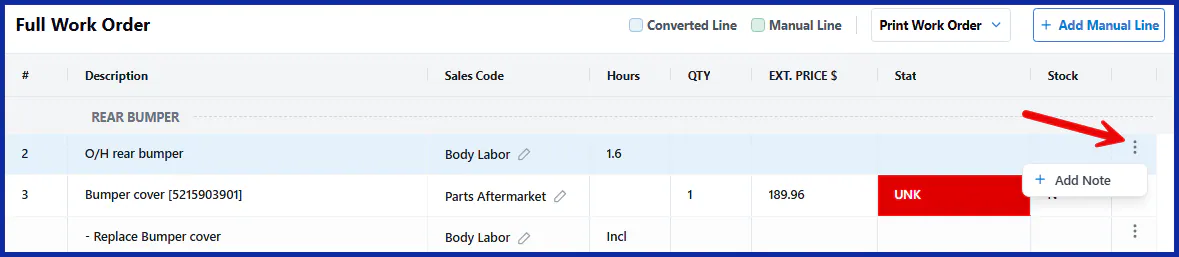
Section titled “Add a line note”Select the three-dots menu on the line, then select Add Note.
-
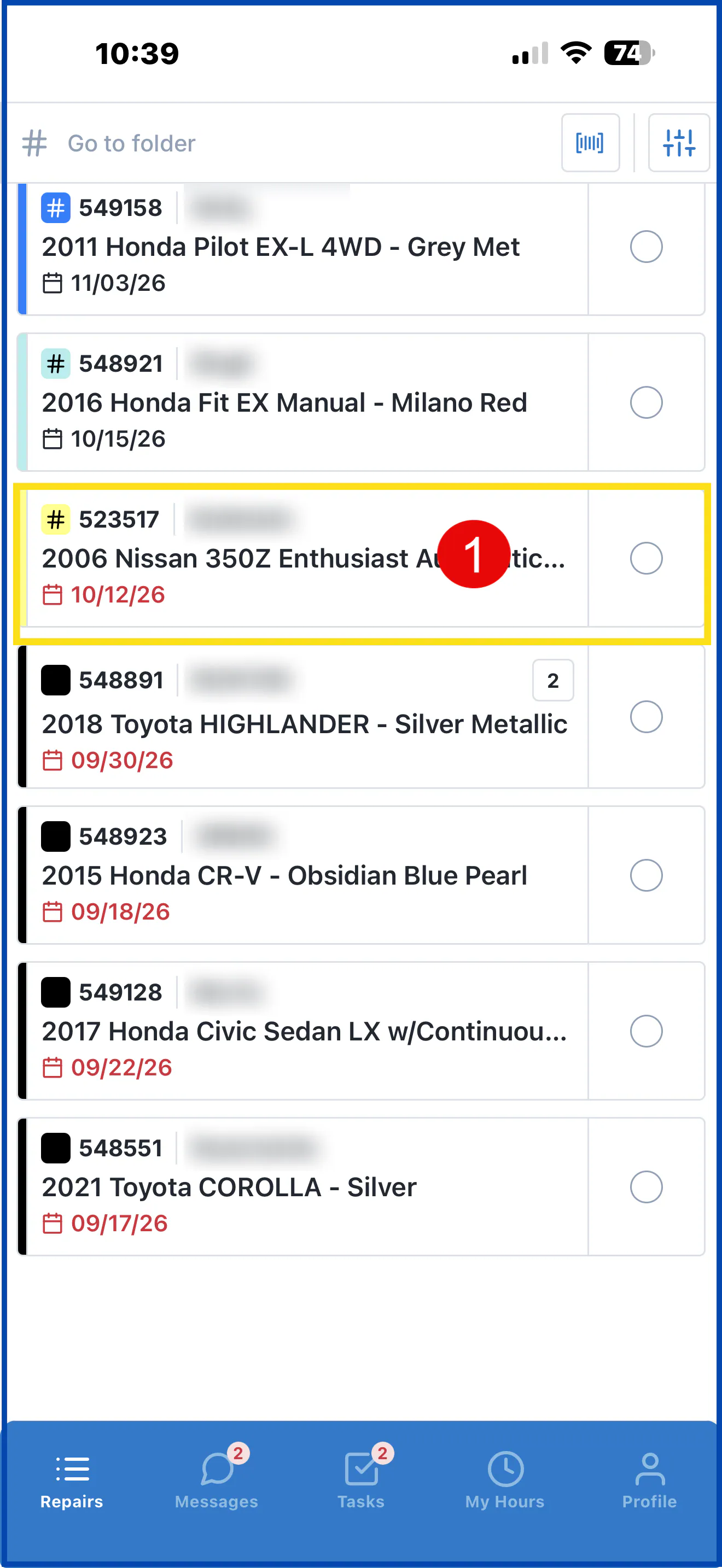
In Repairs, select the folder.
-
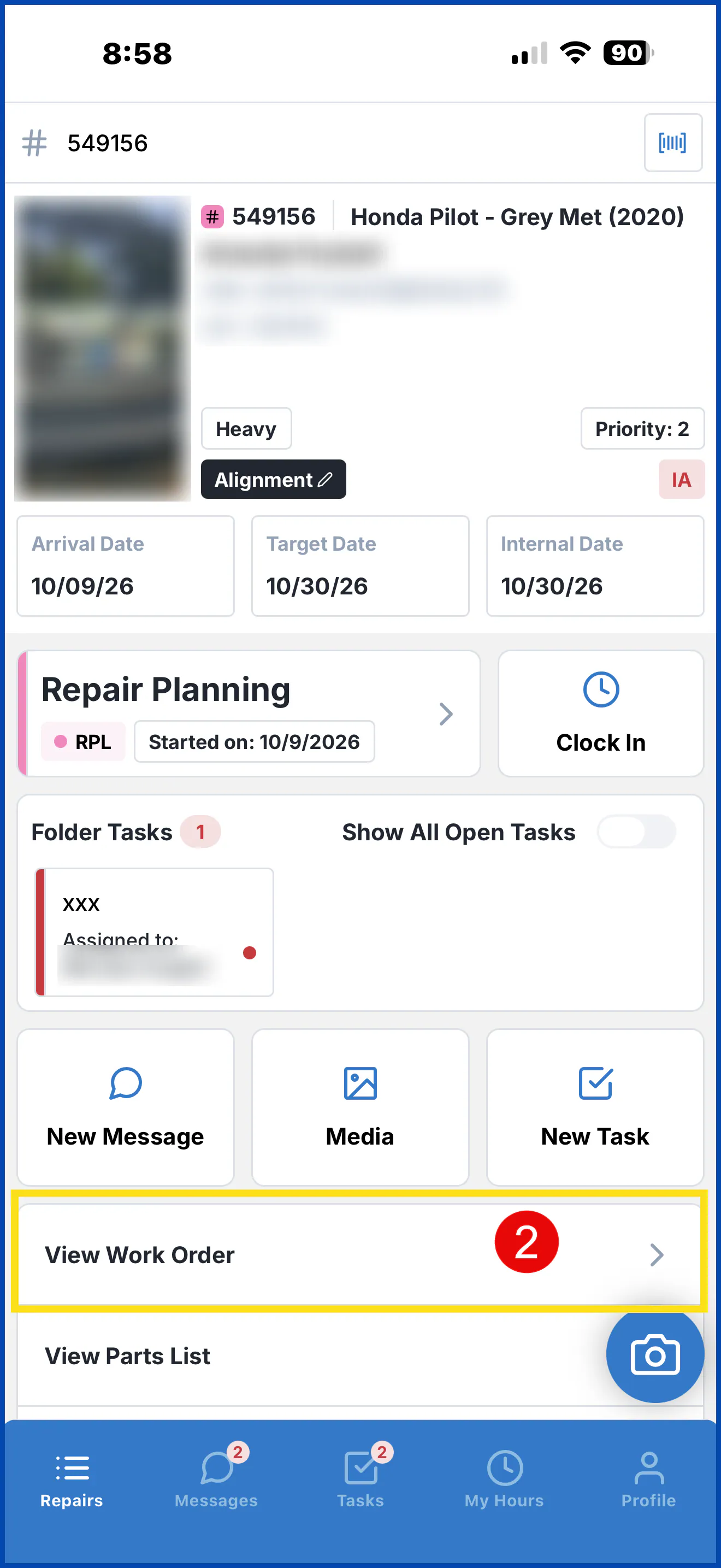
Select View Work Order.
-
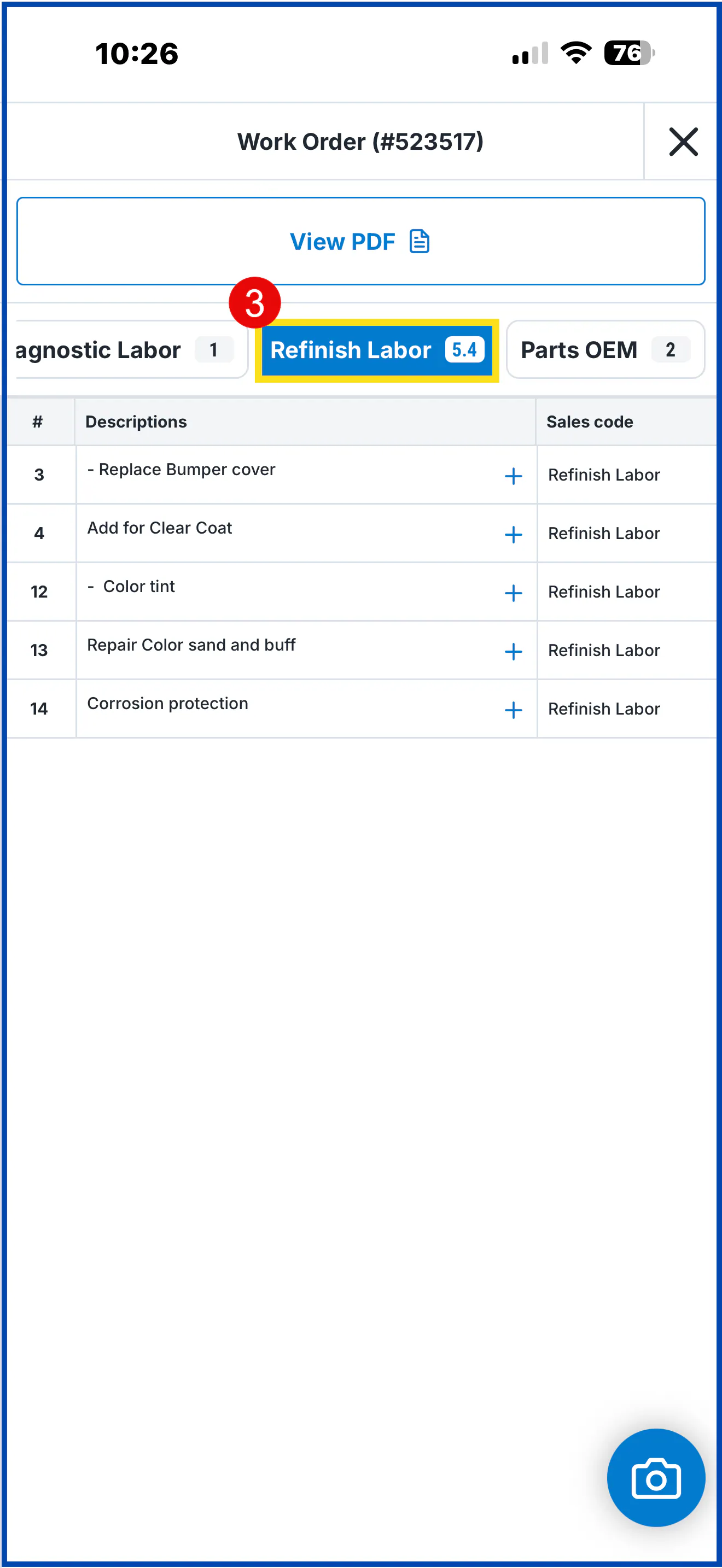
To filter the lines, select a sales code box, for example Refinish Labor.
View, share or print the PDF
Section titled “View, share or print the PDF”-
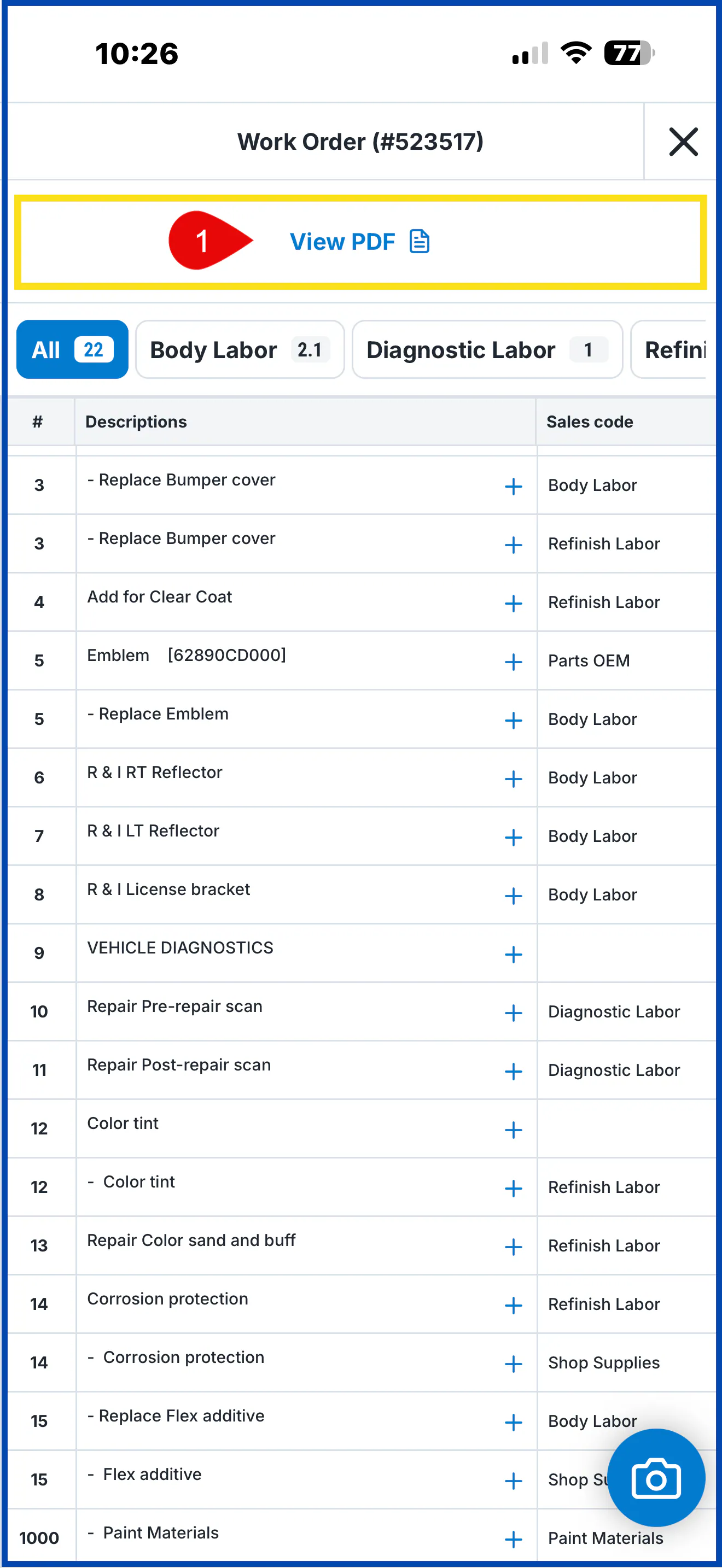
Select View PDF. The PDF fills in the same way as in NexsyisNow.
-
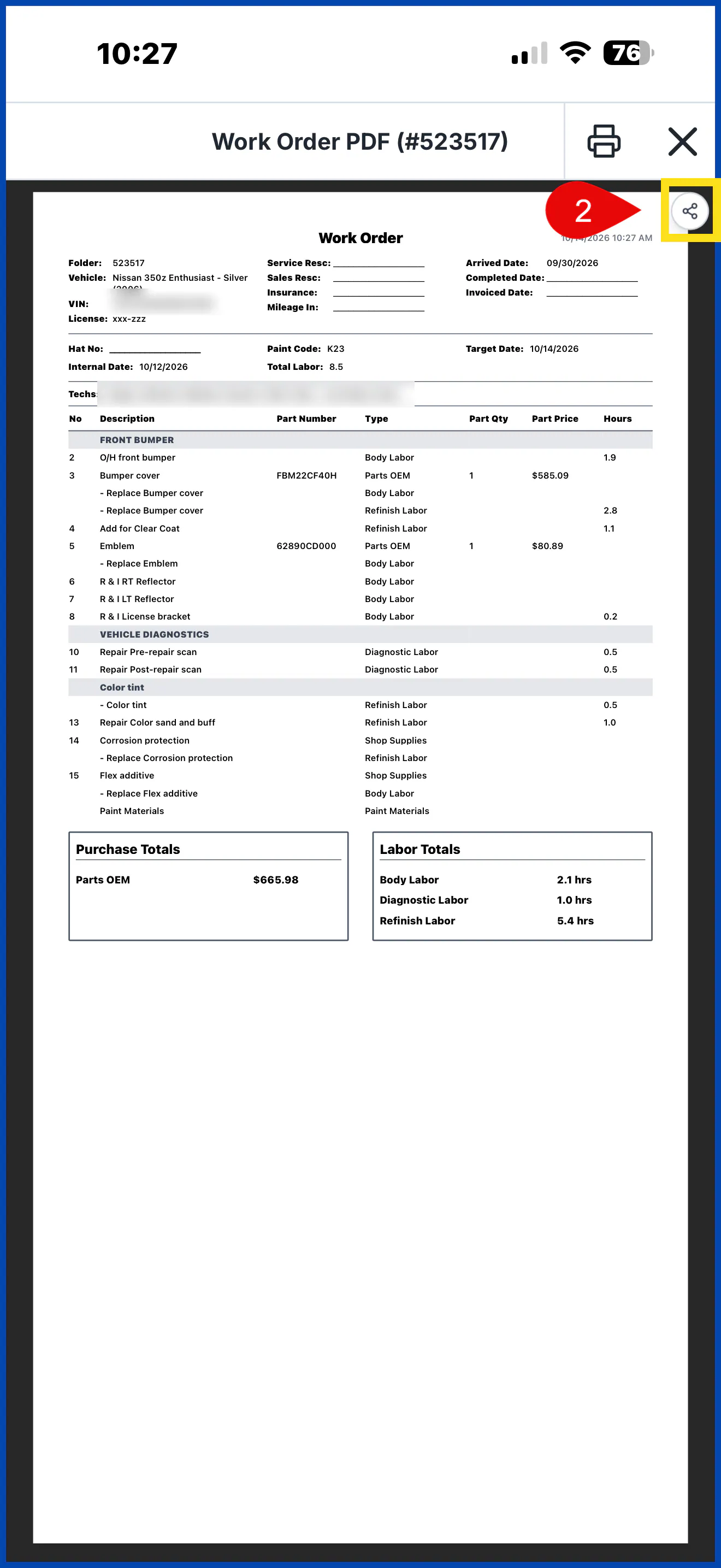
Select the share button to email the PDF or send it to a printer. To print from your phone, you need a printer that supports it.
Add a line note
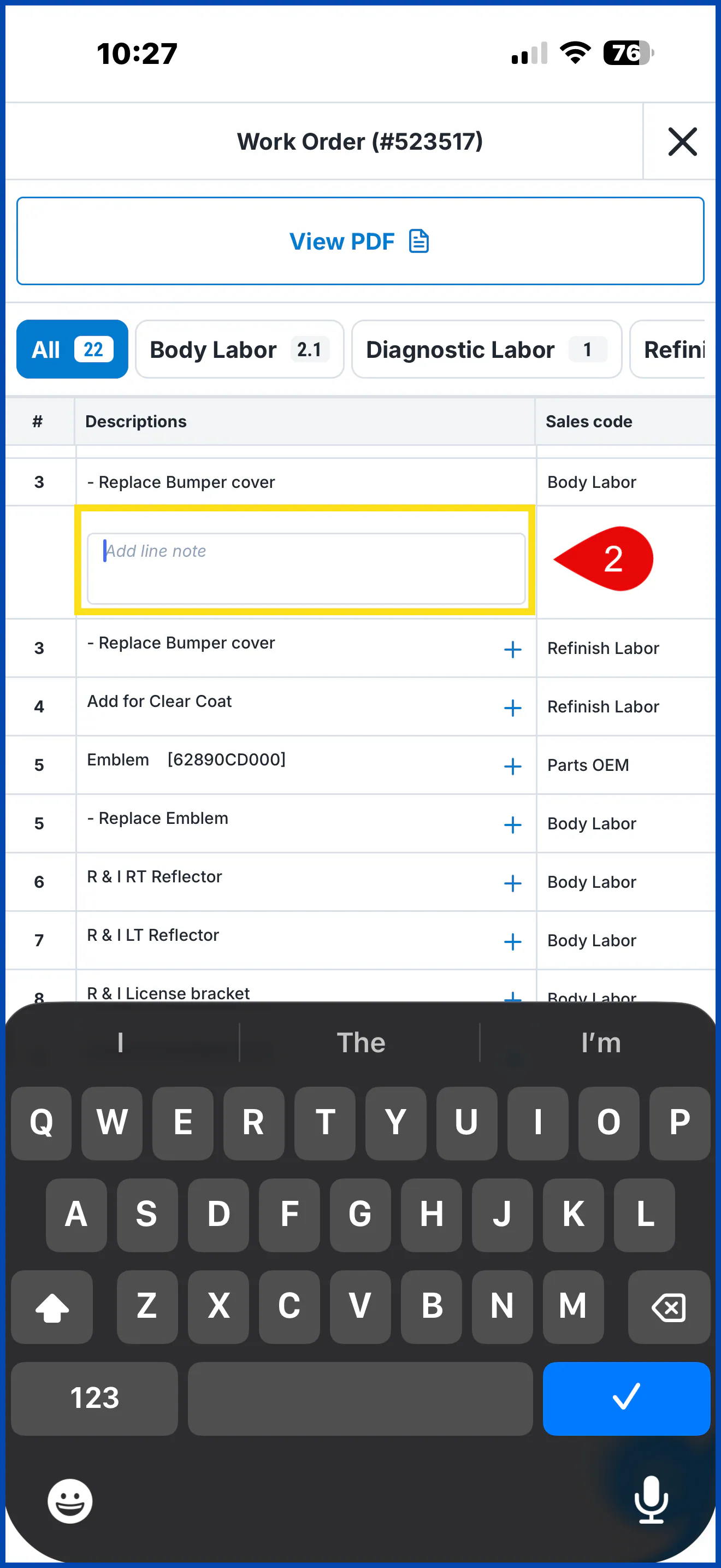
Section titled “Add a line note”-
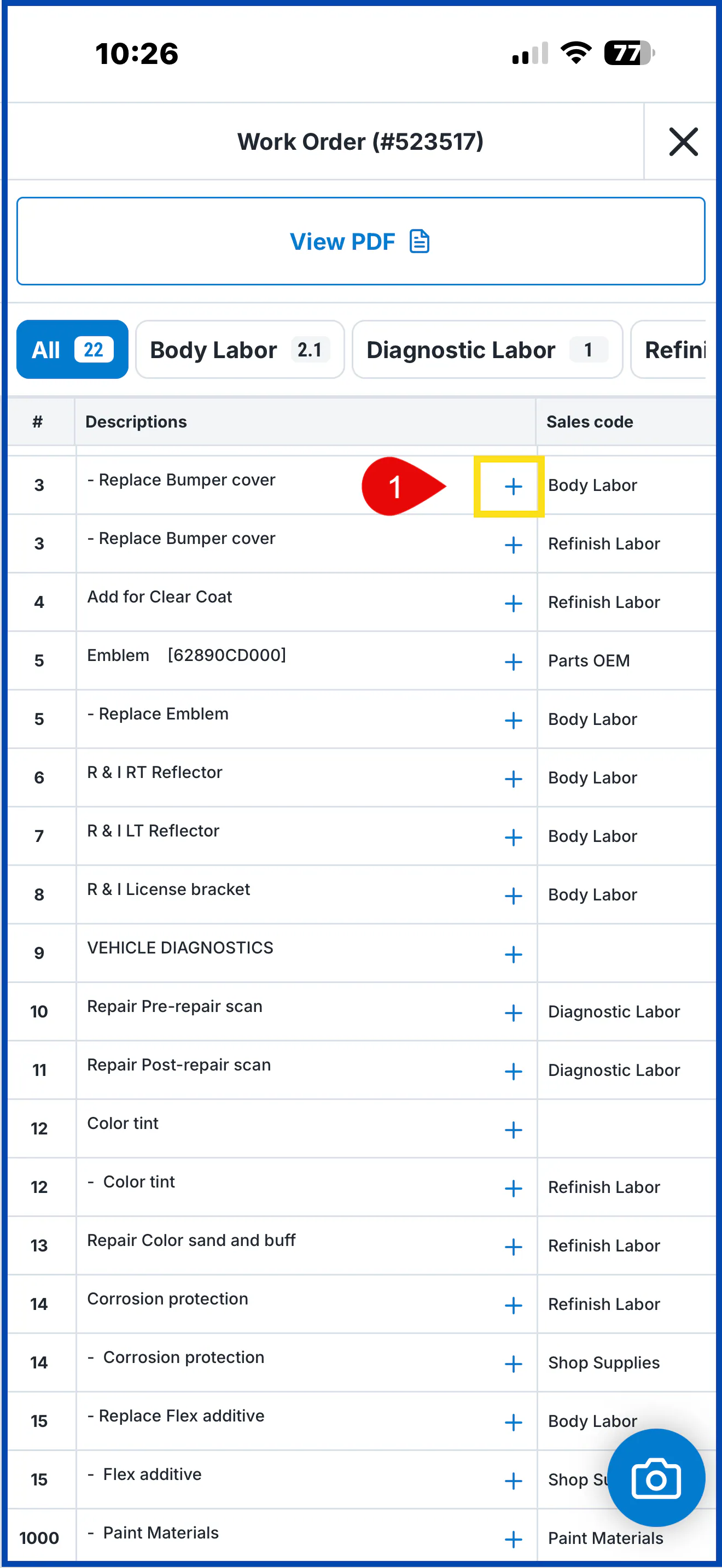
Select the + on the line.
-
Type your note in the Add line note box.