
Lock a punch to a specific work day
Nexsyis normally places each punch on the right work day based on the employee’s shift. When a punch falls outside the employee’s normal shift, it can land on the wrong day. Lock the punch to the correct work day to fix it.
Lock a punch
Section titled “Lock a punch”-
On the Payroll tab, select Employee Time, then open the employee’s week. See View and edit employee time.
-
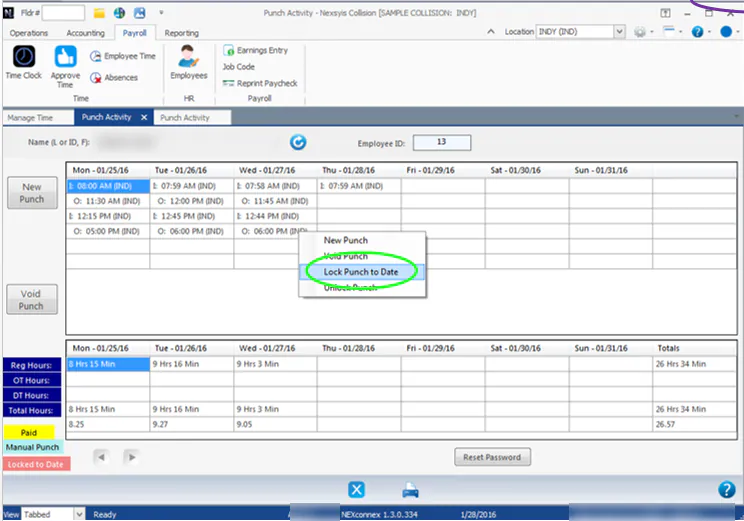
On the Punch Activity screen, right-click the punch and select Lock Punch to Date.
-
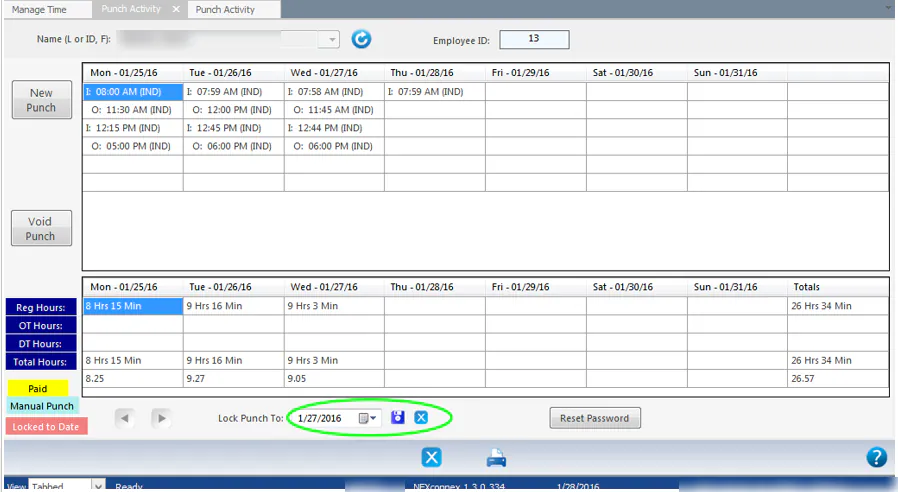
In Lock Punch To at the bottom of the screen, select the day to lock the punch to.
-
Select the save button.
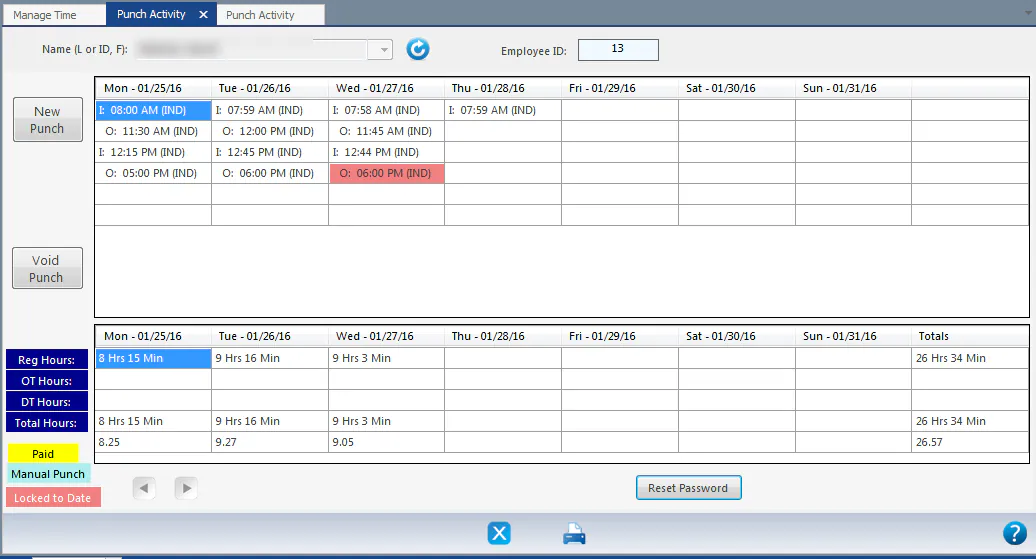
Locked punches show in red, matching Locked to Date in the legend.
Unlock a punch
Section titled “Unlock a punch”Right-click the locked punch and select Unlock Punch.
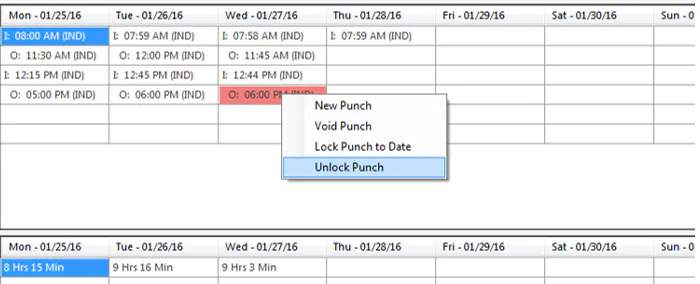
The screen refreshes and Nexsyis places the punch on a work day again.