
Handle shop pay (internal) repairs
Shop pay is labor or purchases that the shop pays for itself, because they aren’t on the estimate billed to the customer or insurance company. Record shop pay work as a manual work order line.
How shop pay lines work
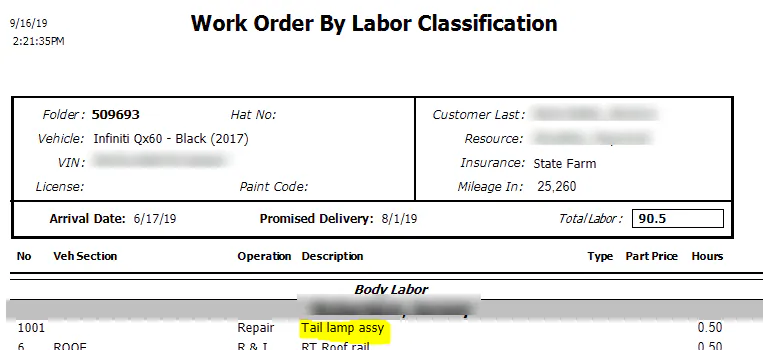
Section titled “How shop pay lines work”- The work shows on the work order printout for the technician.
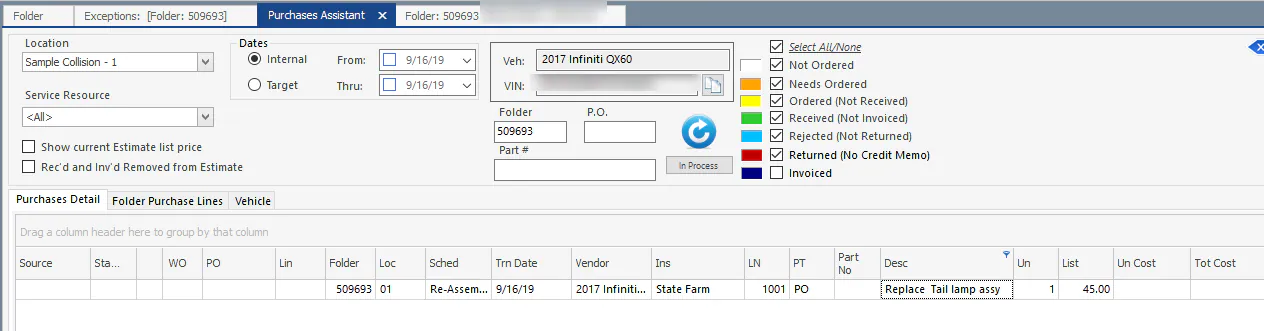
- Purchase lines show in the Purchase Assistant to be ordered, received and invoiced.
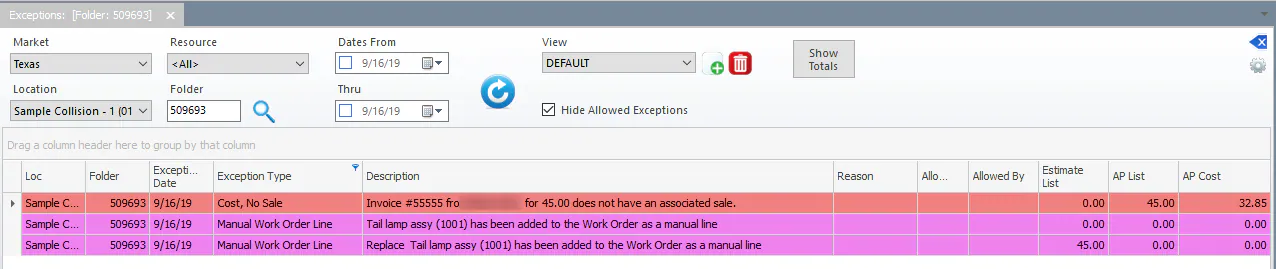
- Every manual line is recorded and managed on the Exceptions screen.
- Invoiced shop pay items show in the shop pay report.
If the shop pay work is for a vehicle return, add vehicle return (VR) lines on the original folder’s vehicle return screen instead. VR lines work the same way as manual work order lines on an in-process repair. See Record a vehicle return.
Create a manual work order line
Section titled “Create a manual work order line”-
On the folder, open the Work Order screen.
-
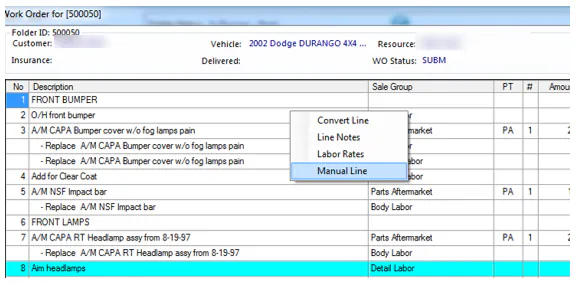
Right-click any line on the work order and select Manual Line.
-
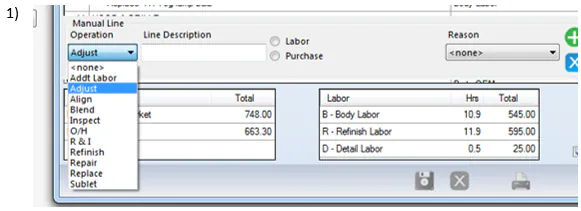
Choose the Operation.
-
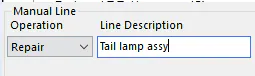
Type a Line Description.
-
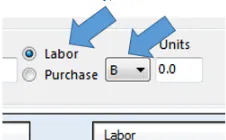
Choose Labor or Purchase:
-
Labor: choose the labor type and enter the number of Units (hours).
-
Purchase: choose the Sales Code, and enter the Units (quantity) and Amt/Unit (cost).
-
-
Choose the Reason, for example Shop Damage.
-
Select the green plus button to add the line to the work order.
Manual lines are added at the bottom of the work order as green lines.

For more about manual lines, see Add manual work order lines.
Purchases, rentals and towing
Section titled “Purchases, rentals and towing”Manual purchase lines for parts, rentals or towing show as white (Not Ordered) lines in the Purchase Assistant. Order them from the right vendor, then receive and invoice them. Invoiced manual lines show in the shop pay report.
Manual labor lines are added to the work order printout. Their units (hours) are added to the other labor of that type, to be allocated on the Labor Allocation screen.
Exceptions
Section titled “Exceptions”Each manual line shows on the Exceptions screen as a pink Manual Work Order Line exception. If an invoice is posted to the manual line, a coral Cost, No Sale line shows as well.
See Review exceptions.