Map third-party vendors
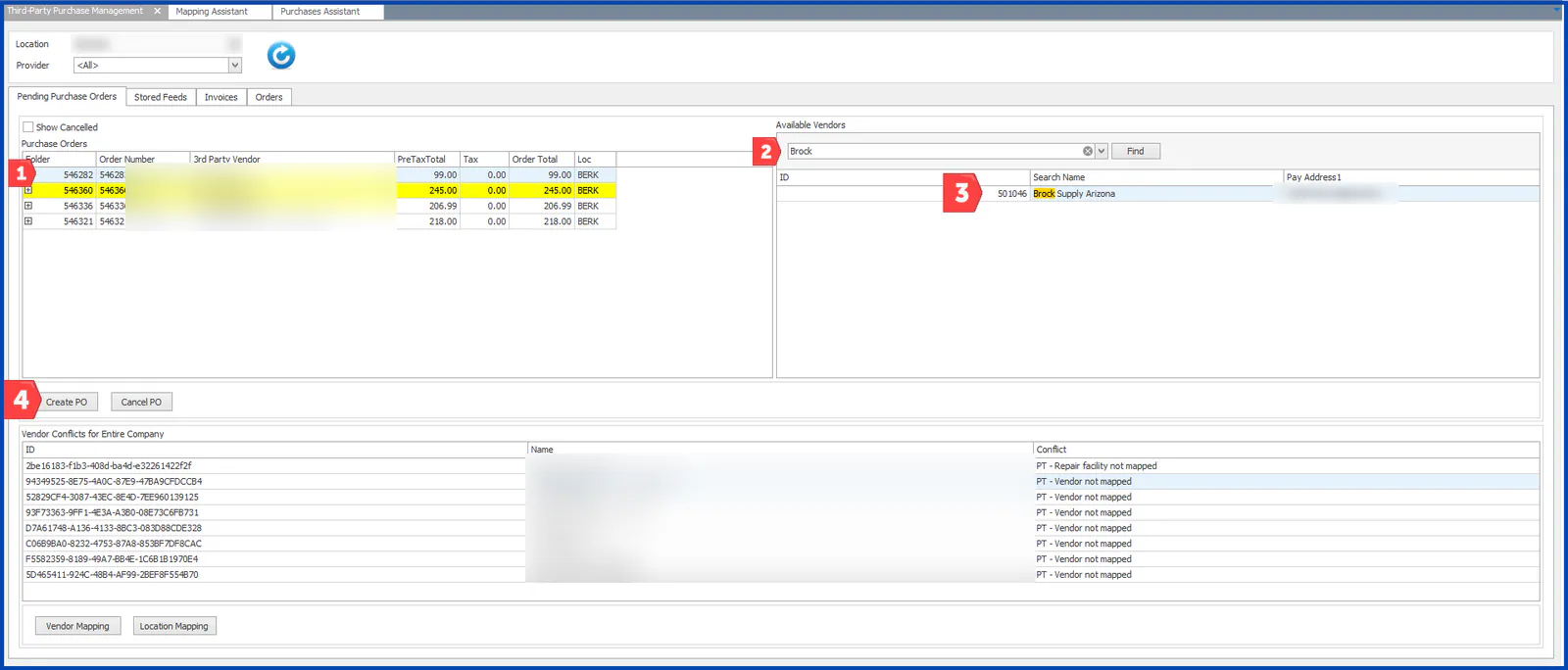
PartsTrader and OPS Trax keep their own vendor lists. Map each of their vendors to the matching Nexsyis vendor so orders create purchase orders correctly.
Map an unmapped vendor
Section titled “Map an unmapped vendor”-
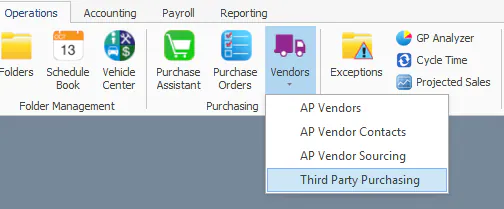
Open Vendors › Third Party Purchasing.
-
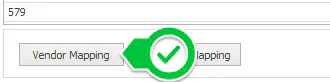
Select Vendor Mapping at the bottom left.
-
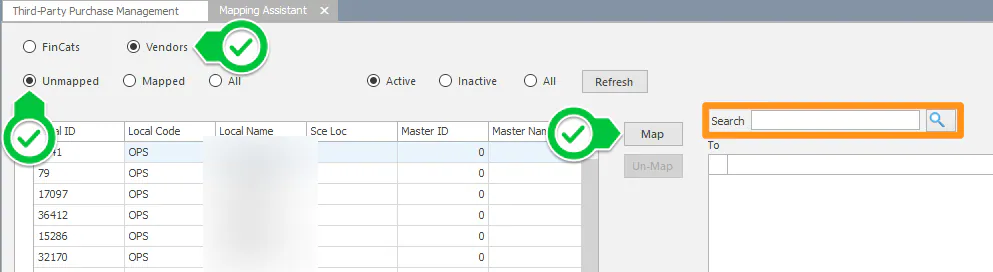
At the top of the mapping screen, set the filters to Vendors and Unmapped. Unmapped vendors are listed on the left.
-
Select the vendor on the left.
-
On the right, search for the matching Nexsyis vendor.
-
Select Map.
Check your mappings regularly, especially when vendors are added in OPS Trax or PartsTrader.
Fix a vendor that’s mapped incorrectly
Section titled “Fix a vendor that’s mapped incorrectly”-
Open Vendors › Third-Party Purchase Management and select Vendor Mapping at the bottom of the screen.
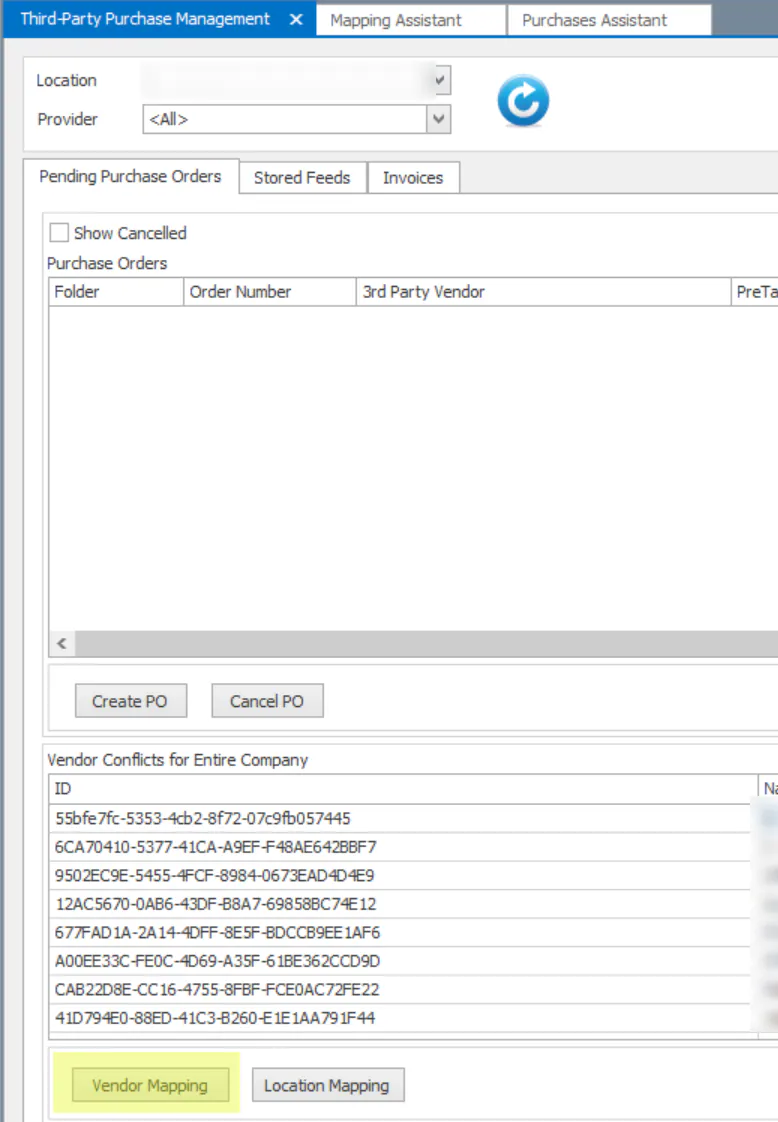
-
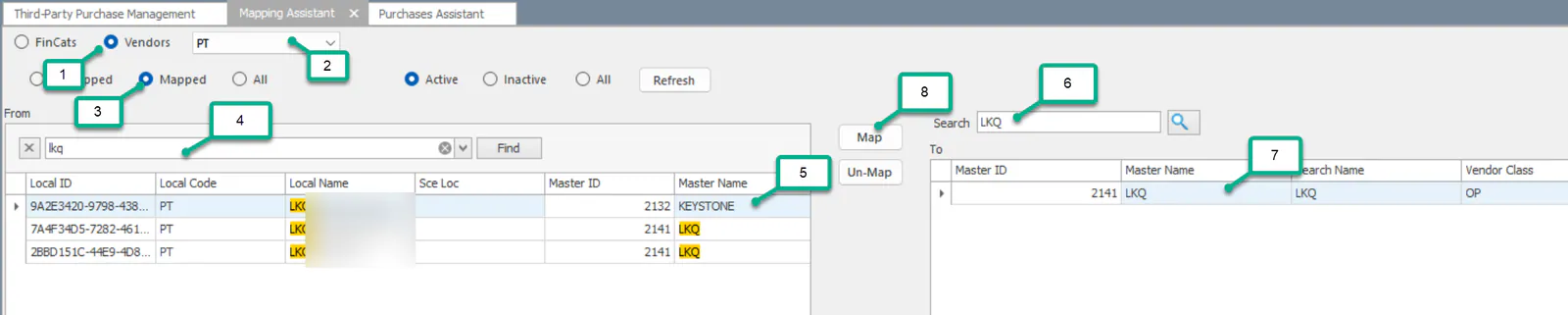
Select Vendors.
-
Choose PT (PartsTrader) or OPS.
-
Select Mapped to see the current mappings.
-
Search for the vendor, and select the line on the left that’s mapped incorrectly.
-
On the right, search for the correct vendor.
-
Select Map.
When not to map a vendor
Section titled “When not to map a vendor”If one PartsTrader vendor bills you on more than one account, for example a dealer group that invoices two vehicle brands separately, leave it unmapped. Then create each purchase order by hand:
-
In the Purchase Assistant, double-click the red CON.
-
Find the folder on the left.
-
Search for the vendor on the right and select it.
-
Select Create PO.