
Mark a vehicle as delivered
When the customer picks up the vehicle, mark it as delivered. Nexsyis invoices the folder and offers to print the final paperwork.
Before you begin
Section titled “Before you begin”Work through Prepare a folder for delivery.
Mark the vehicle as delivered
Section titled “Mark the vehicle as delivered”-
Find the folder using folder search, or on the Completed Not Delivered tab of the Vehicle Center.
-
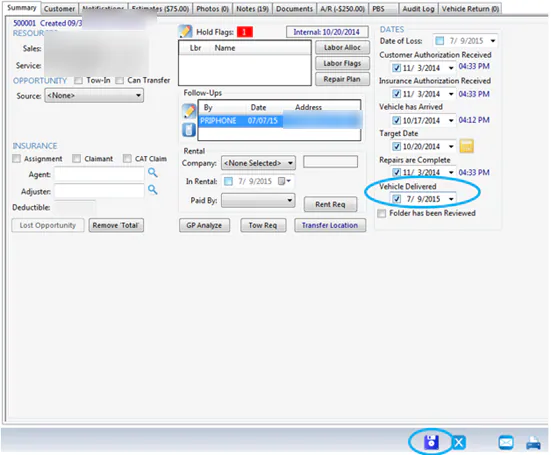
Open the folder’s Summary tab.
-
Select Vehicle Delivered.
-
Select Save.
-
Nexsyis asks whether you want to print the final paperwork. Select Yes to print the invoice, the customer statement and, if your preferences include it, the warranty.
What happens next
Section titled “What happens next”The folder is invoiced. Once it’s delivered and invoiced, it shows on the Final Review tab of the Vehicle Center. See Mark a folder as final reviewed.