Text customers
Send a customer a text or email from their folder, then read and answer their replies in the Message Center.
Send a message from a folder
Section titled “Send a message from a folder”-
Open the folder and go to the Communication tab.
-
Check that the customer has a valid cell phone number or email address, and that Communicate by text or Communicate by e-mail is selected.

-
Type your message, or choose a template and edit its text.
-
Select Send Message.
The message is added to the folder’s Communication tab. When the customer replies, the reply shows there and in the Message Center.
Read and answer customer messages
Section titled “Read and answer customer messages”-
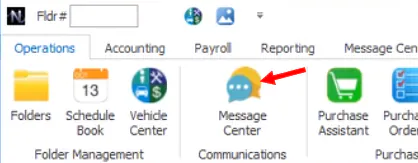
Open the Message Center: select Message Center on the Operations tab, or select the red message icon at the bottom right of Nexsyis.

-
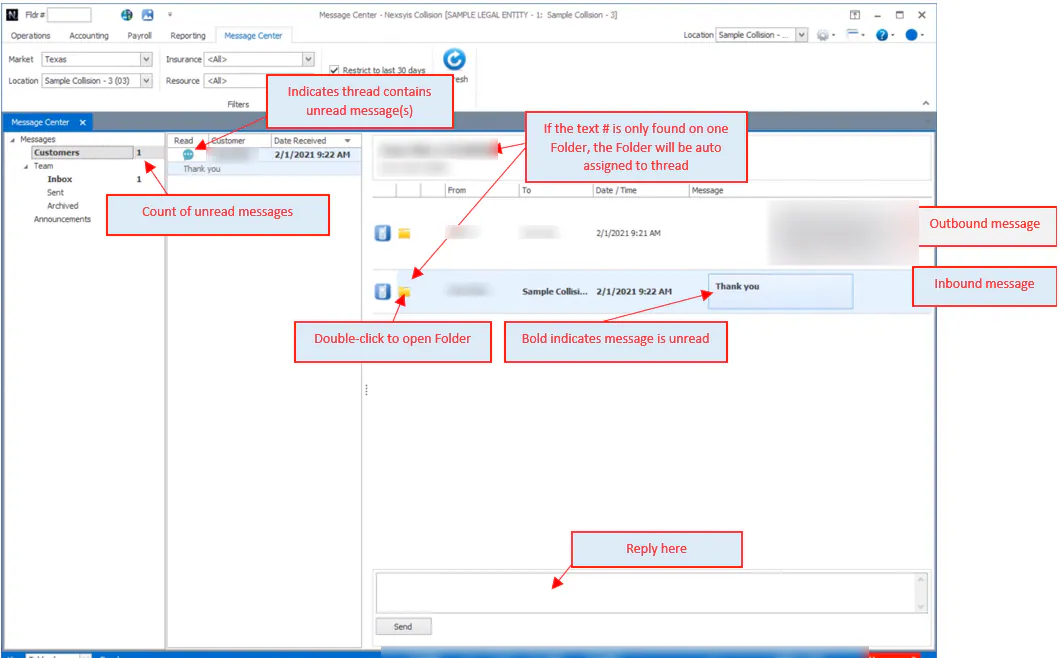
Go to Messages › Customers. New texts from customers are listed here.
-
Select a message thread to read it, then type and send your reply.
A thread stays unread until someone replies to it or marks it as read. Unread threads show a blue message icon and bold text.

Before you begin: you need the View Customer Messages transaction permission.
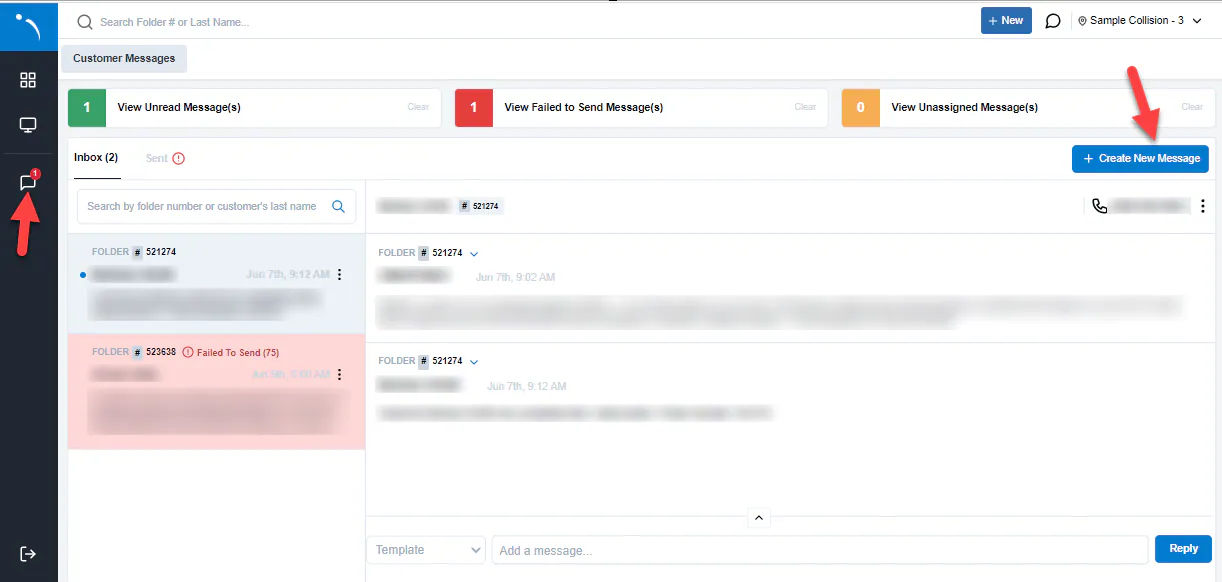
- Select the messaging icon on the left toolbar.
- Select a conversation to read it and reply, or select Create New Message to start one.
Assign a message to a folder
Section titled “Assign a message to a folder”If the phone number isn’t on any folder, or is on more than one, the message isn’t assigned to a folder automatically. Its folder number shows as 0. Assign it so it shows on the right folder’s Communication tab.
-
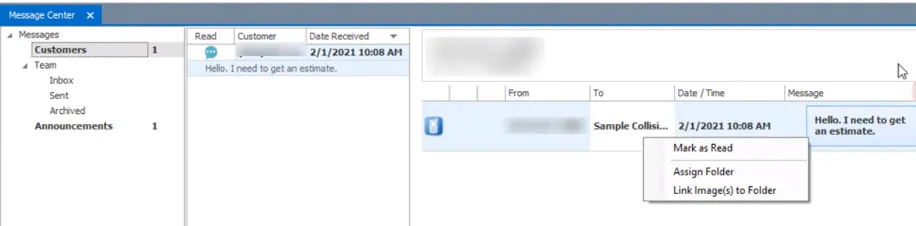
In the Message Center, right-click the message and select Assign Folder.
-
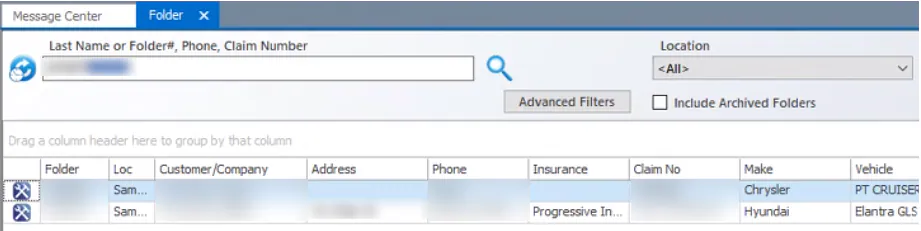
The folder search opens with the phone number already entered. If the folder is archived, select Include Archived Folders.
-
Double-click the folder, or select it and then select the green check mark. If there’s no folder for this customer yet, create one first.
To save photos a customer sends, see View attachments from customers.
Who sees customer messages
Section titled “Who sees customer messages”By default, the sales and service resources on a folder are the only people who:
- get a Customer Message pop-up for new messages
- see the red new-messages indicator at the bottom right
- see that folder’s messages in the Message Center
Other users don’t see customer messages in the Message Center or get notifications, but anyone can read them on the folder’s Communication tab.
To change who sees them:
-
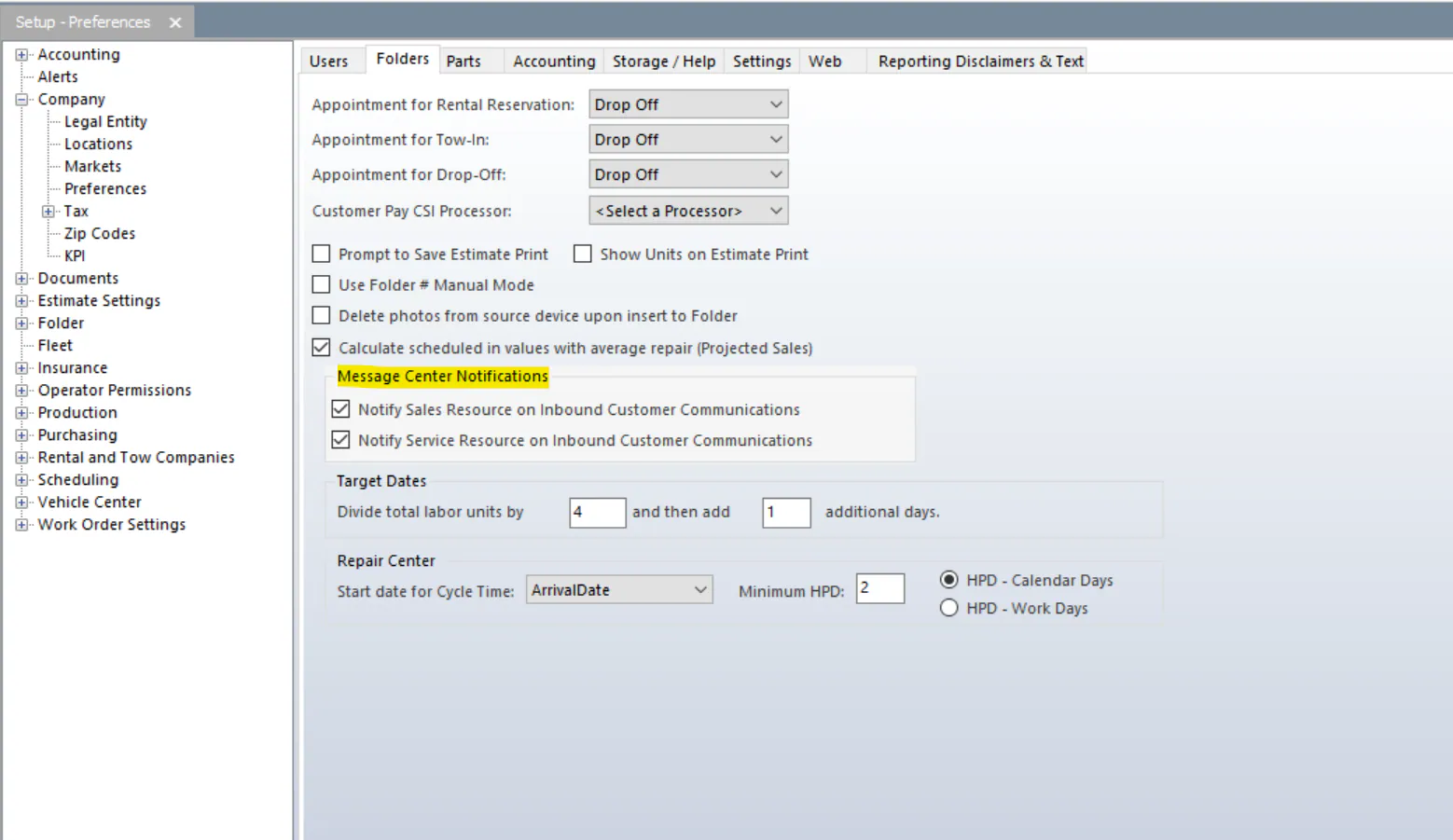
Leave out sales or service resources: go to Setup › Company › Preferences, then the Folders tab, and clear Notify Sales Resource on Inbound Customer Communications or Notify Service Resource on Inbound Customer Communications.
-
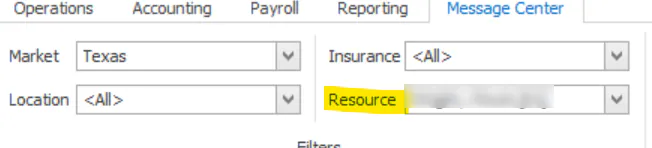
See another resource’s messages: in the Message Center, choose their name in the Resource filter.
-
Get every customer message: turn on Subscribe to all in the Message Center. You’re notified of new messages for every location you have permission to.