Set time and absence approval permissions
A manager can approve an employee’s time and absences when they’re the employee’s supervisor and have the right permissions. You can also let another user do this for a supervisor, or give a payroll clerk access to every employee at chosen locations.
Assign a supervisor
Section titled “Assign a supervisor”The employee’s supervisor decides who can approve their time and absences.
- On the Payroll tab, select Employees.
- On the supervisor’s own employee record, select Is a Supervisor. This adds them to the Supervisor list.
- On each employee’s record, choose their supervisor in Supervisor.
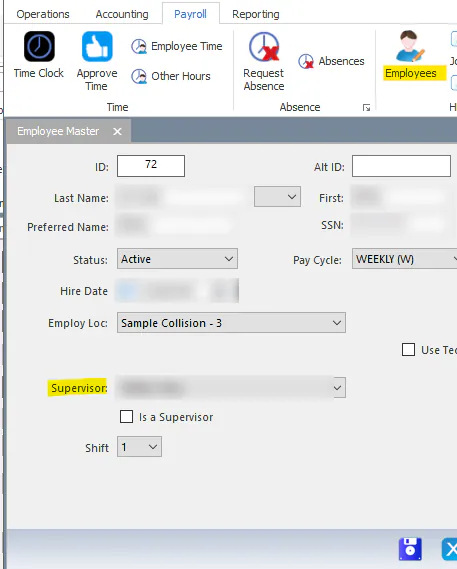
When a supervisor opens the time and absence screens, Nexsyis matches their user to their employee record and lists the employees they supervise.
Supervisors are tiered. A supervisor of a supervisor can approve the employees under that supervisor too.
Give the supervisor permissions
Section titled “Give the supervisor permissions”The supervisor also needs these transaction permissions on their operator setup:
- Manage Employee Time
- Approve Absence Requests


Let another user approve for a supervisor
Section titled “Let another user approve for a supervisor”You can give the time and absence work to someone other than the supervisor. For example, a CSR can make time corrections for the employees their shop manager supervises.
- Open the operator record of the user who will do the work.
- On the Preferences tab, choose the supervisor in Use Time and Absence Permissions from this Supervisor.
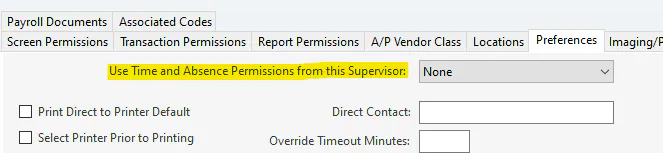
That user also needs the Manage Employee Time and Approve Absence Requests permissions.
Give a payroll clerk access to all employees
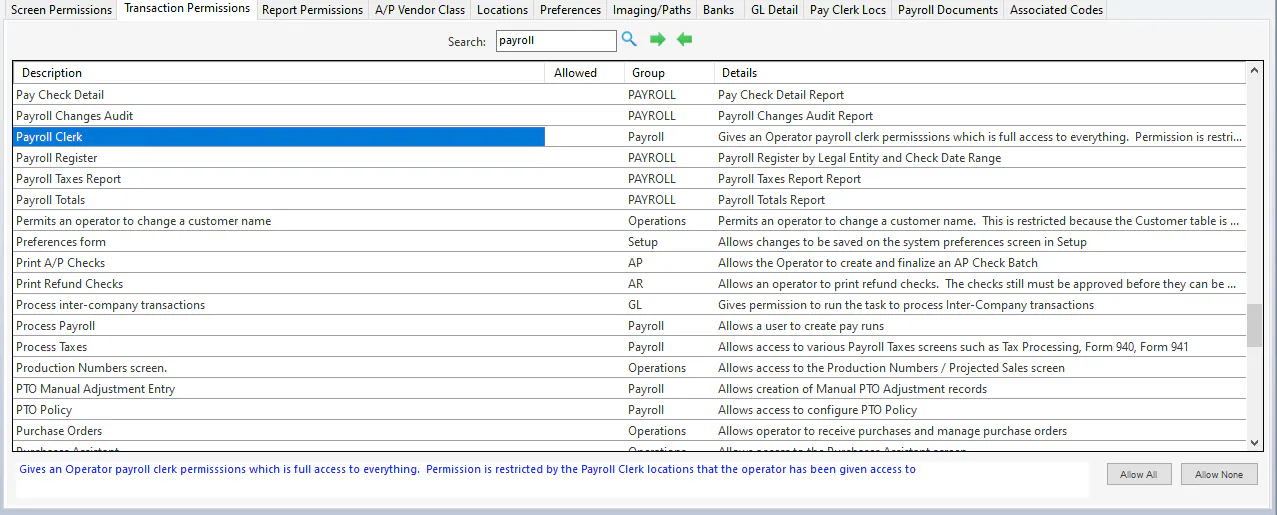
Section titled “Give a payroll clerk access to all employees”A user with the Payroll Clerk transaction permission, plus permission to approve time and absences, can see and approve every employee at the locations on their Pay Clerk Locs tab.
-
On the Transaction Permissions tab, allow Payroll Clerk.
-
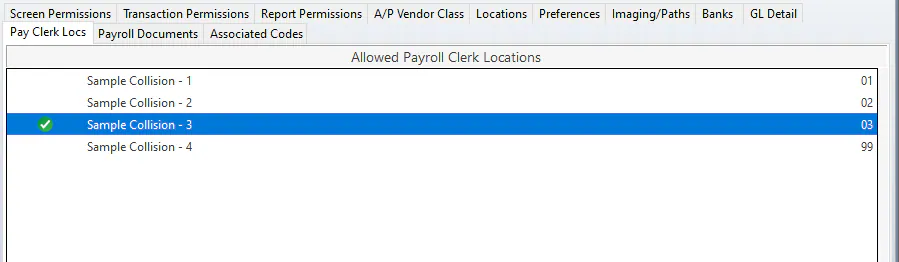
On the Pay Clerk Locs tab, select each location the clerk can approve time for.