Send a PO to a vendor
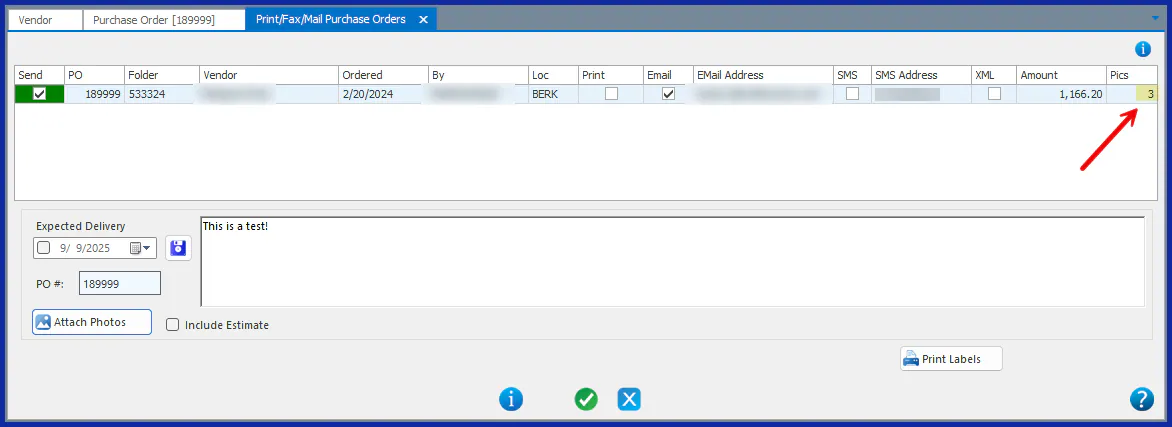
After you order parts, send the purchase order from the Print/E-Mail Purchase Orders screen. You can email, print or text it, and attach photos.
Text a purchase order
Section titled “Text a purchase order”Set up the vendor contact for texting
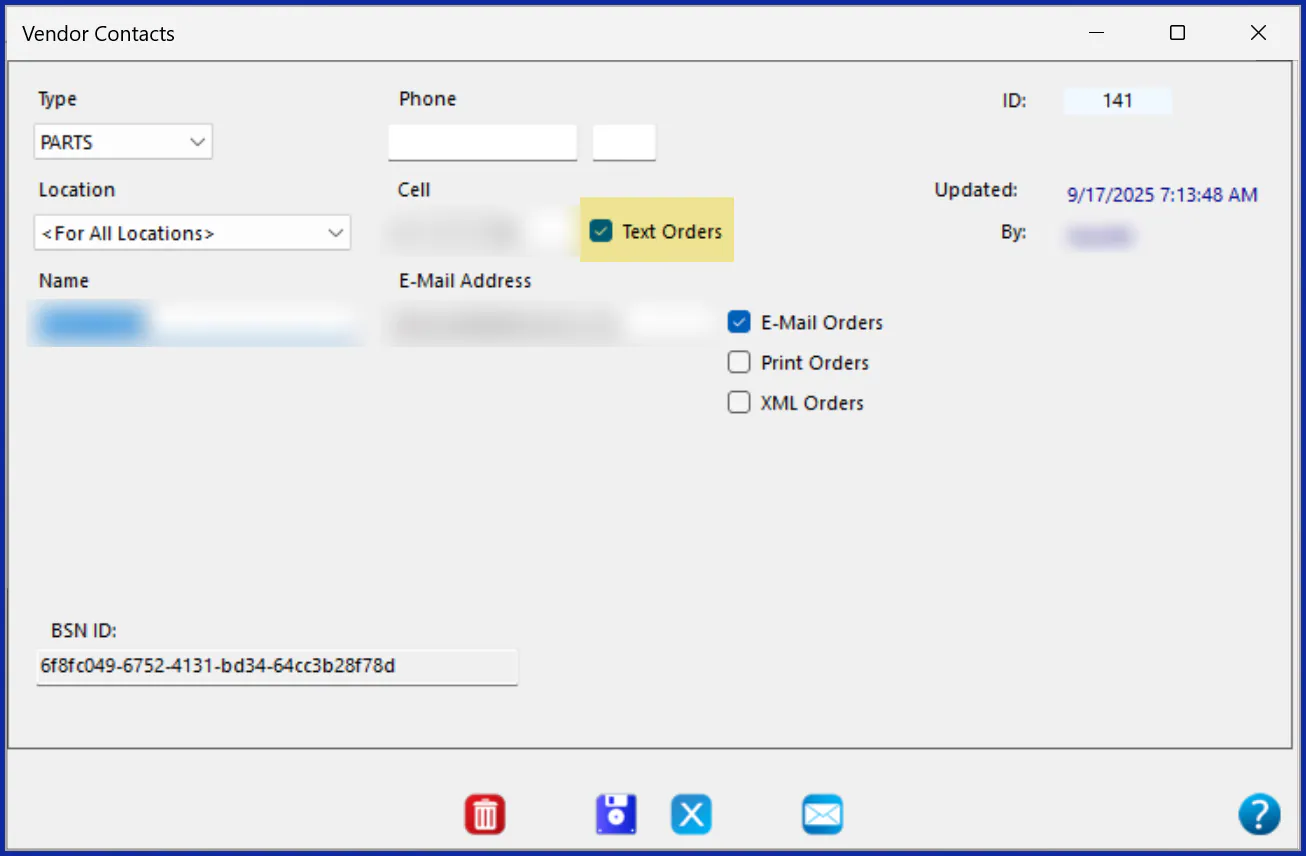
Section titled “Set up the vendor contact for texting”- Open the vendor contact’s setup. See Manage vendor contacts.
- Enter a Cell phone number.
- Select Text Orders.
- Select Save.
Send the text
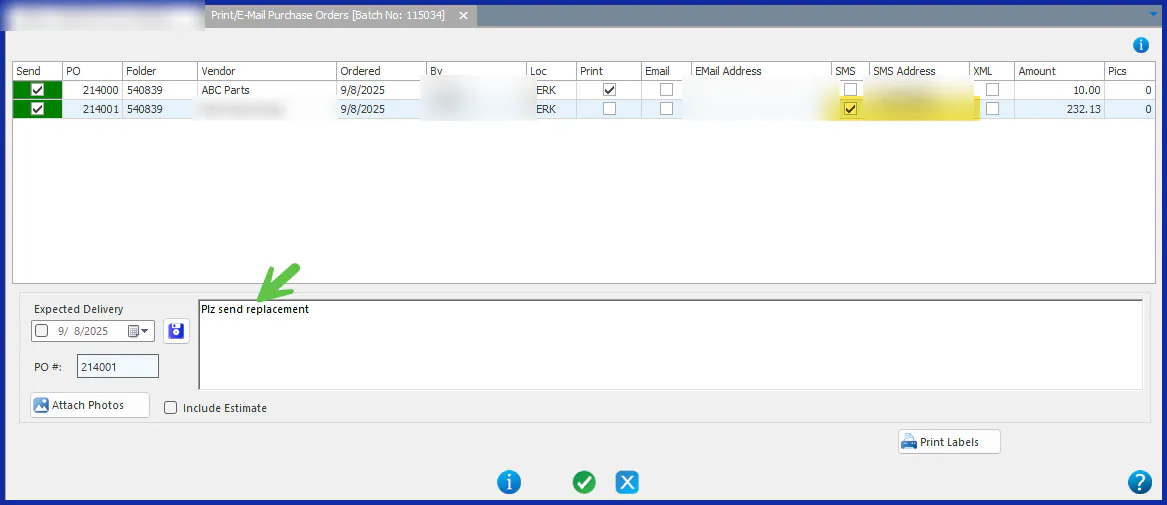
Section titled “Send the text”- On the Print/E-Mail Purchase Orders screen, select Send next to the PO number.
- Select SMS.
- Add any comments you want to include.
- Select the green check mark.
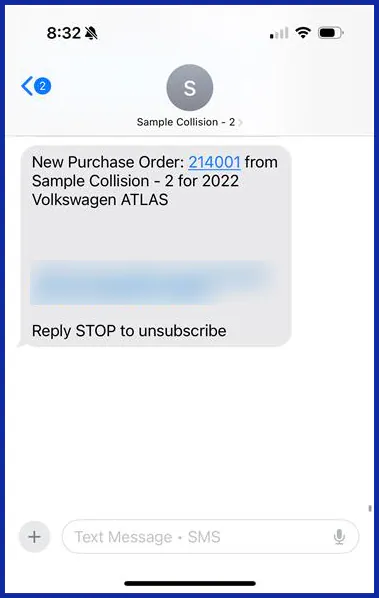
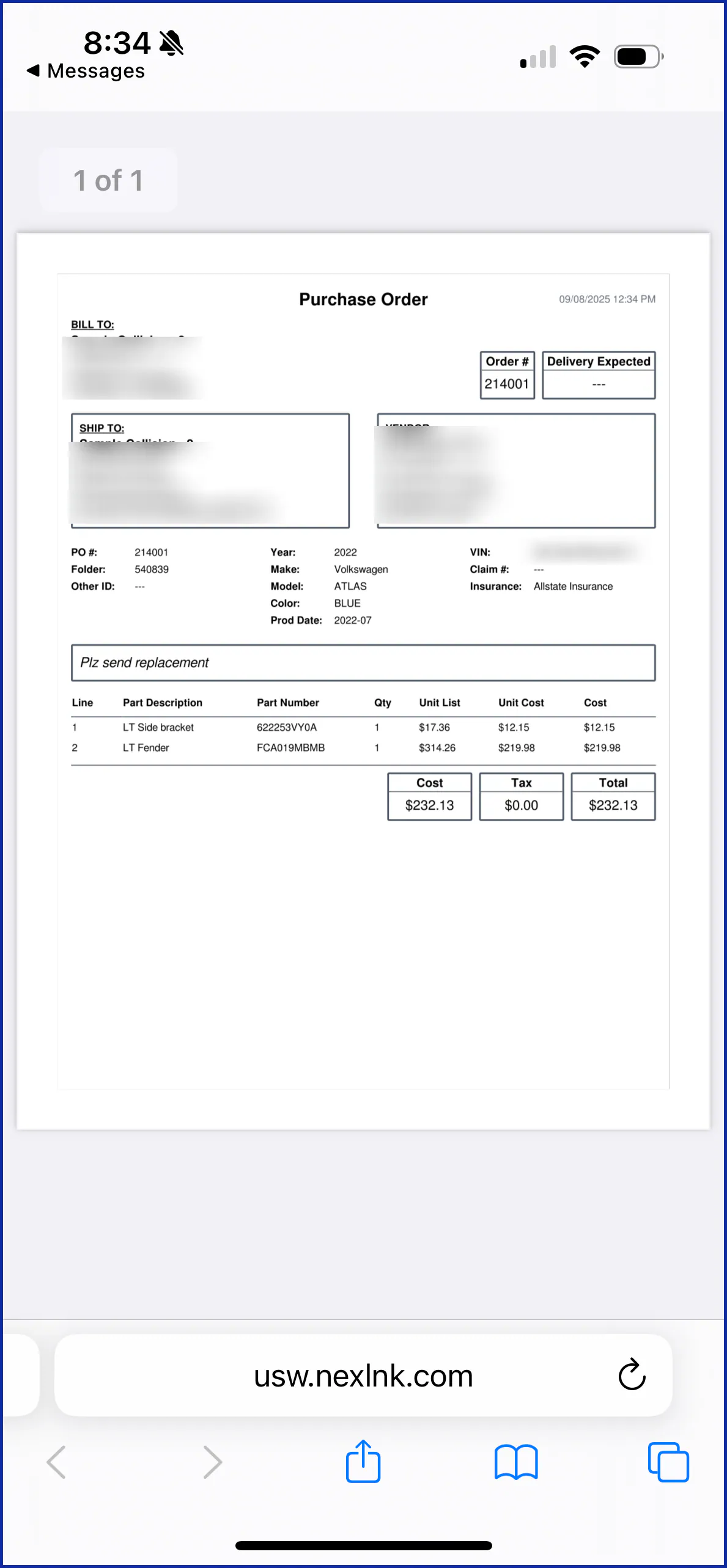
The vendor contact receives a text with a link that opens the purchase order.
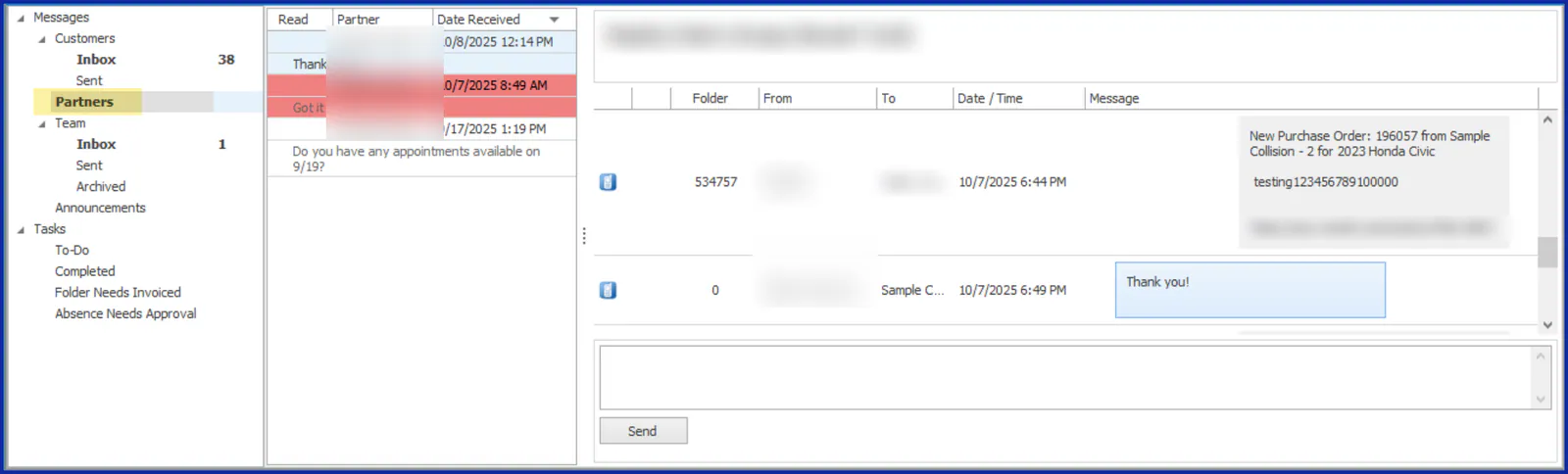
A new thread also appears in the Message Center’s Partners inbox, where you can see the POs you’ve sent and message the vendor.
Attach photos to a purchase order
Section titled “Attach photos to a purchase order”-
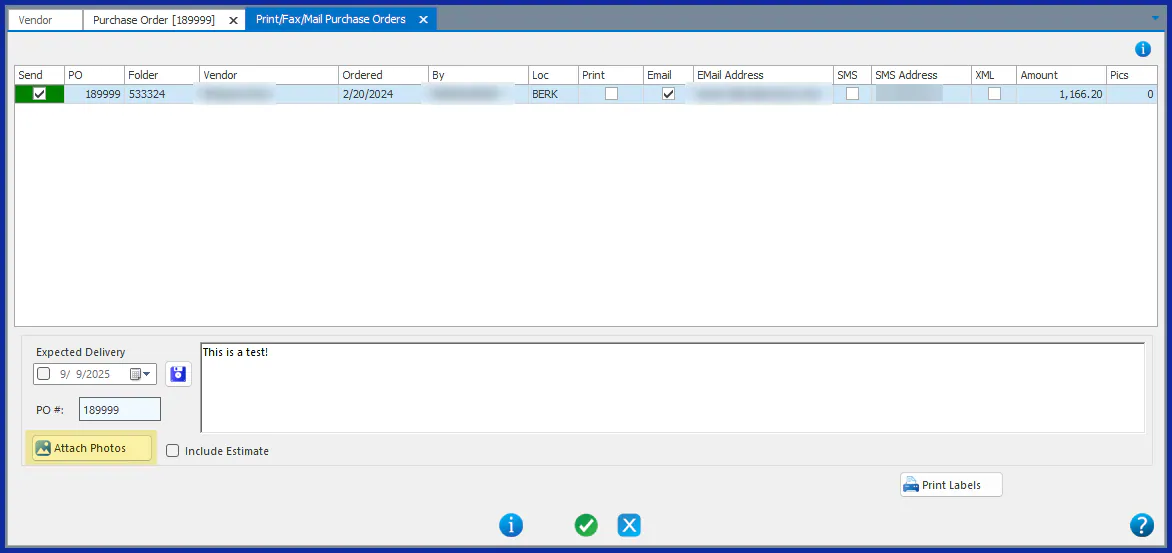
On the purchase order sending screen, select Attach Photos.
-
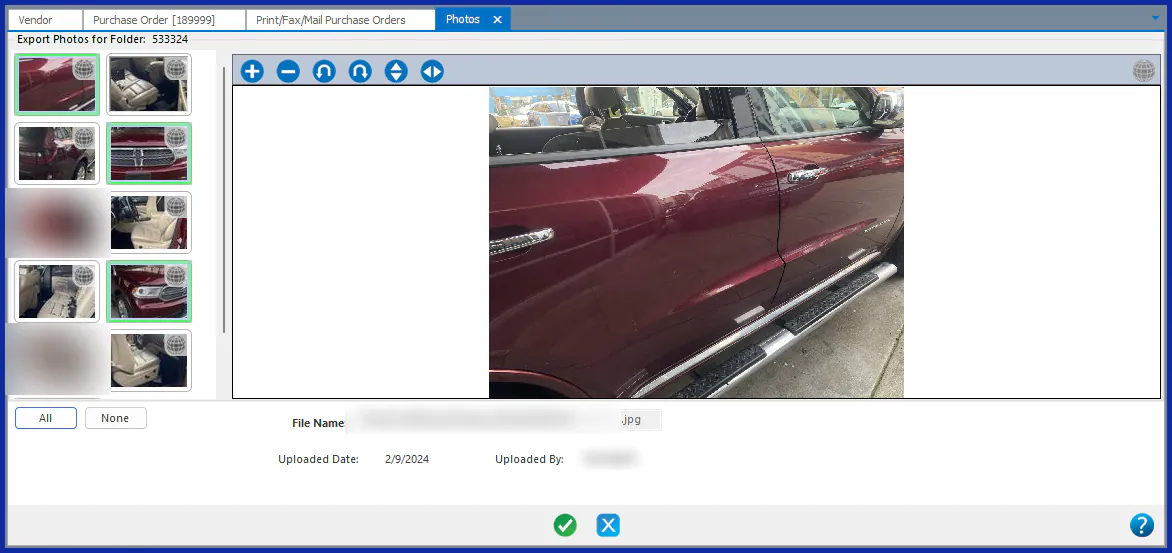
Select the photos to attach on the left. To select several, hold Ctrl or Shift as you select them. To select all photos, select All.
-
Select the green check mark.
The number of attached photos shows in the Pics column.