
Set up Nexsyis estimate items
Estimate items are the parts, labor and charges you add to a Nexsyis estimate. Set them up once, with their prices, so estimators can add them without retyping descriptions, sales codes or amounts.
Add an item
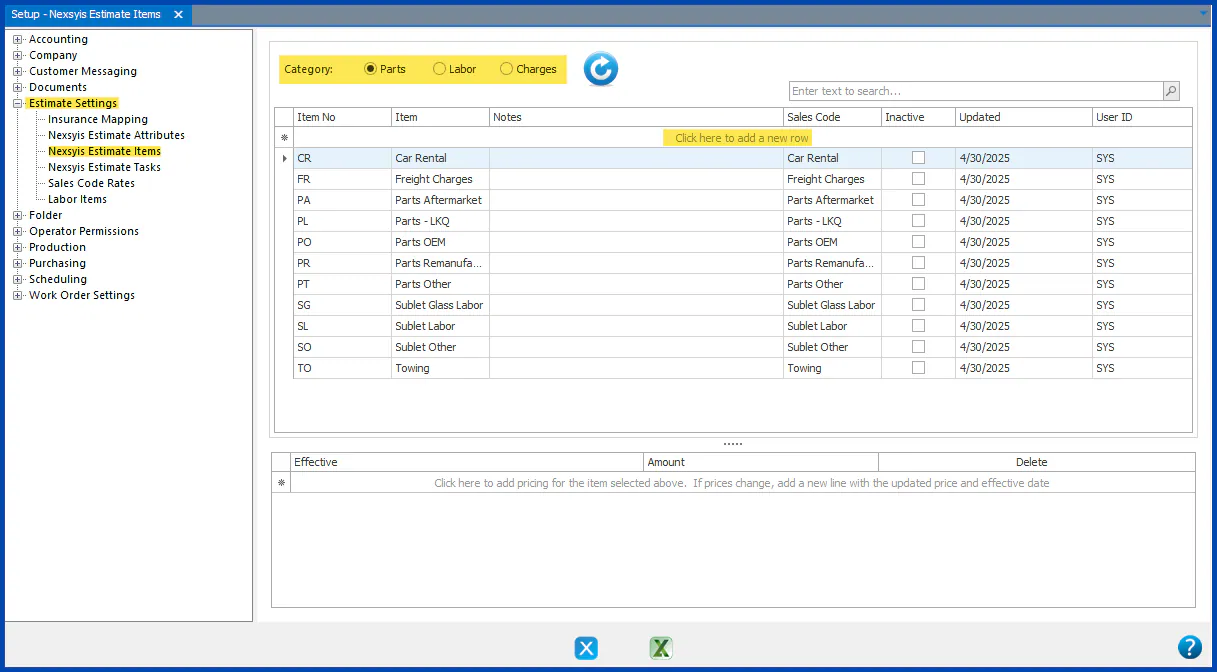
Section titled “Add an item”- Go to Setup › Estimate Settings › Nexsyis Estimate Items.
- Under Category, select Parts, Labor or Charges.
- Select the first empty row, Click here to add a new row.
- Fill in the row:
- Item No: a short code made of letters or numbers.
- Item: the item name as it should appear on estimates.
- Notes (optional): notes shown in task setup and on the New Estimate screen.
- Sales Code: the sales code for the item.
- Press Tab or Enter through the rest of the row to save it. Updated and User ID fill in automatically.
To cancel a new item before it’s saved, press Esc.
Set an item’s price
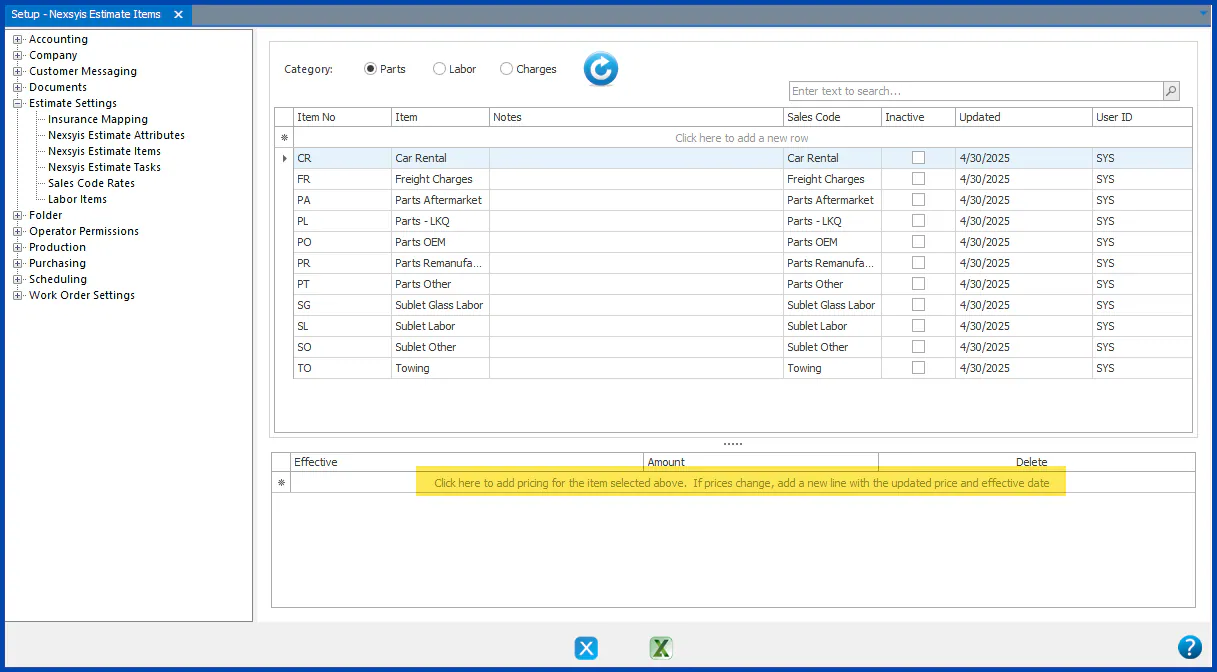
Section titled “Set an item’s price”- Select the item’s row. The pricing grid below it shows that item’s prices.
- Select the first empty row in the pricing grid, Click here to add pricing for the item selected above.
- In Effective, enter the date the price starts.
- In Amount, enter the price.
- Press Tab or Enter to save the row.
Pricing rules
Section titled “Pricing rules”- Each item can have only one price for the same effective date. To change the price for a date that already has one, delete the old row first.
- Labor items can have one labor rate for each location.
- When a price changes, leave the old row in place and add a new row with a later Effective date.
- To delete a pricing row, select its Delete checkbox.
- An item with no price is added to a Nexsyis estimate at $0.00.
Deactivate or reactivate an item
Section titled “Deactivate or reactivate an item”- To hide an item so it can’t be used again, select Inactive on its row.
- To see inactive items, or to reactivate one, select Show Inactive at the top of the grid, then clear Inactive on the item’s row.