Make a deposit
A deposit groups the payments you’re taking to the bank. Create one from the payments you’ve already entered, check it against the checks and cash in hand, and print the deposit slip.
Before you begin
Section titled “Before you begin”Enter every payment you’re depositing first. See Enter an AR payment and Record a non-AR payment.
Create a cash and check deposit
Section titled “Create a cash and check deposit”-
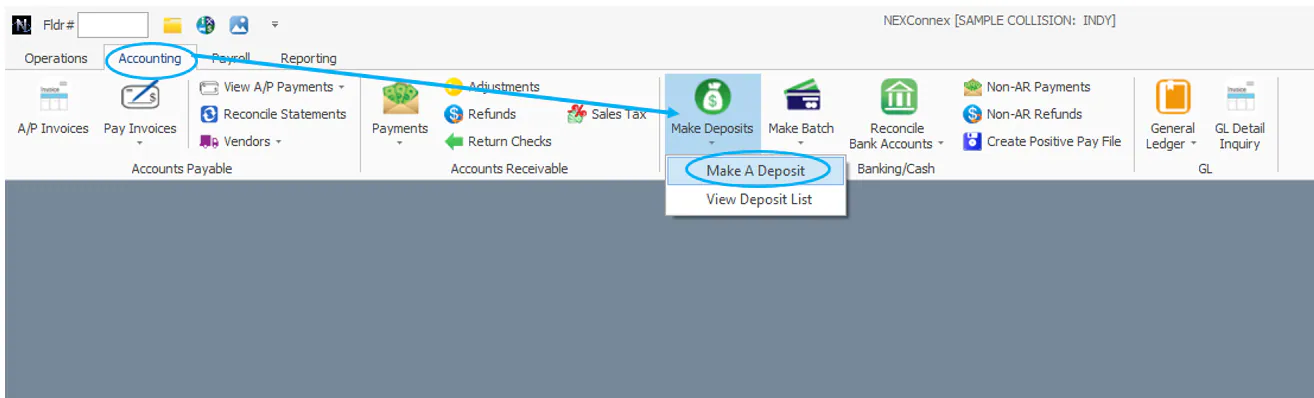
On the Accounting tab, select Make Deposits, then Make A Deposit.
-
Check the Deposit Date. It defaults to today; change it if you’re depositing on a different day.
-
In Deposit to Bank, select the bank account you’re depositing to.
-
Enter the deposit’s reference number in Ref No.
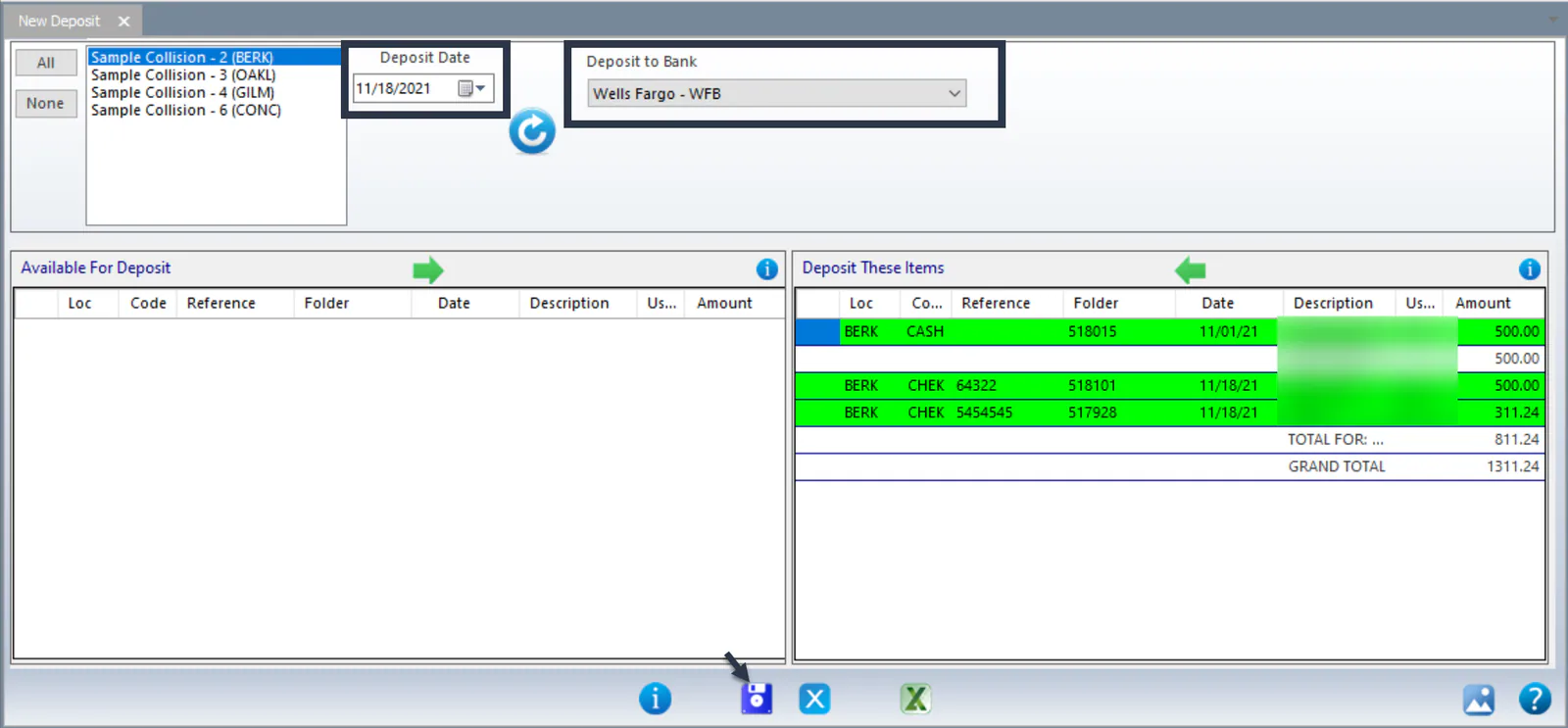
Every payment that can be deposited is listed, color-coded:
- Green: check or cash payments
- Light blue: refunds
- Yellow: non-AR payments
- Gray: checks or cash marked Hold from Deposit
-
Count the lines under Deposit These Items and compare them with the checks you have, to make sure you’ve entered them all. Check that the totals match.
-
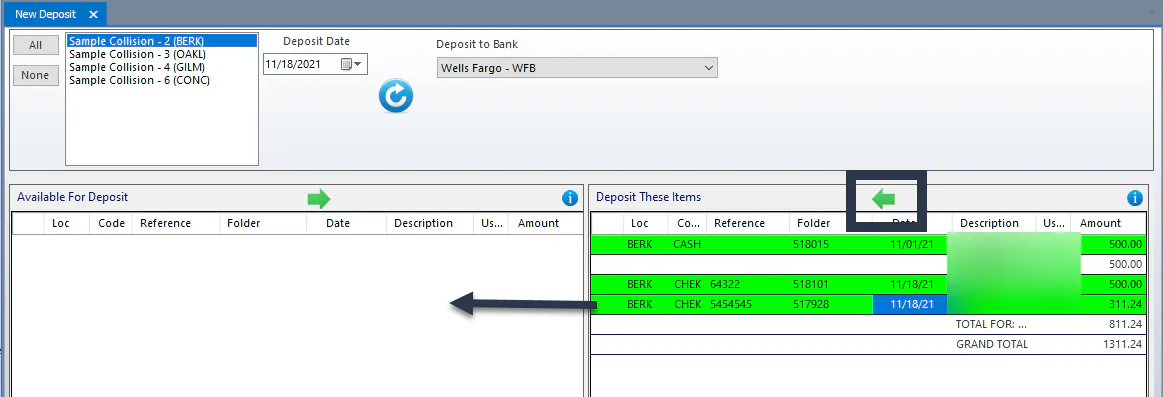
To leave an item out of this deposit, double-click it, or select it and then the green back arrow. It moves to Available For Deposit and is available for your next deposit.
-
When everything is correct, select Save. The deposit slip prints.
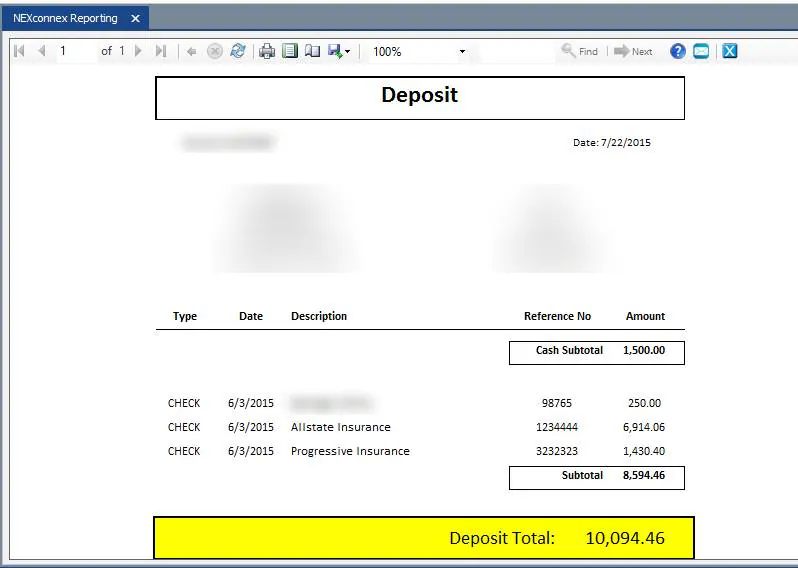
Add a held payment to the deposit
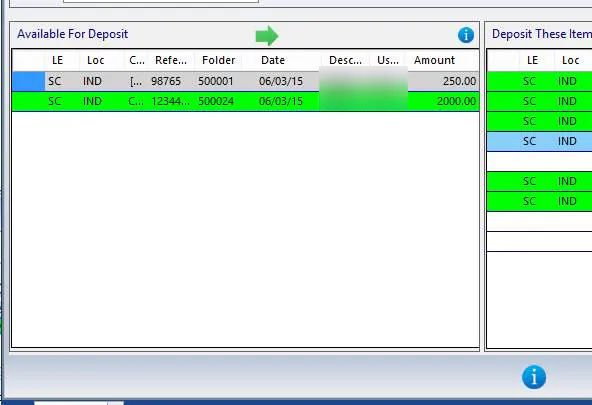
Section titled “Add a held payment to the deposit”Payments marked Hold from Deposit show in gray under Available For Deposit. To deposit one now:
-
Select the gray line, then select the blue Details button at the bottom of the screen.
-
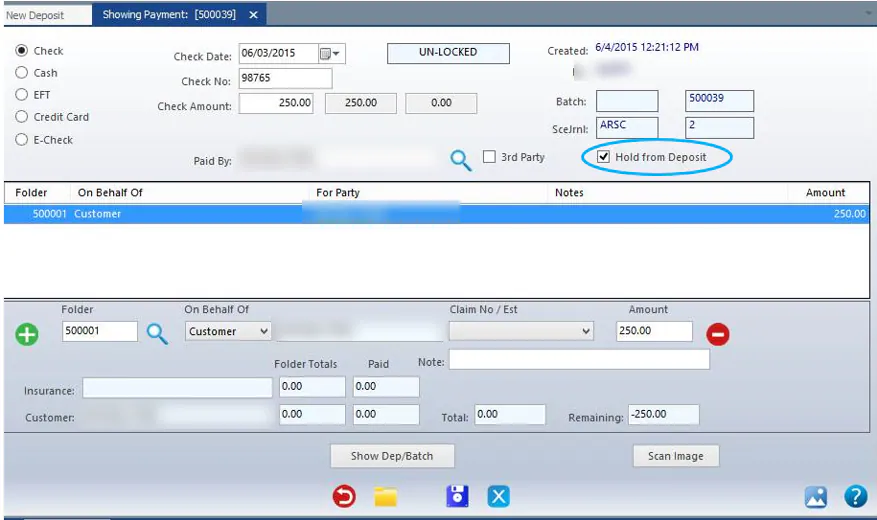
In the payment that opens, clear the Hold from Deposit checkbox.
-
The line turns green. Double-click it, or select it and then the green forward arrow, to move it to Deposit These Items.
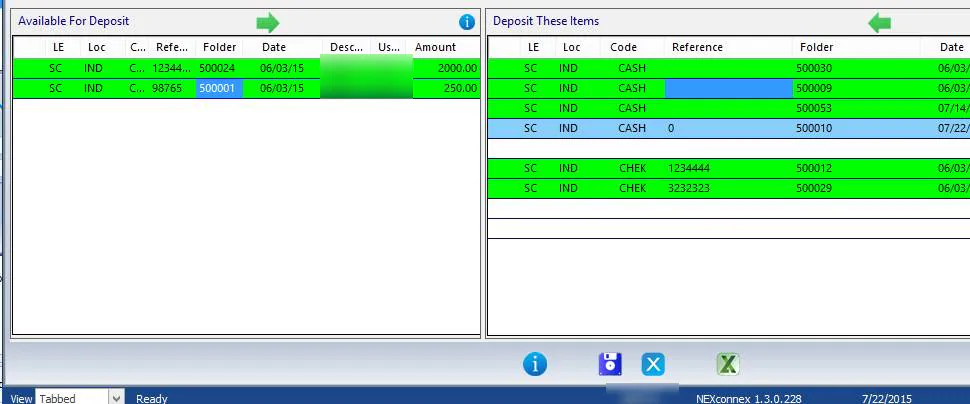
See Hold a payment from a deposit for when to use a hold.
View deposits
Section titled “View deposits”-
On the Accounting tab, select Make Deposits, then View Deposit List.

-
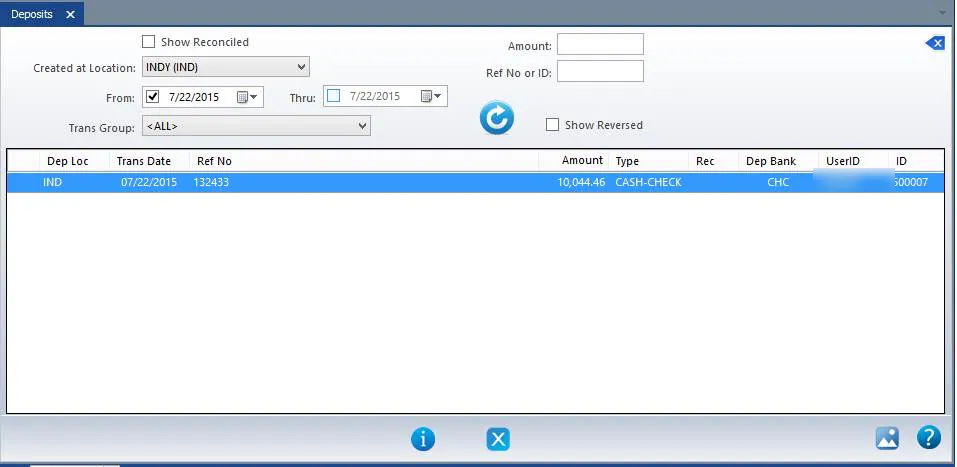
Enter your search criteria, such as Created at Location, the From and Thru dates, Trans Group or Amount, then refresh the list.