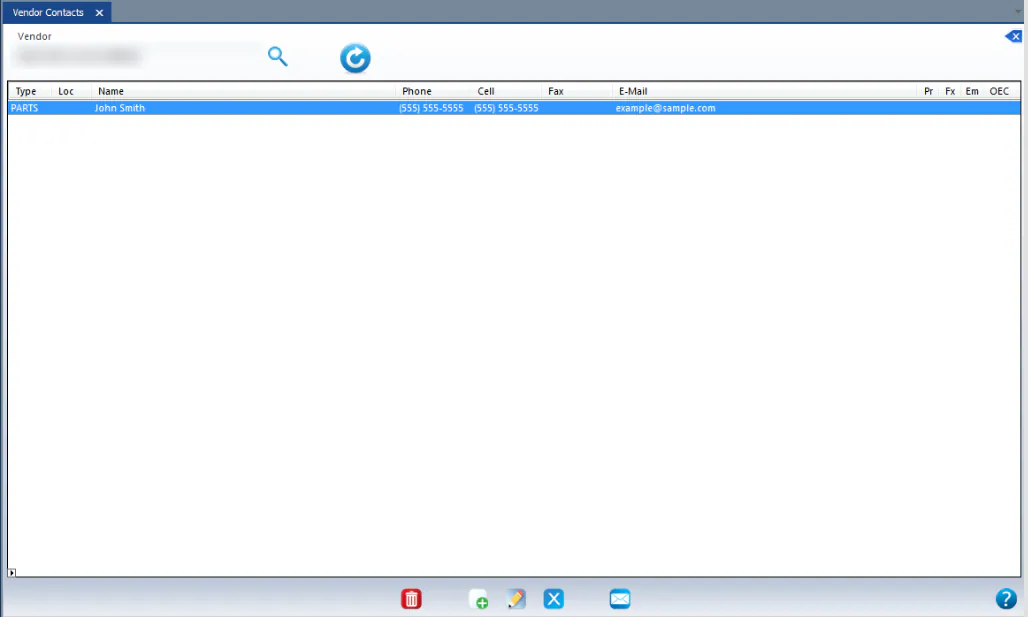
Manage vendor contacts
Add the people you order from at each vendor, and set how they receive purchase orders. Their details then fill in automatically when you send a PO.
Add a vendor contact
Section titled “Add a vendor contact”-
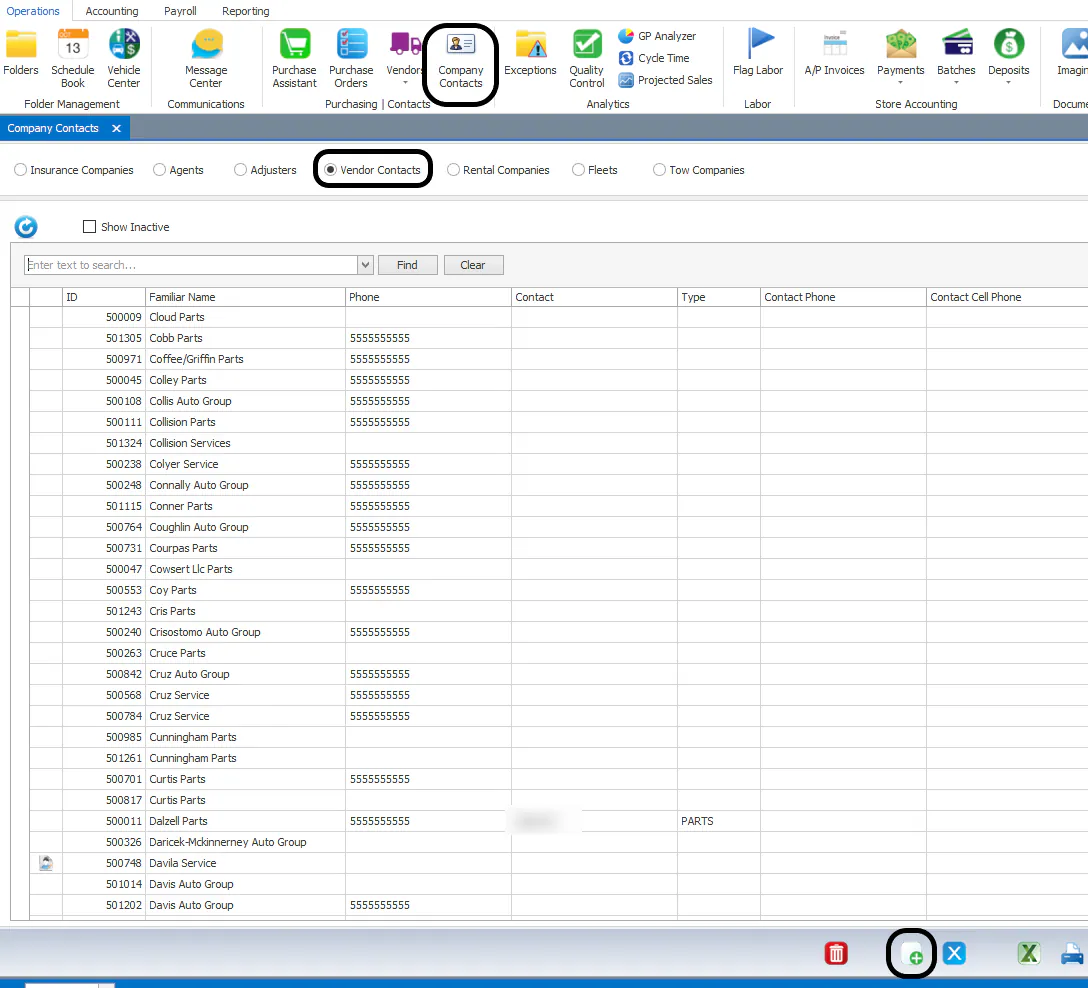
Open Operations › Company Contacts › Vendor Contacts.
-
Search for the vendor and select its line.
-
Select the new-record button at the bottom of the screen.
-
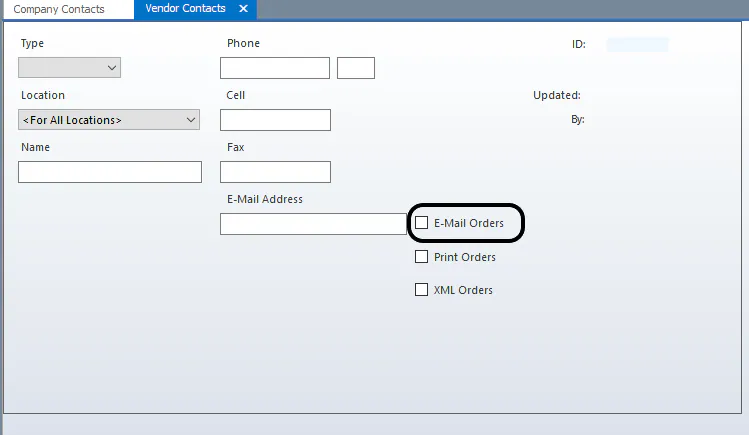
Fill in the contact’s details.
-
Choose how this contact receives orders by default, for example E-mail Orders. You can choose email, fax, print or XML.
-
Select Save.
The contact’s details now load on the screen for sending purchase orders.
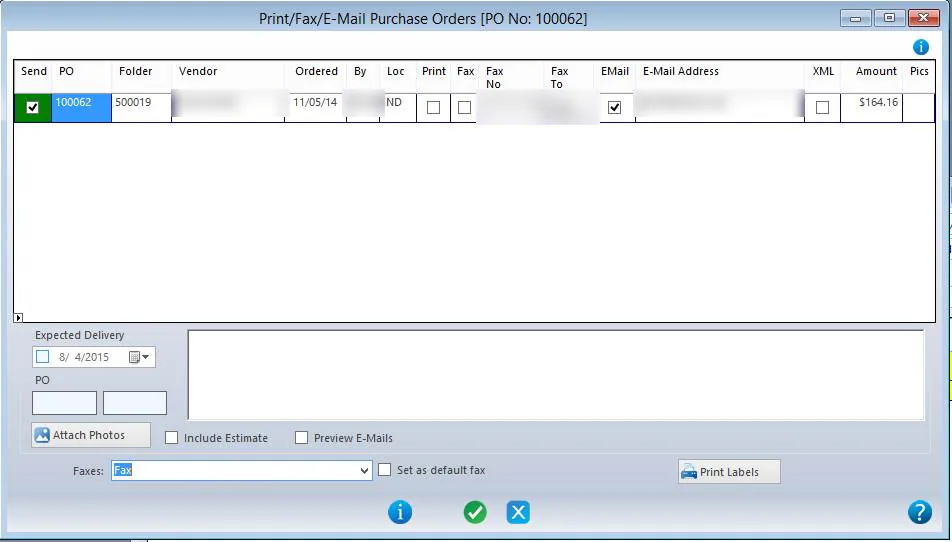
To text purchase orders to a contact, see Send a PO to a vendor.
Look up a vendor’s contacts
Section titled “Look up a vendor’s contacts”In the Purchase Assistant, right-click an ordered line’s vendor and select Vendor Contact Info.
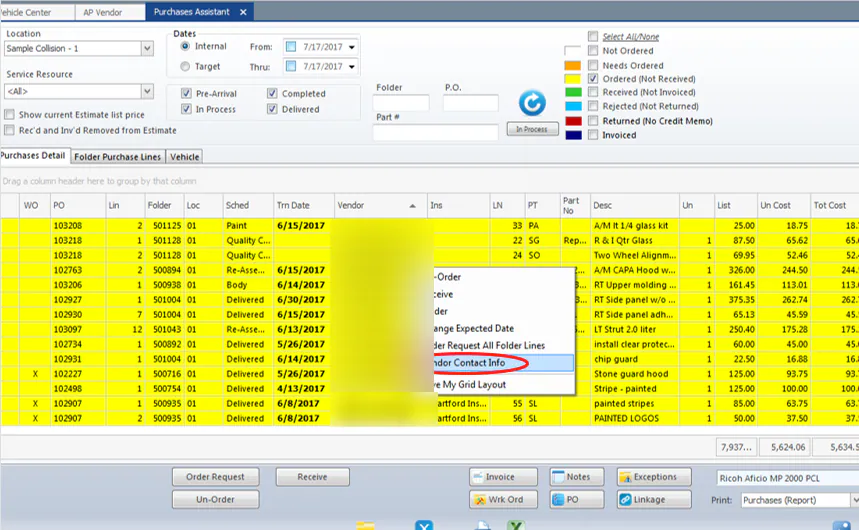
The AP Vendor screen opens with the vendor’s contacts.