Add a fleet vehicle to a folder
For a fleet repair, create the folder as you would for any customer, using the name, phone numbers and other details of the person you’re working with to manage the repair. Then link the folder to the fleet.
Before you begin
Section titled “Before you begin”The fleet must be set up in Nexsyis. See Add or change fleets.
Link the folder to a fleet
Section titled “Link the folder to a fleet”-
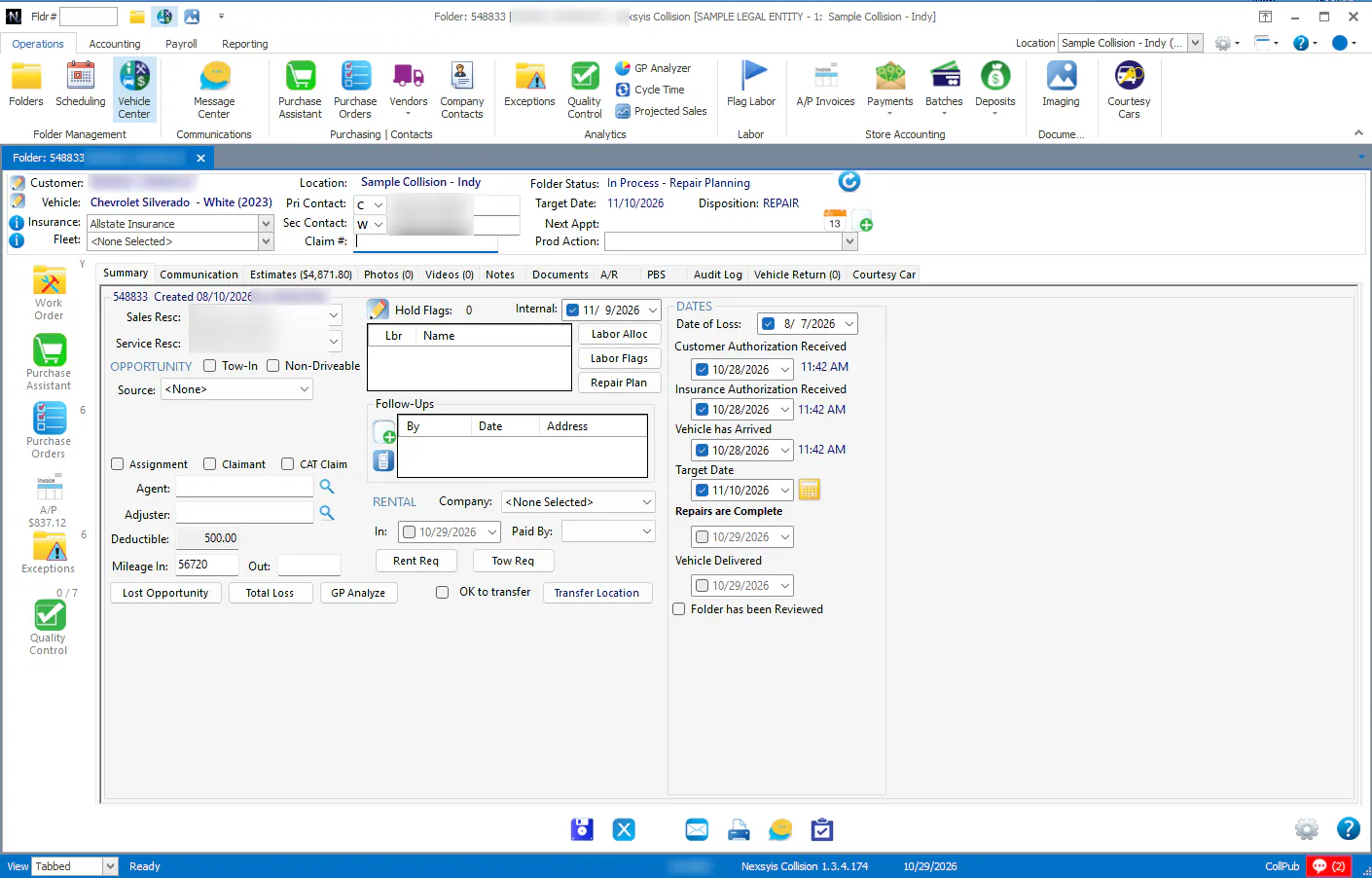
On the folder, select the fleet from the Fleet list. The list shows the fleets set up in Nexsyis.
-
Select the Edit button next to the vehicle in the folder header.
-
Enter the fleet’s ID for the vehicle in Other ID. If the fleet identifies its vehicles by unit number, enter the unit number here.
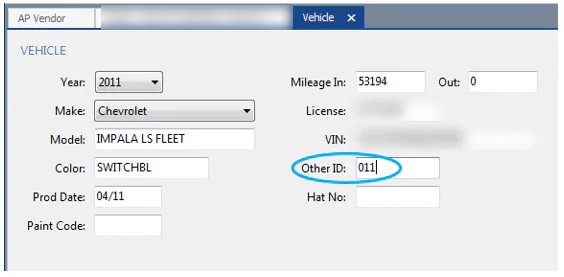
You can now search for the folder by this fleet ID.
Show the Fleet column in the In Process list
Section titled “Show the Fleet column in the In Process list”-
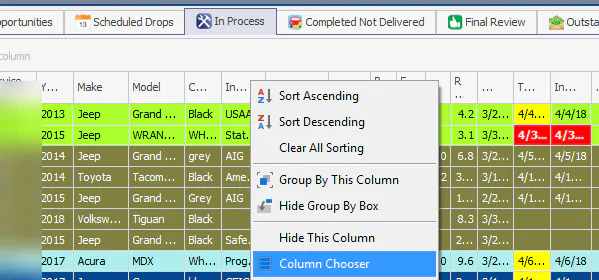
Right-click the grid’s header row and select Column Chooser.
-
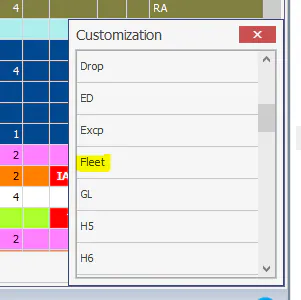
Double-click Fleet to add it to the grid.
-
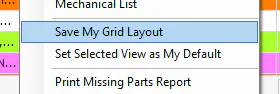
Right-click the body of the grid and select Save My Grid Layout.
See also Customize In Process columns and views.
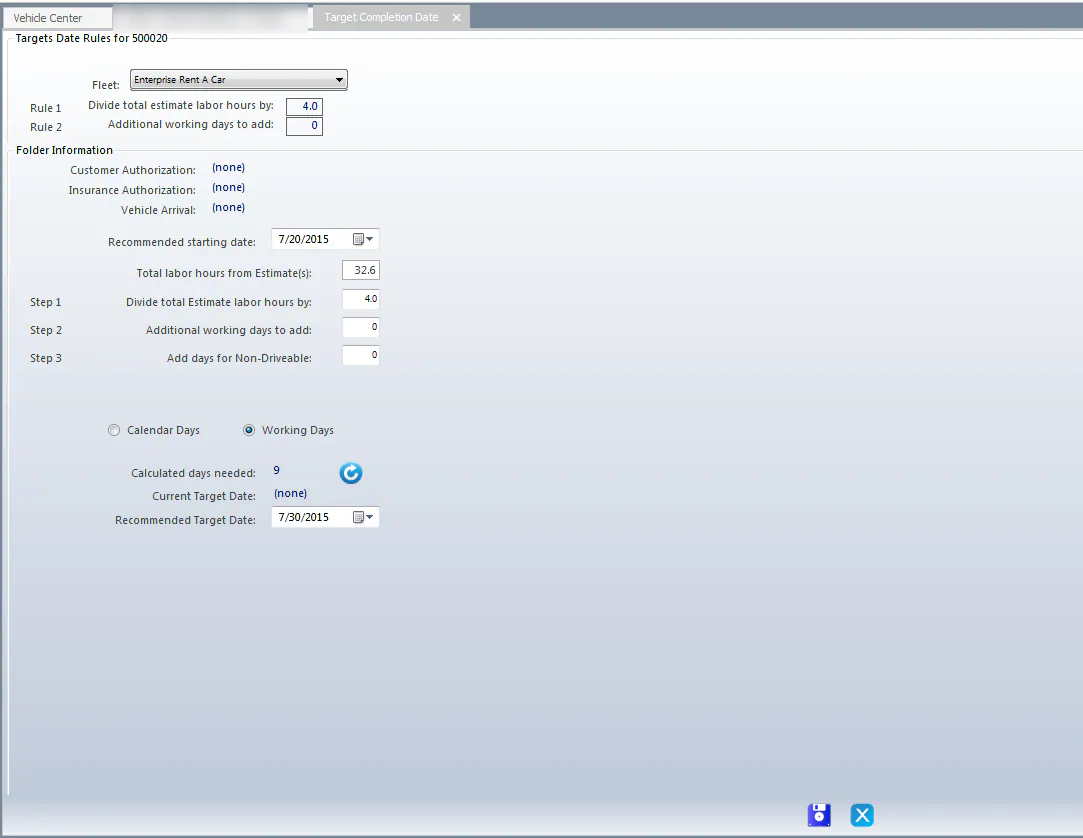
Use the fleet’s target date settings
Section titled “Use the fleet’s target date settings”If target date calculation settings are set up for the fleet, you can use them to calculate the folder’s target completion date.