
Add or change a fleet
Set up each fleet company your shop works with, so you can link folders to it.
Before you begin
Section titled “Before you begin”You need the Fleet Setup screen permission (Add, Change or Delete).
Add a fleet
Section titled “Add a fleet”-
On the Operations tab, select Company Contacts.
-
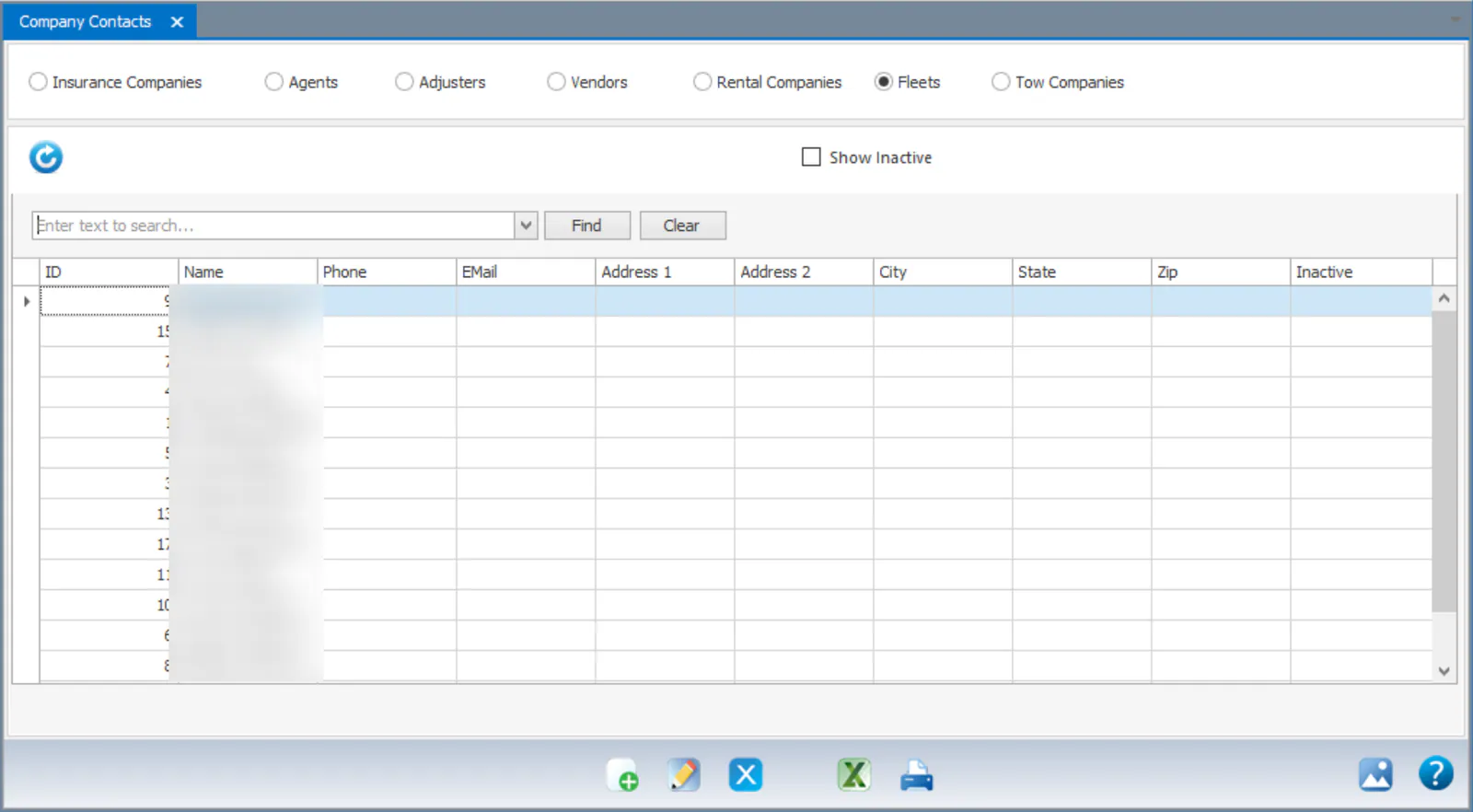
Select Fleets.
-
Select New at the bottom of the screen.
-
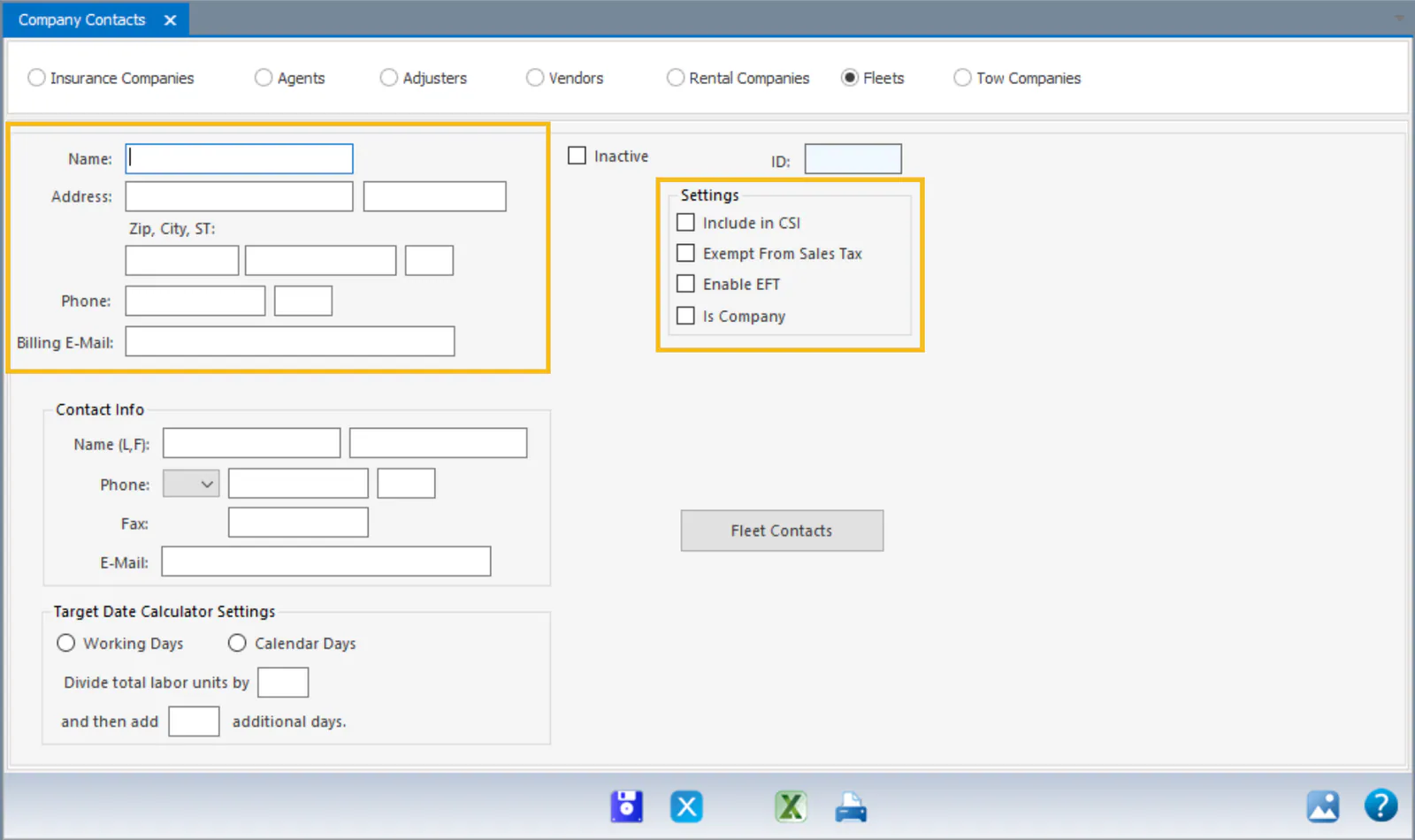
Fill in the fleet’s contact information.
-
Under Settings, select any that apply:
- Include in CSI
- Exempt From Sales Tax
- Enable EFT: lets the fleet pay by EFT.
-
Under Target Date Calculator Settings, set how this fleet calculates its target date: choose Working Days or Calendar Days, enter the number to Divide total labor units by, and enter the additional days.
-
Select Save.
When you later link a folder to this fleet, you can carry these target date settings over to the folder.
Change a fleet
Section titled “Change a fleet”On Company Contacts, select Fleets, then double-click the fleet to open it. Make your changes and select Save.