
Set up customer messaging templates
Customer messaging templates are the texts and emails Nexsyis sends to customers. Most send automatically when something happens, such as an appointment being booked, a repair stage finishing or a vehicle being delivered. Custom templates are ones you choose and send yourself from a folder.
Template groups
Section titled “Template groups”| Group | When the message sends |
|---|---|
| Appointment types (Appointment Reminders in NexsyisNow) | When an appointment of that type is created. You can also send a first and second reminder at times you choose. |
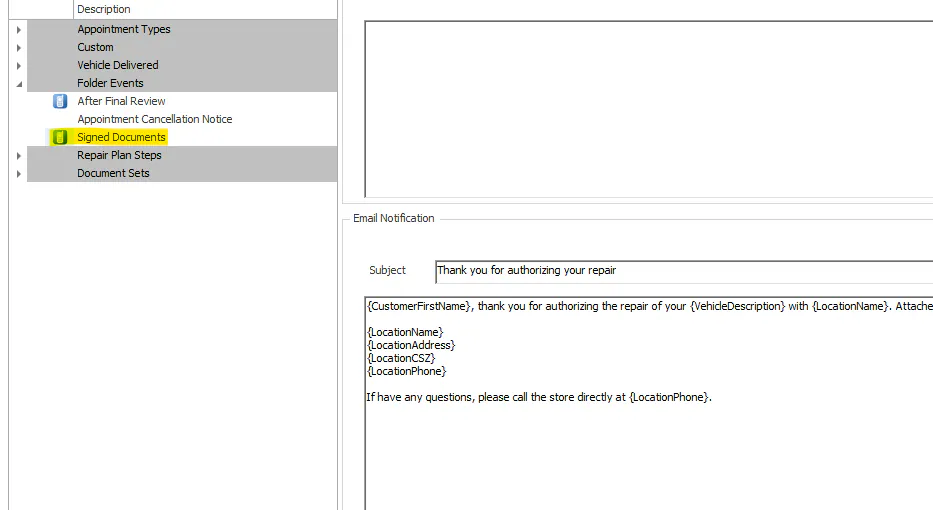
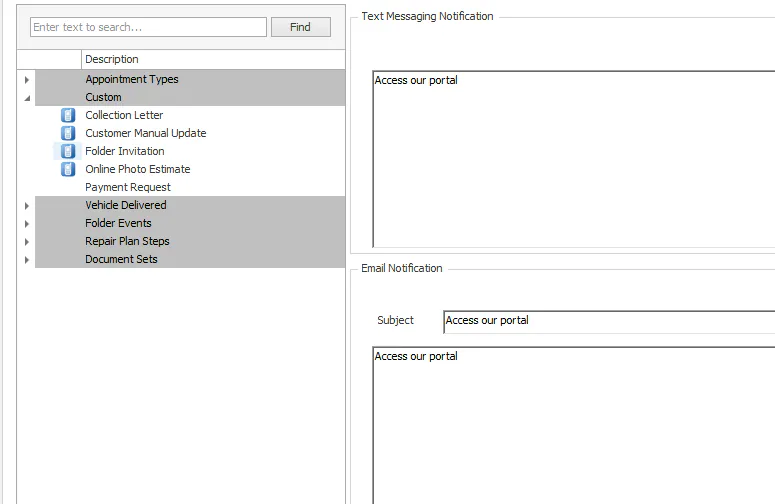
| Folder Events | After certain folder steps. For example, After Final Review sends 24 hours after the folder’s final review. E-mail Returning Signed Documents sends a link to the signed documents after a customer signs. Folder Invitation should include a link to the Customer Portal. |
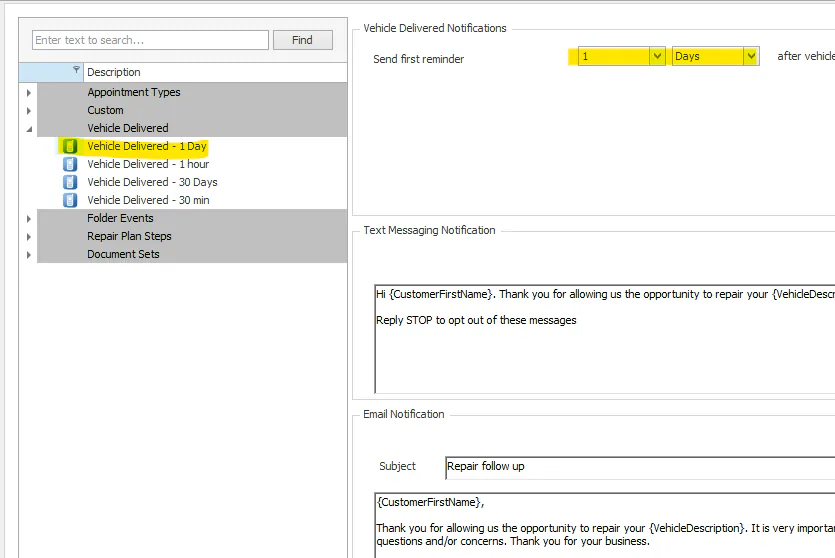
| Vehicle Delivered | At the times you choose after Vehicle Delivered is selected. You can set up several. |
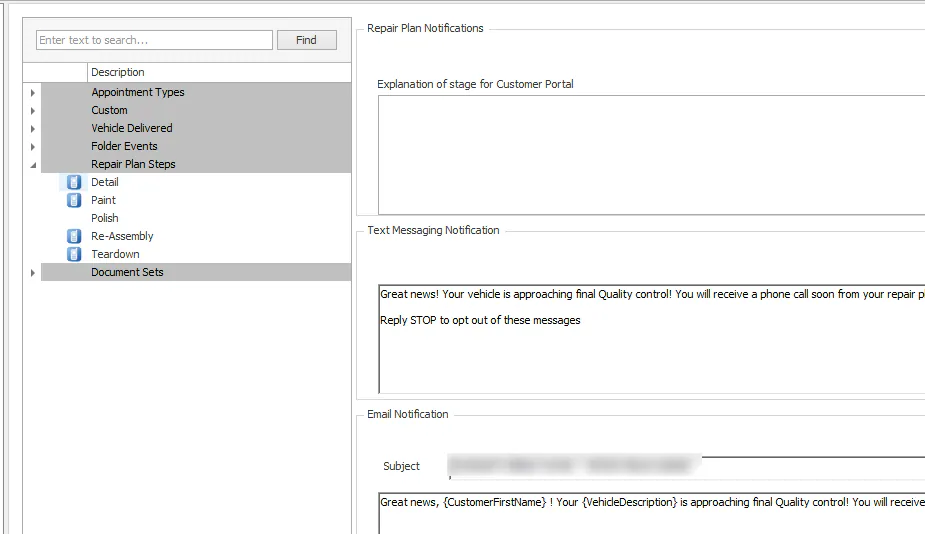
| Repair Plan Steps | When a repair stage is completed. A company-wide setting can delay sending, for example by 30 minutes. If the stage is moved back during the delay, the message waits until the stage is completed again. |
| Document Sets | When you send a customer a document set to view or sign. |
| Custom | When you choose the template on a folder’s Communication tab and send it. |
To see messages scheduled to send after delivery, select Show Scheduled on the folder’s Communication tab.
For the text customers see for each repair stage in the Customer Portal, see The Customer Portal.
Before you begin: you need the Customer Communication transaction permission.
-
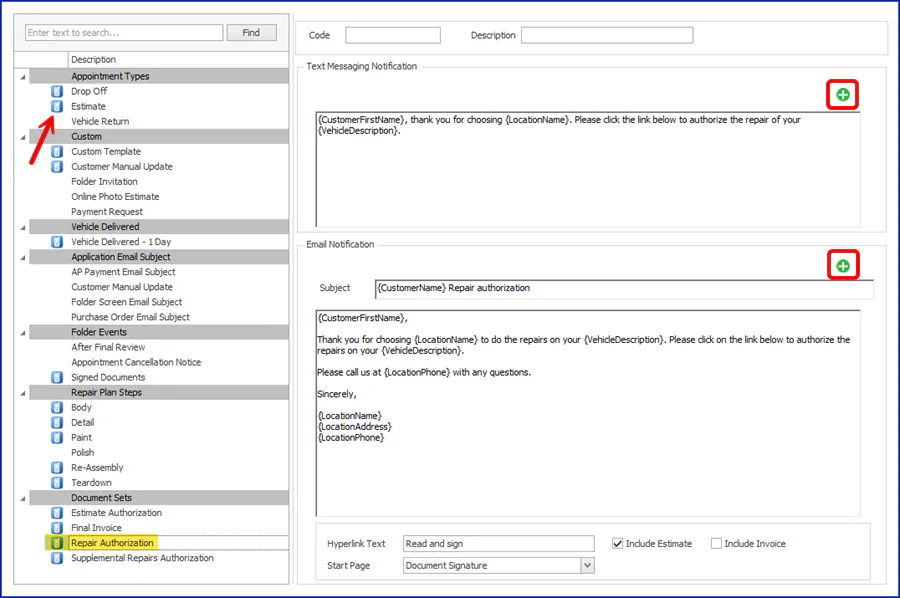
Go to Setup › Customer Messaging › Customer Messaging Templates.
-
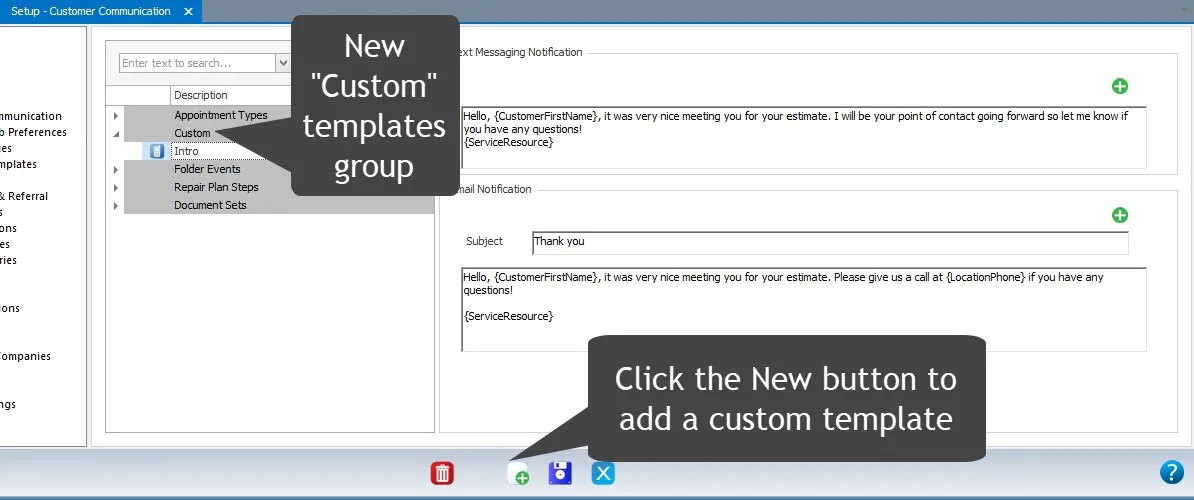
Select the event, or select Custom and then New at the bottom to create a custom template.
-
Write the text and email messages. To add information from the folder, such as
{CustomerFirstName},{Location Phone}or{Vehicle Description}, select the green +. Fields show in curly braces and are filled in when the message sends.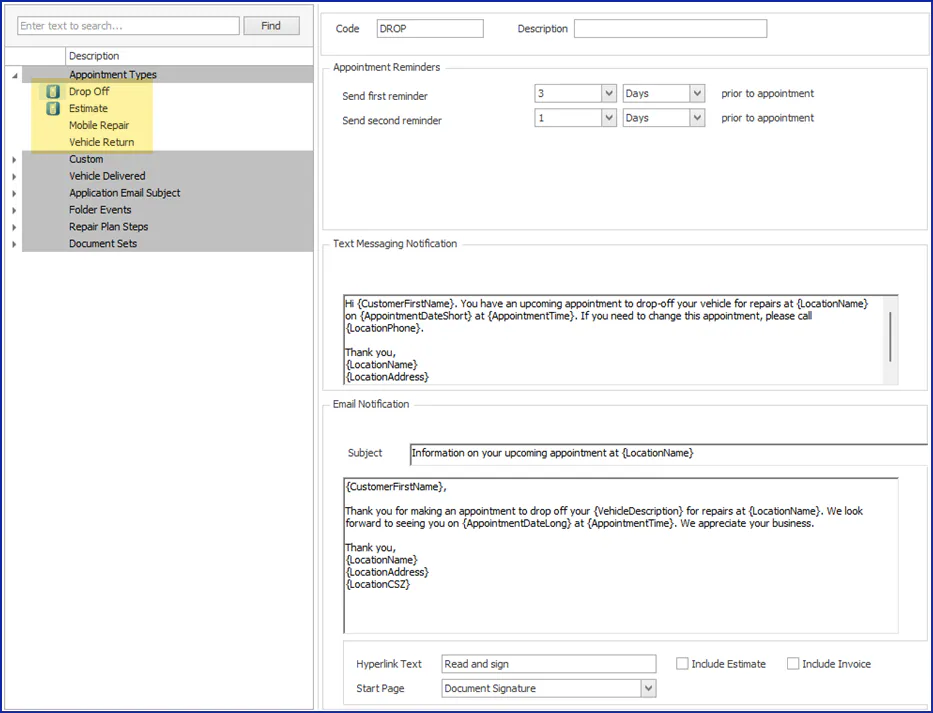
-
Save.
After you save, a small blue phone icon shows next to the event. Events without the icon don’t send customer messages.
Examples
Section titled “Examples”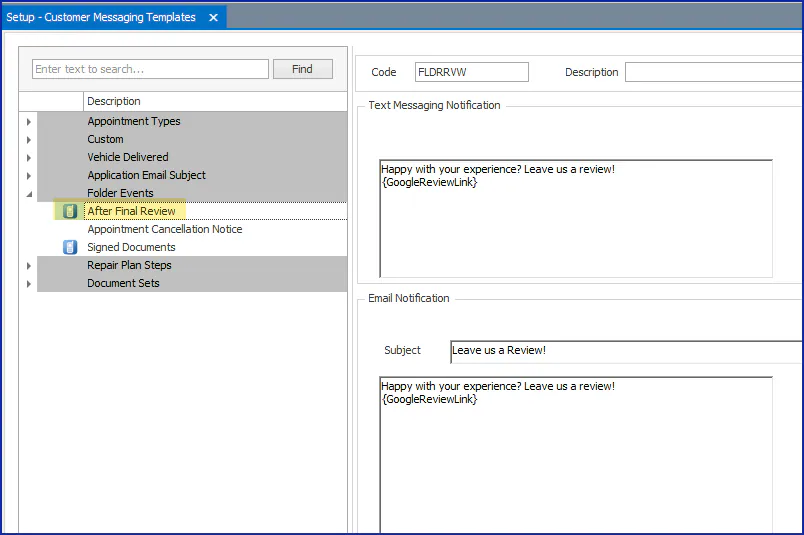
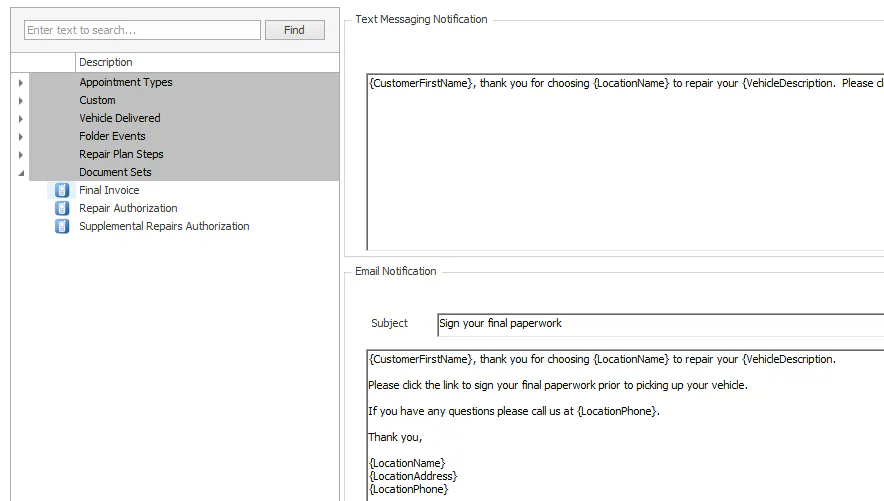
-
Go to Settings › Messaging Templates. A check in the Completed column means the template is set up and in use.
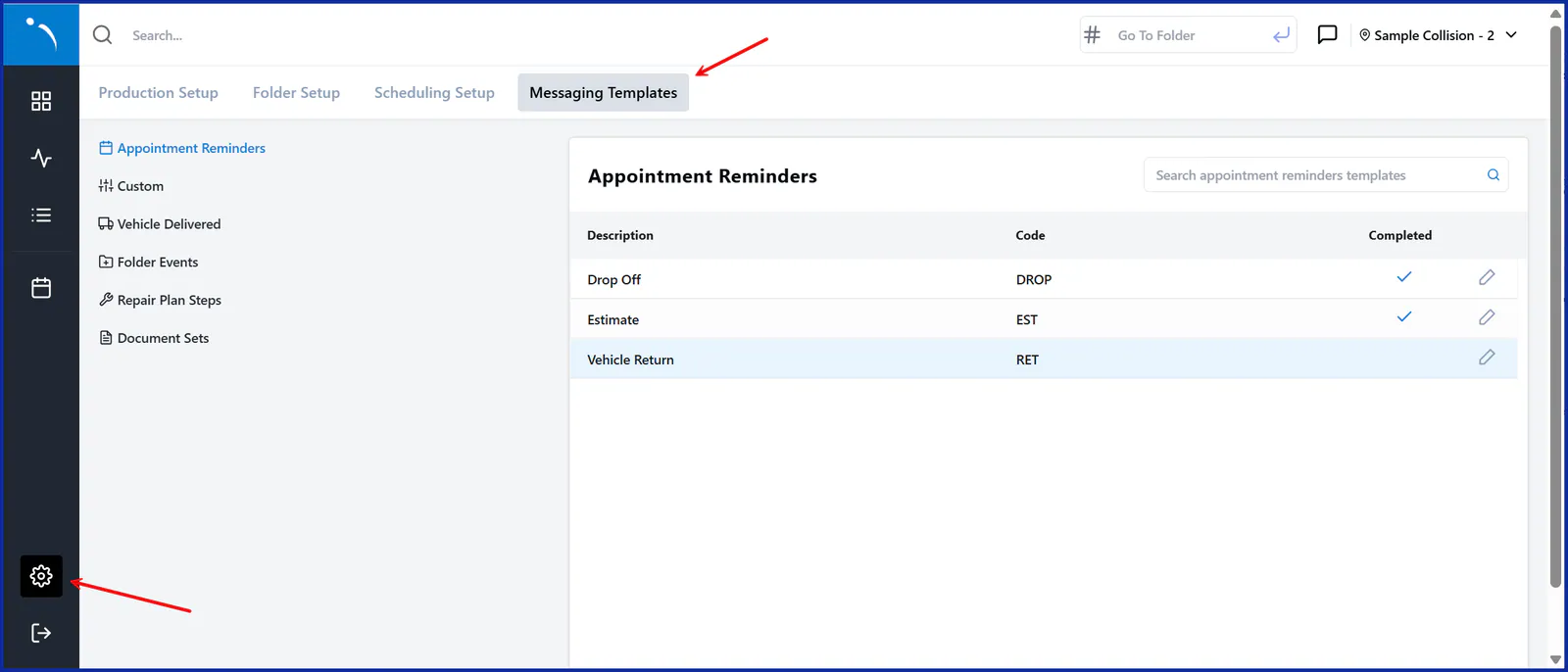
-
Select the pencil icon next to an event to open Edit Template.
-
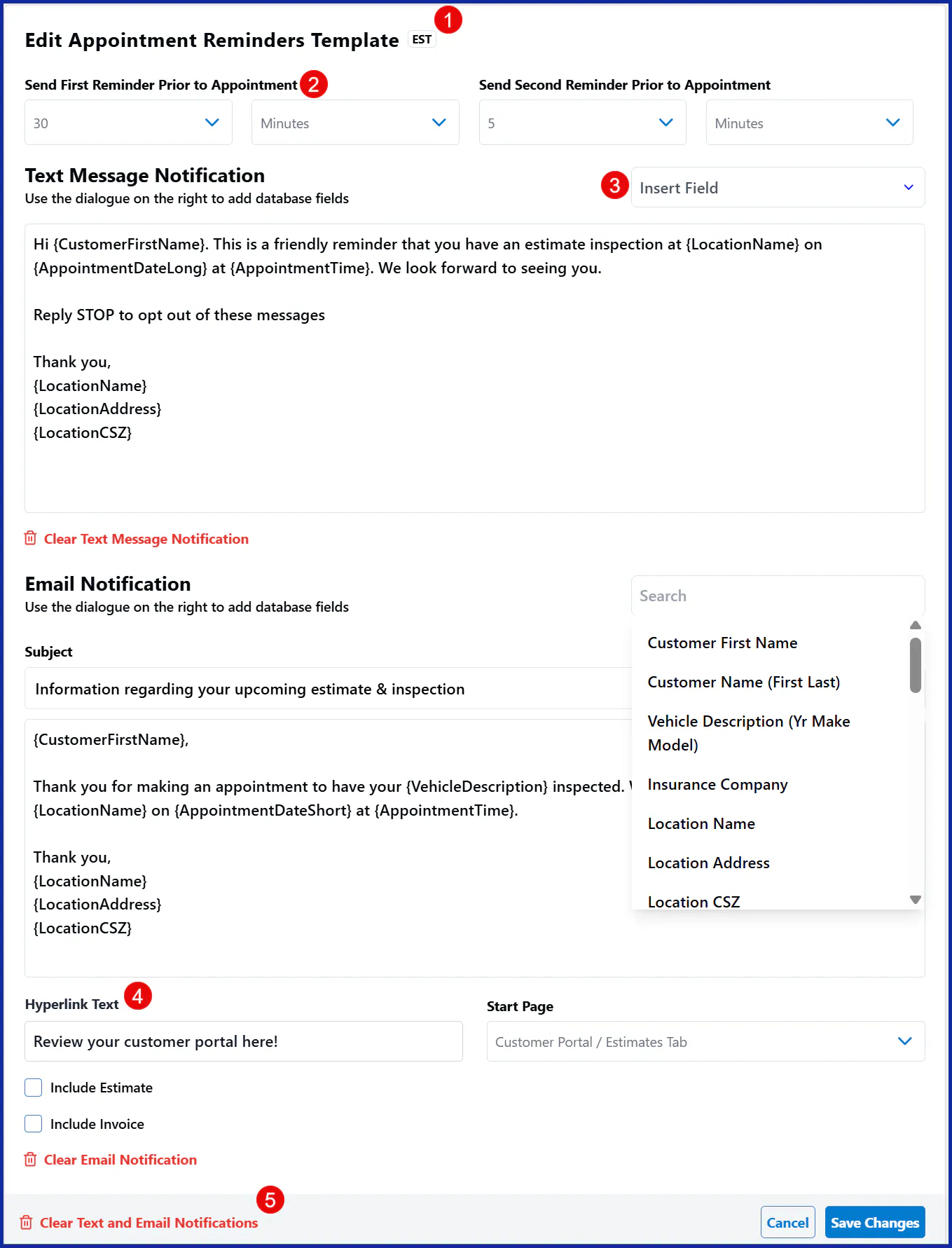
Write the text and email messages:
- To add information from the folder, customer, shop, vehicle or estimate, expand Fields and choose one.
- To add a link to the Customer Portal, online photo estimate page or payment screen, choose it and enter the text to show in place of the link.
- For appointment reminders, set the first and second reminders.
- To clear the email, the text or both, select a Clear Notification option.
-
Save.
Email subjects
Section titled “Email subjects”Under Application Email Subject you can change the subject of emails Nexsyis sends:
| Sent from | Default subject | |
|---|---|---|
| AP Payment Email Subject | Emailing a remittance from the AP Payments screen | Payment made on your behalf of {LegalEntity}. {LegalEntity} is the only field this subject supports, so don’t add others with the green +. |
| Customer Manual Update | Choosing Email on a folder’s Communication tab | An update regarding your repair |
| Folder Screen Email Subject | The email button at the bottom of the folder screen | Folder: {ContactID}: {CustomerName} |
| Purchase Order Email Subject | Emailing a purchase order | Purchase Order {PO#} For Folder: {ContactID}. {PO#} isn’t on the green + list, so type it in. |
Where emails come from
Section titled “Where emails come from”- Automatic emails, and emails from a folder’s Communication tab, come from
noreply@nexsyis.com. You can change this to your own address, for examplenoreply@samplecollision.example. Customers can’t reply to it, so texting from the Communication tab is better: text replies come back into Nexsyis. - Emails from the folder’s email button, AP remittances and purchase orders come from the user’s own email address. Replies go to that user’s email, outside Nexsyis.