
Edit email addresses on an alert or subscription
Change who receives a report subscription or an alert by adding or removing email addresses.
Remove an address from a subscription
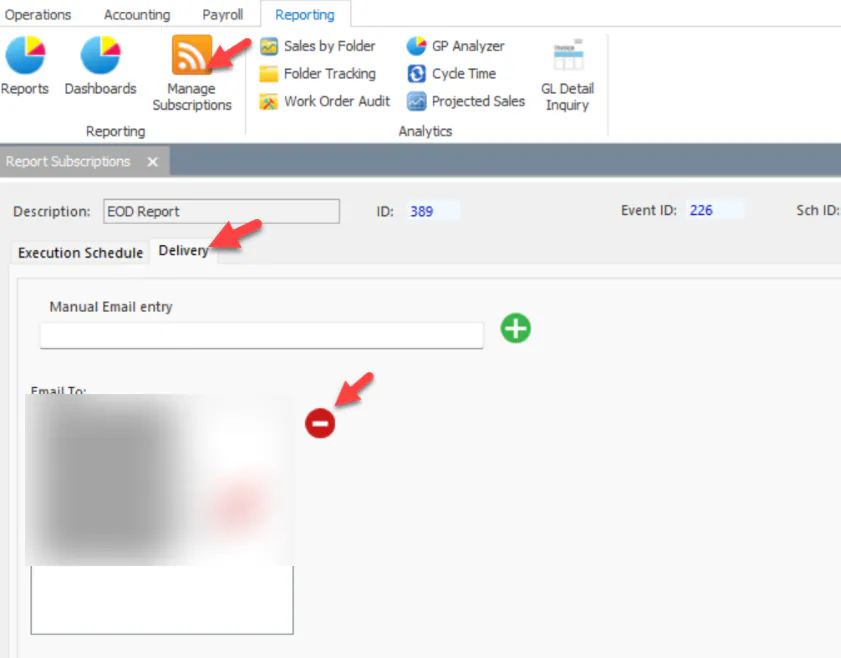
Section titled “Remove an address from a subscription”- On the Reporting tab, select Manage Subscriptions.
- Select the subscription.
- Select the Delivery tab.
- Under Email To, select the email address, then select the red minus button.
- Select Save.
Add an address to a subscription
Section titled “Add an address to a subscription”- On the Reporting tab, select Manage Subscriptions.
- Select the subscription.
- Select the Delivery tab.
- Type the email address in Manual Email entry, then select the green plus button.
- Select Save.
Remove an address from an alert
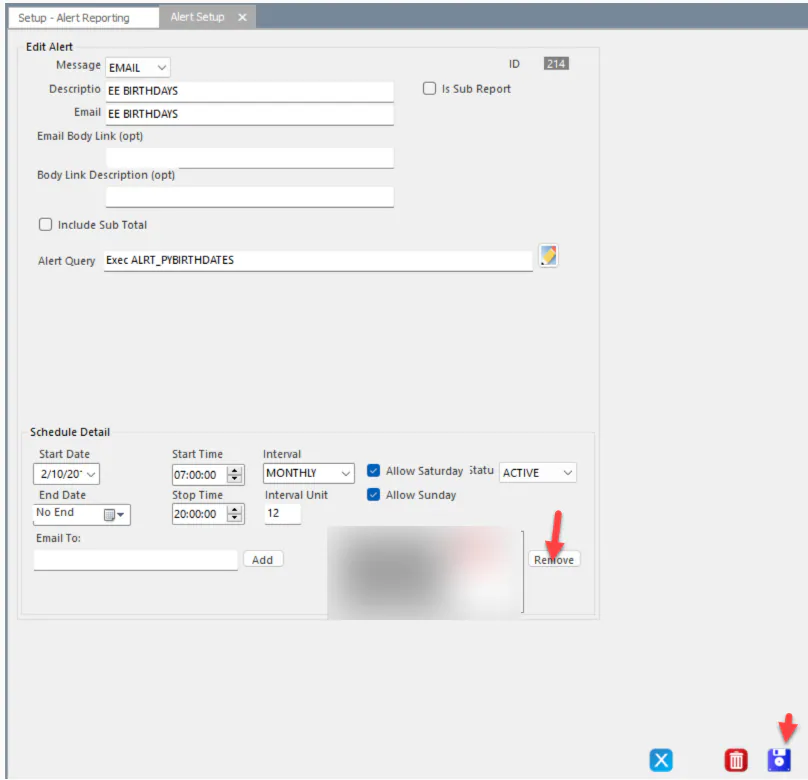
Section titled “Remove an address from an alert”- Go to Setup › Company › Alert Reporting. The screen opens in a new tab.
- Double-click the alert to open it.
- At the bottom of the screen, select the email address, then select Remove.
- Select Save.
Add an address to an alert
Section titled “Add an address to an alert”- Go to Setup › Company › Alert Reporting. The screen opens in a new tab.
- Double-click the alert to open it.
- At the bottom of the screen, type the email address in Email To, then select Add.
- Select Save.