Set up the slot schedule
The slot schedule sets how many appointment slots each location has per day for an appointment type, and when they start.
Change the default daily schedule
Section titled “Change the default daily schedule”-
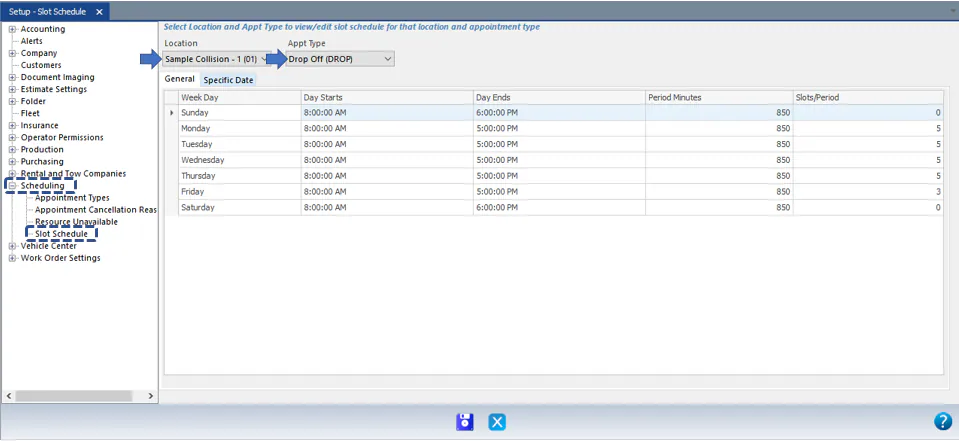
Open Setup › Scheduling › Slot Schedule.
-
Choose the Location and Appt Type at the top of the screen.
-
On the General tab, enter the values for each day of the week:
- Day Starts and Day Ends
- Period Minutes: the length of each period
- Slots/Period: how many slots there are in each period
-
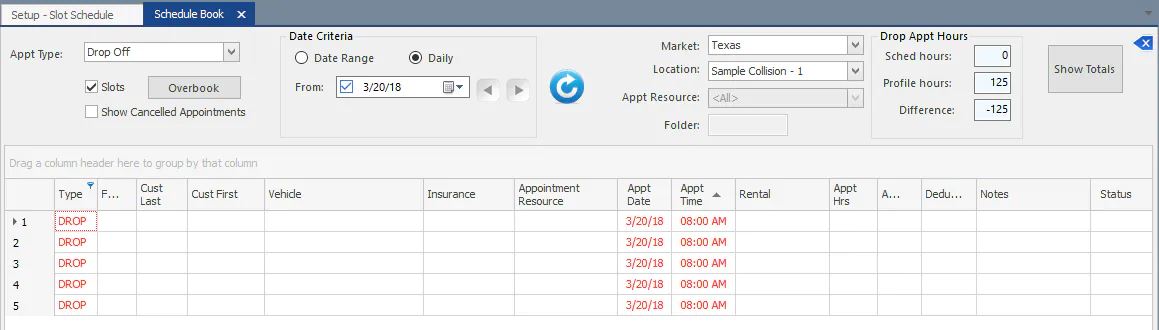
Select Save. Saving can take several seconds while the Scheduling screen is rebuilt.
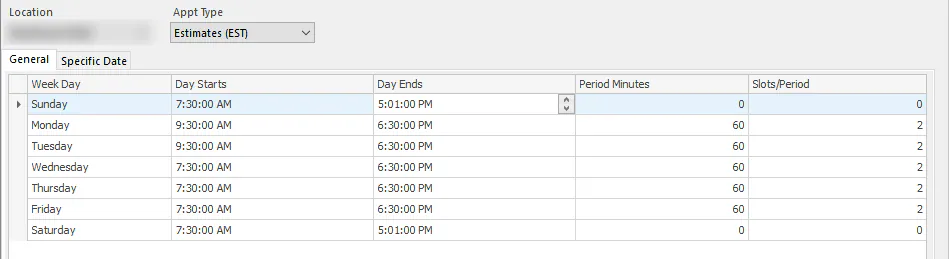
For example:
- Period Minutes 850 and Slots/Period 5 gives about five slots a day, all starting at the day’s start time.
- Period Minutes 60 and Slots/Period 2 gives two slots every hour from the start time.
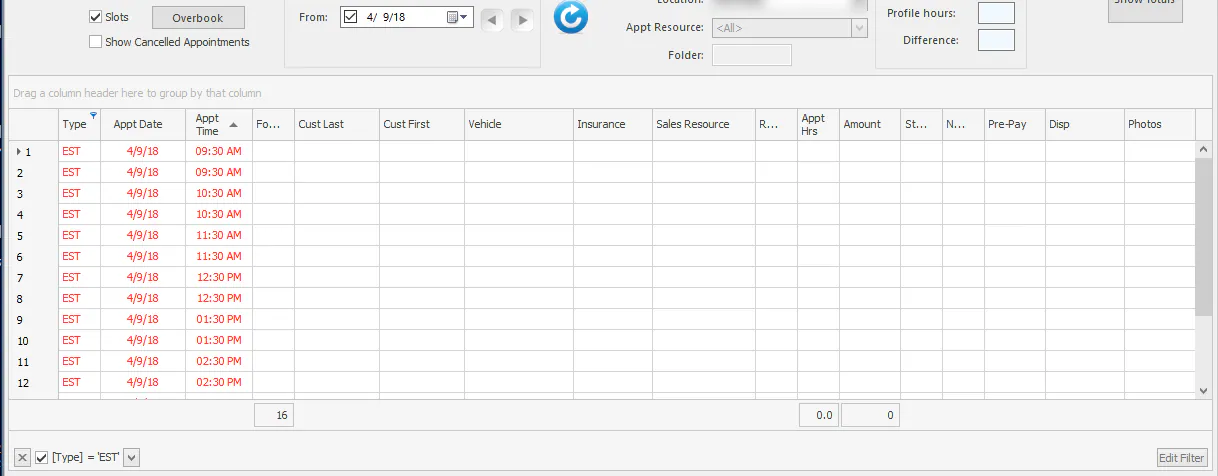
Change the slots on one date
Section titled “Change the slots on one date”Each day follows the default schedule unless you change a specific date.
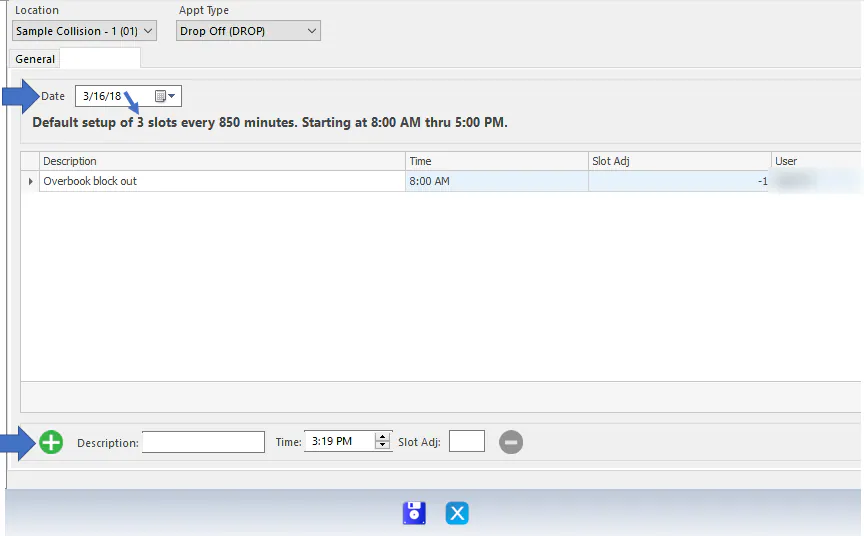
- On the Slot Schedule screen, select the Specific Date tab.
- Choose the Date. The line below shows that day’s default schedule.
- At the bottom of the screen, select the green plus button.
- Enter a Description, choose the Time, and enter the Slot Adj. Use a positive number to add slots or a negative number to remove them.
- Add any other changes for that date.
- Select Save. Saving can take several seconds while the Scheduling screen is rebuilt.