Allocate labor
Allocate labor to tell Nexsyis which technician or team gets paid for each labor type on a work order. You can give a technician all of a labor type, a percent of it, or a set number of hours, and split a labor type between technicians.
Open the Labor Allocation screen
Section titled “Open the Labor Allocation screen”Open the screen in one of these ways:
-
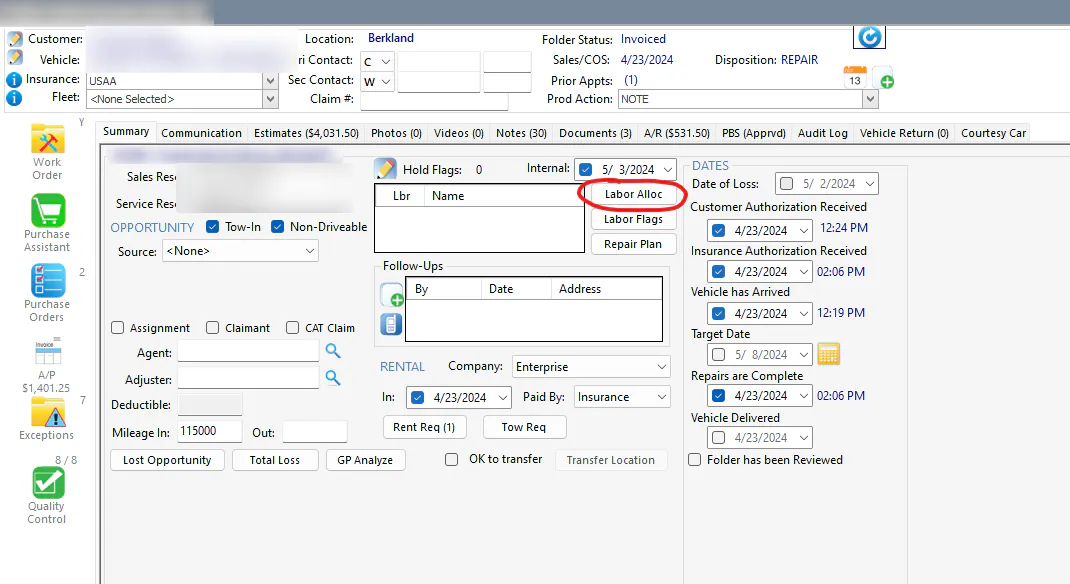
On the folder’s Summary tab, select Labor Alloc.
-
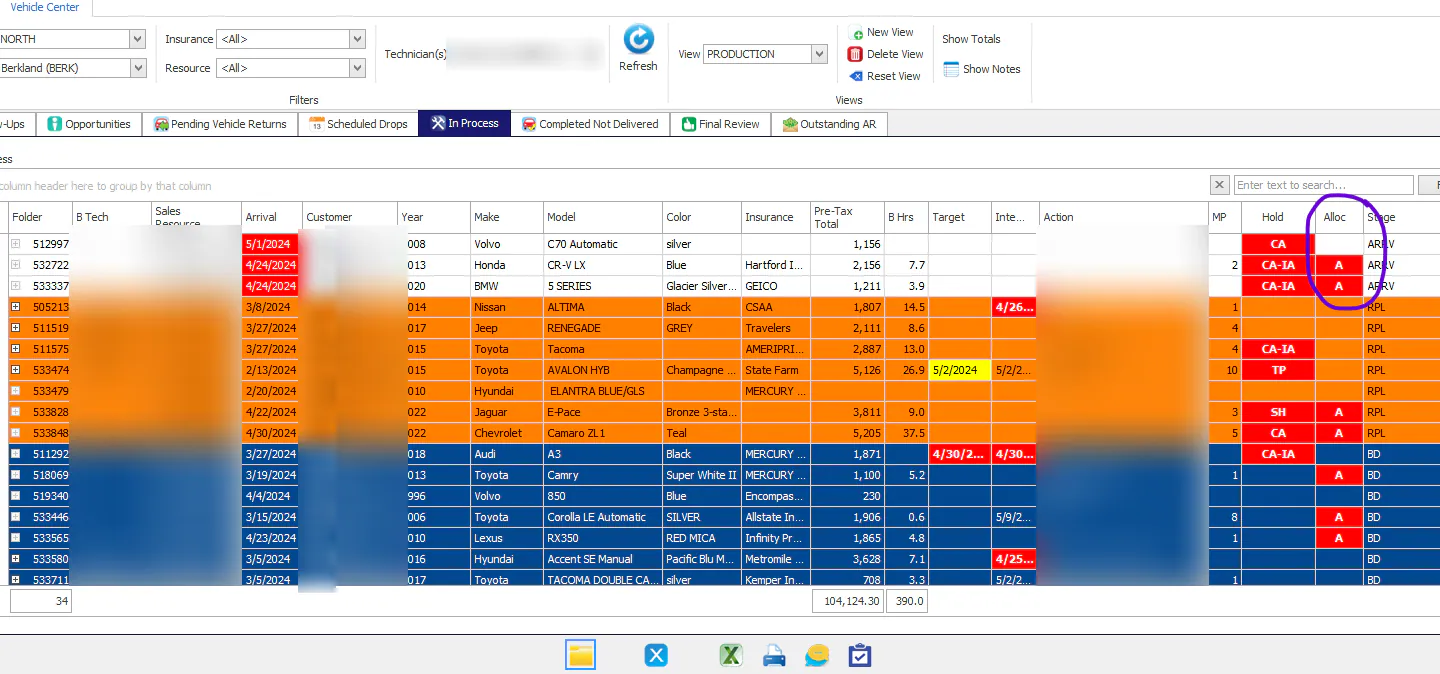
On the Vehicle Center In Process tab, double-click the red A in the Alloc column. The A shows when a folder has labor that still needs to be allocated.
Allocate labor
Section titled “Allocate labor”The Work Order Totals box on the left shows the hours for each labor type on the work order.
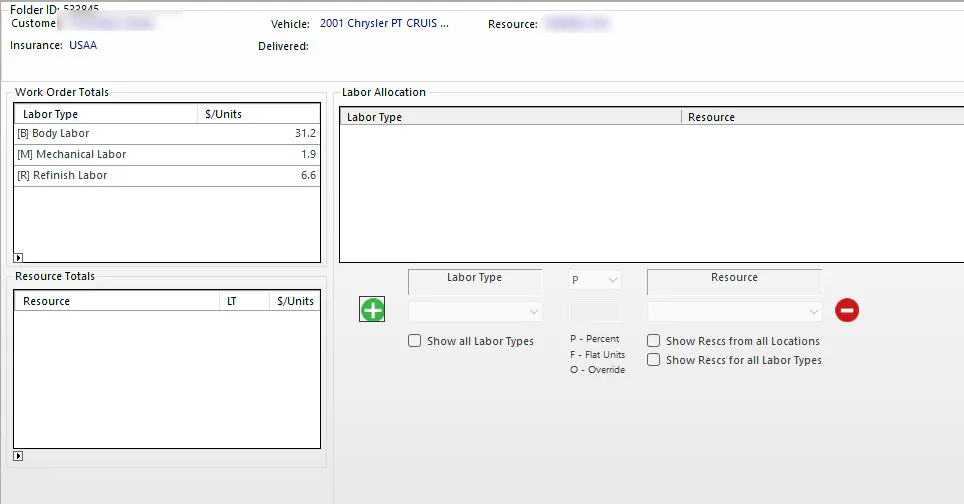
- Select the green plus to start a new allocation line.
- Select the Labor Type.
- Choose how to allocate the hours, then enter the amount:
- P (Percent): a percent of the labor type’s hours. It defaults to 100%.
- F (Flat Units): a set number of hours, for example 5.
- O (Override): use this to pay more than the job’s hours.
- Select the Resource. The list shows resources for the selected labor type at the current location. To see more, select Show Rescs from all Locations or Show Rescs for all Labor Types.
- Add more lines as needed. You can split a labor type between technicians with a mix of percent, flat and override lines.
- Select Save.
For example, you can allocate 100% of Body Labor to one technician and 5 flat hours to another. The second technician always gets the 5 hours, and the first gets 100% of what’s left.
When all the labor is allocated, the red A no longer shows on the In Process tab.
View a folder’s labor
Section titled “View a folder’s labor”-
Open the folder.
-
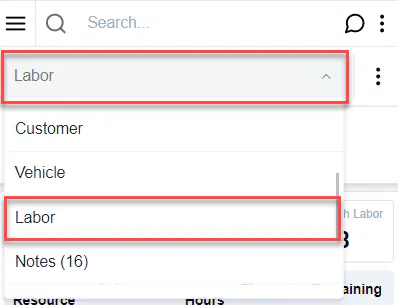
From the Quick Launch Bar, the drop-down at the top of the folder, select Labor.
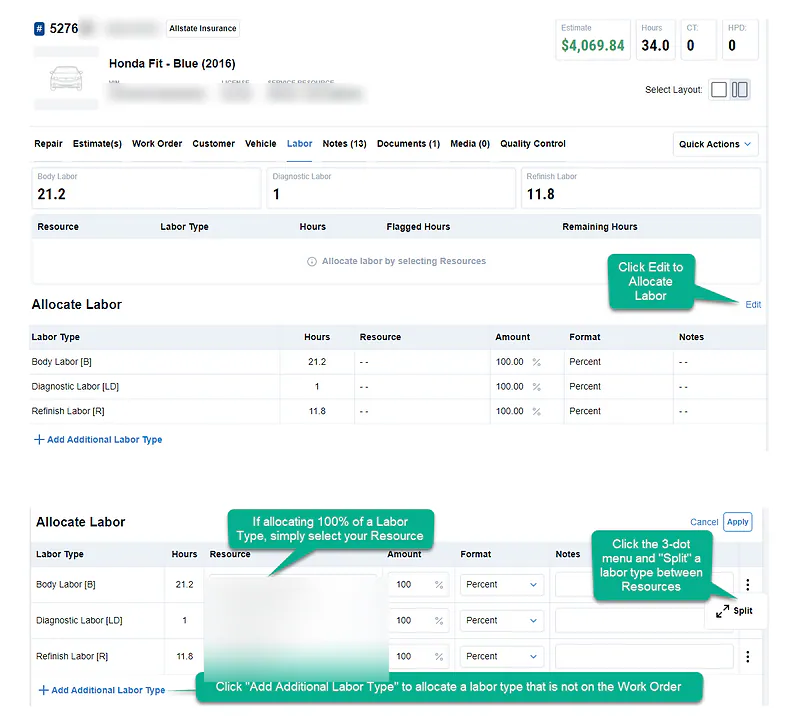
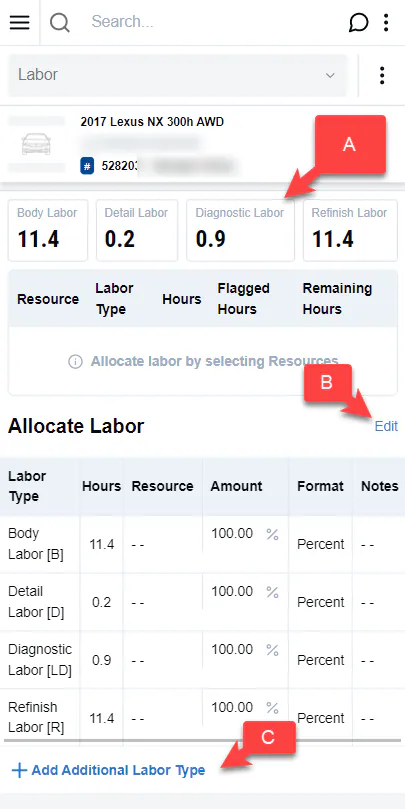
The top of the page shows the hours for each labor type (A). Below it, Allocate Labor lists each labor type with its hours, resource, amount and format.
Allocate labor
Section titled “Allocate labor”- Under Allocate Labor, select Edit (B).
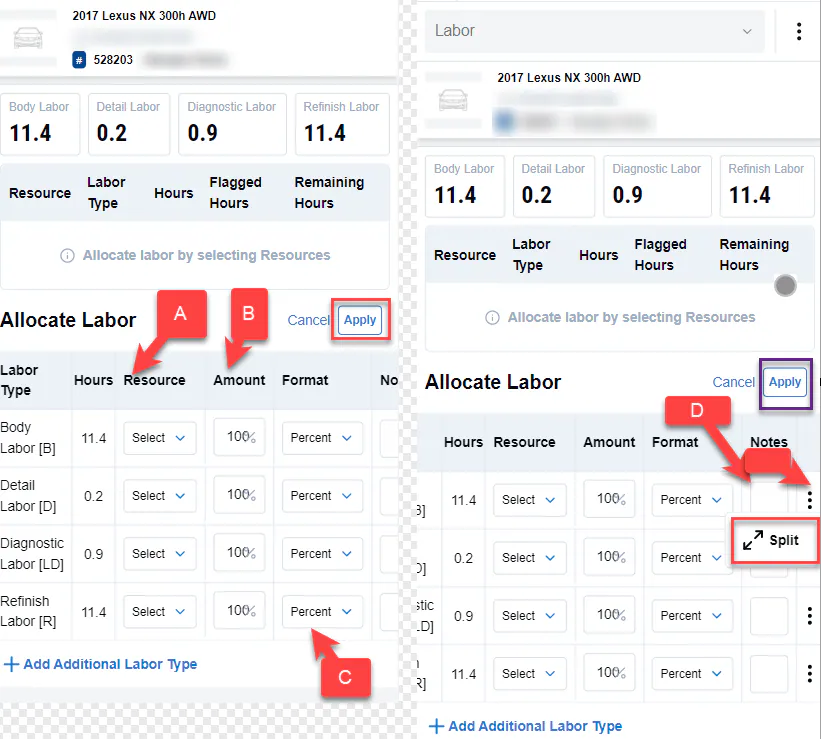
- For each labor type, work from left to right:
- Select a Resource.
- Enter the Amount, for example 100%, 50% or 5 flat hours.
- Select the Format: Percent, Flat or Override.
- Enter Notes if you need to.
- To split a labor type between two or more technicians, select the three dots at the end of its line, then select Split.
- Select Apply.
To allocate a labor type that isn’t on the work order, select Add Additional Labor Type (C). You can only enter a percent or an override for these labor types. When you update the work order, the labor adjusts to match.
On a larger screen, the Labor tab works the same way: