
Create a work order
Create the work order when you’re ready to start the repair. Nexsyis fills it with all the parts and labor lines from the folder’s estimates, and it’s what you give to the technicians.
Create the work order from the folder
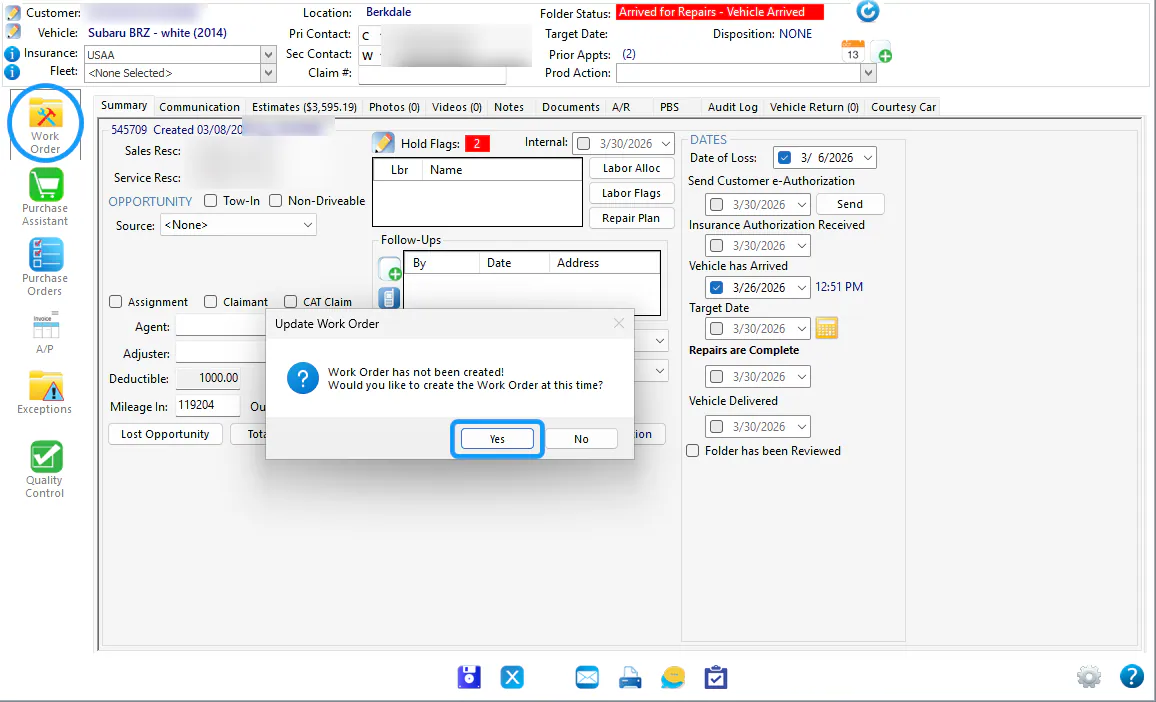
Section titled “Create the work order from the folder”- Open the folder and select Work Order on the left.
- When Nexsyis asks whether to create the work order, select Yes.
Create the work order from the Vehicle Center
Section titled “Create the work order from the Vehicle Center”-
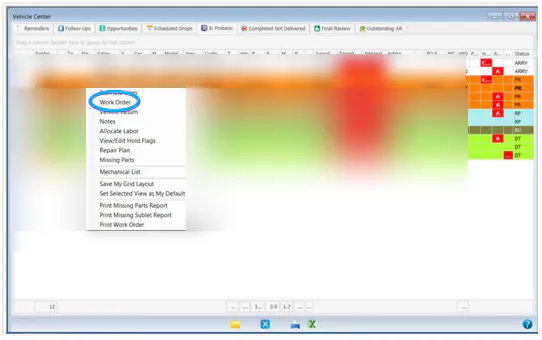
Select Vehicle Center, then select the In Process tab.
-
Right-click the folder and select Work Order.
-
When Nexsyis asks whether to create the work order, select Yes.
What happens next
Section titled “What happens next”- The purchase lines show in the Purchase Assistant as white Not Ordered lines, ready to order. Parts don’t show in the Purchase Assistant until the work order exists.
- The labor lines show on the Labor Allocation screen with hours ready to assign to technicians.
Open the work order and convert any labor lines so it reflects how the work will actually be done.