Create a pre-delivery invoice
You can’t print an invoice until the estimate has been invoiced or the folder has been delivered. If you need a copy before then, create a pre-delivery invoice.
Create the pre-delivery invoice
Section titled “Create the pre-delivery invoice”-
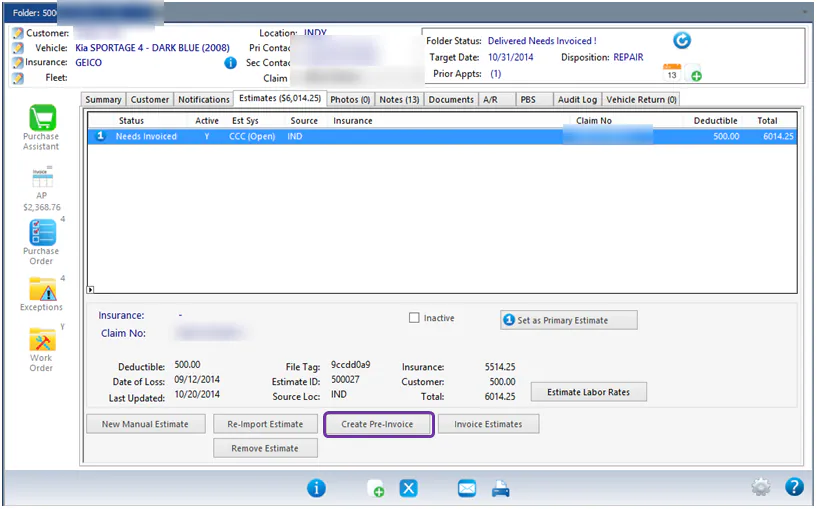
Open the folder and select the Estimates tab.
-
Select the estimate, then select Create Pre-Invoice.
-
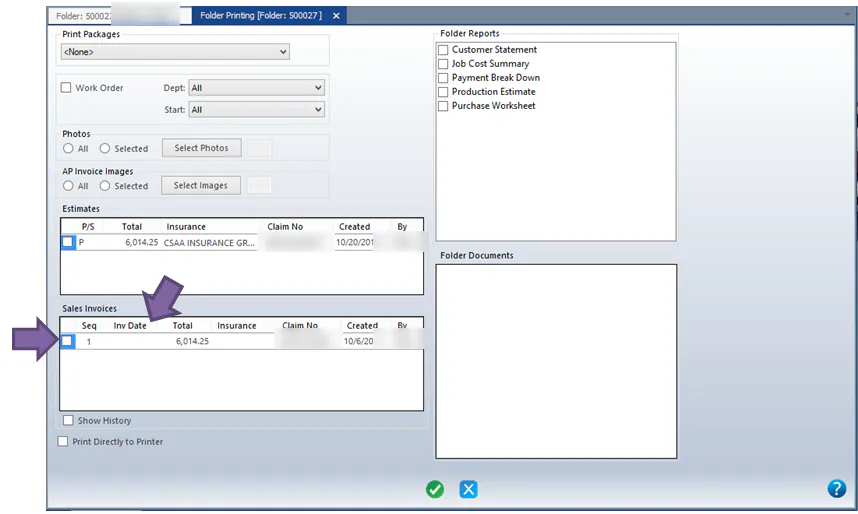
At the bottom of the folder, select the print button (printer icon) to open the Folder Printing screen.
-
Under Sales Invoices, check the invoice. Its Inv Date is blank because the estimate hasn’t been invoiced yet. A blank date means it’s a pre-delivery invoice.
-
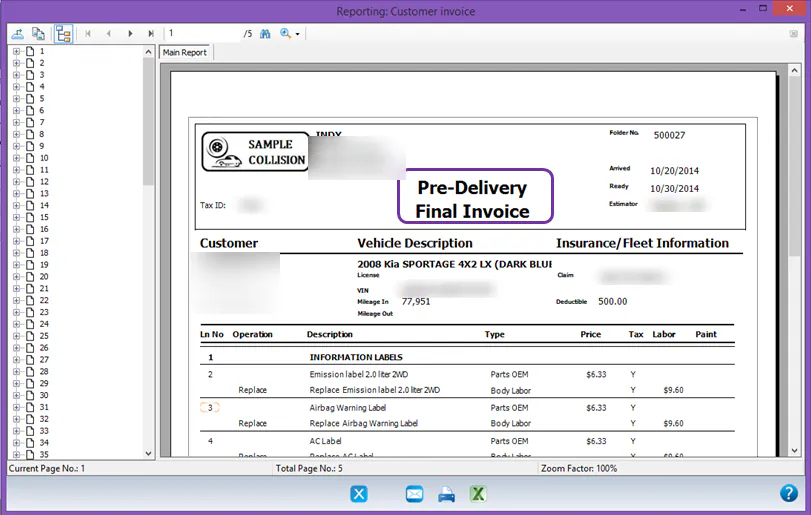
Check Print Directly to Printer, then select the green check mark at the bottom of the screen. The top of the invoice says Pre-Delivery Final Invoice.
After the folder is invoiced
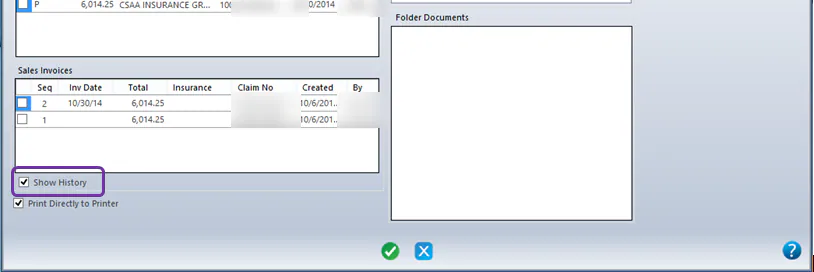
Section titled “After the folder is invoiced”Once the estimate or folder is invoiced, the final invoice appears under Sales Invoices with an Inv Date. To see the pre-delivery invoice again, select Show History.