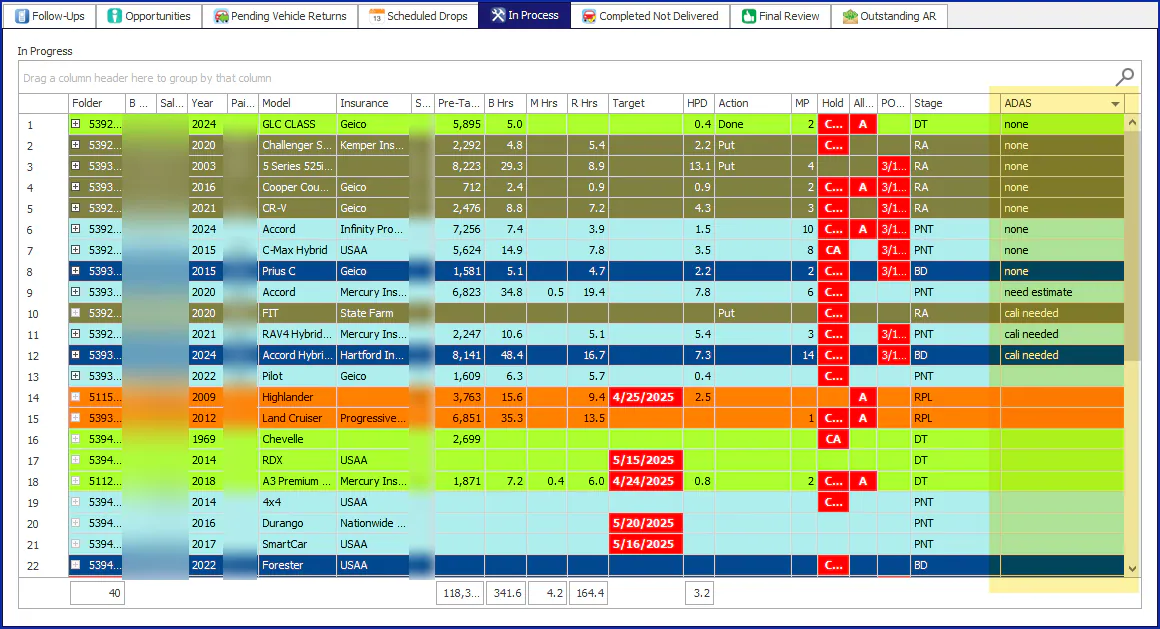
Set up Vehicle Center custom columns
The Vehicle Center has 16 columns you can set up for your shop:
- H1–H8 are flag columns. Users turn the flag on to show a two- or three-letter code on a red background.
- F1–F8 are free-text columns, like the Action column. Users type any text.
Before you begin
Section titled “Before you begin”You need the Production Setup permission.
Set up a custom column
Section titled “Set up a custom column”-
Select Settings › Setup › Production › Custom Columns.
Columns that are already set up show their caption and description. The others show their generic name, H1–H8 or F1–F8.
-
Double-click the column you want to set up.
-
In Column Caption, type the column header, for example an abbreviation.
-
In Customization Caption, type a description. Users see it when they point to the column.
-
Select Update.

The column can now be added from the Column Chooser in the Vehicle Center.
Add a custom column to the Vehicle Center
Section titled “Add a custom column to the Vehicle Center”-
In the Vehicle Center, right-click the column header row and select Column Chooser.
-
Find your column’s caption and double-click it.
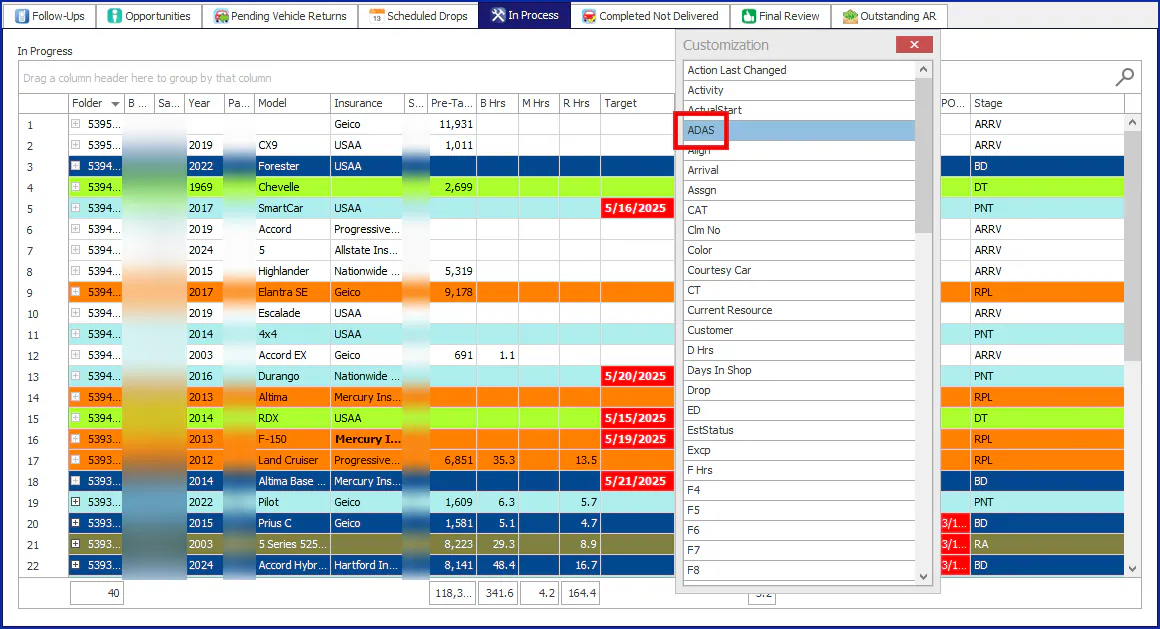
The column is added to the grid. To keep it, right-click the grid and select Save My Grid Layout.