Add notes to a folder
Use folder notes to record what’s happening on a repair. Each note has a category, and Nexsyis records who entered it and when.
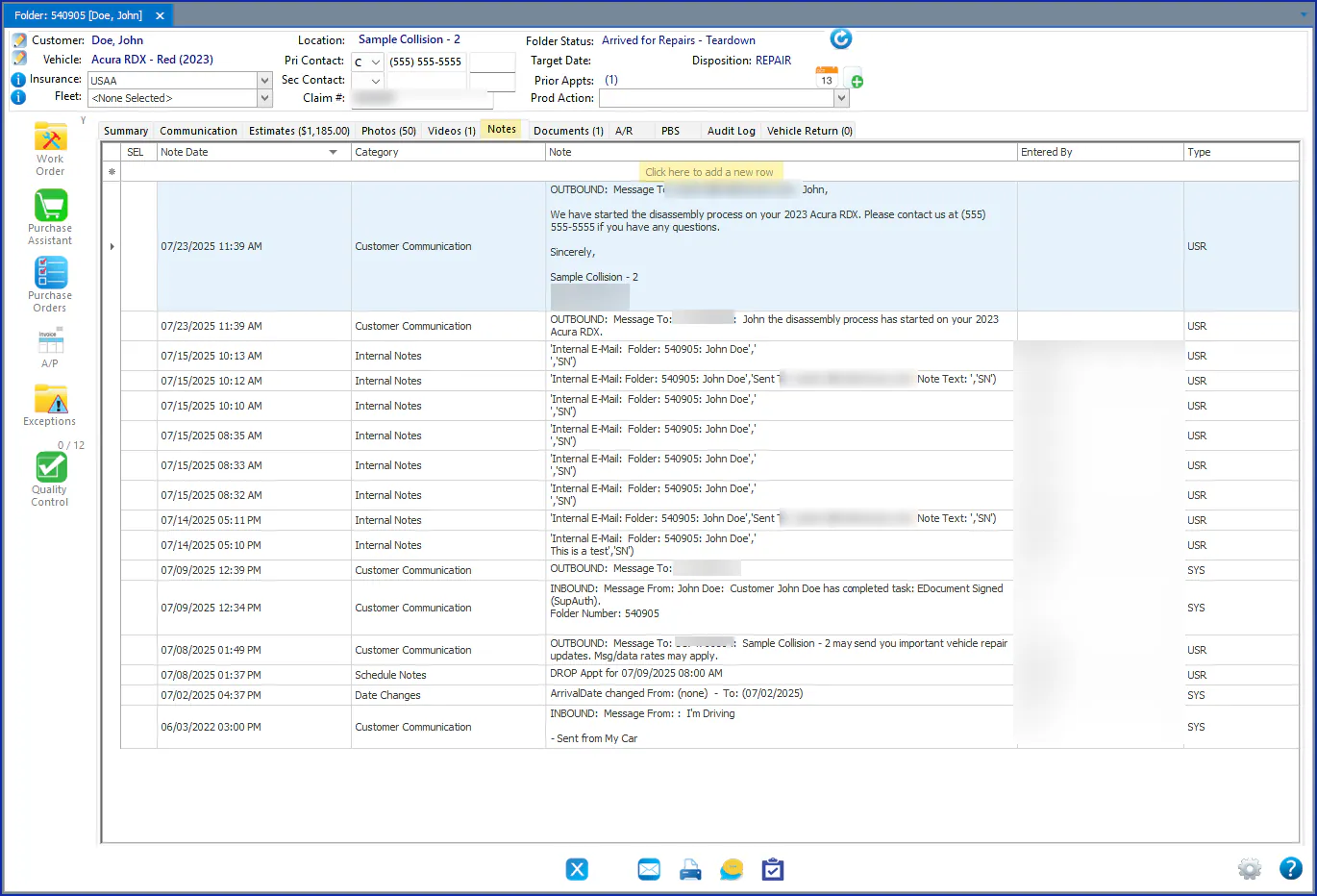
The Notes tab is on the folder.
Add a note
Section titled “Add a note”-
On the Notes tab, select the first row of the grid, Click here to add a new row.
-
Choose a Category, then press Tab to move to the Note column.
-
Type or paste the note.

-
Click off the row, or press Tab through it, to save the note.
The Note Date and Entered By columns fill in automatically.
Filter notes by category
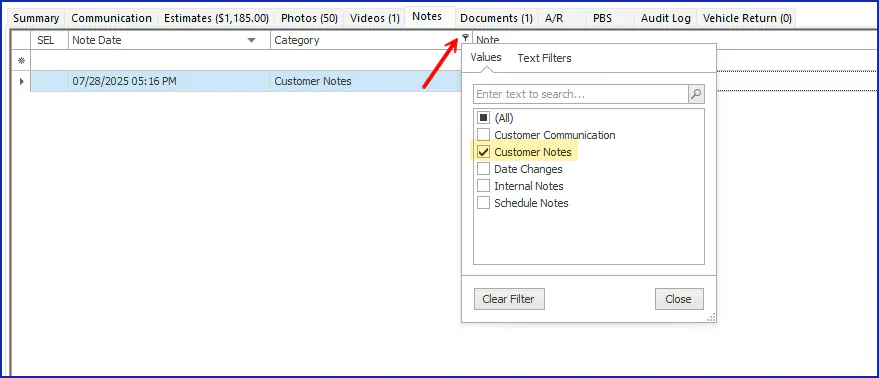
Section titled “Filter notes by category”Select the funnel icon at the top right of the Category column, then choose the categories to show.
Copy notes
Section titled “Copy notes”-
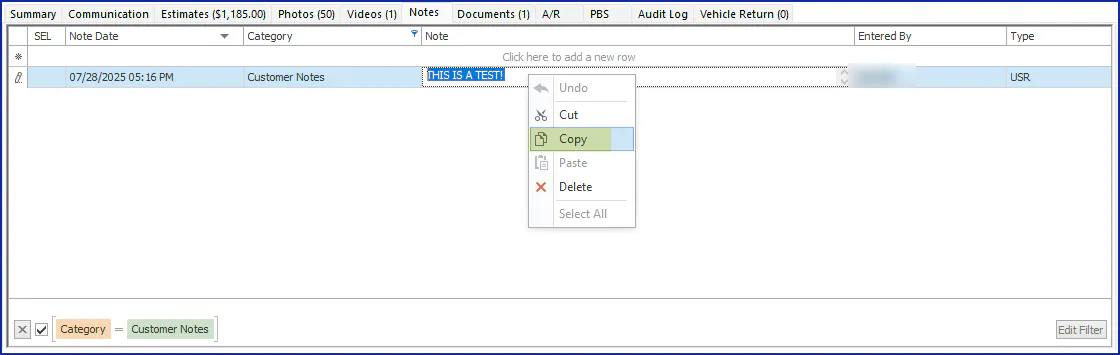
To copy part of a note, select the note text, right-click it and select Copy.
-
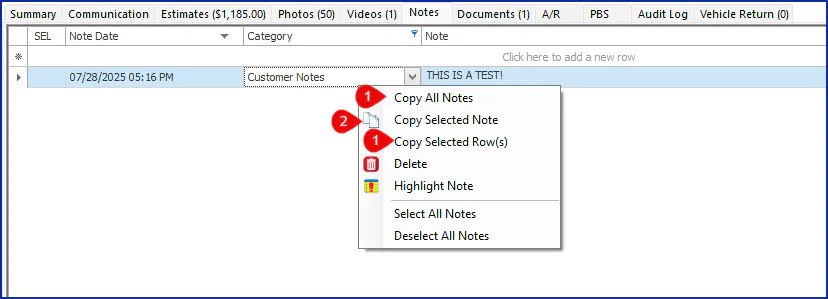
To copy whole notes, right-click the grid and select one of:
- Copy All Notes: copies every note on the folder.
- Copy Selected Note: copies the note you’ve highlighted.
- Copy Selected Row(s): copies the selected rows.
Email or print notes
Section titled “Email or print notes”-
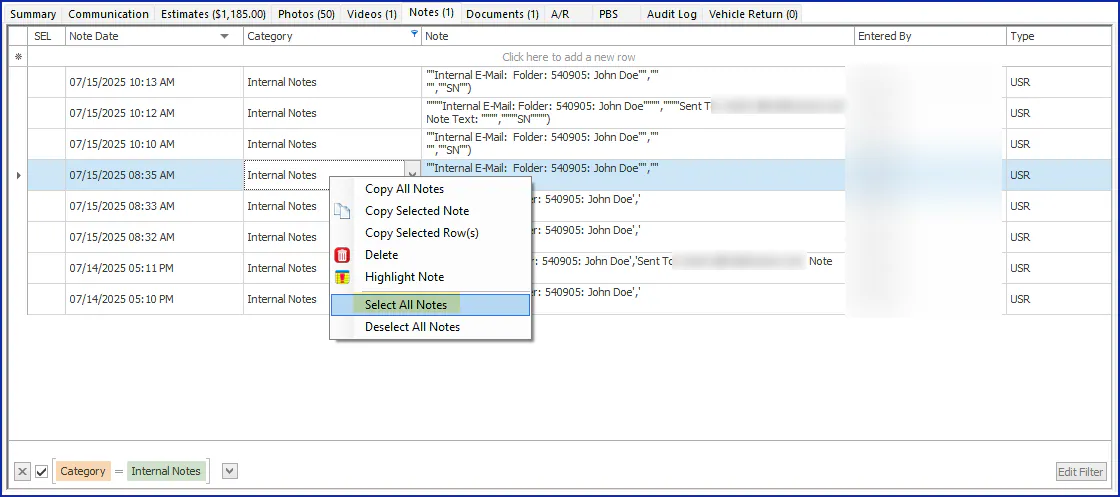
Select the notes you want: double-click the box in the SEL column for each note, so a green check mark shows. To select every note, right-click the grid and select Select All Notes.
-
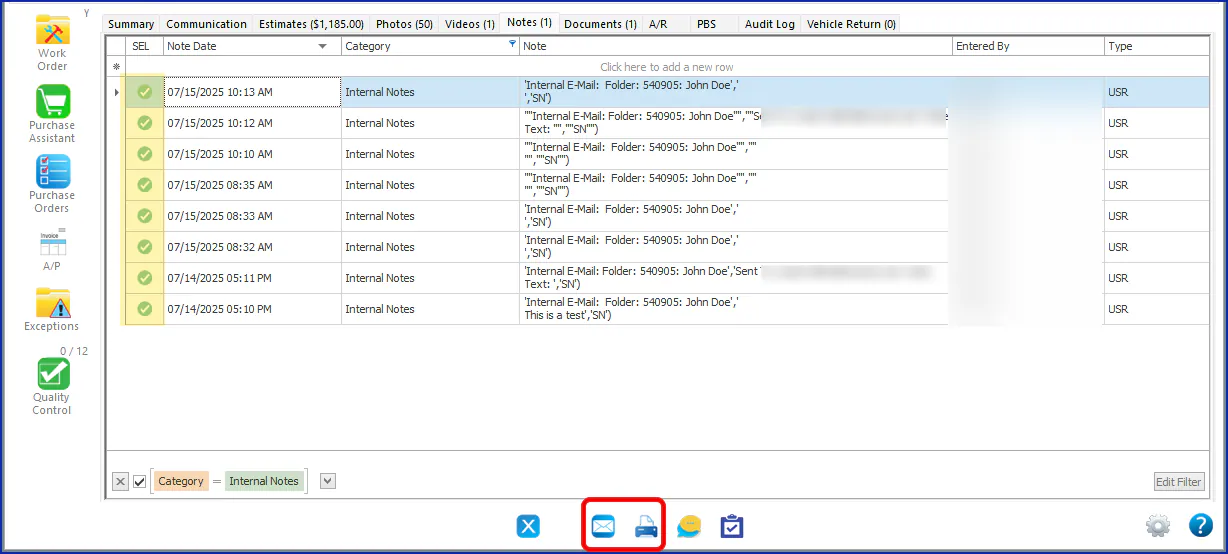
Select the email or print button on the bottom button bar.
-
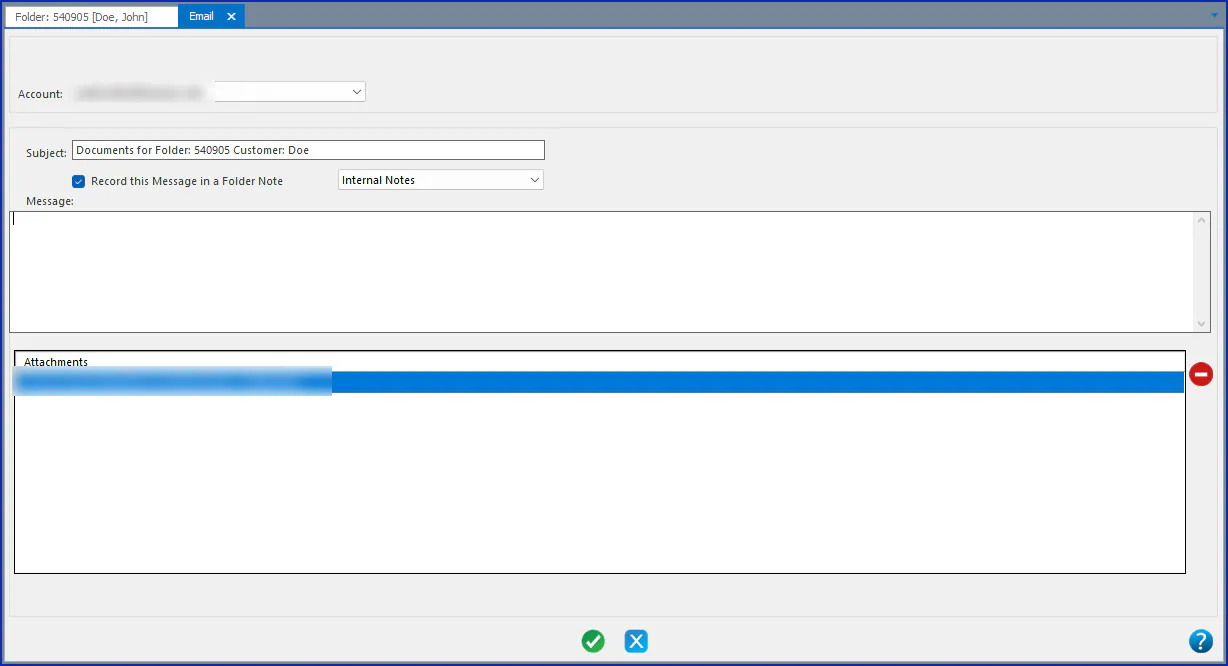
To email, address the email, then select the green Add/Process button on the bottom button bar.
To print, select Print, then print the report.
Highlight a note
Section titled “Highlight a note”You can highlight any USR note. Right-click the note in the grid and select Highlight Note.
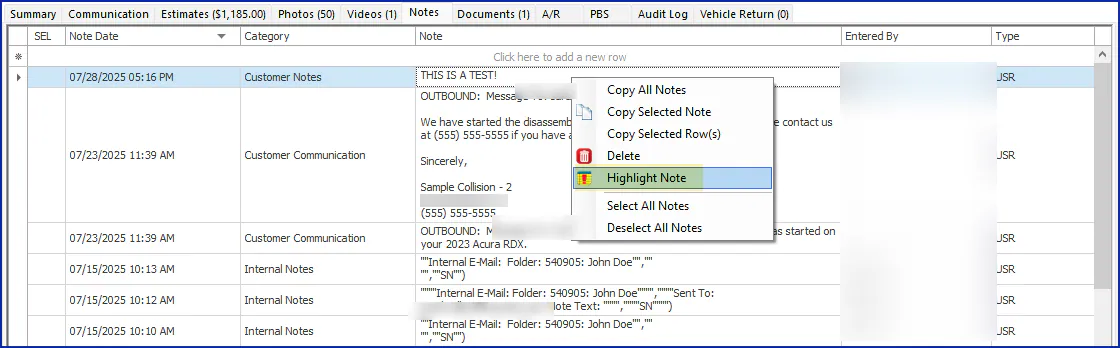
The count on the Notes tab now shows the number of highlighted notes.

Delete a note
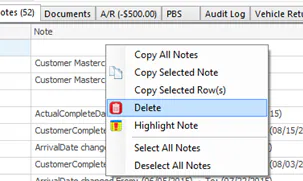
Section titled “Delete a note”You can delete only USR notes. SYS notes can’t be deleted.
To delete notes, you need the Delete permission for Notes in your screen permissions.

Right-click the note and select Delete.
Mark a web note as read
Section titled “Mark a web note as read”When a customer requests an estimate through the online Customer Portal, Nexsyis creates a folder, and a note on the Notes tab records the request. See Online photo estimates.

The note stays highlighted until someone right-clicks it and selects Mark Web Note as Read. Nexsyis records that it was read on the note and in the folder’s audit log.
Find your way around Notes
Section titled “Find your way around Notes”Select Notes in the menu on the left of the folder to open the folder’s notes. A star followed by a number shows how many notes on the folder are highlighted.
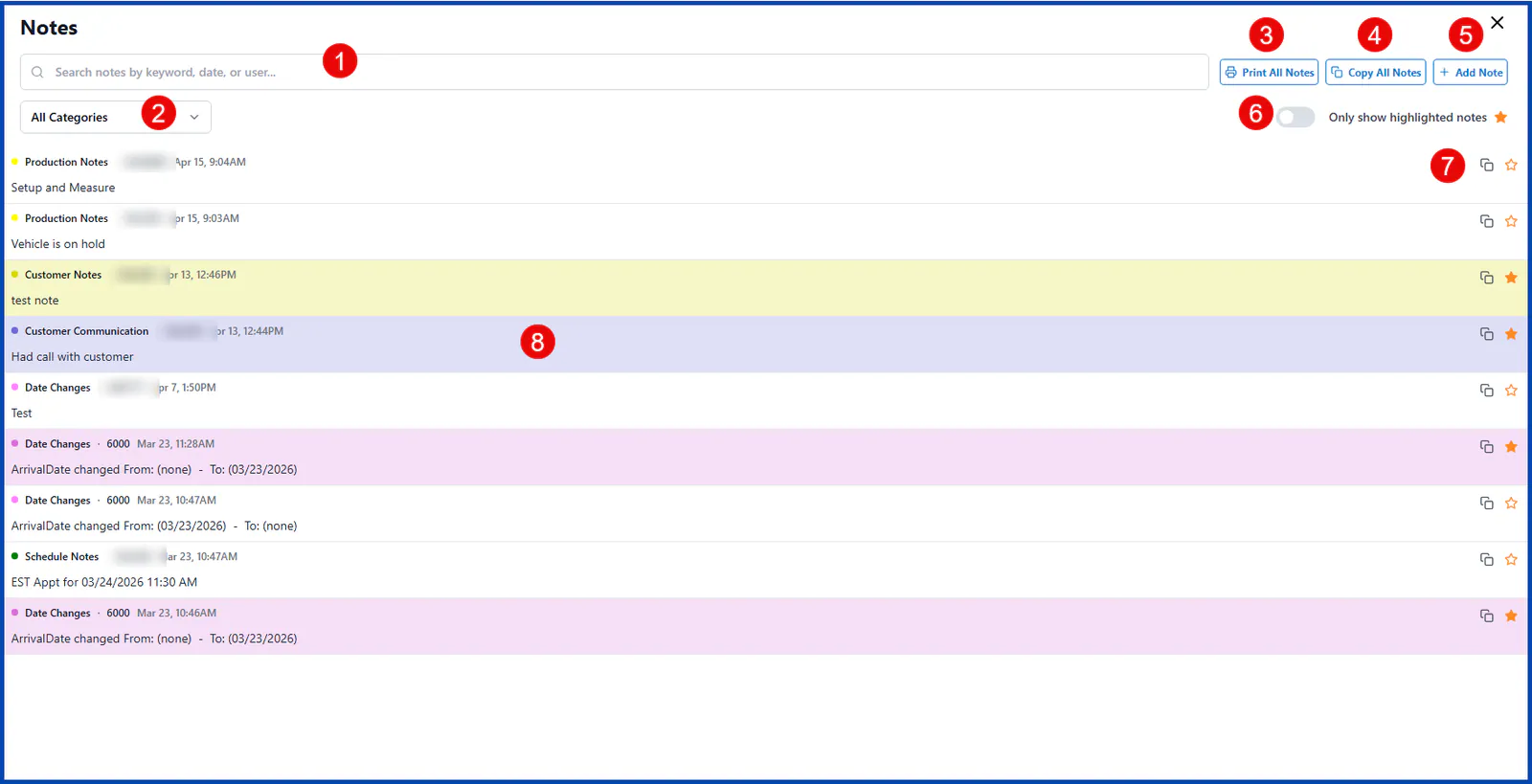
- Search notes by keyword, date or user.
- Filter by note category.
- Print All Notes.
- Copy All Notes to your clipboard.
- Add Note to the folder.
- Show only highlighted notes.
- Copy or highlight a single note.
- Note categories can have their own colors, so they’re easy to tell apart.
Add a note
Section titled “Add a note”You can also add a note without opening the notes screen: select + Add Note on the folder.
-
Open the folder’s Notes tab. All the notes already entered on the folder are listed.
-
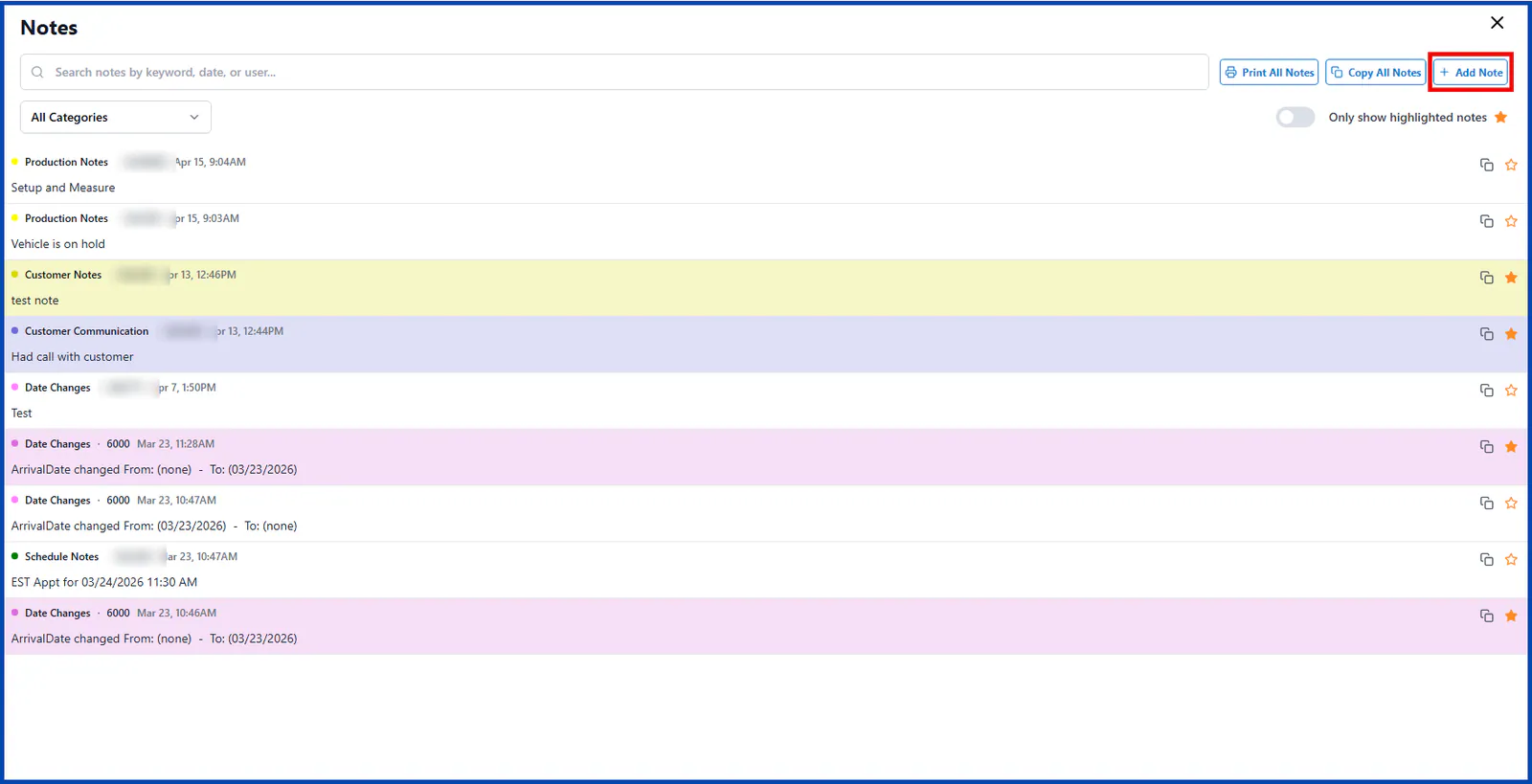
Select + Add Note at the top right.
-
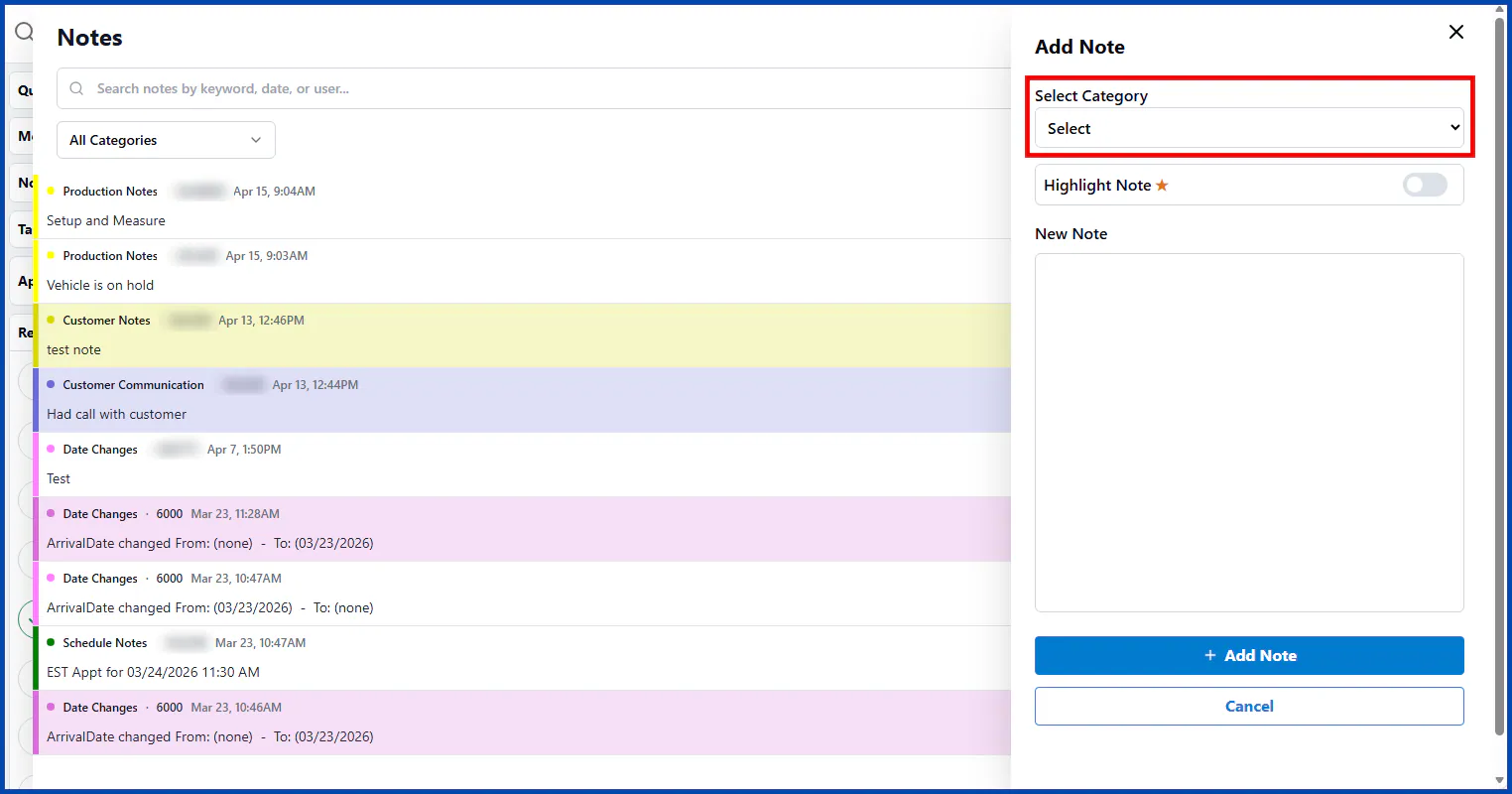
Choose a category under Select Category.
-
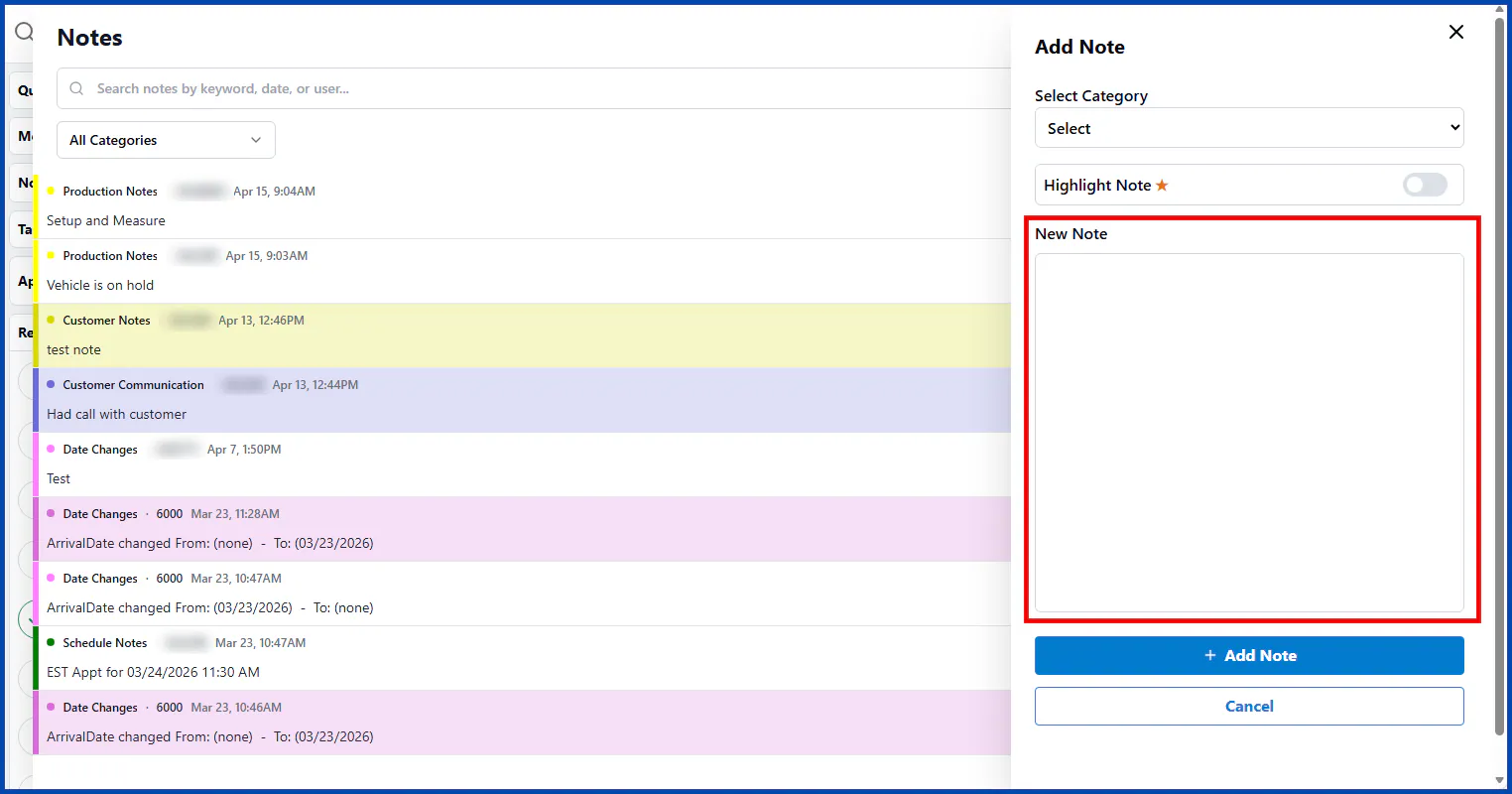
Type the note in the New Note box.
-
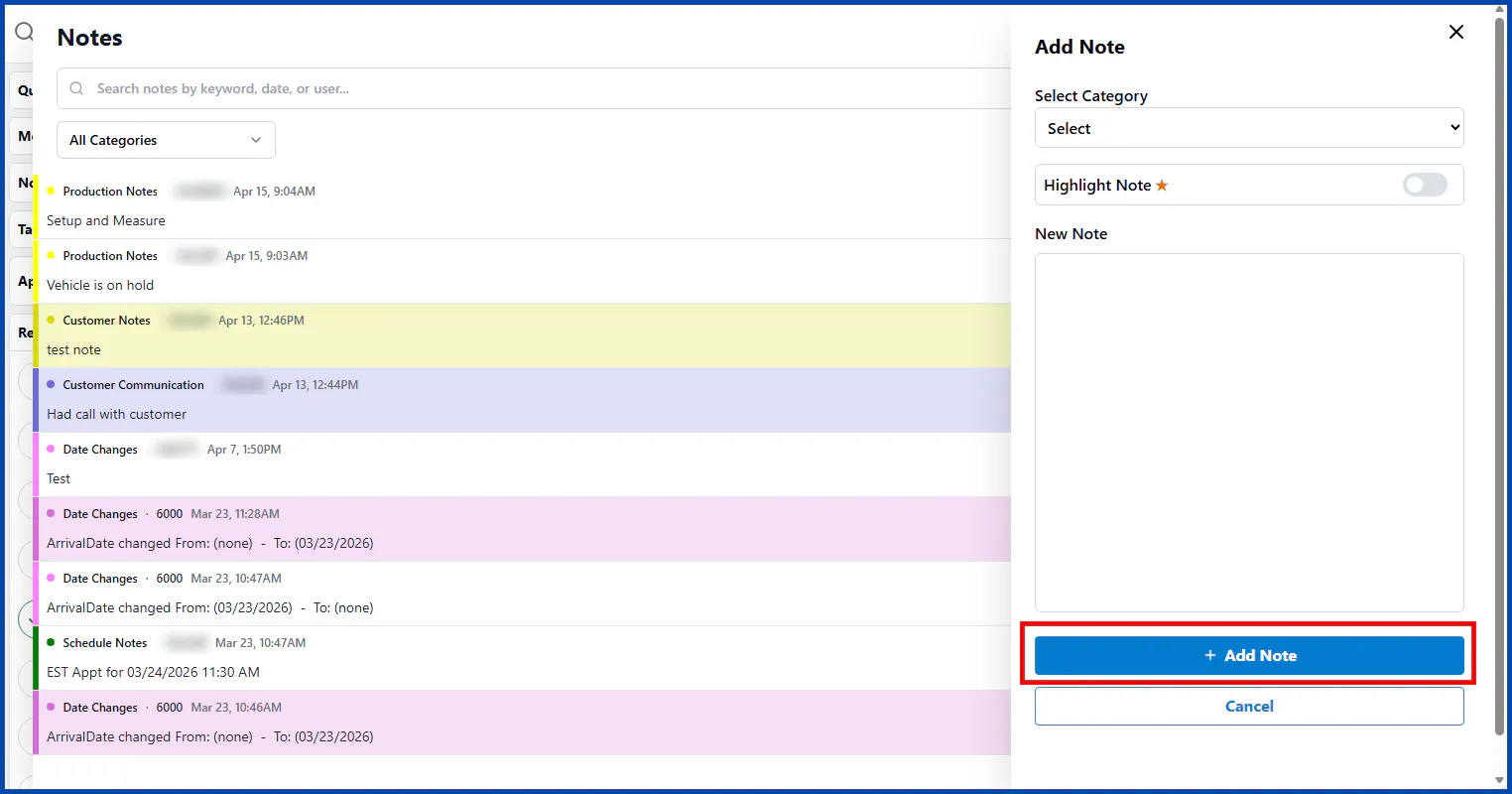
Select + Add Note to save the note to the folder.
Filter notes by category
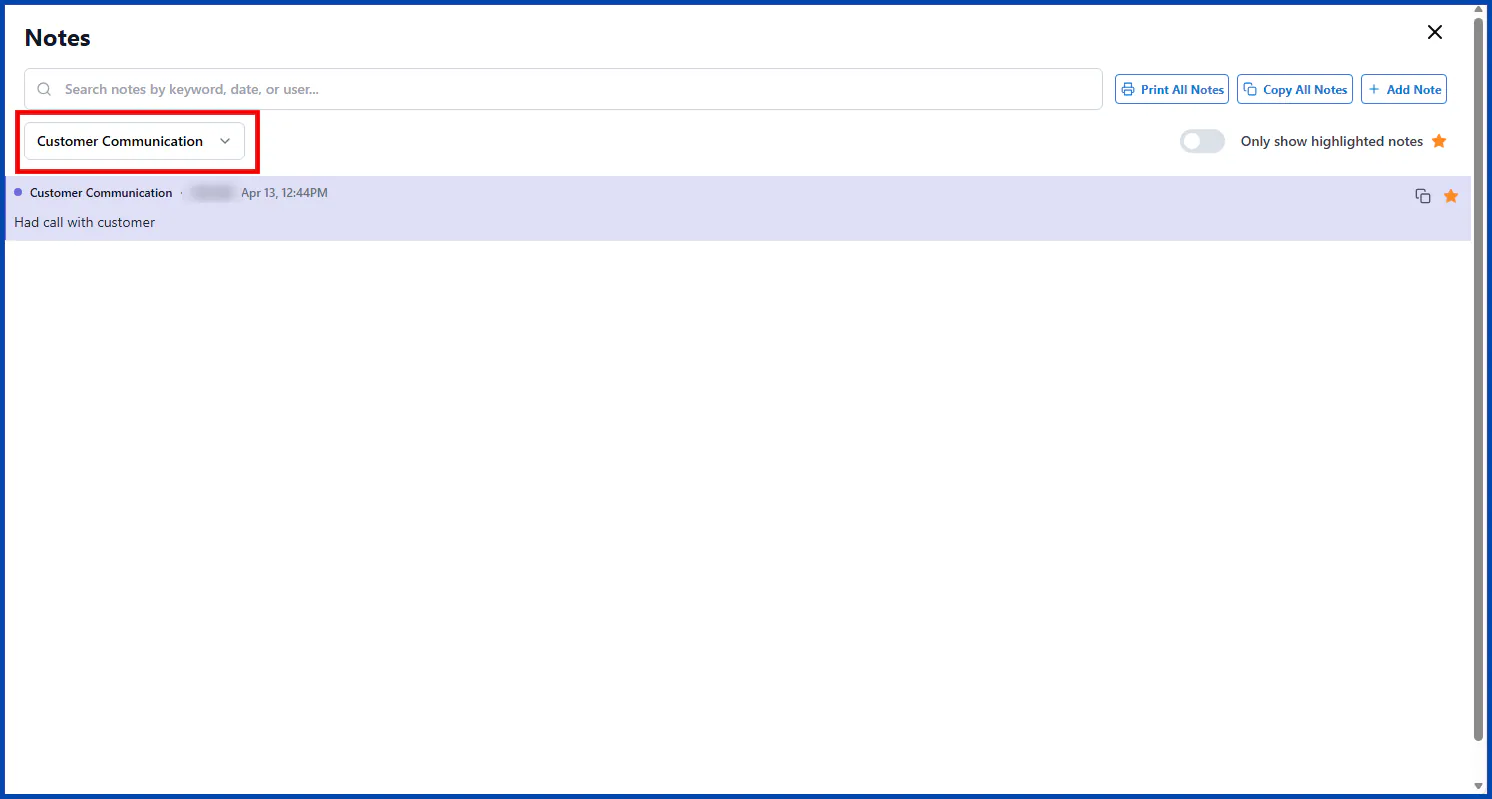
Section titled “Filter notes by category”Choose a category from the drop-down at the top left of the Notes tab. Only notes in that category are shown.
Create note categories
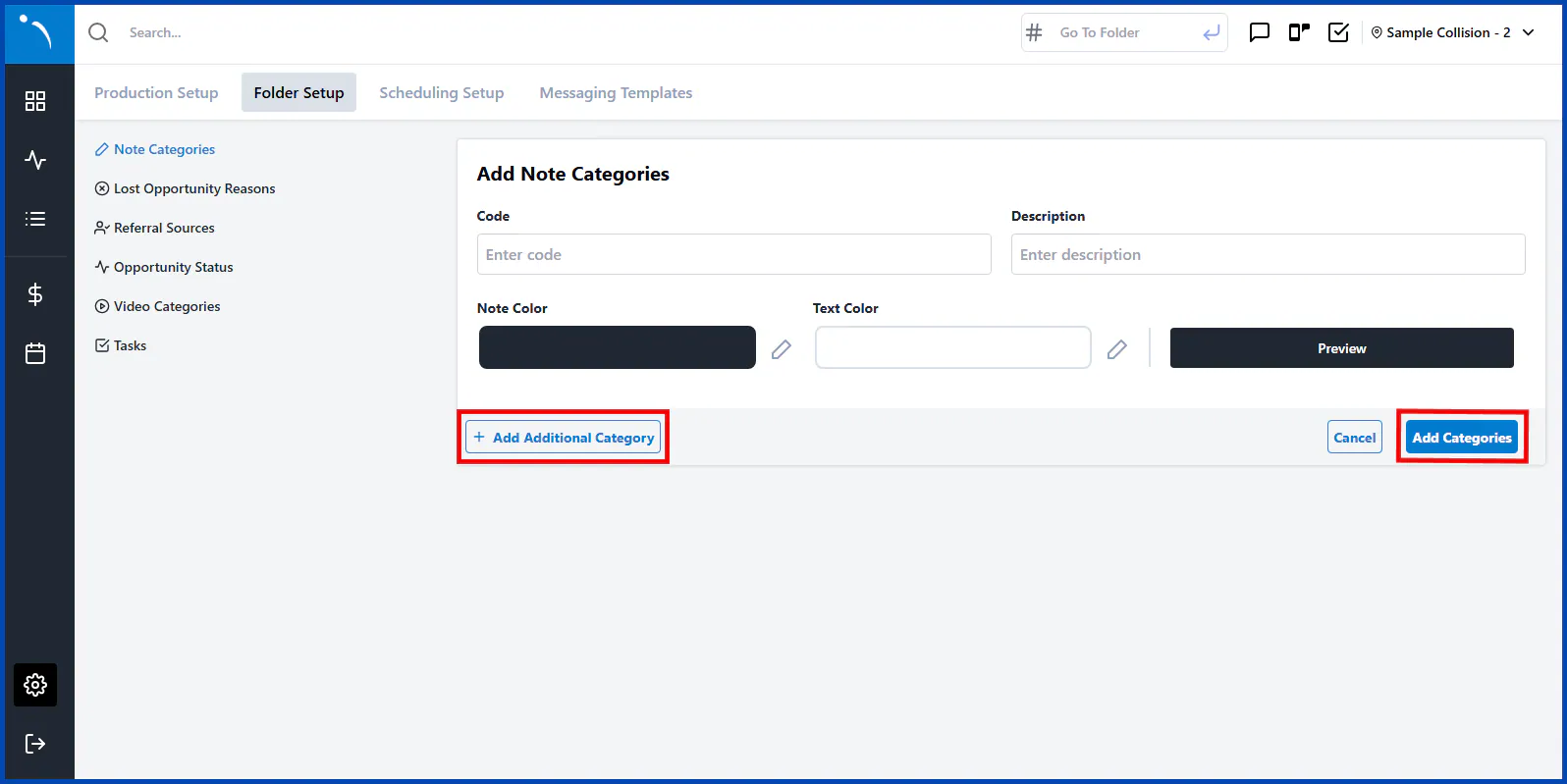
Section titled “Create note categories”You can set up more note categories and choose their colors.
-
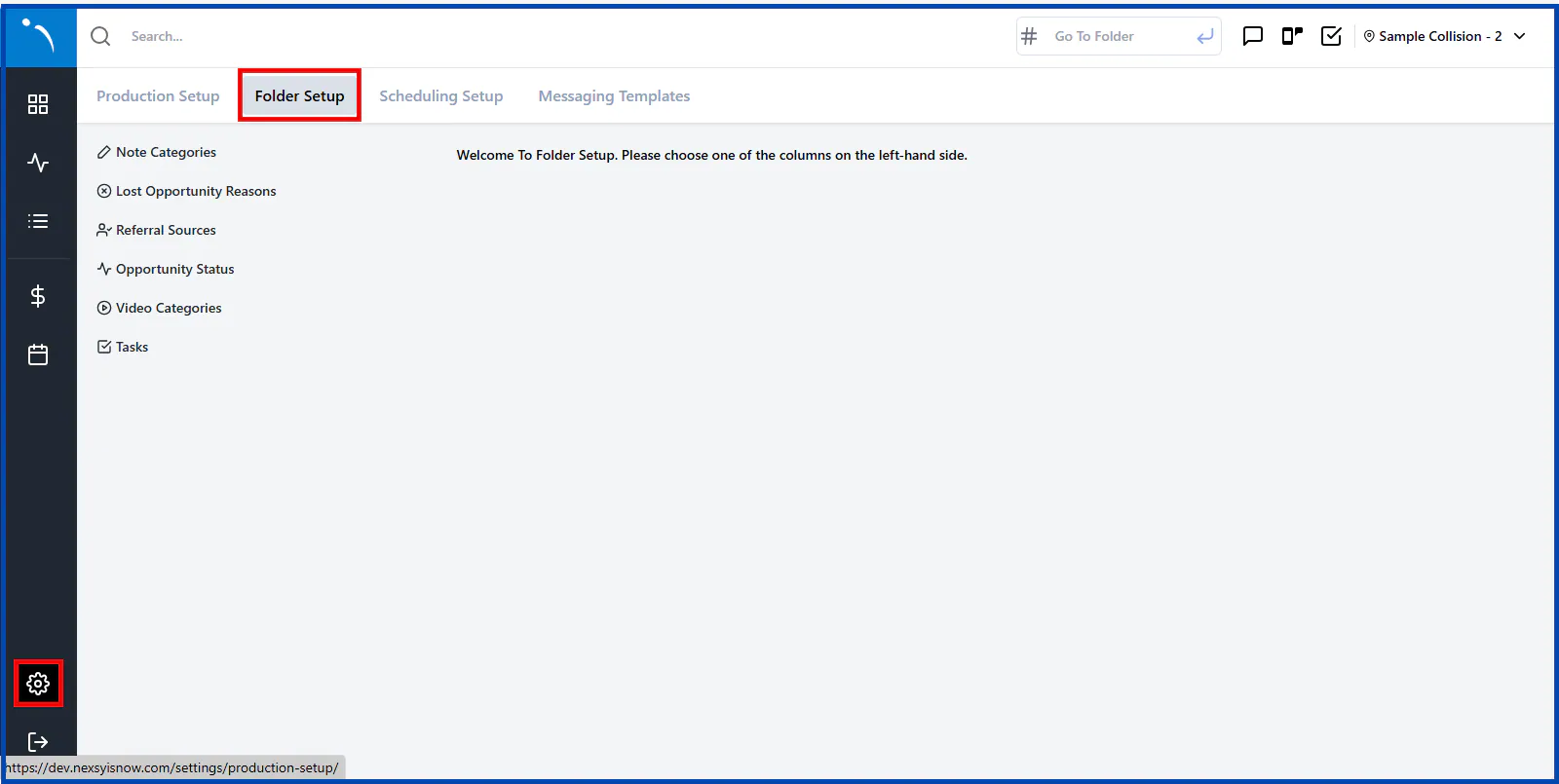
Select the settings icon at the bottom left, then select the Folder Setup tab.
-
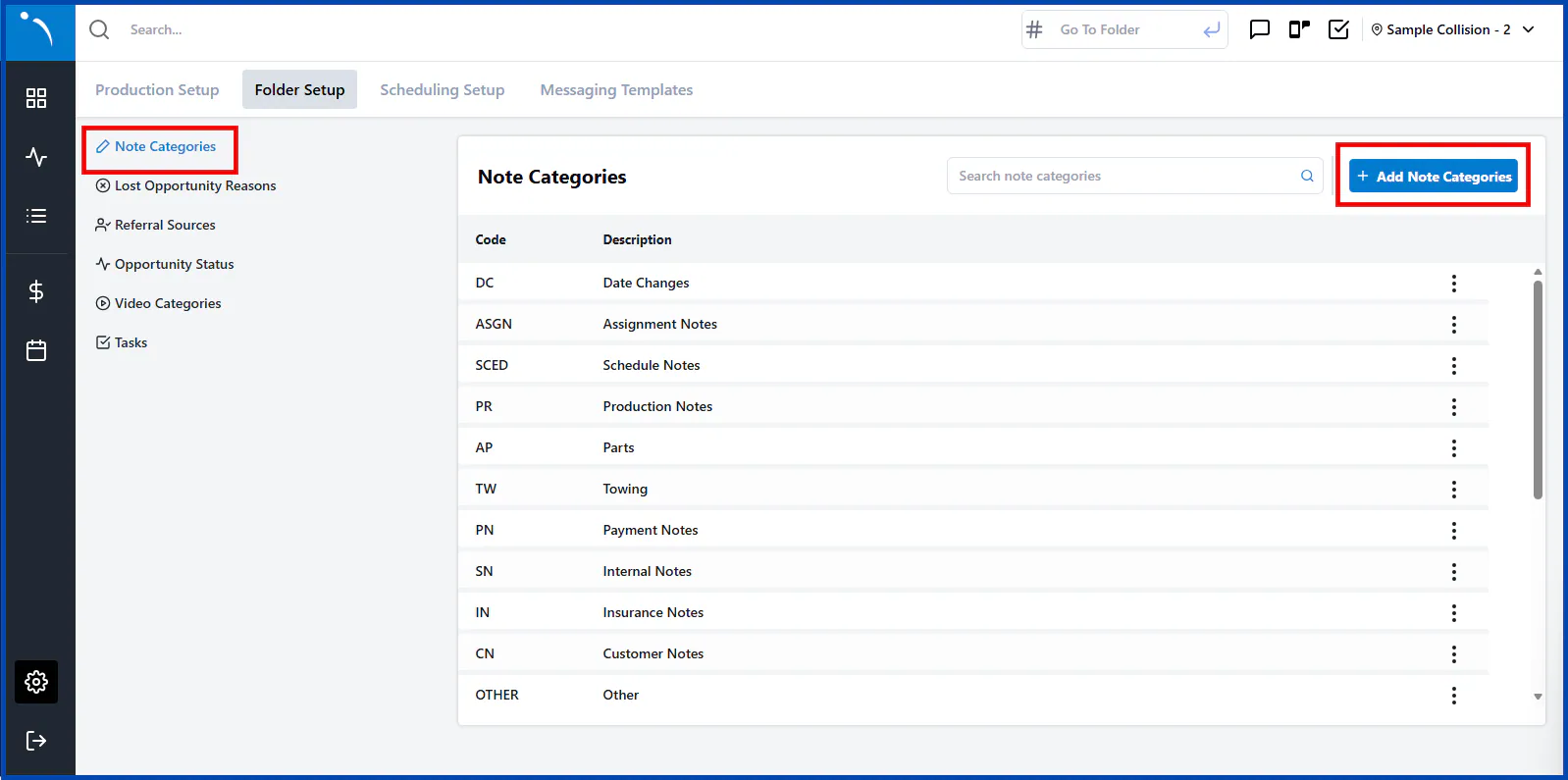
Select Note Categories on the left, then select + Add Note Categories.
-
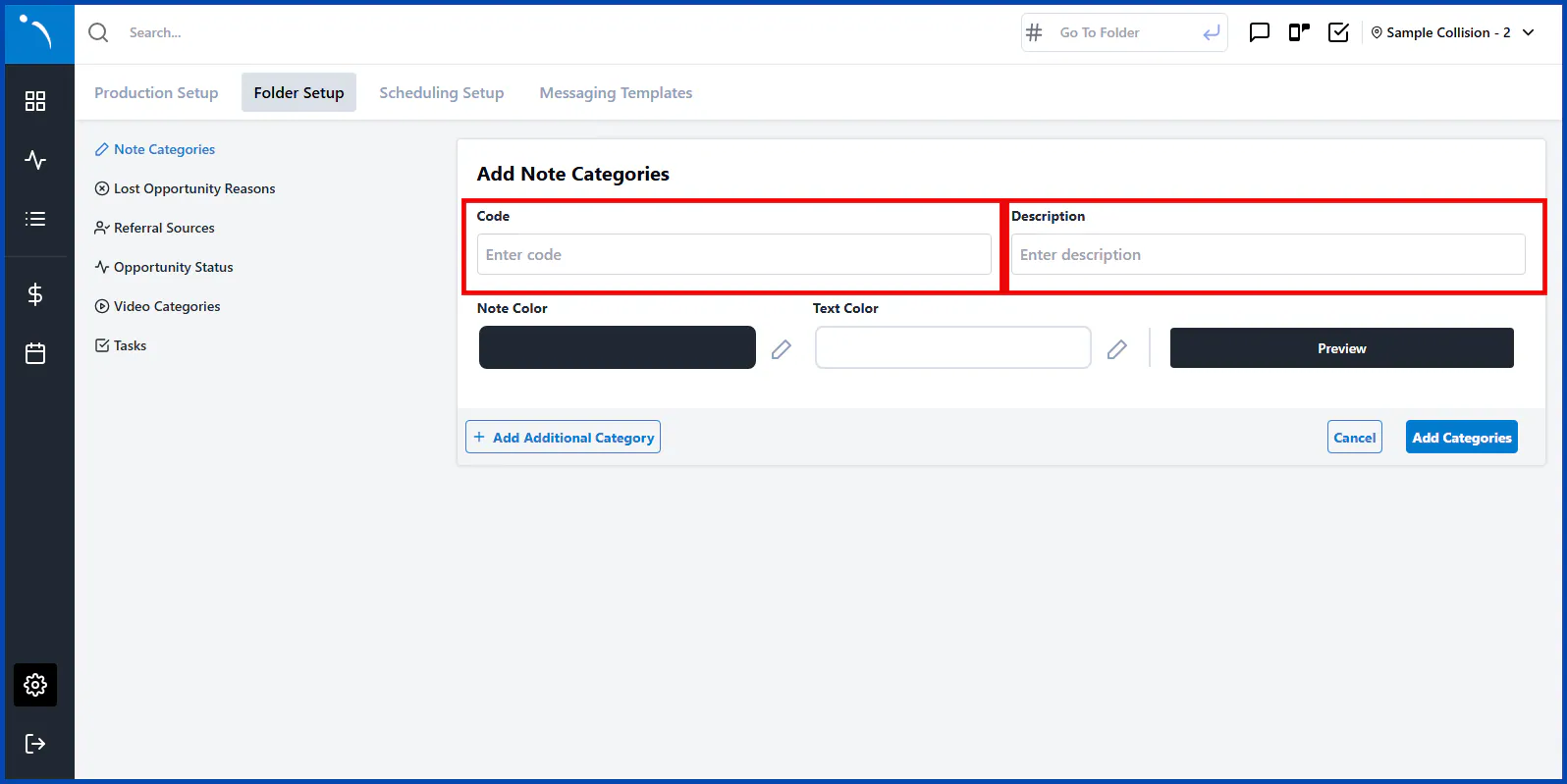
Enter a Code and a Description.
-
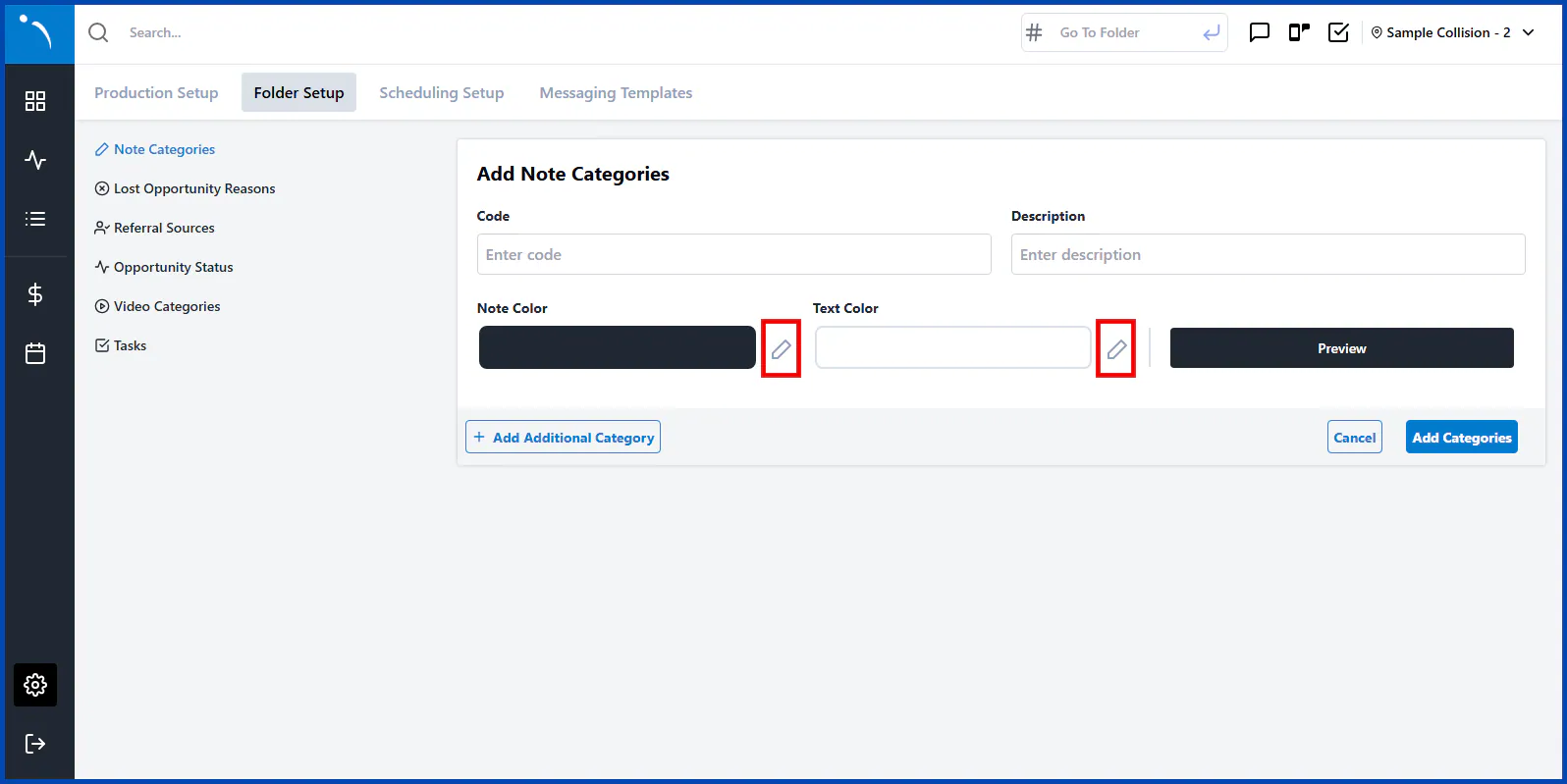
To change the note color or the text color, select the pencil next to each.
-
Select Add Categories to save. To create more categories at the same time, select + Add Additional Category first.