
Set customer web preferences
Customer web preferences control what customers see online, in the Customer Portal and when they review an e-authorization.
- Go to Setup › Company › Customer Web Preferences.
- Choose the Legal Entity.
- Choose your settings, then save.
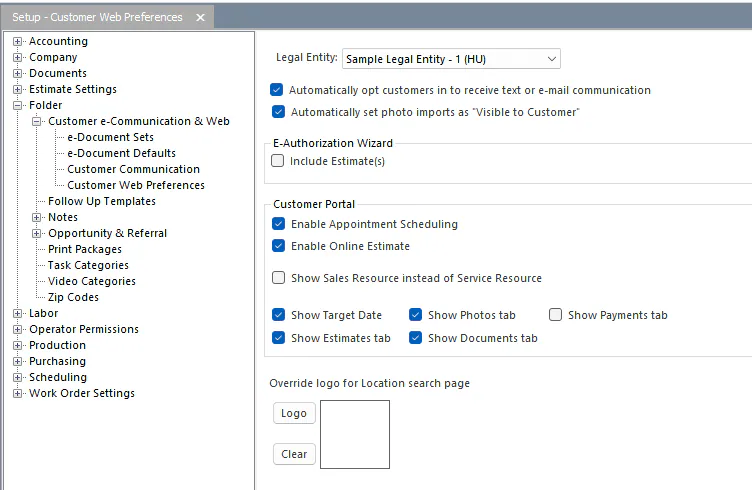
Settings
Section titled “Settings”| Setting | When it’s selected |
|---|---|
| Automatically set photo imports as “Visible to Customer” | Photos added to Nexsyis are marked Visible to Customer automatically. |
| E-Authorization Wizard › Include Estimates | If the folder has estimates, the customer sees an estimate summary page during e-authorization. |
| Customer Portal › Show Sales Resource instead of Service Resource | The folder’s sales resource shows as the portal contact. |
| Customer Portal › Show Target Date | The folder’s target date shows in the portal. |
| Customer Portal › Show Estimates tab | The folder’s estimates show in the portal. |
| Customer Portal › Show Photos tab | Photos marked Visible to Customer show in the portal. |
| Customer Portal › Show Documents tab | Documents marked Visible to Customer show in the portal. |