
Correct a duplicate charge
Sometimes a customer’s card is charged but the payment doesn’t show in the folder, so it looks like the payment didn’t go through. Use these steps to find the charge in the batch, add it to the folder, and refund it if the customer was charged twice.
When a card payment is processed, Nexsyis sends it to Global Payments, Global Payments sends back a confirmation, and the payment shows on the folder’s A/R tab. If that confirmation doesn’t arrive, the payment isn’t recorded on the folder.
1. Find the batch
Section titled “1. Find the batch”-
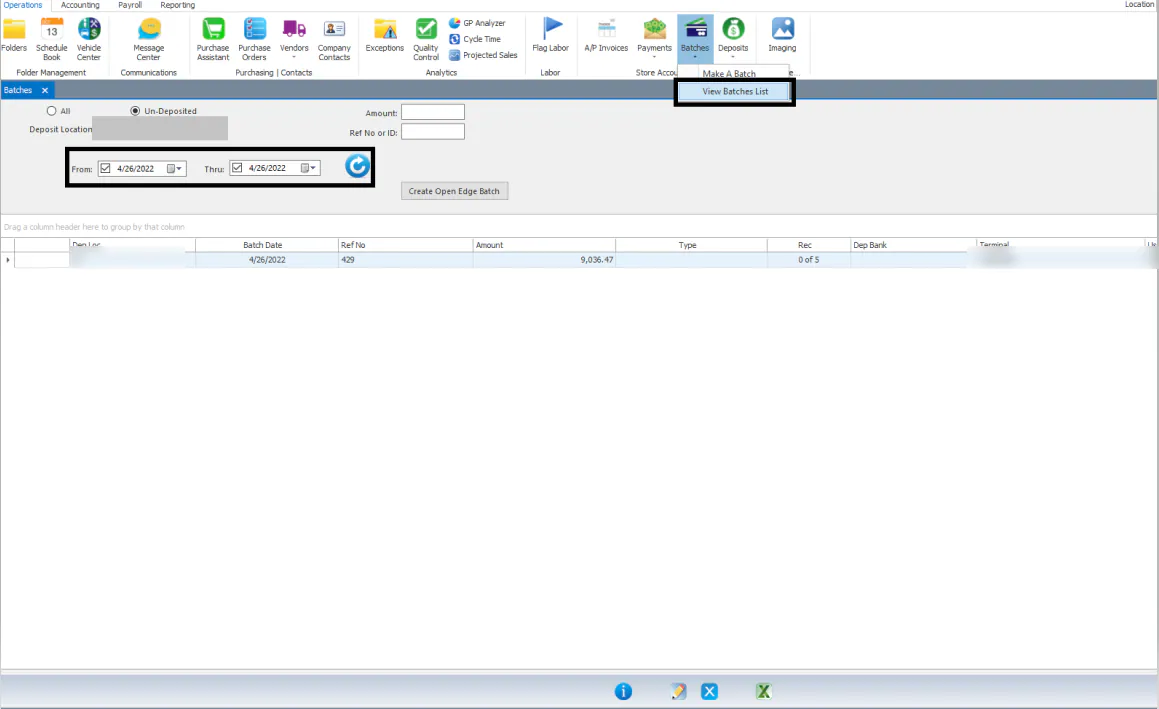
On the Operations tab, select Batches › View Batches List.
-
Set the From and Thru dates to the batch date, then select the refresh button.
2. Find the charge without an ARCheckID
Section titled “2. Find the charge without an ARCheckID”-
Select the batch, then select the i button at the bottom of the screen. The Card Processor Transactions For Batch list opens in another tab.
-
Find the line that has no ARCheckID. Look for identical amounts: in the example below, two lines are for the same amount and one of them has no ARCheckID.
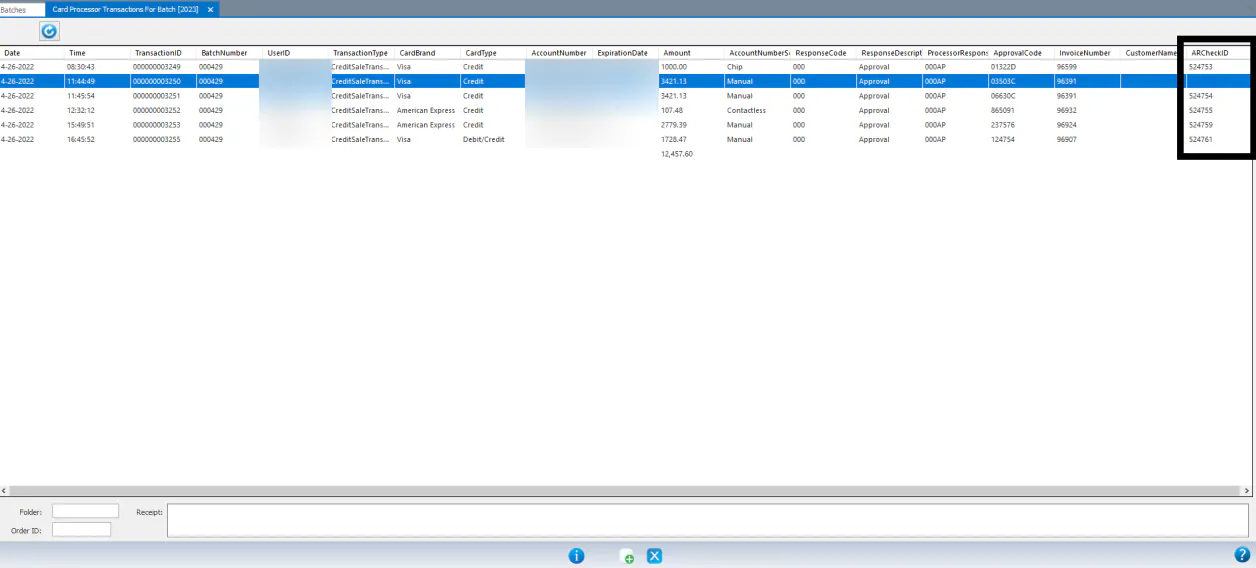
A line without an ARCheckID was charged to the card but isn’t recorded on the folder. If the customer re-ran their card, they were charged twice while the folder shows only one payment.
3. Check the folder
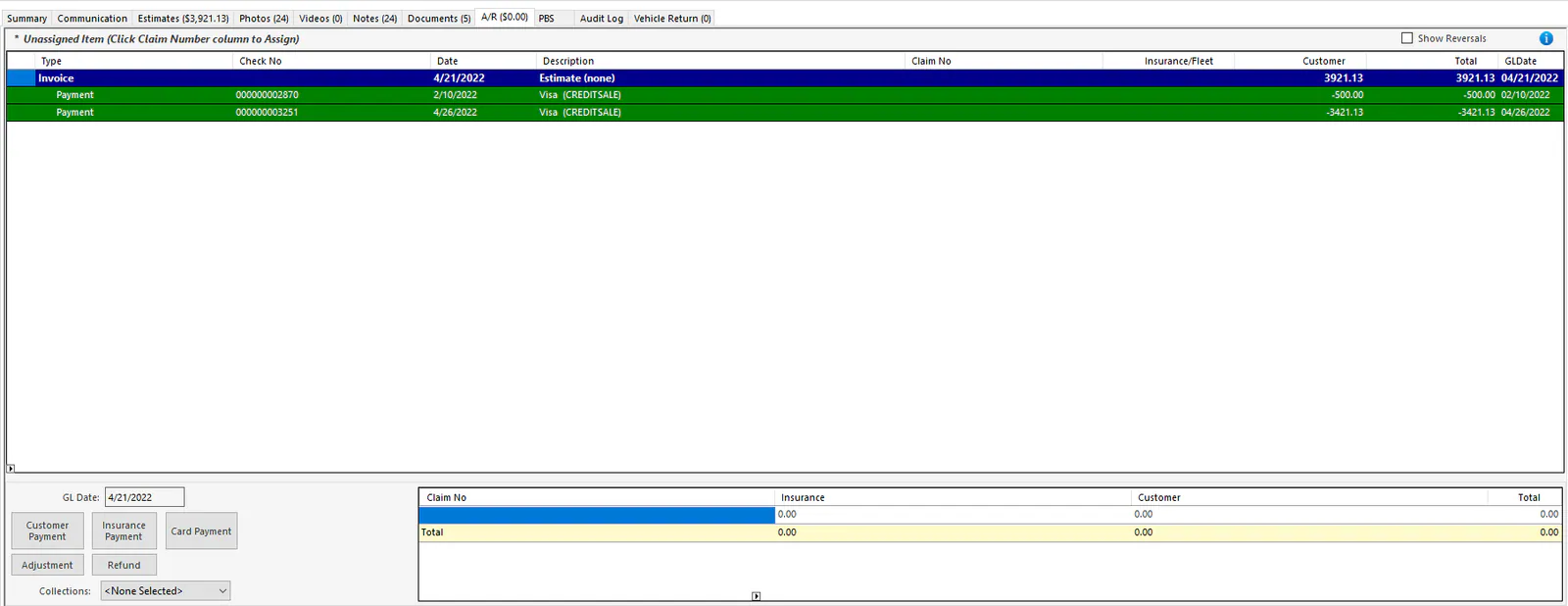
Section titled “3. Check the folder”Open the folder for that line and confirm that its A/R tab shows only one payment for the amount.
4. Add the payment to the folder
Section titled “4. Add the payment to the folder”-
Go back to the Card Processor Transactions For Batch list.
-
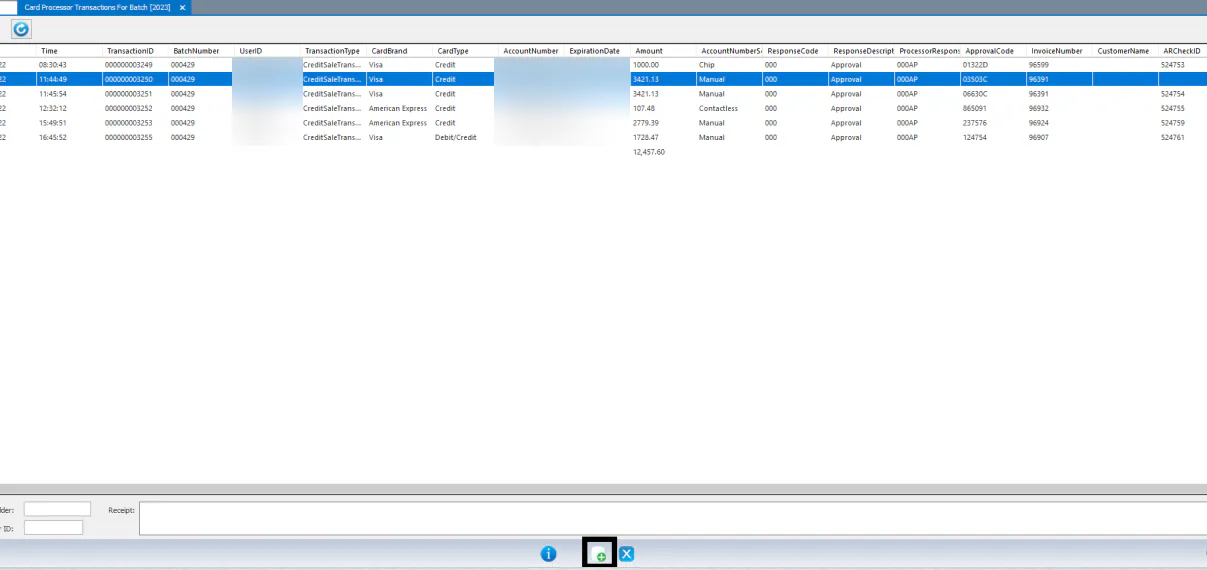
Select the line that has no ARCheckID, then select the New button at the bottom of the screen.
-
A message confirms the payment was created and shows its ID. The ARCheckID is filled in.
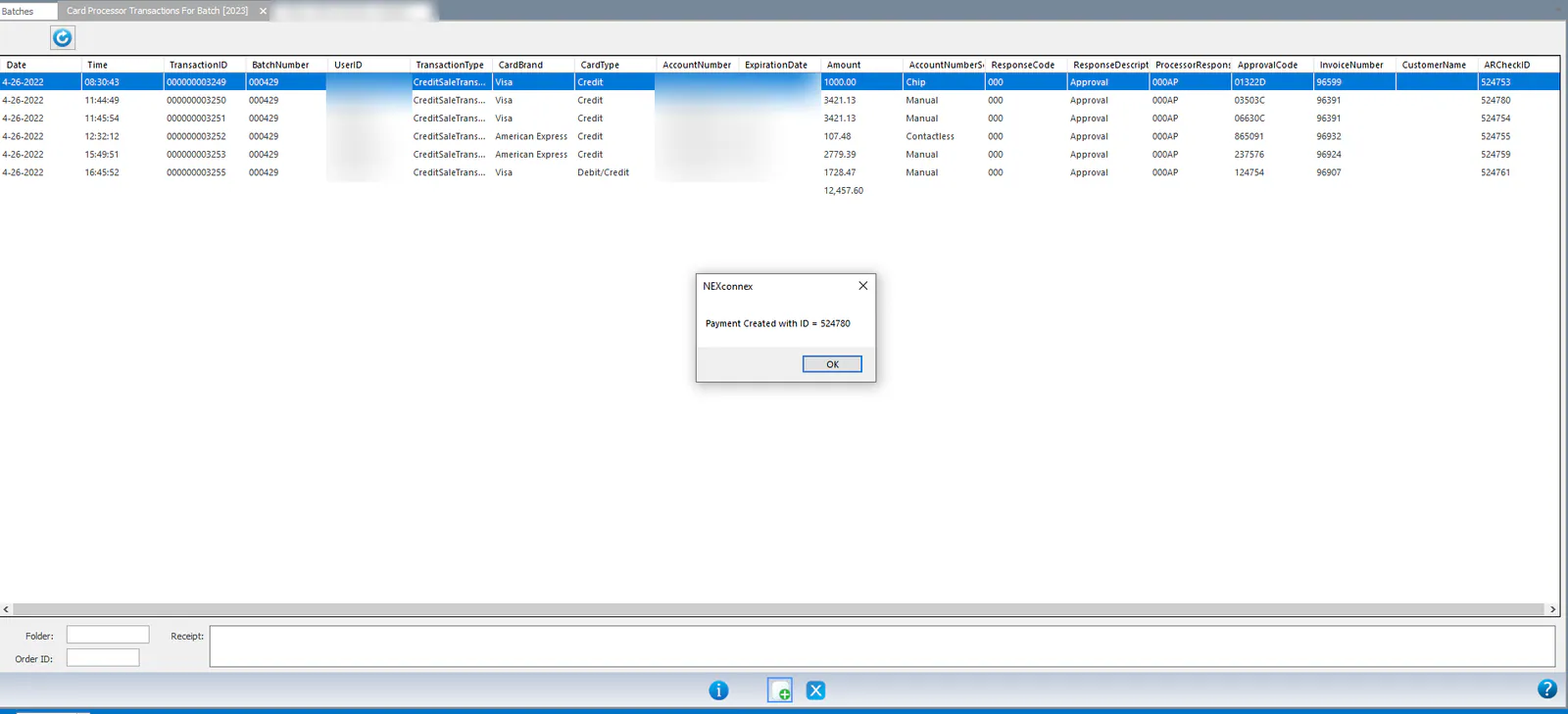
The folder now shows the second payment.

If the customer was charged twice, you can now refund the extra payment.